

How close do you think AI is to our lives? Do you think it’s all about asking deep questions from ChatGPT or waiting to see when Elon Musk releases its robots to our homes?
AI is now everywhere and involves different aspects of our lives. It exists in almost everything, and more and more companies are launching their unique version of AI.
Meta (the owner of Instagram and Facebook) is no exception and has a version called “Meta AI.” It’s a virtual assistant for Meta application users that helps them connect to a new world and opportunities.
Buy an Established Instagram Account
Skip starting from zero. Browse Instagram/TikTok accounts with audiences across many niches.
See Available AccountsThis feature may not be available to all Instagram accounts for now; however, not everyone is happy with this feature on their Instagram account and would like to turn it off.
How about you? Let me guess! If you are here, it means you want to turn off Meta AI on your account.
Well, today is your lucky day, as I am going to explain everything you need to know about Meta AI and how to turn it off on Instagram and other platforms.
What Is Meta AI?
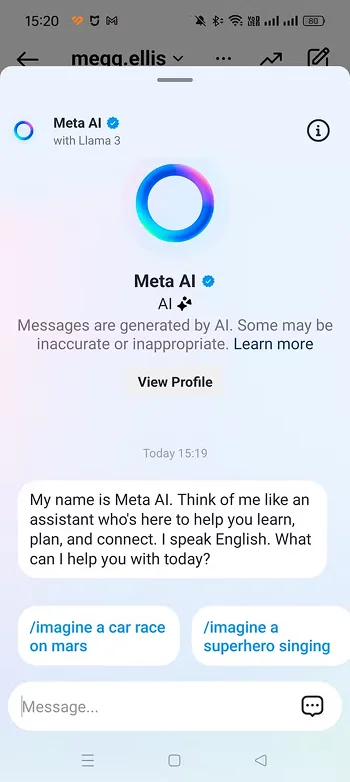
Long story short, Meta AI is a virtual assistant that helps users get straight answers to their questions on Instagram, WhatsApp, and Facebook.
It also helps them to be creative by making images or paraphrasing text messages before sending them. The good news is that Meta Ai is free to use!
You can use Meta AI to explore a whole new world on social media by bringing visions to your real life. Believe me! Once you start using this amazing feature, it will become your closest friend and ultimate assistant that supports your innovative ideas, answers your questions, and teaches you new things.
Ultimately, it doesn’t matter if you are a brand owner, influencer, content creator, or regular user on Instagram; you have a free AI tool in your pocket that is there to help you whenever you want.
What Features Does Meta AI Provide on Instagram?
If you want to turn off Meta AI on your Instagram account, you should know what features it provides before taking any action! Let’s see!
How to use Meta AI to make images on Instagram
Meta AI helps users to create images on Instagram by just explaining what picture they want. See? It’s not that bad!
Here is how you can use Meta AI to make images on Instagram:
Step 1- Open Instagram and go to your DMs.
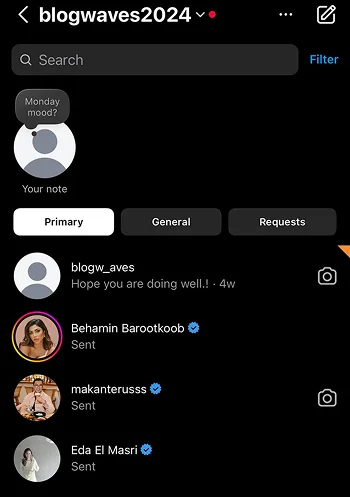
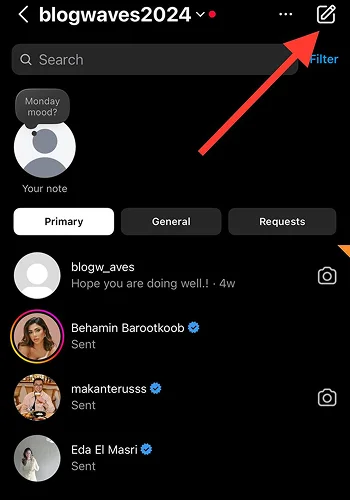
Step 2- Select a chat or tap on the “create” button to start a new conversation.
Step 3- Type Meta AI Assistant in the search bar and select it from the menu.
Step 4- Explain what image you want and send your message.
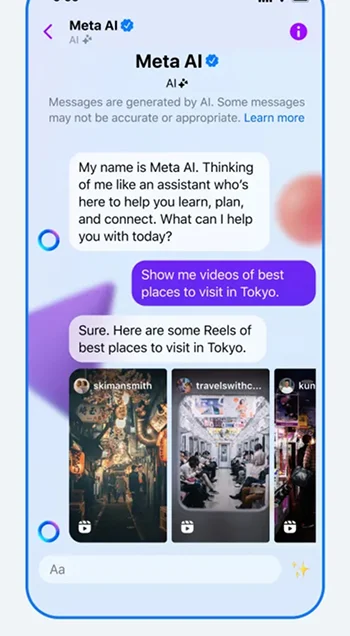
Step 5- Wait until your image is ready!
How to use Meta AI to write or paraphrase messages on Instagram
You can also use this cool feature to write or paraphrase your text messages.
Step 1- Go to your Instagram direct messages and select an ongoing conversation.
Step 2- Write your message and tap the sparkle icon next to it to make the Meta AI appear.
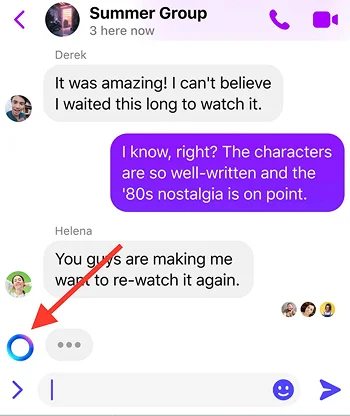
Step 3- Enter your prompt in the text box and wait for the Meta AI to generate a new message for you.
Reasons to Turn Off Meta AI on Instagram

Meta’s AI features are designed to help users safely spend time on the platform. However, some users believe these features are more annoying and harmful rather than helpful, so they decide to turn off this feature.
Here are some of the common reasons you may want to turn off Meta AI on Instagram:
Privacy concerns
Have you ever thought about how Meta AI offers exactly what you want? The answer is that Meta’s AI algorithms collect and analyze your interactions, such as likes, comments, shares, and the time you spend on specific content.
It’s a lot of data tracking, which makes some users feel uncomfortable and concerned about their privacy on the app. Turning this feature off limits the amount of personal information tracked.
Personalized experience

It may interrupt users’ personalized experiences by suggesting the same type of content or repetitive accounts over and over. Most people spend their time scrolling the Explore page on Instagram, so it’s important for them to have a well-organized feed.
By turning off Meta’s AI features, users can manage what accounts and content they see on their feeds to better use Instagram.
Too many recommendations

Meta AI is designed to be users’ virtual assistant to improve their experience on the platform; however, this cool feature can sometimes turn into a nightmare for users, because it keeps recommending things that users may find unnecessary.
One common reason that most users decide to turn off Meta AI on Instagram is due to getting too many recommendations!
Algorithmic bias
If you think AI algorithms are perfect just because they are based on patterns and data, you are wrong! On the contrary, algorithmic bias is another reason users decide to turn off Meta AI.
Sometimes, due to biases existing in data sets, the Instagram algorithm may show content that isn’t relevant to your interests. By turning off Meta AI on Instagram, you can control what you want to see on the platform.
Long story short, while this amazing feature helps you to make your Instagram experience more personalized, it’s not suitable for everyone due to privacy concerns, personal reasons, or just wanting a simple social media experience.
How to Turn Off Meta AI on Instagram
Step 1- Open Instagram on your mobile.
Step 2- Tap on the blue circle icon with an “i.”
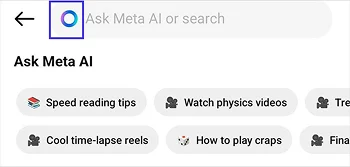
Step 3- Select the “Mute” option to limit Meta AI for a designed time.
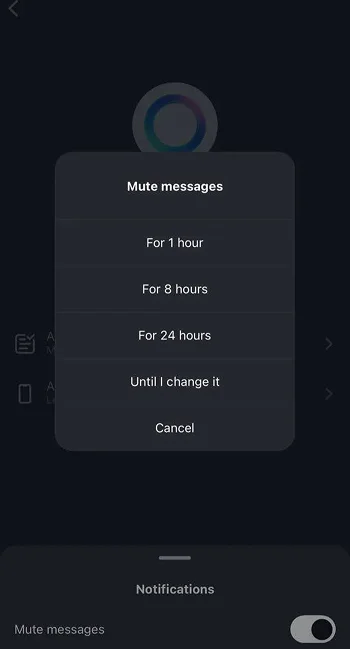
See? It’s easier than what you thought!
Turning Off Meta AI on Other Platforms
You can turn off Meta AI on all applications for the Meta company. Let’s see how to turn off this feature on Facebook and WhatsApp.
How to turn off Meta AI on Facebook
Step 1- Open Facebook on your device.
Step 2- On the home page, tap on the magnifier icon to open the search bar.
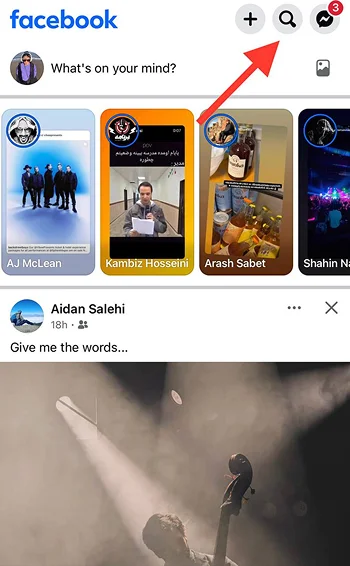
Step 3- Here, you can see the blue circle Meta AI icon, tap on it to open up the Meta AI chat.
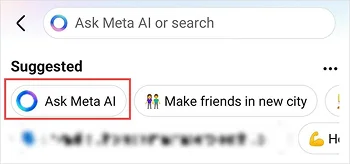
Step 4- Tap on the little blue icon in the top right corner to open the Meta AI information page.
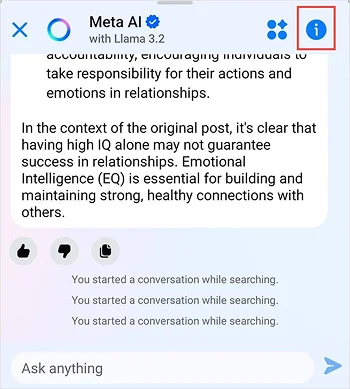
Step 5- Select the Mute icon (signed with a bell).
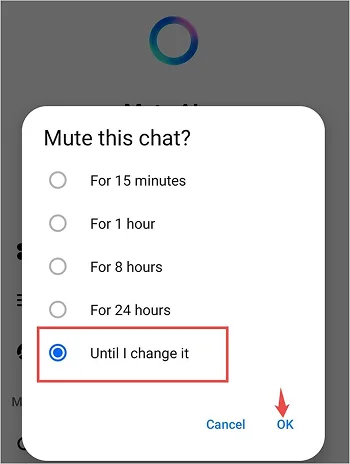
Step 6- Now, you can mute Meta AI for 15 minutes or different durations. You can select “Until I change it” if you don’t know when you want to use it again.
How to turn off Meta AI on WhatsApp
Step 1- Launch WhatsApp on your mobile.
Step 2- Go to “Settings” in the bottom right corner.
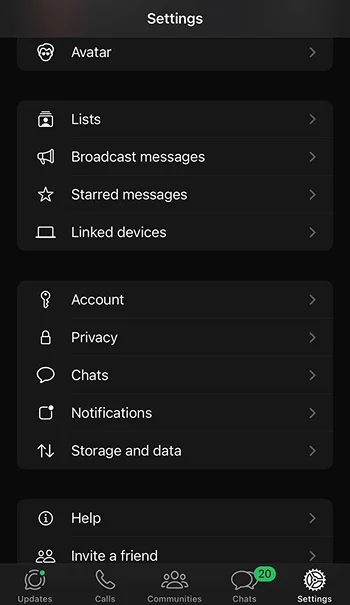
Step 3- Select “Chats” from the menu.
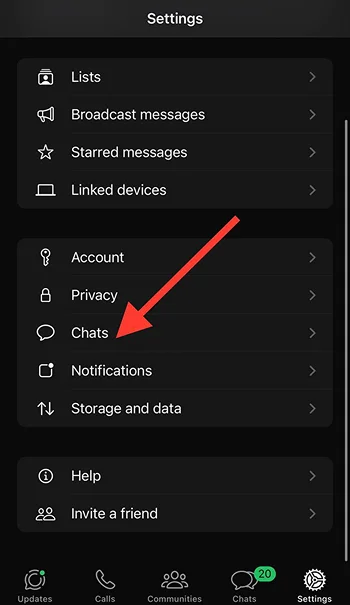
Step 4- Toggle off the “Show Meta AI button.”
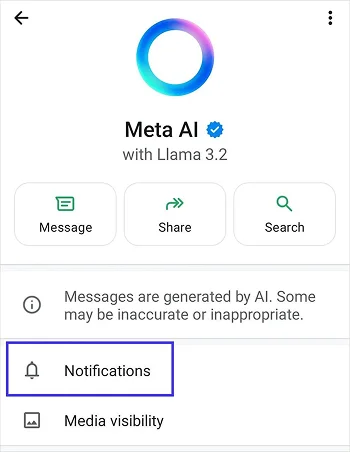
Now, the Meta AI button will no longer appear on your WhatsApp screen.
Conclusion
I remember the day that one of my friends asked me, “Is there any way to turn this stupid meta AI feature off on Instagram?” To be honest, I was surprised by his question because I used to think most users find this feature helpful, not annoying!
But it’s not true, and not all people want Meta AI to interrupt their time on the app. My guess is that you don’t like this feature either, which is why you are here!
I tried to explain every relevant aspect of Meta AI so you can make a better decision on keeping it on or off!
Hope you enjoy reading this article and find it helpful!
FAQs
Is Meta AI free?
Yes, this feature is free to use for all Android and iOS users.
How do I get Meta AI off my phone?
You can’t completely disable this feature; it is only possible to limit it.
How do I opt out of Meta AI?
Navigate to Meta AI Settings> scroll down and look for the “Meta AI” section> Submit an Opt-Out Form.
Is AI info the same as Meta AI on Instagram?
No, the AI info tag on Instagram posts shows that you used AI to create that post, while Meta AI is more like a virtual assistant on the app.
How do I disable Meta AI on Instagram?
Open Instagram> tap on the small blue icon in the search bar> select “mute.”
How do I delete Meta AI photos on Instagram?
Open your chat with Meta AI> Select imagine yourself> Toggle off the option next to “Create AI images of yourself with Meta AI”> turn off the feature and delete your photos.

Emi Daniel
Buy an Established Instagram Account
Skip starting from zero. Browse Instagram/TikTok accounts with audiences across many niches.
See Available AccountsRelated articles
-

How to Clear Instagram Cache on iPhone, Android & Desktop
Instagram can quietly build up a lot of temporary files while you scroll through Reels, watch Stories, save posts, and upload your own content. You may not…
12 min readEmi Daniel
-
How to See Who Reposted Your Instagram Post (2026 Guide)
Someone reposted your Instagram post, but you have no idea who it was. You check notifications, search through your profile, and still cannot find a clear answer. …
18 min read -
How to Reset Instagram Algorithm in 2026
Instagram can start showing too much of the same type of content. Your Explore page may no longer match your interests, Reels may feel repetitive, or suggested…
12 min read