

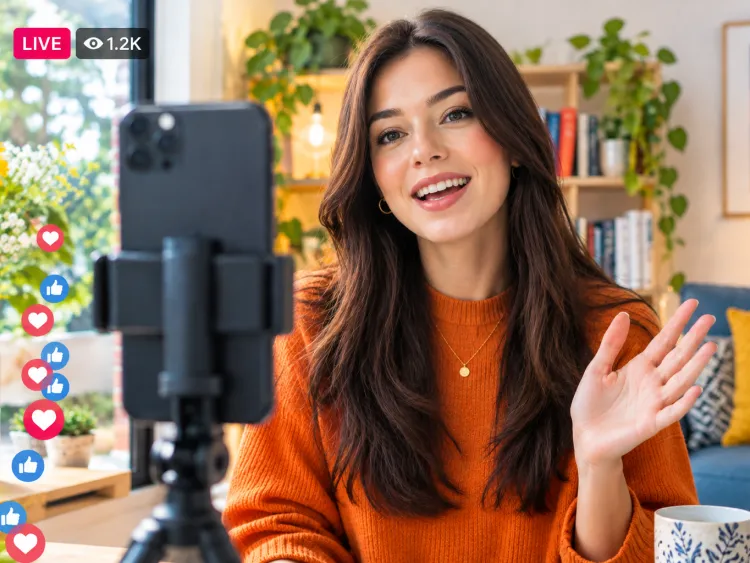
Going live can feel more stressful than posting a Reel. You cannot remove a pause, rewrite a sentence, or start over after an awkward moment. But that is also why Live works. People can ask questions, react as things happen, and connect with the person behind the account.
You do not need a studio setup or a detailed script for your first broadcast. A clear topic, stable internet connection, and a few notes are enough to get started.
Before you plan your session, check that Live is available for your account. Instagram’s eligibility requirements can change by region and account status.
Buy an Established Instagram Account
Skip starting from zero. Browse Instagram/TikTok accounts with audiences across many niches.
See Available AccountsRecent guidance from multiple Instagram Live resources says that starting a Live may require a public account with at least 1,000 followers, so check the Live option in your app before promoting a session.
How to Start an Instagram Live
Starting an Instagram Live takes only a few steps:
- Open the Instagram app.
- Tap the + button, or swipe right from the Feed to open the camera.
- Scroll through the camera modes and select Live.
- Review your available settings, including audience and title options.
- Add a title if the option is available.
- Tap the large broadcast button to begin.
- Wait for Instagram to connect, then start your Live.
Once you are live, viewers can join, react, comment, and send questions. The number of viewers appears on screen, while comments and controls sit near the bottom of the display.
Before You Go Live
A few minutes of preparation can make a Live feel much more relaxed. The goal is not to make it perfect. The goal is to avoid preventable problems.
Check Your Connection and Battery
Use a stable Wi-Fi connection whenever possible. If you are using mobile data, make sure your signal is strong and that you have enough data available for a video broadcast.
Charge your phone before starting, or keep it connected to power. A Live can drain your battery faster than a normal post or Story.
Close any apps that may be using your camera, microphone, or internet connection. If you are sharing a busy Wi-Fi network, ask others to pause large downloads or video streaming during your broadcast.
Set Up Your Camera, Lighting, and Sound
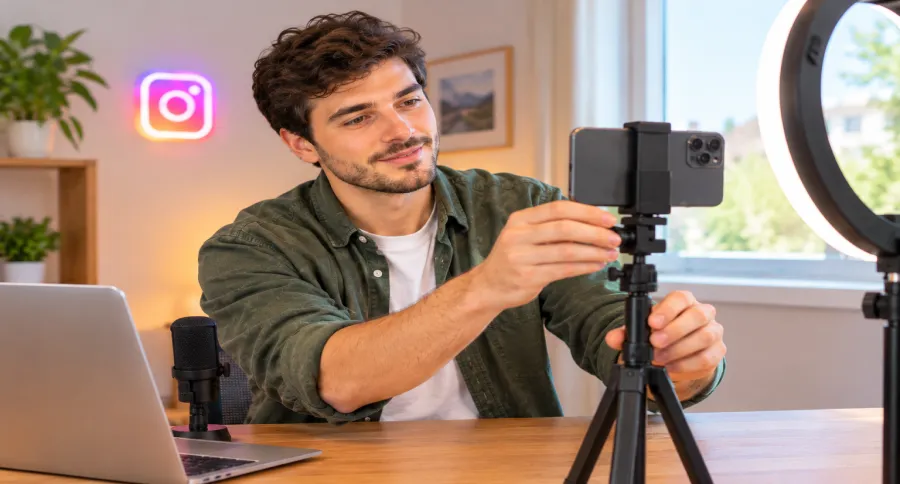
Clean your camera lens. It sounds simple, but it can make a noticeable difference.
Face a window or place a light source in front of you. Avoid standing with a bright window behind you, because it can make your face look dark. Keep the background tidy enough that viewers can focus on you and the topic.
For an informal Q&A, your phone microphone may be enough. For interviews, tutorials, or product demonstrations, headphones with a microphone can reduce background noise and echo.
If you are planning a more polished broadcast with a webcam, screen sharing, or streaming tools, it may be easier to go live on Instagram from a PC.
Pick a Topic People Will Join For
“Going live” is not a reason for people to attend. Give them a clear topic and a clear benefit.
Weak title:
Going live now!
Better titles:
- Live Q&A: Three Reel Mistakes That Reduce Reach
- Ask Me Anything: Starting a Small Business on Instagram
- Behind the Scenes: Packing Today’s Orders
- Live Market Update: What Moved Gold This Week?
- Product Launch Q&A: Your Questions Answered
A specific topic also makes it easier to promote the Live in advance.
Prepare Three Main Points
You do not need a word-for-word script. Write down three points you want to cover, plus one question you can ask the audience.
For example, a skincare creator could plan:
- The most common mistake people make when choosing a cleanser.
- How to build a simple morning routine.
- Which products are worth spending more on.
Then add a question:
“What is the one skincare problem you want help with right now?”
This gives the conversation somewhere to go if comments are slow at the beginning. Based on my experience, three short notes are usually enough. They give you a clear direction when the Live starts quietly, but still leave room for real questions and spontaneous conversation.
Run a Quick Test
If your account offers a practice or test option, use it before announcing the Live. Check the framing, lighting, microphone, and connection. If practice mode is not available, record a short video with the same setup and watch it back.
Check whether:
- Your face is clearly visible.
- Your voice is easy to hear.
- Any products, notes, or screen elements are readable.
- The phone is stable.
- Notifications are turned off.
- The background feels appropriate for the session.
Set Up Your Instagram Live
Your available settings may look slightly different depending on your device, account, region, and app version. Take a moment to check them before you tap the broadcast button.
Choose Who Can Watch
Review the audience controls before starting. For a public Q&A, launch, interview, or educational session, choose the option that allows your intended audience to join.
If Instagram offers a practice setting, use it to check your presentation before broadcasting publicly. This is especially useful when you are trying Live for the first time, testing a product demonstration, or preparing for a guest conversation.
Add a Clear Title
A title helps viewers understand why they should join. Keep it short, specific, and easy to read.
Try these formats:
- Live Q&A: [Topic]
- How to [Achieve a result]
- Behind the Scenes: [What viewers will see]
- [Number] Tips for [Audience goal]
- Ask Me Anything About [Subject]
Avoid vague titles such as “Hello” or “Come chat.” They do not tell viewers what they will get from watching.
Turn On Moderation Controls
If you expect a large audience, review your comment settings before you begin. Instagram may allow you to limit comments, filter certain words, or manage requests during the broadcast.
For a business, product launch, or high-traffic Q&A, ask a colleague to monitor comments. They can identify useful questions, remove disruptive comments, and keep the conversation focused while you speak.
Add Guests to Your Instagram Live
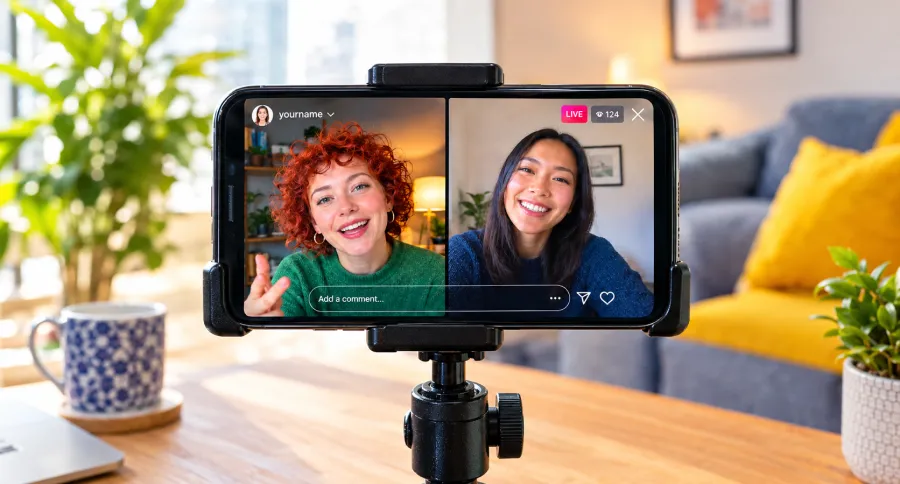
A guest can make your Live more useful and easier to promote. You can bring in a customer, colleague, expert, creator, business partner, or event speaker.
Before the session, agree on the topic, the start time, the length, and the main questions. A guest conversation works better when both people know the purpose of the Live.
Invite a Guest During the Broadcast
Once you are live, use the guest or request controls to invite someone to join. The exact icon can change with app updates, but it is usually located among the controls at the bottom of the screen.
You can invite someone directly or accept a request from a viewer, depending on the options available in your app.
Before you bring the guest on screen, introduce them to your audience:
“I’m joined by Sarah, who has worked with small businesses on content strategy for the past five years. We’re going to talk about the first three things she would fix on a new Instagram account.”
This gives viewers a reason to stay and makes the discussion feel organised.
Prepare Your Guest First
Ask your guest to:
- Update Instagram before the Live.
- Use a stable Wi-Fi connection.
- Wear headphones if possible.
- Find a quiet, well-lit place.
- Join five to ten minutes early.
- Keep a backup connection ready, such as mobile data.
- Prepare their key points and examples.
Technical problems happen. A simple backup plan helps. If your guest cannot join, continue with the main topic, answer audience questions, and reschedule the interview if needed.
What to Say During an Instagram Live
A Live does not need to be long to be useful. Twenty focused minutes can be more effective than an hour of unplanned conversation.
Use this simple structure for your first few broadcasts.
A Simple 20-Minute Plan
| Time | What to do |
| First 2 minutes | Welcome early viewers, introduce the topic, and explain what they will gain by staying |
| Minutes 3 to 5 | Share context, a personal experience, or the problem you will solve |
| Minutes 6 to 15 | Cover your three main points, demonstrate something, or speak with your guest |
| Minutes 16 to 18 | Answer questions, respond to comments, and clarify key points |
| Final 2 minutes | Summarise the main takeaway and give viewers one clear next step |
People may join late, so repeat the topic during the broadcast:
“If you have just joined, we are talking about three ways to make product videos more engaging without a large budget.”
That helps new viewers understand what is happening without interrupting the people who joined early.
Start With a Clear Welcome
Avoid spending the first few minutes saying nothing while you wait for viewers. Begin with the topic straight away. It can feel uncomfortable when only a few people are watching at first, but start the topic anyway. Viewers often join gradually, and you can repeat the main point as new people arrive.
Try:
- “Welcome. Today I’m sharing three ways to make your Reels easier to save and share.”
- “If you are running a small business, stay with me because we are covering the content mistake that costs many accounts reach.”
- “I’ll be answering your questions about [topic], and I have three practical points to start with.”
- “Comment where you are watching from, then tell me what you struggle with most when it comes to [topic].”
Early comments can help you understand what viewers want from the session.
Keep the Conversation Moving
Live video feels more natural when it has a rhythm. Move between teaching, asking, showing, and responding.
You can:
- Demonstrate a product or process.
- Share a short story.
- Answer one question at a time.
- Ask viewers to vote between two options.
- Read a comment aloud before answering it.
- Invite a guest to share an example.
- Show a before-and-after result.
- Summarise after each main point.
If comments are quiet, do not panic. Use your prepared points, then ask a direct question:
“Would you rather see a detailed tutorial on this or a quick checklist you can save?”
End With One Clear Next Step
Do not end suddenly after the last question. Give viewers a simple action.
For example:
- “Save the replay if you want to revisit these steps.”
- “Send this Live to someone who is working on their first Instagram strategy.”
- “Follow the account because I’ll share part two next week.”
- “Comment your biggest question below, and I’ll cover it in the next Live.”
- “Check the link in bio for the full checklist.”
Choose one action. Asking viewers to follow, comment, share, buy, sign up, and send a message all at once can weaken the ending.
Get More People to Join Your Live
A Live can be valuable even with a small audience. Still, promotion gives followers a reason to show up instead of discovering the replay later.
Announce the Live Early
For a planned broadcast, tell people about it at least a few days in advance. Share:
- The topic.
- The date and time.
- The time zone.
- Who will appear.
- What viewers will take away.
- Whether you will answer questions.
- Whether a replay will be available.
Use a short Reel, Feed post, and Stories if the topic matters to your audience. Each format reaches people in a different way.
Use Stories to Build Interest
Stories work well because they let you collect questions before the Live starts.
Use:
- A countdown sticker.
- A question sticker.
- A poll.
- A short video explaining the topic.
- A reminder on the day of the Live.
- A behind-the-scenes clip while you prepare.
A question sticker gives you content before you even begin. You can open the Live by answering the most common question you received.
Give People a Reason to Attend
A good topic is specific. A better topic makes the benefit obvious.
Instead of:
Live Q&A
Try:
Live Q&A: How to Plan a Week of Instagram Content in 30 Minutes
Instead of:
Product launch
Try:
First Look: See the New Collection Before It Goes Live
Instead of:
Talking about investing
Try:
Live Market Update: What This Week’s Inflation Data Could Mean for Gold
Viewers should know what they will get in return for their time.
Start on Time
If you announce a time, be there at that time. Reliability makes people more likely to join your next broadcast.
You can start with a short introduction while people enter, but do not delay the main topic for too long. People who arrive on time should feel that it was worth it.
Use Instagram Live Features Well
Instagram Live has tools that can make a session easier to follow. Use them only when they help the audience.
Pin a Useful Comment
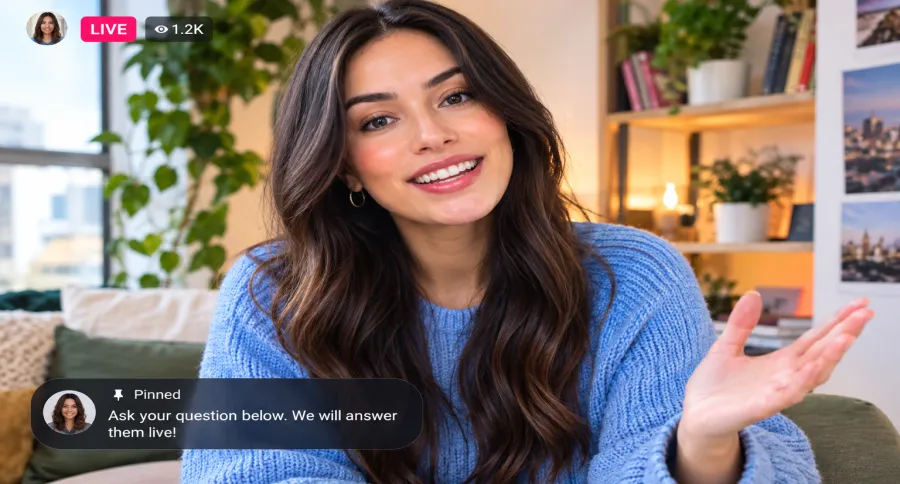
Pin a comment that tells viewers what the Live is about or gives them a simple action.
Examples:
- “Today: Three ways to improve Reel watch time.”
- “Ask your question below. We will answer them live.”
- “The replay will be saved after the session.”
- “Download the checklist through the link in bio.”
A pinned comment is useful for people who join after the introduction.
Manage Questions and Comments
Read useful questions aloud before answering them. This helps everyone understand the context.
For example:
“Maria asks if a small account should post Reels every day. My answer is no. A consistent schedule matters, but the content idea matters more than posting just to fill a calendar.”
If the comments move quickly, ask a moderator to collect the best questions. If you are alone, choose a few relevant ones instead of trying to answer everything.
Use Filters and Effects Carefully
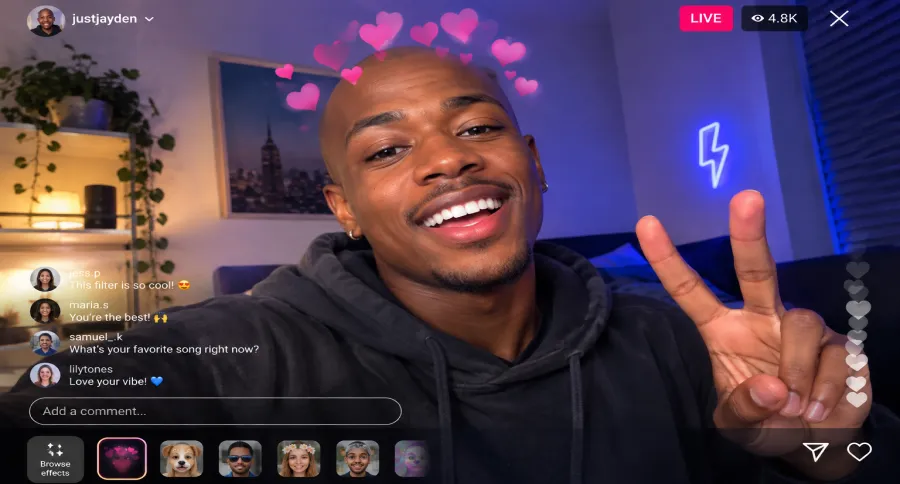
Filters can improve a casual setup, but they should not distract from the session. Good lighting, clean sound, and a clear message matter more.
Use effects when they match the content, such as a beauty tutorial or a fun behind-the-scenes Live. Skip them for serious discussions, interviews, or business updates unless they add something useful.
Moderate When Needed
Set boundaries early if your Live covers a sensitive topic or attracts a large audience. Do not feel pressured to respond to every comment.
Remove disruptive viewers, filter inappropriate words where possible, and focus on people who are participating in good faith.
End, Save, and Share Your Instagram Live
The Live does not have to end when you tap the finish button. A useful replay can continue bringing value after the broadcast.
When you are ready to finish, use the end controls in the app. Instagram may then give you options to share the replay, save it, download it, or delete it. Review those choices before leaving the final screen.
Save the Replay
Save a copy of the Live if you may want to reuse it. You can also download Instagram Live videos to keep a local copy for editing, repurposing, or sharing on other platforms.
Comments, likes, and viewer interactions may not appear in the saved video, so record any useful audience questions separately if you plan to turn them into future content.
If the conversation includes evergreen advice, a product walkthrough, or a guest interview, sharing the replay can help people who could not attend live.
Share the Replay With Context
Do not simply post the replay and move on. Write a short caption that tells people why it is worth watching.
Example:
Missed the Live? We covered three ways to make educational Reels easier to save, plus answered questions about captions, hooks, and content planning. Watch the replay and save it for your next planning session.
Add a Story that points viewers to the replay. You can also place the most useful recordings in a relevant Highlight.
Turn One Live Into More Content
A Live can take time to prepare, so make the most of it after it ends. The questions people ask during a Live are often more useful than the ones you planned for. If the same question comes up more than once, it is usually worth turning into its own Reel, carousel, or follow-up Live.
| Moment from the Live | Turn it into |
| Your strongest opening point | A short Reel with a clear hook |
| A useful audience question | A Q&A Reel or carousel |
| A step-by-step explanation | A saveable carousel |
| A guest’s best insight | A quote post or short video clip |
| A product demonstration | A product-focused Reel |
| A repeated question | An FAQ Story Highlight |
| The full broadcast | A replay on Instagram or a longer video resource |
For example, if a viewer asks, “How often should I post Reels?” during a Live, turn your answer into a short video:
“You do not need to post every day. Start with a schedule you can maintain, then review which topics earn the most saves, shares, and profile visits.”
That one question can become a Reel, a carousel, a Story poll, and the topic of your next Live.
Common Instagram Live Problems
Technical issues can happen even with preparation. Keep the solution simple and work through one possible cause at a time.
I Cannot Find the Live Option
First, update Instagram and restart the app.
Then check:
- Whether your account is public.
- Whether you meet any follower or eligibility requirements shown inside Instagram.
- Whether your account has warnings, restrictions, or policy notices.
- Whether Live is available in your country or region.
- Whether camera and microphone permissions are enabled.
- Whether you are using the latest version of the app.
Instagram Live access can depend on account eligibility, account standing, location, and current platform rules. Several current guides report that Instagram requires a public account with at least 1,000 followers to start a Live, but you should always check the Live screen and Instagram’s current Help Centre guidance because platform requirements can change.
My Instagram Live Will Not Start
Check your Wi-Fi or mobile-data connection first. Then try these steps:
- Move closer to your Wi-Fi router.
- Turn off a VPN if it is affecting your connection.
- Close other apps using the camera or internet.
- Pause large downloads and uploads.
- Restart the Instagram app.
- Restart your phone.
- Switch between Wi-Fi and mobile data.
If the problem continues, wait a few minutes and try again. Platform outages can also affect Live features.
My Video or Audio Is Poor
For poor video, improve your light and check your connection. Face a window or place a soft light in front of you. Avoid dark rooms and strong backlighting.
For poor audio:
- Move away from loud background noise.
- Use headphones with a microphone.
- Ask guests to wear headphones to prevent echo.
- Keep the phone close enough for your voice to be clear.
- Turn off fans, music, or other sound sources near you.
My Guest Cannot Join
Ask your guest to update Instagram, restart the app, and check their connection.
Then:
- Remove the invitation and send it again.
- Ask them to leave the Live and rejoin.
- Try switching from Wi-Fi to mobile data, or the other way around.
- Continue solo while they troubleshoot.
- Keep a backup plan, such as rescheduling the guest segment or using their pre-recorded answer in a future Reel.
A technical issue does not have to ruin the session. Tell viewers what is happening, continue with your prepared points, and return to the guest if the connection improves.
Measure Whether Your Live Worked
Do not judge a Live only by the number of people watching at one time.
A smaller session with relevant questions, strong replay views, profile visits, and enquiries can be more valuable than a large broadcast with little interaction.
Review:
- Peak live viewers.
- Total viewers.
- Comments and questions.
- Shares.
- Profile visits.
- New followers.
- Replay views.
- Link clicks.
- Enquiries, sign-ups, or sales connected to the topic.
- Which questions created the most discussion.
After each Live, write down three things:
- What people responded to most.
- What question came up repeatedly.
- What you would change next time.
This turns each session into useful feedback instead of a one-time event.
Final Thoughts
Your first Instagram Live may feel a little awkward, and that is completely normal. You may lose your place, wait for people to join, or answer a question you did not expect. None of that means the Live was unsuccessful. Each session shows you what your audience wants to talk about and helps you feel more comfortable on camera.
Start with a topic you already know well. Write down a few points, invite viewers to ask questions, and focus on having a useful conversation rather than delivering a perfect performance. A small group that asks real questions can be more valuable than a large audience that stays silent.
When the Live ends, the content does not have to disappear with it. Save the replay, note the questions that came up most often, and turn the strongest moments into Reels, Stories, or a carousel. Over time, those small improvements can turn Instagram Live into a regular part of your content strategy.
Frequently Asked Questions
Can anyone go live on Instagram?
Instagram Live availability can depend on your account’s status, privacy setting, follower count, region, and Instagram’s current eligibility rules. Check whether the Live option appears in your app before announcing a broadcast. Current third-party guidance widely reports that a public account with at least 1,000 followers is required, but confirm this in Instagram’s own Help Centre because platform rules can change.
Can you schedule an Instagram Live?
Scheduling options can vary by account and app version. If scheduling is available, set the date and time in advance and promote it through Stories, Reels, a countdown sticker, and a Feed post. If it is not available, you can still announce the time manually and use a countdown sticker as a reminder.
Can you invite someone to your Instagram Live?
Yes. If guest tools are available on your account, you can invite someone during the Live or accept a request from a viewer. Plan the topic and test the guest’s connection before the broadcast for a smoother conversation.
Can you save an Instagram Live after it ends?
Instagram may offer options to share, download, save, or delete a Live after you end the broadcast. Once the replay is available, viewers can rewatch Instagram Live videos whenever they want to revisit the discussion. Review the available options straight away, and save a copy if you plan to repurpose the content.

Emi Daniel
Buy an Established Instagram Account
Skip starting from zero. Browse Instagram/TikTok accounts with audiences across many niches.
See Available AccountsRelated articles
-
Instagram Instants Feature: What It Is, How It Works, and How to Turn It Off
The first time I opened Instagram Instants, I almost backed out. I had taken a normal photo. Nothing worth editing. Nothing worth posting. Nothing that needed an…
11 min readEmi Daniel
-
How to Clear Instagram Cache on iPhone, Android & Desktop
Instagram can quietly build up a lot of temporary files while you scroll through Reels, watch Stories, save posts, and upload your own content. You may not…
12 min read -
How to See Who Reposted Your Instagram Post (2026 Guide)
Someone reposted your Instagram post, but you have no idea who it was. You check notifications, search through your profile, and still cannot find a clear answer. …
18 min read