


Did you know that almost 80% of Instagram users use the platform only to communicate with others through direct messaging?
Instagram is no longer just a platform to share cute pictures of your holiday! It is now a great place to communicate with your friends, family, and even brands, all in a more friendly setting.
Why did I mention ‘chatting in a “friendly” setting?’ Well, it’s because Instagram allows users to go beyond default chat themes and personalize their experiences!
Buy an Established Instagram Account
Skip starting from zero. Browse Instagram/TikTok accounts with audiences across many niches.
See Available AccountsYou now have access to various themes for your DMs, from cute chat backgrounds to Pride and Halloween vibes!
I think I just tickled you to start changing your Instagram DM themes to have better conversations with your friends and followers, right?
Oh, you don’t know how to change the themes? Don’t worry. I’ve got you covered! I will walk you through everything you need to know about changing and troubleshooting themes on Instagram DMs.
What Are Themes on Instagram Direct Messages
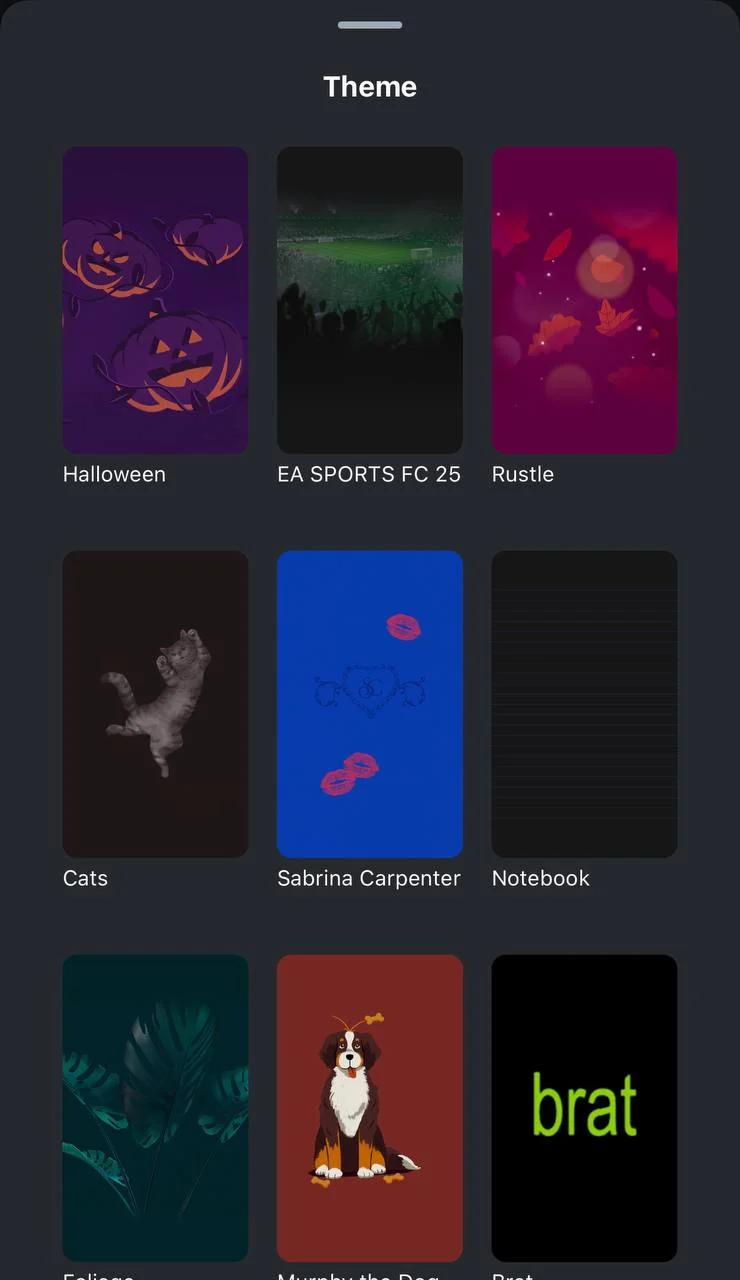
Themes on Instagram are customized chat backgrounds selected by users to personalize their messaging experience through Instagram DMs.
Instagram DM themes include different colors, images, patterns, and designs. One good thing about this feature is that the app offers specific themes for special occasions.
For example, as we get closer to Halloween, you can find a very cut theme for Halloween.
So, when is a better time than now to change the theme of your chat with your friends and be the first one to announce that they should start making their costumes ready?!
How to Change Themes on Your Instagram DMs
Wondering how to change themes on your Instagram DMs? Don’t worry! I’m here to explain it in simple steps!
Step 1- Open Instagram and go to the DM section. You can swipe the screen to the left or tap on the paper plane icon in the top right corner of the screen.
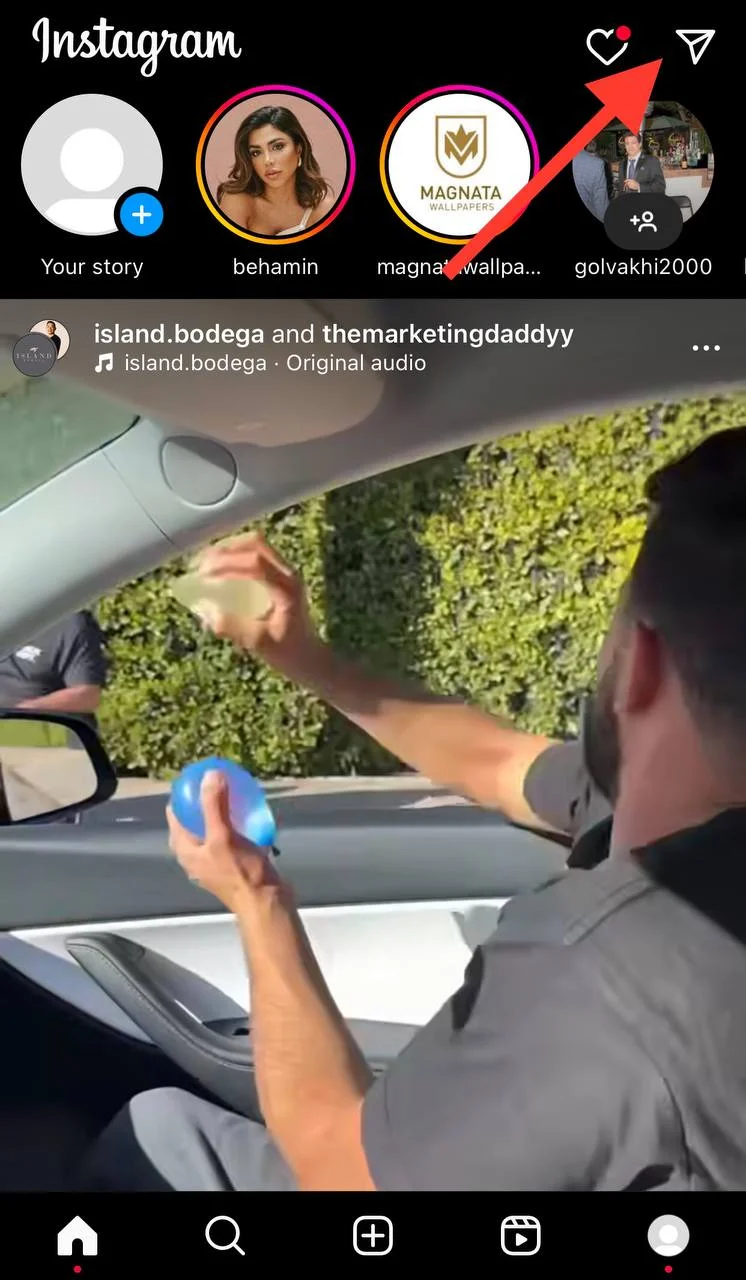
Step 2- Choose the conversation in which you want to change the theme.
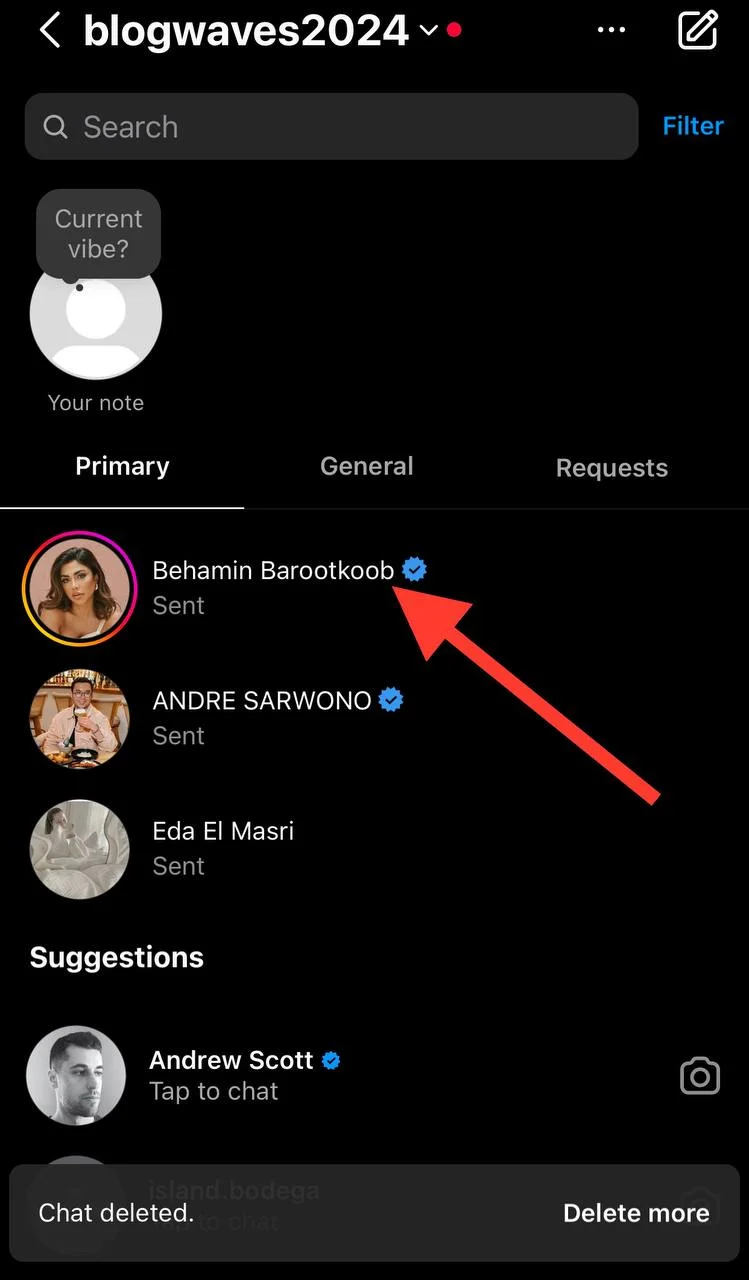
Step 3- Tap on the name of the user.
Step 4- Here, select “Theme” from the menu.
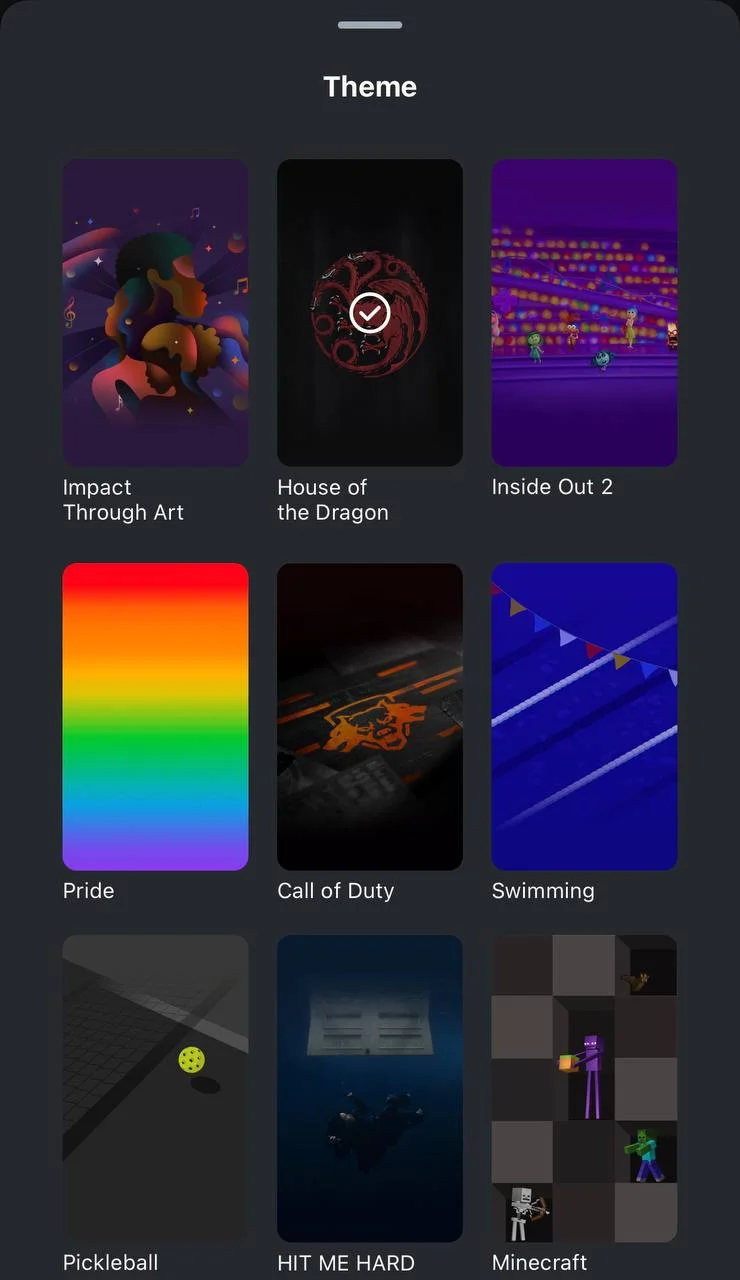
Step 5- Choose the desired theme for the chat. You can see how each theme changes the background and color of the chat screen.
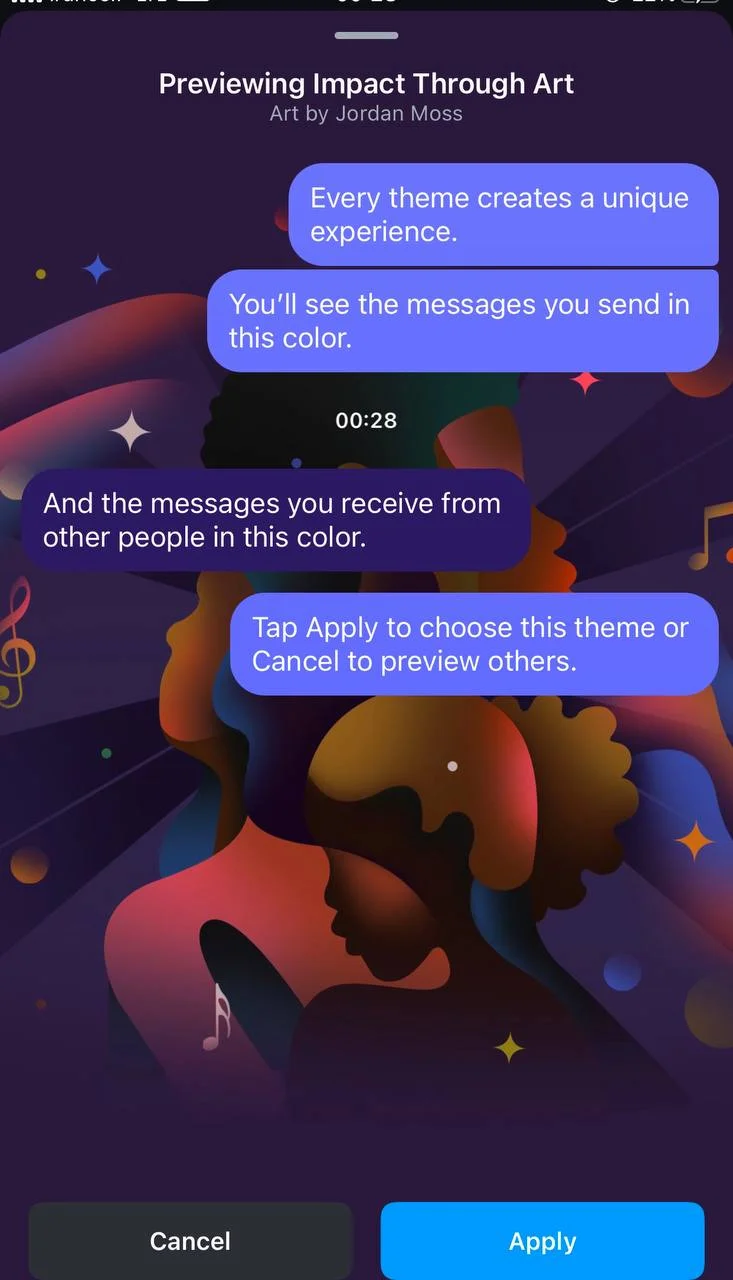
Step 6- Once you pick your favorite theme, tap the “Apply” button to finish the process.

How to Get the Default Theme on Instagram Chats
Interesting question! What if you change your mind and want the default theme for your chats? Well, that’s easy; just follow the steps below and you are all done.
Step 1- Open Instagram and select the chat you want to have the default theme.
Step 2- Tap on their username.
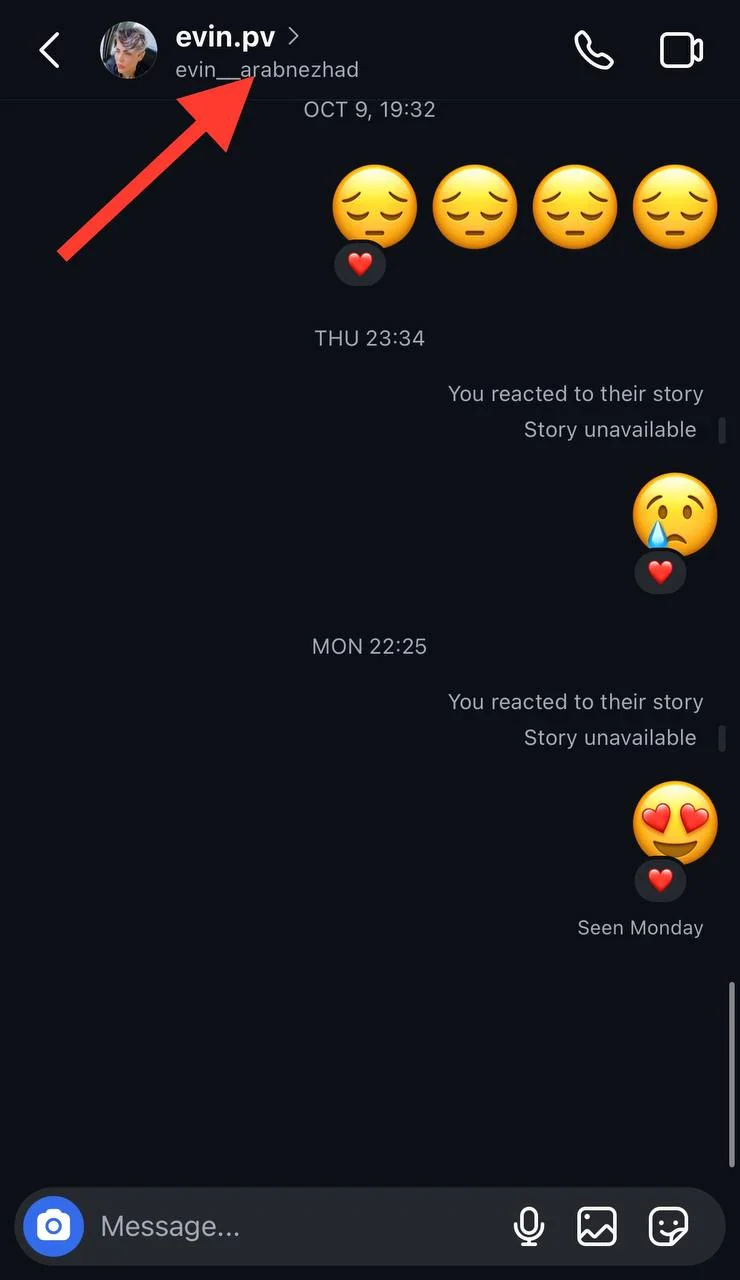
Step 3- Select “Theme.”
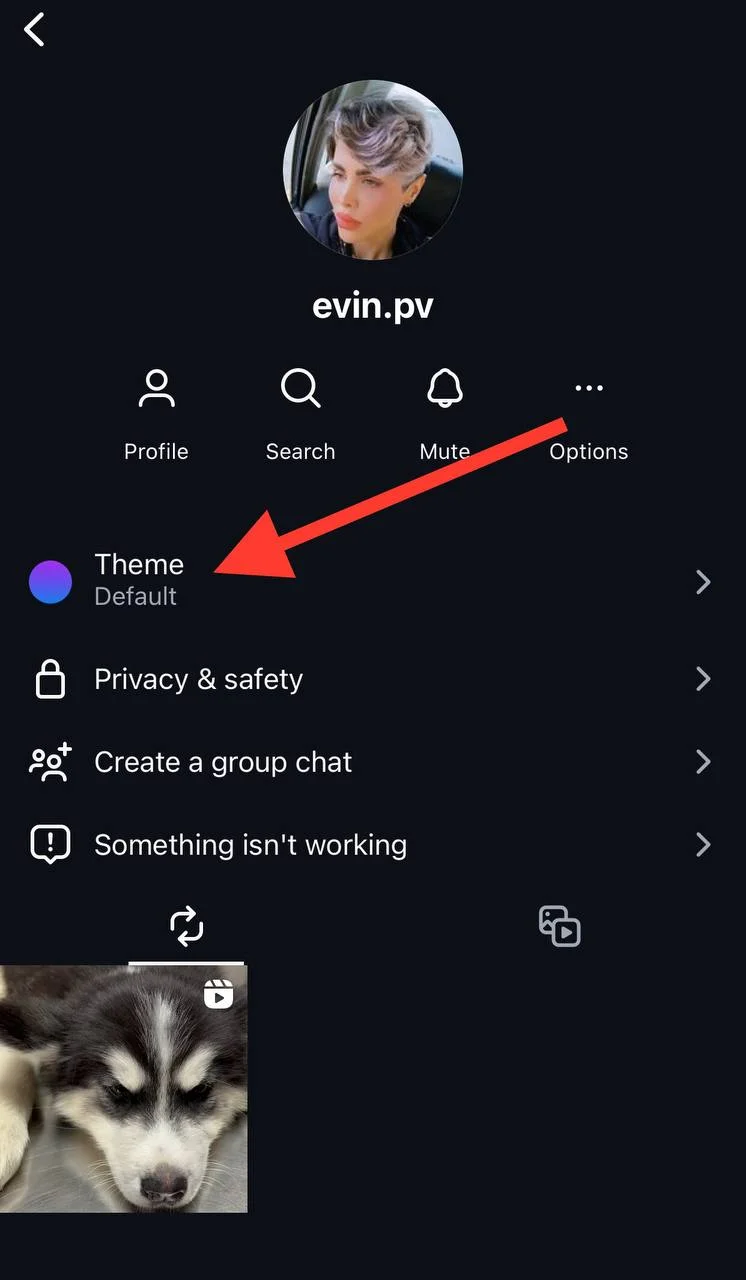
Step 4- Scroll the theme menu and choose “Default.”
Step 5- Tap “Apply,” and that’s all it takes to restore the default theme to your Instagram direct message.

Why I Can’t Change My Instagram DM Themes
There are various reasons why you may be unable to change your Instagram direct message themes; let’s look at the most common ones and how to fix them.
Update Instagram to the latest version
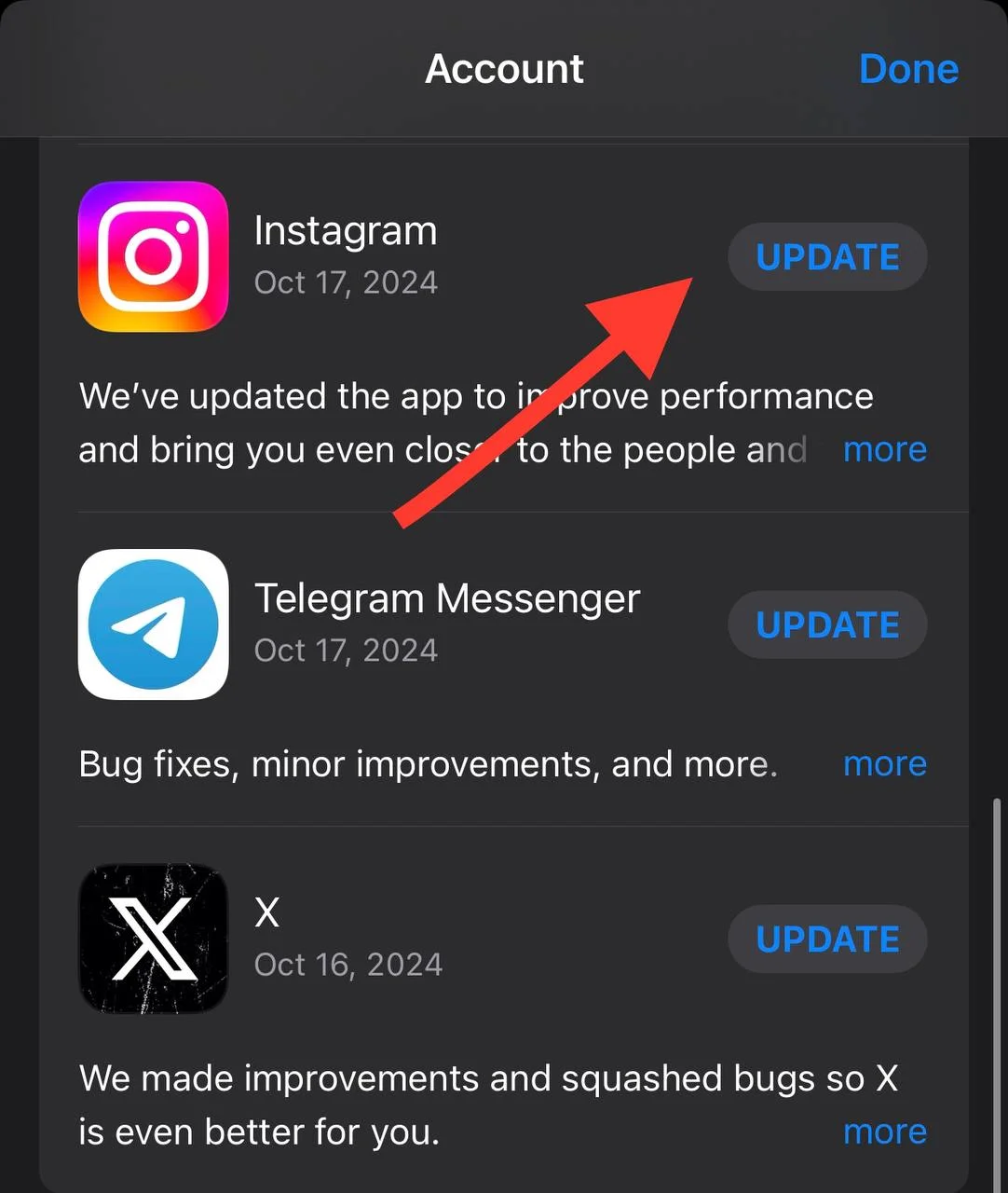
If you are using the old version of Instagram, you can’t use this feature, so the best thing you can do is update Instagram to its latest version.
Visit the Google Play Store or App Store to see if you need to update Instagram or not.
Clear Instagram cache
This method is mainly available for Android users; iOS users can not clear the app’s cache directly. They have to delete and reinstall the app instead.
Lucky you if you have an Android device! This is how to clear your Instagram cache on your mobile:
Step 1- Go to the settings section on your mobile.
Step 2- Scroll through the menu to find “App,” tap on it.
Step 3- Choose the “Manage apps” option, find Instagram, and select it.
Step 4- Now, tap on “Clear data” to finish the process.
Log out and log in
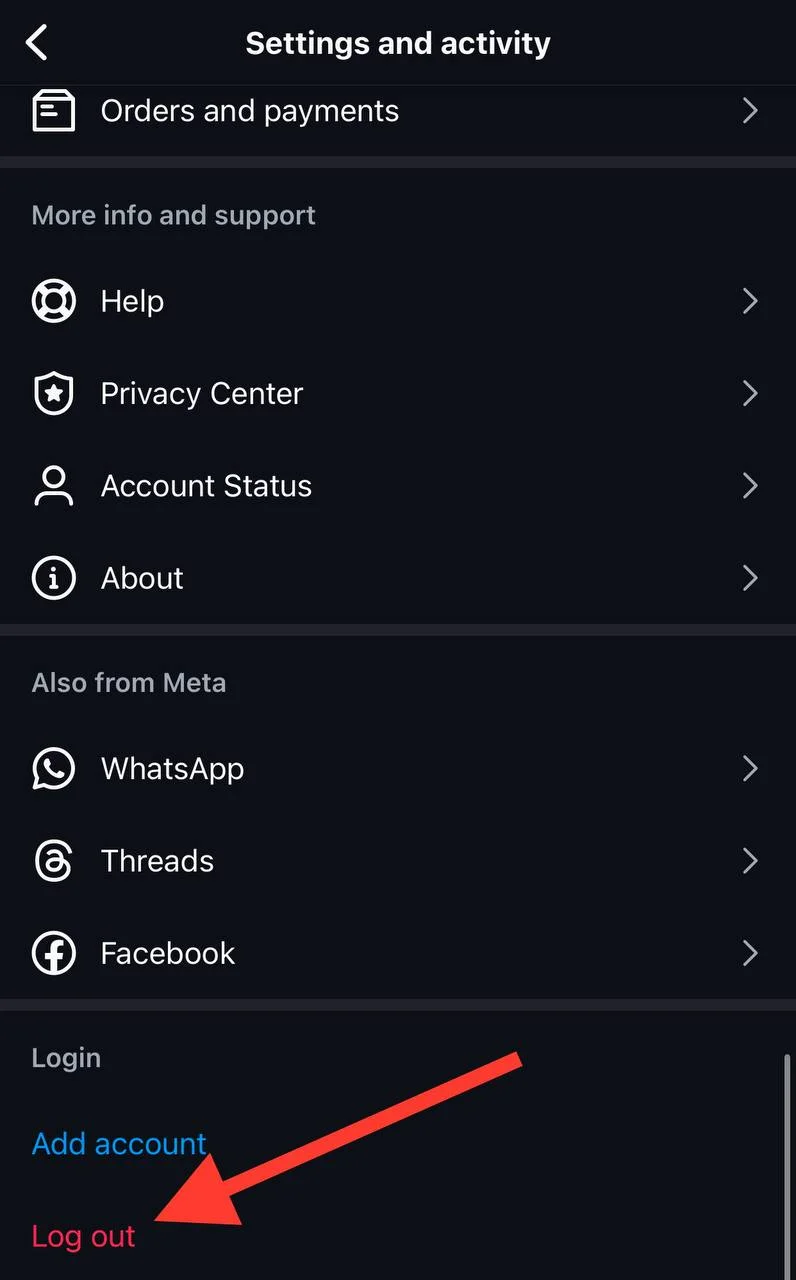
It’s a simple yet effective and quick way to solve the problem. However, I recommend memorizing your login information before logging out of your account to avoid any more issues!
As you know, restoring your Instagram account can sometimes be difficult, so it is better to be cautious.
Restart your device
Last but not least, if you can’t change themes on your Instagram DMs and keep insisting on it, restart your device to ensure you’ve tried everything!
Conclusion
Changing the themes of your Instagram direct messages is a simple and effective way to personalize your messaging experience on the app and have more quality time with your followers or friends.
I forgot to tell you that you can change DM themes based on your mood, season, relationship, and any other reason you wish. So, it doesn’t matter if you prefer a dark or unicorn theme! Instagram supports you. 😉
Finally, as you scroll through different themes for your direct messages, remember this feature allows you to better express your personality, so choose the one that best feels right for you!
I hope you enjoy reading this article and start using new themes on your chats!
FAQs
Can I create custom themes for my DMs?
No, Instagram currently does not allow users to create custom themes; but always keep the app updated to be among the first users who get the chance to customize their preferred themes.
Does changing themes affect message visibility?
No, it won’t affect the visibility or functionality of messages; it only changes the appearance of the chat.
Are DM themes for all types of Instagram chats?
Yes, you can change themes for group chats or one-to-one chats on Instagram.
Will changing themes notify the other person in the chat?
No, when you change the theme of a direct message, the other person won’t be notified unless you tell them or change the theme while chatting with them.

Emi Daniel
Buy an Established Instagram Account
Skip starting from zero. Browse Instagram/TikTok accounts with audiences across many niches.
See Available AccountsRelated articles
-

How to Clear Instagram Cache on iPhone, Android & Desktop
Instagram can quietly build up a lot of temporary files while you scroll through Reels, watch Stories, save posts, and upload your own content. You may not…
12 min readEmi Daniel
-
How to See Who Reposted Your Instagram Post (2026 Guide)
Someone reposted your Instagram post, but you have no idea who it was. You check notifications, search through your profile, and still cannot find a clear answer. …
18 min read -

How to Reset Instagram Algorithm in 2026
Instagram can start showing too much of the same type of content. Your Explore page may no longer match your interests, Reels may feel repetitive, or suggested…
12 min read