

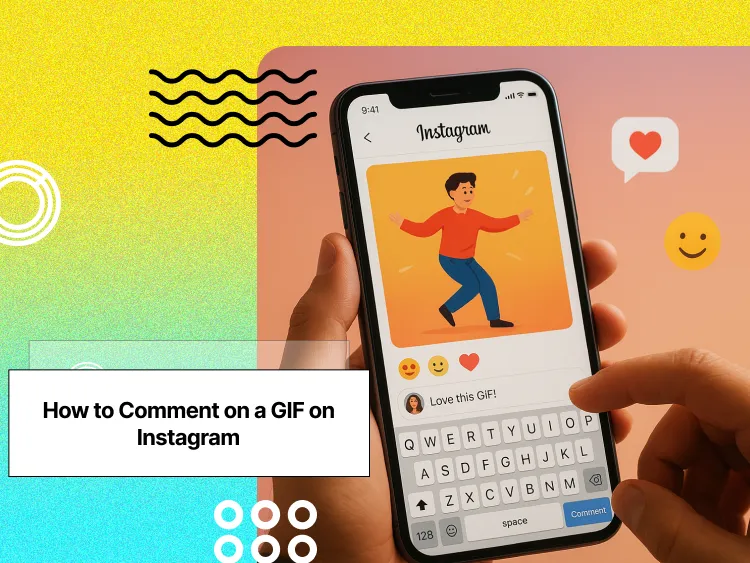
Have you ever wondered how to comment on a GIF on Instagram and make your responses stand out?
GIFs are becoming one of the most popular ways to react, reply, and add a little personality to our comments.
With over 500 million users engaging with Instagram Stories every day, it’s clear that people are drawn to visual, quick, and expressive content. That same energy is making its way into comment sections.
Buy an Established Instagram Account
Skip starting from zero. Browse Instagram/TikTok accounts with audiences across many niches.
See Available AccountsWhether you’re reacting to a friend’s post, running a brand account, or just want to stand out in a crowded thread, commenting with a GIF is a fun and easy way to be more expressive.
And the best part? It only takes a few taps. In this guide, we’ll show you how to comment on a GIF on Instagram step by step, plus tips to make sure your reactions always hit the mark.
What Are Instagram GIF Comments?
GIF comments on Instagram are animated image reactions you can use instead of or alongside text in the comment section of posts.
These looping visuals, powered by GIPHY’s vast library, allow you to express emotions, reactions, and messages more engagingly than text alone.
Unlike static emojis, GIFs capture movement and context, so your comment is more noticeable and heard in a crowded feed. There are many popular GIFs in the comment section with thousands of likes!
Another reason Instagram comment GIFs are popular is that they allow users to engage and communicate more personally.
Why GIFs Enhance Your Instagram Engagement?
Research shows that visual content generates 94% more views than text-only content, and GIFs sit between static images and video.
When you comment with a GIF, you’re likely to:
- Capture attention more effectively in comment sections
- Convey emotions that might be difficult to express in words
- Add humor and personality to your interactions
- Increase the likelihood of starting a conversation
- Show creators you’ve connected with their content
For businesses, especially, GIF comments represent an opportunity to showcase brand personality and create more human connections with followers without crafting lengthy responses.
Want to see how GIFs and creative comments can make a post go viral? Check out the top most liked Instagram comments of all time to discover what resonates with audiences.
Recent Updates to Instagram’s GIF Comment Feature

Instagram has refined its GIF comment capabilities since the introduction of the feature.
Recent updates include:
- Expanded Search Capabilities: Users can now find relevant GIFs more efficiently, thanks to improved search algorithms and categorization.
- Enhanced Loading Speeds: GIFs in the comment sections load more swiftly, reducing wait times and improving overall responsiveness.
- Streamlined Interface Integration: The GIF feature is now better integrated with Instagram’s overall interface, providing a more cohesive user experience.
- Trending GIFs Section: A new section showcases trending GIFs based on current events and popular culture, allowing users to stay updated with the latest trends.
- Categorized GIF Library: GIFs are now organized into categories, making it easier for users to find the perfect reaction for any situation.
These improvements reflect Instagram’s recognition that visual communication is increasingly important to users. The platform now prioritizes GIF comments nearly as much as traditional text responses, acknowledging their role in meaningful engagement.
Step-by-Step Process for Adding GIFs to Instagram Comments (Mobile and Desktop)
Adding GIFs to Instagram Comments on Mobile
Step 1- Open the Instagram app on your device (ensure you’re using the latest version).
Step 2- Navigate to the post where you want to leave a GIF comment.
Step 3- Look for the GIF button on the right side of the comment box (it appears as a square icon with “GIF” text).
Step 4- Tap the GIF button to open the GIF selector interface.
Step 5- The GIF library will appear with trending options displayed first.
Step 6- Use the search bar at the top to find specific GIFs based on keywords, emotions, or situations.
Step 7- Browse through the results by scrolling horizontally.
Step 8- Tap on your chosen GIF to select it.
After selecting a GIF, it will automatically populate your comment field and be ready to be posted without any additional text (though you can add text before or after if desired).
Adding GIFs to Instagram Comments on Desktop
Currently, Instagram does not support posting GIFs in comments on the desktop, either in the browser or the desktop app. You can only do so in the mobile application.
On a desktop, although you can still see GIF comments and even delete your own, you won’t be able to post new ones. It’s one of those minor but slightly annoying differences between mobile and desktop Instagram versions!
So, if you want to leave a humorous GIF on your friend’s new post, you’ll have to grab your phone.
Note that before posting a GIF comment on Instagram, you have a preview in the comment section; if you don’t like it, tap the “X” to remove it and choose another.
You can also add text before or after choosing the GIF to include a message.
Lastly, press “Post” when you are happy with its appearance, and your GIF comment will go live beneath the post with your username and will play automatically as others scroll.
Curious about how comments work across Instagram Stories and posts? Learn more in our guide on Instagram Story Comments: Everything You Need to Know.
5 Tips for Searching for the Perfect GIF Quickly

Finding the right GIF quickly improves your comment experience:
- Use emotion-based searches: Type how you’re feeling (“excited,” “confused,” “mindblown”) rather than describing what you want to see.
- Reference pop culture: Search for TV shows, movies, or celebrities known for expressive reactions.
- Try action verbs: Words like “clapping,” “dancing,” or “facepalm” yield clear reaction GIFs.
- Combine search terms: Use “happy dog” instead of just “happy” to narrow results.
- Save favorites: If you frequently use certain GIFs, note their search terms for faster access next time.
Remember that GIPHY’s search algorithm prioritizes popular and trending content, so using common phrases often yields better results than highly specific searches.
How to Delete GIFs From Instagram Comments?

Accidentally posted the wrong GIF on an Instagram post? No worries—while you can’t delete just the GIF from a comment, you can remove the entire comment and start fresh.
Here’s how to do it:
- Find your comment under the post.
- On mobile, tap and hold your comment, then select the trash can icon or “Delete.”
Once deleted, you’re free to repost your comment with the right GIF (or no GIF at all). Just remember, there’s no way to edit a comment on Instagram, so deleting and reposting is the only option for now.
Common Problems with GIF Comments and How to Resolve Them
Before diving into fixes, it’s important to understand the common reasons why the GIF option may not appear in your Instagram comments.
Why Can’t I See the GIF Option in the Comments?
- Outdated app version: Instagram regularly updates features, and older versions may not support GIF comments.
- Regional restrictions: Some features roll out gradually across different geographical areas.
- Account limitations: Business accounts or accounts that have violated community guidelines may have restricted features.
- Device compatibility issues: Older devices might not support all Instagram features.
- Poor internet connection: Weak connectivity can prevent GIF libraries from loading properly
Fixing Instagram App Issues Affecting GIF Comments
- When GIF isn’t working correctly, try these troubleshooting steps:
- Force-close the Instagram: Swipe up (iPhone) or access your recent apps (Android) and close Instagram.
- Restart your device: A simple reboot can resolve many temporary glitches.
- Check for app updates: Visit your device’s app store to ensure you have the latest Instagram version.
- Reinstall the app: As a last resort, uninstall and reinstall Instagram (note: ensure your login credentials are saved).
- Most issues with GIF comments are temporary and are resolved with these basic troubleshooting steps.
Instagram Version Requirements for GIF Comments
For optimal GIF comment functionality, your Instagram app should meet these requirements:
- iOS: Instagram version 164.0 or higher
- Android: Instagram version 164.0 or higher
- A device running iOS 12+ or Android 6.0+
- At least 1GB of RAM for smooth performance
If your device cannot support these requirements, you might experience limited or no access to GIF comments. In this case, a device upgrade may be necessary to access newer Instagram features.
Creative Ways to Use GIFs in Instagram Comments
Selecting the right GIFs can make your comments more engaging, expressive, and aligned with the post’s content.
7 Types of GIFs That Boost Engagement Rates
Certain GIF categories consistently perform better in comment sections:
- Reaction GIFs: Expressive faces showing clear emotions (surprise, laughter, approval).
- Pop culture references: Memorable TV/movie moments that resonate with specific audiences.
- Animated text: GIFs that say “Congratulations!” or “Amazing!” with dynamic typography.
- Cute animals: Universally appealing content that rarely offends anyone.
- Applause or approval: Showing support through clapping, thumbs up, or celebration animations.
- Brand mascots: Recognizable characters that align with your personal or business identity.
- Trending memes: Current viral content that shows you’re up-to-date with internet culture.
Using these high-performing GIF types increases the likelihood that other users will notice and appreciate your comments.
Match GIFs to Different Content Themes
Context-appropriate GIFs show thoughtfulness and increase your comment’s relevance:
- For achievement posts: Use celebration, applause, or trophy GIFs.
- For humor content: Respond with laughing reactions or “I see what you did there” GIFs.
- For travel photos: Choose location-specific GIFs or “wow” reactions.
- For emotional content: Select a compassionate or supportive animation.
- For question posts: Use thinking faces or “good question” GIFs.
- For product launches: Choose excited reaction or “take my money” GIFs.
Want more ways to make your Instagram content pop? Explore our guide on editing Instagram Stories to make your stories stand out with creative tips that work across GIFs and posts.
Use Brand-Relevant GIFs for Business Accounts
For businesses, strategic GIF comments can reinforce brand identity:
- Search for GIFs in your brand colors or featuring similar visual aesthetics.
- Use GIFs that represent your brand values (eco-friendly, innovative, playful).
- Comment with GIFs that feature your target demographic.
- Look for industry-relevant animations that show expertise in the subject matter.
- Consider creating custom-branded GIFs through GIPHY’s verified program. For an extra creative touch, you can also learn how to create custom Instagram stickers to make your GIFs and interactions instantly recognizable.
Consistency in GIF selection helps followers recognize your brand’s personality, even in comment sections. This subtle branding opportunity shouldn’t be overlooked in your social media strategy.
How to Use Instagram GIF Comments for Marketing Success?
Using GIF comments allows businesses to boost engagement, reinforce brand personality, and connect more meaningfully with followers.
How Businesses Can Leverage GIFs in Instagram Engagement?
Smart businesses use GIF comments as part of a comprehensive engagement strategy:
- Use GIFs to acknowledge user-generated content when mentioned or tagged.
- Comment on industry partners’ content with supportive, relevant GIFs.
- Participate in trending conversations with timely GIF responses.
- Create a consistent “voice” through your GIF selection across all interactions.
According to Sprout Social’s research, 70% of consumers feel more connected to brands with CEOs who are active on social media. GIF comments provide an accessible way for leadership to show personality without crafting lengthy responses.
Measuring the Impact of GIF Comments on Follower Interaction
Track these metrics to understand how GIF comments affect your engagement:
- Response rate to your GIF comments compared to text-only comments.
- Number of likes your GIF comments receive versus text comments.
- Follow-up conversations are initiated after GIF comments.
- Sentiment of replies to your GIF comments.
- Growth in overall engagement on posts where you regularly leave GIF comments.
Most social media management platforms don’t track comment types specifically, so manual monitoring or sample-based analysis may be necessary to gauge effectiveness.
Create Custom GIFs for Your Brand’s Comment Strategy
For businesses serious about GIF marketing, custom GIFs provide a branded opportunity:
- Apply for a GIPHY Brand Channel: Visit giphy.com/create/brands to apply for official brand status.
- Create branded GIF content: Develop animations featuring your products, logo, or brand colors.
- Upload to your verified channel: Once approved, add your custom GIFs to your channel.
- Use specific tags: Make your GIFs discoverable with relevant keywords.
- Promote your custom GIFs: Let followers know they can search for your brand name to find your GIFs.
Custom GIFs require investment but provide unique branding opportunities that extend beyond your content when users share them elsewhere.
Best Tips to Use GIF Comments on Instagram
Knowing when to use GIFs versus text and avoiding common mistakes ensures your Instagram comments are engaging, appropriate, and impactful.
When to Use GIFs vs. Text Comments
Different situations call for different comment approaches:
Best for GIF comments:
- Showing quick emotional reactions
- Adding humor to lighthearted content
- Breaking the ice with new accounts you’re engaging with
- Situations where words might seem inadequate
- When you want your comment to stand out visually
Better for text comments:
- Asking specific questions that require answers
- Providing detailed feedback or information
- Sensitive or serious topics
- When you want to start a meaningful conversation
- Professional networking interactions
Many experienced Instagram users combine both—a GIF followed by relevant text—to maximize engagement while conveying complete thoughts.
Avoiding Common GIF Comment Mistakes and Faux Pas
Even with good intentions, these GIF comment mistakes can undermine your engagement:
- Using inappropriate or potentially offensive GIFs: Always consider the audience and context.
- Posting irrelevant GIFs that don’t match the content: Shows you didn’t engage with the post.
- Overusing the same GIF repeatedly creates an impression of low effort or bot-like behavior.
- Sending overly large or distracting GIFs: Some animations may be too busy for comment sections.
- Using dated or “cringe” GIFs: Makes your brand seem out of touch.
Remember that your GIF choices reflect your digital personality or brand image; select them with the same care you would any other communication.
Respecting Content Creators Through Appropriate GIF Usage
Thoughtful GIF comments show respect for content creators:
- Choose GIFs that acknowledge the effort put into the original post.
- Avoid GIFs that might overshadow or detract from the creator’s content.
- Consider using GIFs from the same content creator if they’re a public figure.
- Match your GIF’s tone to the creator’s established online presence.
- When commenting on sensitive content, opt for supportive rather than humorous GIFs.
Content creators notice which followers consistently leave thoughtful, appropriate reactions versus generic or random GIFs.
Conclusion
GIF comments are not just a fun way to reply; they’re part of a larger shift toward more expressive, interactive commenting on Instagram.
As the platform continues to roll out new features, staying up to date with these tools can help you connect more meaningfully.
By using these features, you’re not just keeping up; you’re making your presence on Instagram more impactful.
What are you waiting for? Start commenting meaningful and funny GIFs on your friends or favorite creators’ posts on Instagram!
FAQs
Can I comment GIFs on Instagram from a private account?
GIF commenting works the same for private and public accounts.
How to enable GIFs on Instagram comments?
You don’t need to enable anything; just update your app to the latest version, and the GIF button should appear when you comment.
How can I remove Instagram GIFs from comments?
Once posted, you can’t remove just the GIF; you’ll need to delete the entire comment and repost if needed.
Can you reply to Instagram comments with GIFs?
GIFs can only be used in comments on posts, not in replies to other comments.
Why can’t I comment GIFs on Instagram comments?
You might be using an older app version or the desktop site, which doesn’t support GIF comments. Try updating the app and using your phone.

Emi Daniel
Buy an Established Instagram Account
Skip starting from zero. Browse Instagram/TikTok accounts with audiences across many niches.
See Available AccountsRelated articles
-

How to Clear Instagram Cache on iPhone, Android & Desktop
Instagram can quietly build up a lot of temporary files while you scroll through Reels, watch Stories, save posts, and upload your own content. You may not…
12 min readEmi Daniel
-
How to See Who Reposted Your Instagram Post (2026 Guide)
Someone reposted your Instagram post, but you have no idea who it was. You check notifications, search through your profile, and still cannot find a clear answer. …
18 min read -
How to Reset Instagram Algorithm in 2026
Instagram can start showing too much of the same type of content. Your Explore page may no longer match your interests, Reels may feel repetitive, or suggested…
12 min read