

Instagram stories are now one of the most popular ways to share special moments, promote content, and connect with your followers.
It has been said that over 500 million Instagram users share stories daily to keep their audiences engaged.
Saying so, how can you make your IG stories stand out? The answer lies in editing your stories like a pro!
Buy an Established Instagram Account
Skip starting from zero. Browse Instagram/TikTok accounts with audiences across many niches.
See Available AccountsWhether you are a brand owner, influencer, or just someone who wants to make their stories pop, editing is what you need to grab attention and keep your followers engaged.
In this article, I will share tips and ideas for editing your Instagram stories to stand out from your competitors.
Instagram Stories Edit Tips
Here, I will share valuable tips on editing your stories (images, videos, texts), like a professional!
Add “Location”
Add the exact location of where you took the photo or video to let your followers know about the place to keep them engaged.
This is how you can add a location to your stories:
Step 1- Open Instagram and add your story.
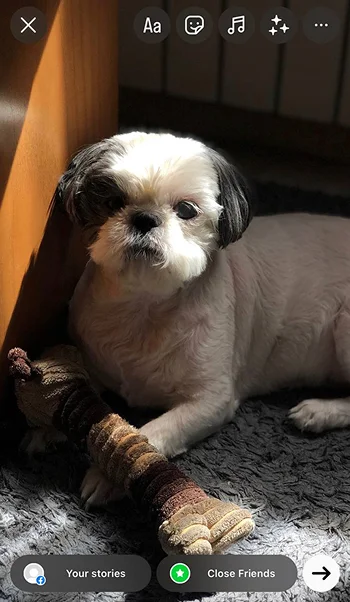
Step 2- Tap on the “sticker” icon and choose “Location.”
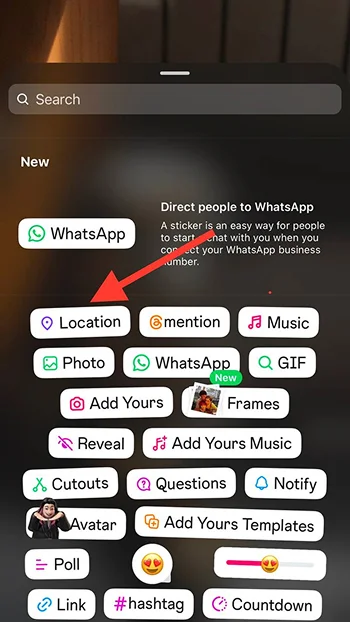
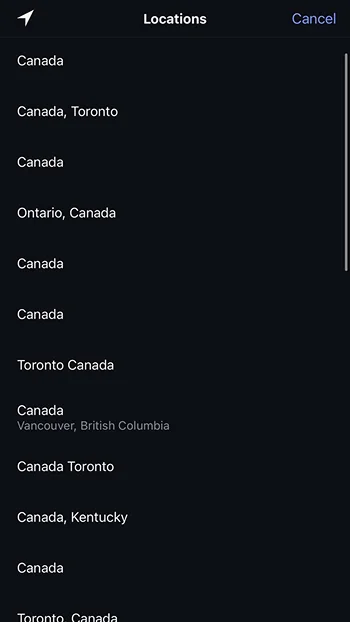
Step 3- Here, you can search for the desired location or select from Instagram suggestions.
“Mention” accounts
You can mention accounts that have any role in your stories. For example, you can mention (tag) someone who records your video, sends you a gift, your partner, etc.
Doing so will bring you more engagement and significantly increase your target followers if the account you mention adds your story to their account.
This is how you can mention an account in your stories:
Step 1- Open Instagram and select the photo or image you want to add to your story.
Step 2- Tap on the “sticker” icon and choose “Mention.”
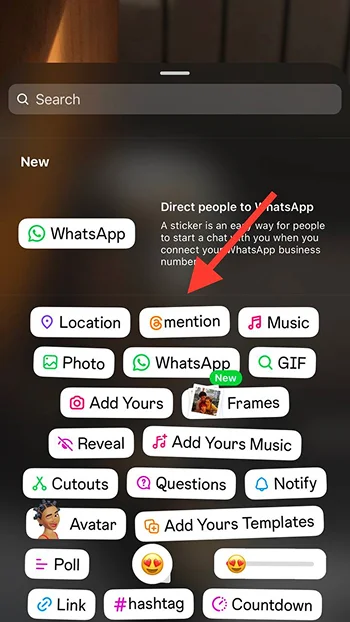
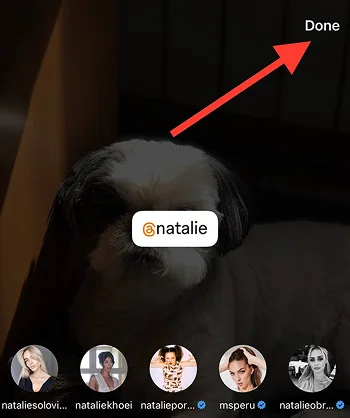
Step 3- Search for the account’s username.

Step 4- Select the account and tap “Done” to finish the process.
Use “Add Yours”
This feature allows you to write a prompt, which can lead more people to view your stories. The good thing is that you can shuffle through trending topics in “Add Yours” to make your content stand out.
This is how you can use this feature in your stories:
Step 1- Open Instagram and add your story.
Step 2- Tap on the “sticker” icon and choose “Add Yours.”
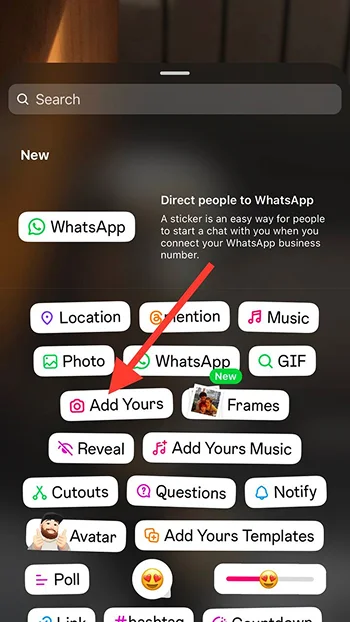
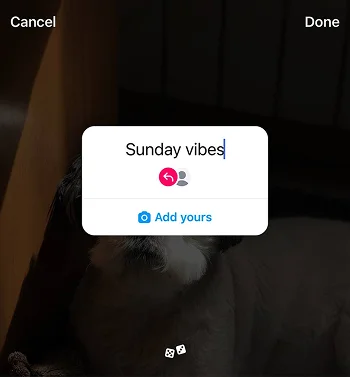
Step 3- If you know what to share, write your desired prompt and tap “Done.”
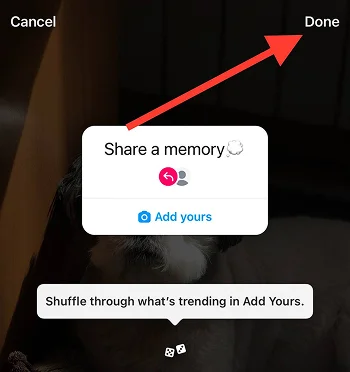
Step 4- To shuffle through trending “Add Yours,” tap on the little “Dice” icon to find your favorite “Add Yours.”
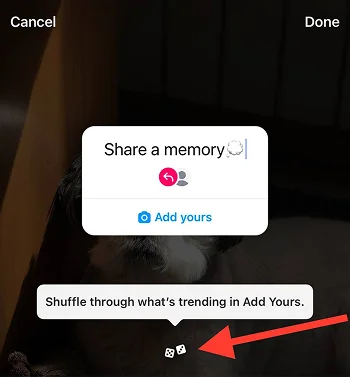
Step 5- Select the prompt and tap “Done” to share your story, which will be shown to more new people.
Ask “Questions” from your followers
Getting feedback from your followers is the key to success; this feature helps you directly connect with them and ask their honest opinions with the right questions.
This is how you can ask a question in your stories:
Step 1- Open Instagram and add your story.
Step 2- Tap on the “sticker” icon and choose “Questions.”
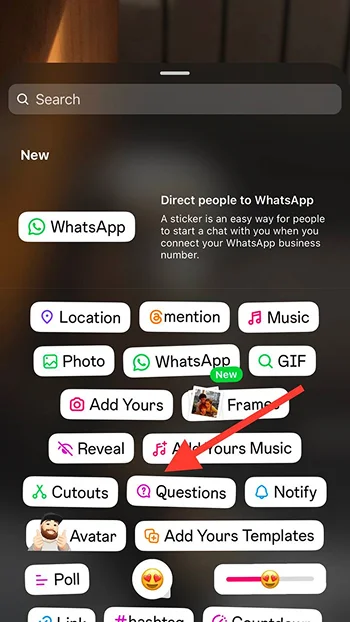
Step 3- Write a question and tap “Done” to finish the process.
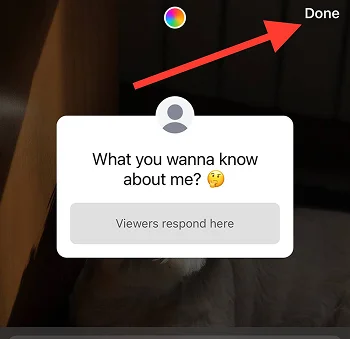
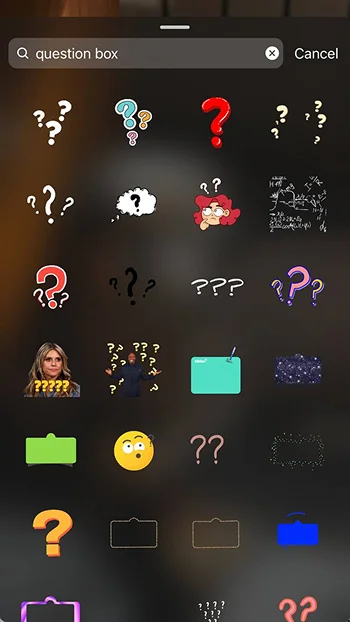
*Tip: To make your question box more eye-catching, tap on the “sticker” icon, then “GIF.” Now, search for “Question Box” GIFs and select the best that fits your content.
Add “Frames”
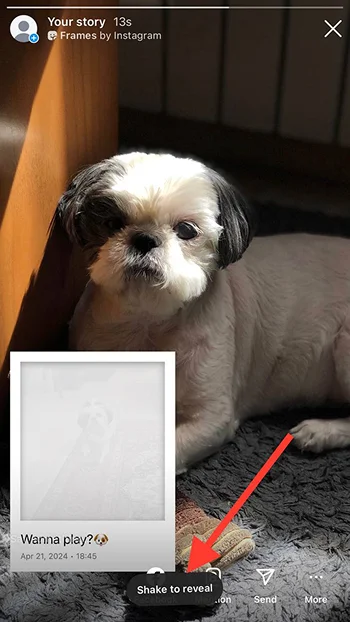
Ask your followers to shake their phones to see your stories! Yes! This cool feature allows you to add a photo in a cute frame while writing a caption, and it will only be visible if your followers shake their phones!
This is how you can add photos in frames in your stories:
Step 1- Open Instagram and add your story.
Step 2- Tap on the “sticker” icon and choose “Frames.”
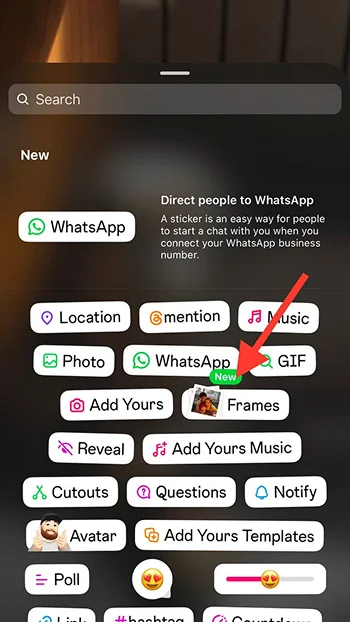
Step 3- Choose the photo you want to add to the frame.
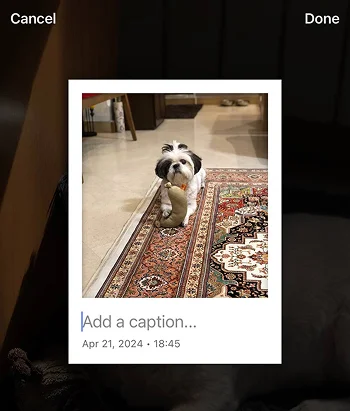
Step 4- Write a relevant caption and tap “Done.”
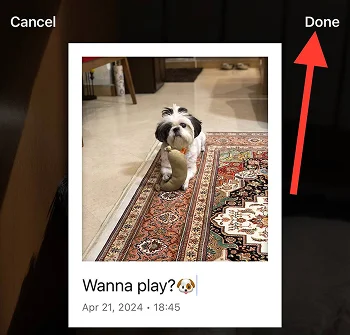
Step 5- Now, share your story, and your followers who shake their phones can see the photo in the frame!
Use “GIFs”
You can search for almost anything in the “GIF” section, and Instagram shows you relevant GIFs that make your stories more engaging.
This is how you can add GIFs to your stories:
Step 1- Open Instagram and add your story.
Step 2- Tap on the “sticker” icon and choose “GIF.”
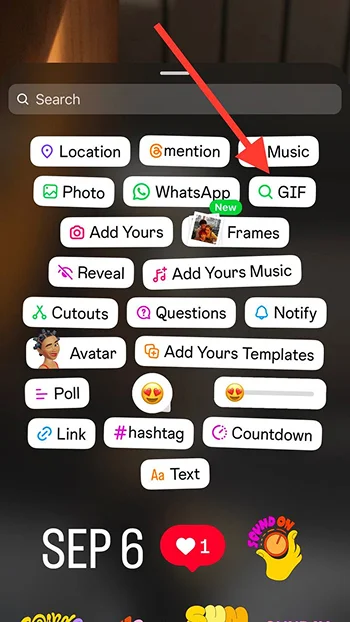
Step 3- Search for specific GIFs in the search bar or use Instagram suggestions.
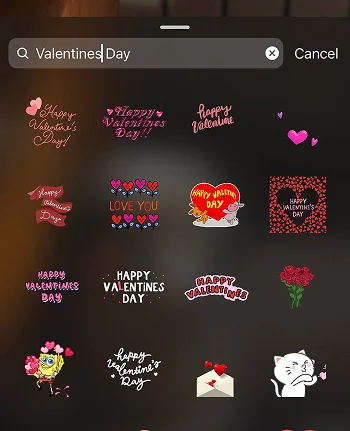
Step 4- Once you add your desired GIFs, tap Done, and share your story with your followers.

*Tip: Note that there are no limits in adding GIFs to your IG stories; however, it is better to avoid using too many Giphy and choose the most relevant ones.
*Tip: The most common GIFs are for “New Post,” “New Reel,” “Check this out,” “Like and comment,” etc.
Use the “Notify” sticker
This feature allows your followers to turn on notifications for your content, which means when you upload a story, Instagram will notify them.
This is how you can use the notify feature in your stories:
Step 1- Open Instagram and add your story.
Step 2- Tap on the “sticker” icon and choose “Notify.”
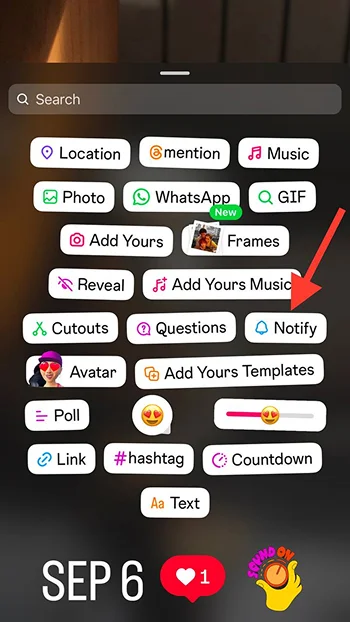
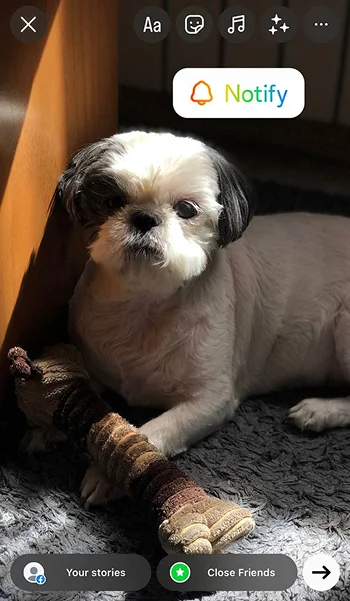
Step 3- Tap on it to change its color and style as you prefer.
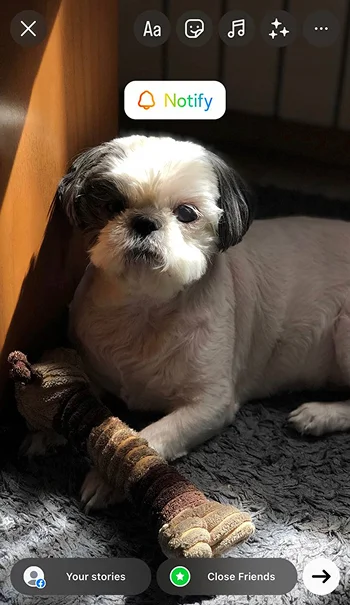
Step 4- Use your fingers to set its size, then place it where your followers can easily see and tap on it.
Add your “Avatar”
Create and add your custom avatar in your stories to share more pleasant feelings with your followers.
This is how you can use your avatar in your stories:
Step 1- Open Instagram and add your story.
Step 2- Tap on the “sticker” icon and choose “Avatar.”
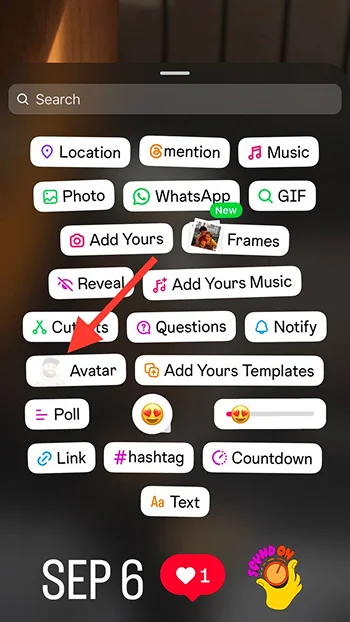
Step 3- Choose the desired avatar or search for a specific one from the search bar.
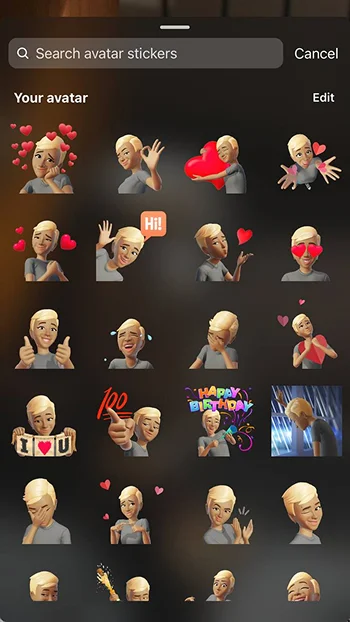
*Tip: you can search for words, such as laugh, cry, angry, surprised, and other emotions to access relevant avatars for each situation.
If you don’t know how to create avatars on Instagram, check out our comprehensive guide here!
Add “Music”
Did you know you can add music to your stories to make them more engaging and memorable? Instagram allows you to add music from its suggestion list and your saved music, or search for a song you have in mind.
This is how you can mention an account in your stories:
Step 1- Open Instagram and add your story.
Step 2- Tap on the “sticker” icon and tap “Music.”
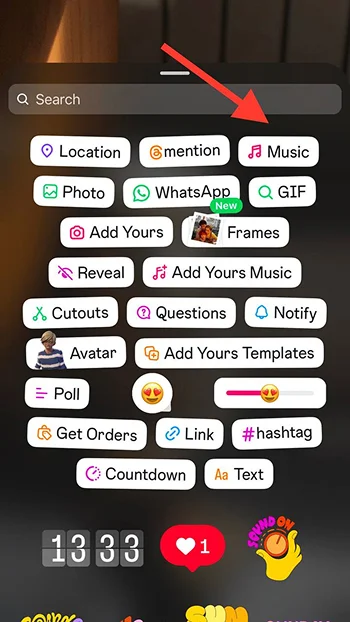
Step 3- Choose the song you want to play in your story.
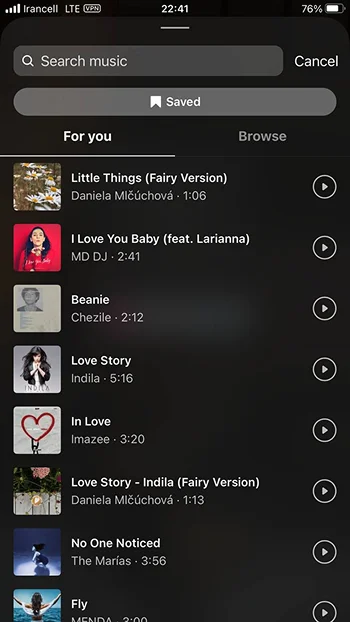
Step 4- Tap on the small colorful circle to change the color of the music symbol.
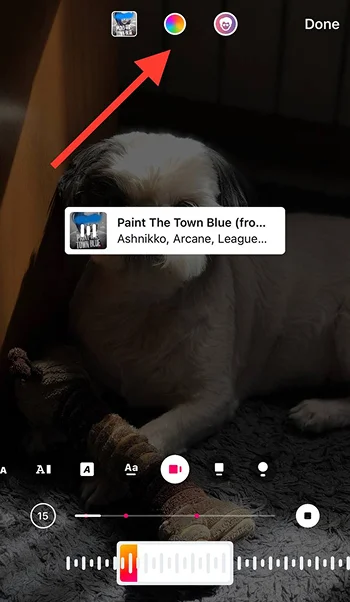
Step 5- Tap the “Avatar” to add an animated avatar to your story.
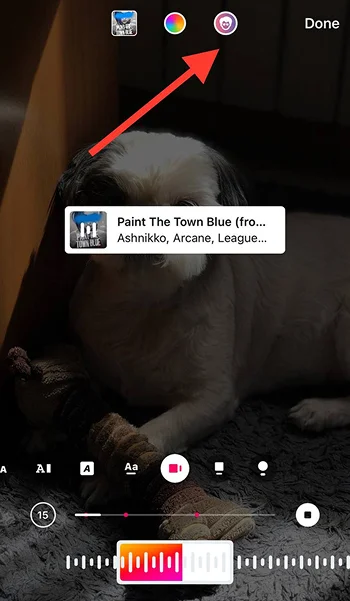
Step 6- To change the duration of the music, tap on the 15-second icon at the bottom left of the screen. You can adjust the duration from 5 to 15 seconds.
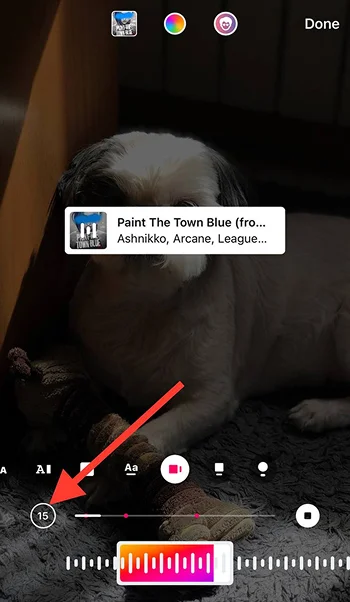
Step 7- Use the little rectangle icon to select the part of the music you want at the beginning.
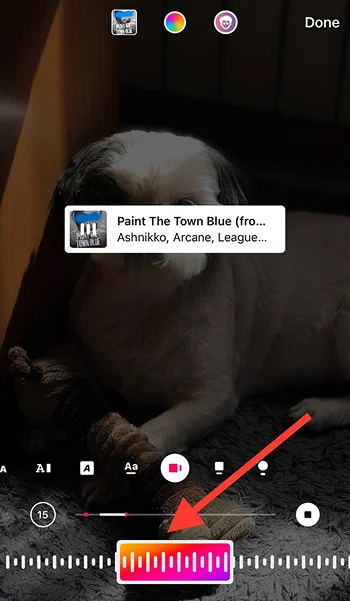
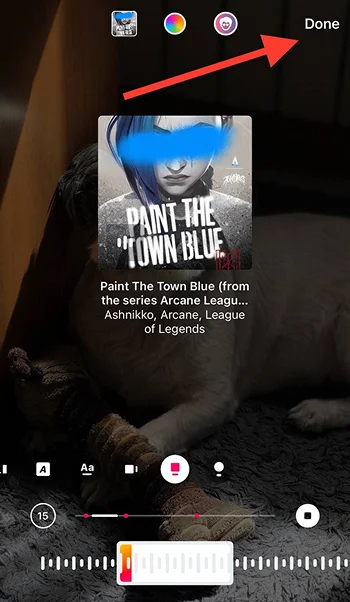
Step 8- After making the necessary changes, tap “Done” and share your story to complete the process.
Create a “Cutout” sticker (custom stickers)
Instagram now allows users to cut certain parts of images and turn them into stickers. It gives you the opportunity to create numerous custom stickers and add more value to your stories.
Follow the steps below to create cutout stickers:
Step 1- Open Instagram and add your story.
Step 2- Tap on the “sticker” icon and select “Cutouts.”
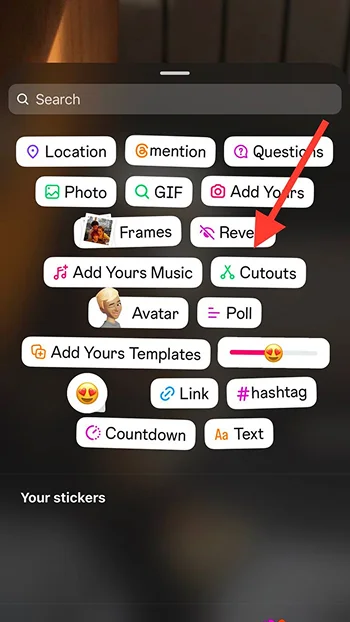
Step 3- Choose the desired photo.
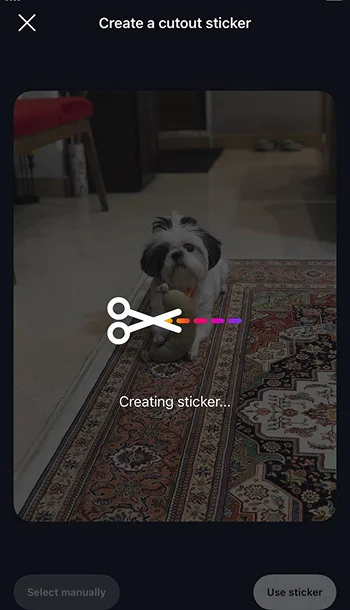
Step 4- Select the parts you want to cut. *You can select preferred parts manually or use the sticker Instagram chooses.
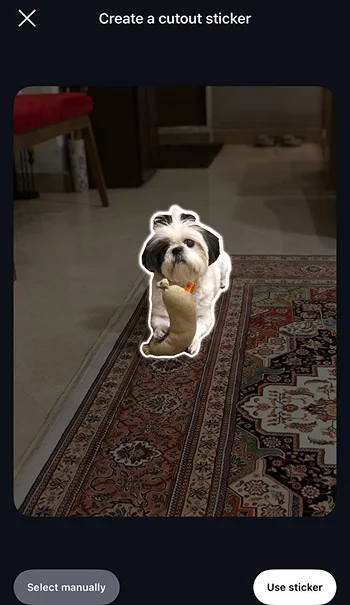
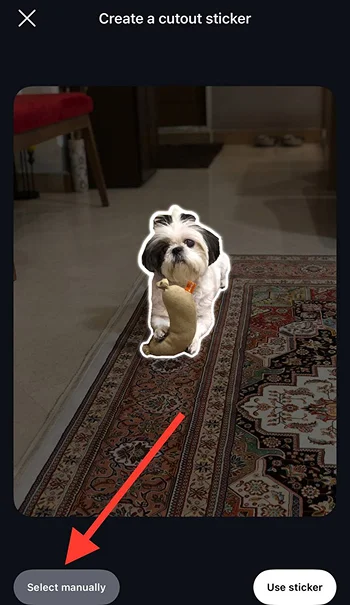
Step 5- To select manually, tap “Select manually” in the screen’s bottom left corner, select the part you want to cut, and then tap “Create sticker.”
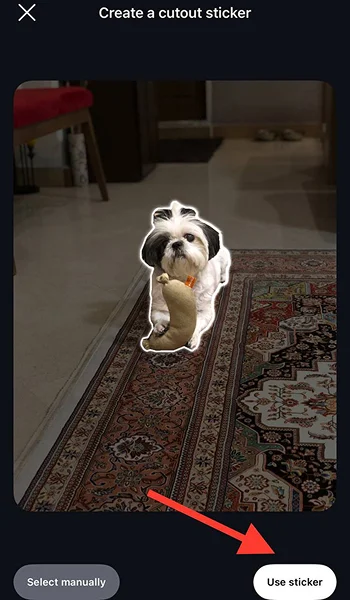
Step 6- If you choose the “Use sticker” option, the selected part will be added to your story.
*Tip: You can add animated stickers from saved videos on your device, which is way cooler than regular stickers and has the same process as creating cutout stickers from pictures.
“Add Yours Templates”
You can be creative and create unique templates on Instagram, allowing others to share their moments on the platform using your template.
To create a template, follow the steps below:
Step 1- Open Instagram and add your story.
Step 2- Tap on the “sticker” icon and tap “Add Yours Templates.”
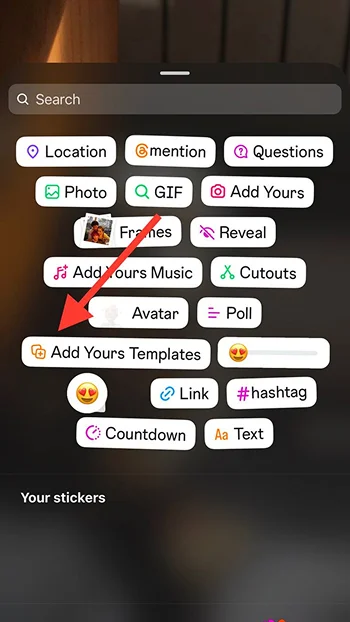
Step 3- Select what you want to pin in your template, which can be text, photo, music, or GIF. Note that others can’t edit or remove something once you pin it.

Step 4- After adjusting the necessary changes, tap “Next” and share your story with your followers so they can use your template.

Run a “Poll”
This feature is a great way to ask your followers’ opinions about something or get helpful feedback while keeping them engaged.
Following the steps below helps you run a poll in your stories:
Step 1- Open Instagram and add your story.
Step 2- Tap on the “sticker” icon and tap “Poll.”
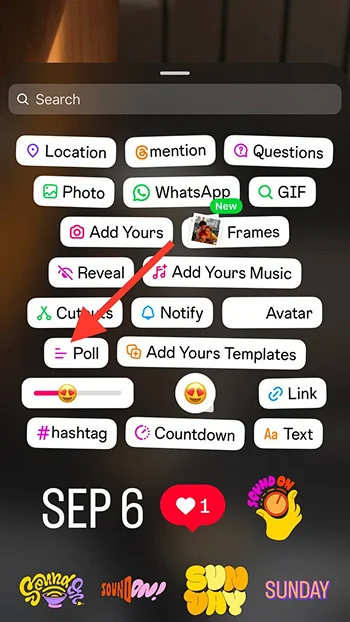
Step 3- Write your question or message in the “Ask a question” bar.
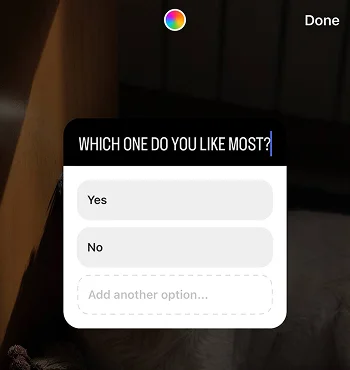
Step 4- Add your options and tap “Done.”
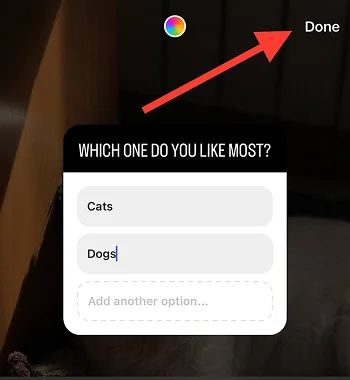
Step 5- Share the story with your followers or close friends only.
*Tip: To see the final poll results, tap on the story after it is published and tap on the viewers.
Use the “Reaction” stickers
Add relevant emojis as reaction stickers, which keep your followers engaged. Your audiences must tap on the reaction sticker to interact with your content.
This is how you can add reaction stickers to your stories:
Step 1- Open Instagram and add your story.
Step 2- Tap on the “sticker” icon and choose the “reaction sticker” icon.
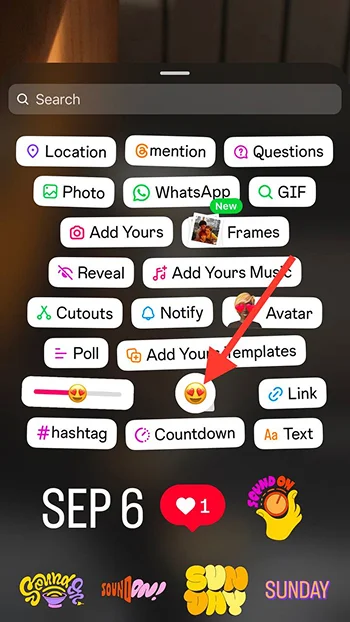
Step 3- Select the emoji that best fits your content.
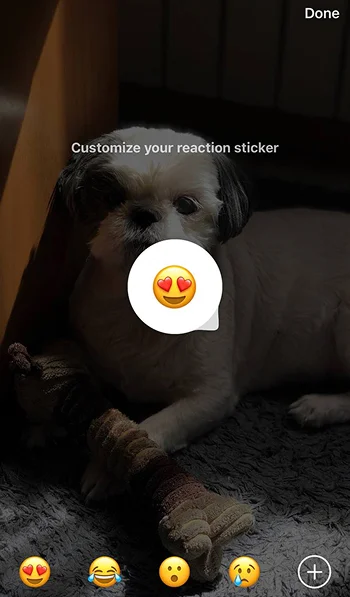
Step 4- Place it in the right place and tap “Done.”
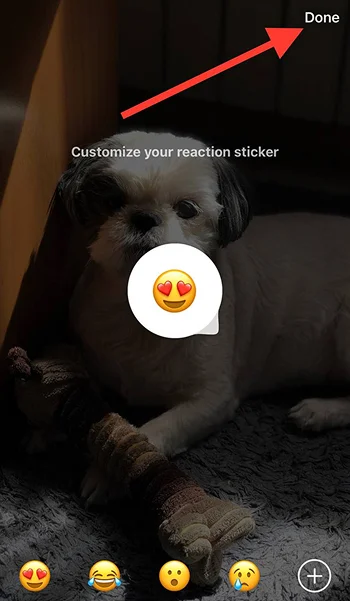
*Tip: You can place this sticker in the bottom right corner of the story, where users mainly tap to jump to the next story. Doing so will bring more interactions to your story.
Ask your followers’ opinion with “Emoji”
Share a story on Instagram and use this feature to ask your follower’s opinions with funny emojis.
You can write anything in the box, and your followers must share their opinions by dragging the emoji to the left or right.
“Add Yours Music”
This feature is similar to adding your template to a story. It makes your story more engaging and convinces users to watch it till the end. (If you choose the right song!)
This is how you can add music to your stories:
Step 1- Open Instagram and add your story.
Step 2- Tap on the “sticker” icon and “Add Yours Music.”
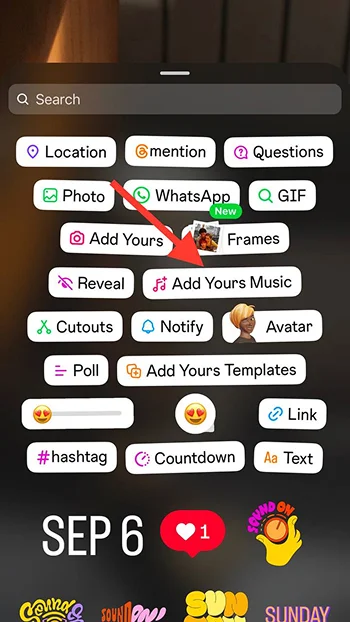
Step 3- Choose the desired music from the Instagram suggestion list or saved music and tap “Done” to complete the process.
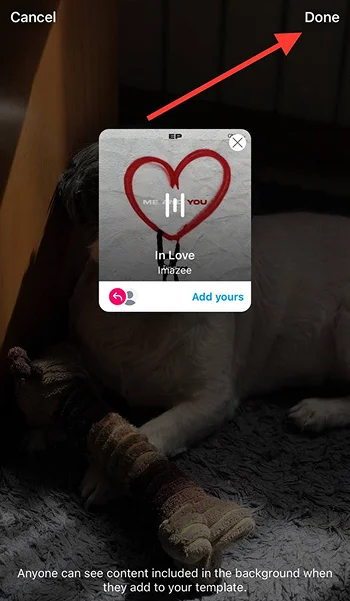
Add a “Link”
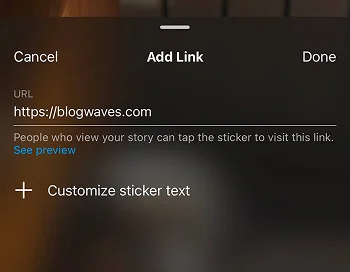
Add or paste links to your stories to guide your followers to a new page. You can create customized stickers with text to encourage your audiences to tap the link.
If you want to share the link to your new post (or any other post), copy it and paste it into the “Add Link” section.
To copy the link of your post or Reel, tap on the paper plane icon (share) and select “Copy link” from the menu.
Note that you can’t add more than one link in each story.
“Hide” something in your stories
Hide something in your story and ask your followers to reply so they can see what’s hidden!
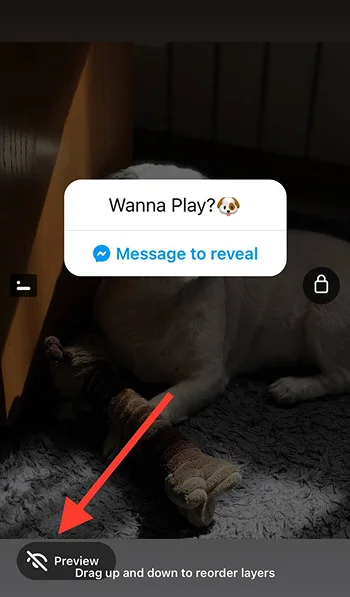
This is how you can use the “reveal” feature in your stories:
Step 1- Open Instagram and add your story.
Step 2- Tap on the “sticker” icon and “Reveal.”
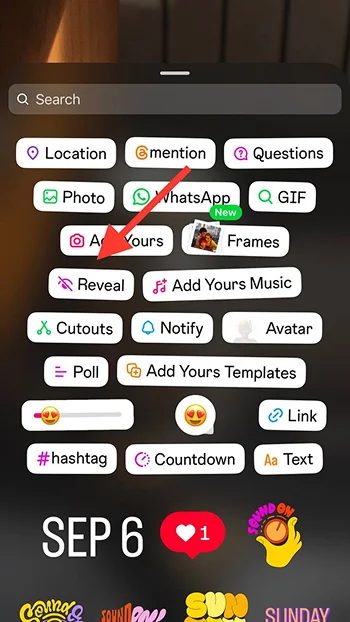
Step 3- Write your message in the “What’s hidden” box, and tap “Done.”
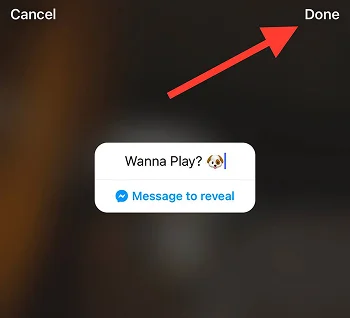
Step 4- Tap “Preview” at the bottom left of the screen to see what your story will look like once it’s published.
Add “Hashtags”
Hashtags are a great tool for Instagram posts, Reels, and stories. By adding relevant hashtags in your stories, your content will be shown to more new target people.
This is how you can add hashtags to your stories:
Step 1- Open Instagram and add your story.
Step 2- Tap on the “sticker” icon and choose “#Hashtags.”
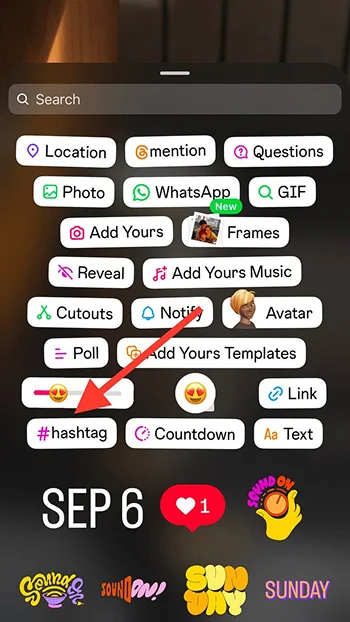
Step 3- Write related hashtags to your story.

Step 4- Tap “Done” in the top right corner of the story.
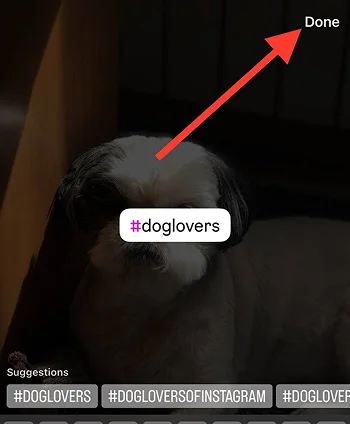
Step 5- Tap “Share story” to finish the process.
Set a “Countdown”
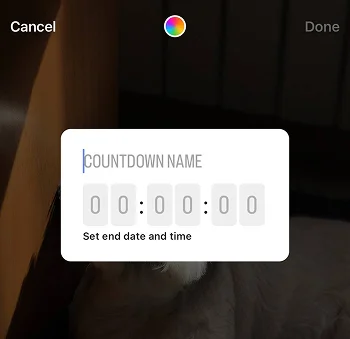
This feature lets your followers turn on reminders and share the countdown to their stories. You can set a date and time for a specific event, launch date, or anything important so that your followers are notified.
Don’t forget to select a name for the countdown, so your followers understand what they are waiting for!
Add “Photos”
Add multiple photos to your stories to better promote your product or services. Note that this feature is not the same as “Layouts,” and you have more options to customize extra photos in stories.
This is how you can add more photos in your stories:
Step 1- Open Instagram and add your story.
Step 2- Tap on the “sticker” icon and choose “Add Photos.”
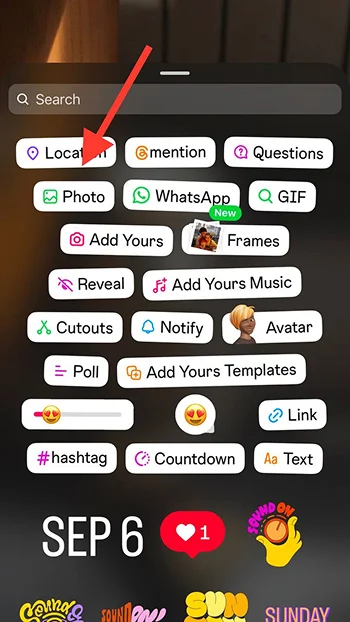
Step 3- Select the desired photos from your device.
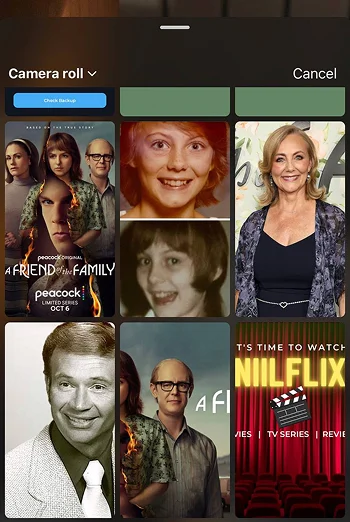
Step 4- Tap on the photo to choose the preferred shape for them. (heart, circle, star, etc.).

Step 5- Place the photos in the right place.
“Draw” in your stories

Use the draw option to add more sparkles to your stories. You can use this feature to write something with your handwriting, point to things, highlight texts, etc.
Add “Effects”
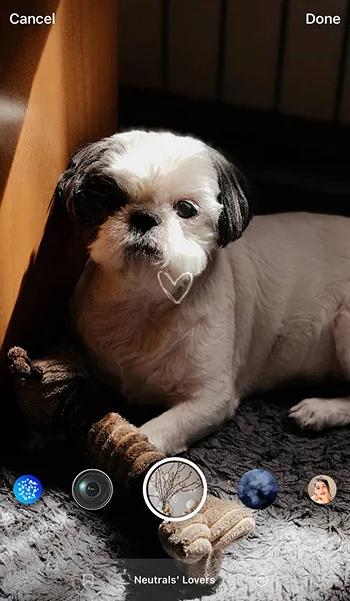
Use Instagram effects to enhance the quality and visual appearance of your stories.
This is how you can add various effects to your stories:
Step 1- Open Instagram to upload your story.
Step 2- Tap on the little star icon.
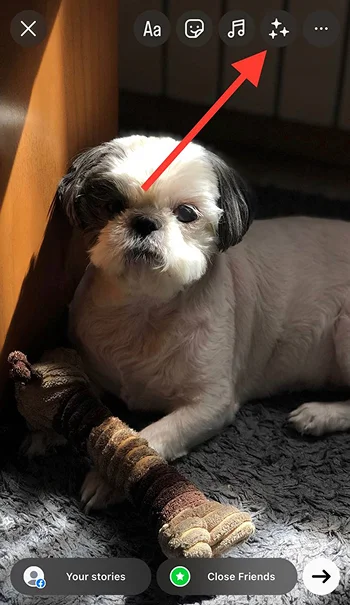
Step 3- Scroll through suggested/saved effects to add the best to your story.
Download story backgrounds from Pinterest
One way to make your stories stand out is to use specific backgrounds, which you can download from Pinterest or other sources.
If you want to use backgrounds in your stories, you should use the “Add Photo” feature as well.
Follow the steps below to better understand:
Step 1- Download preferred backgrounds from Pinterest. You can search for “Instagram story backgrounds,” “Cute/dark/lovely backgrounds for IG story,” and more.
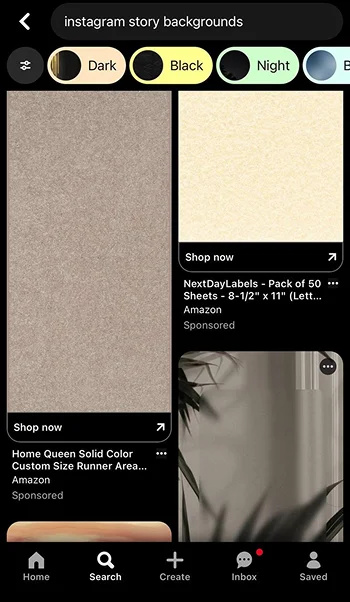
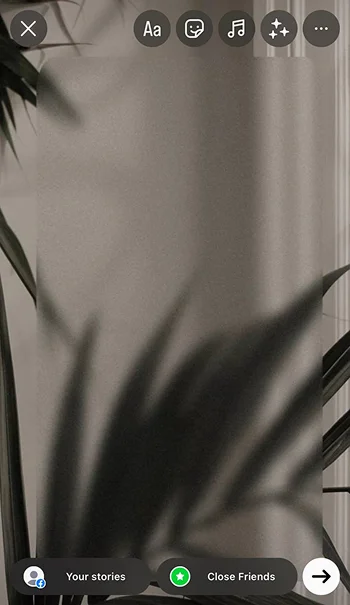
Step 2- Open Instagram and add the background.
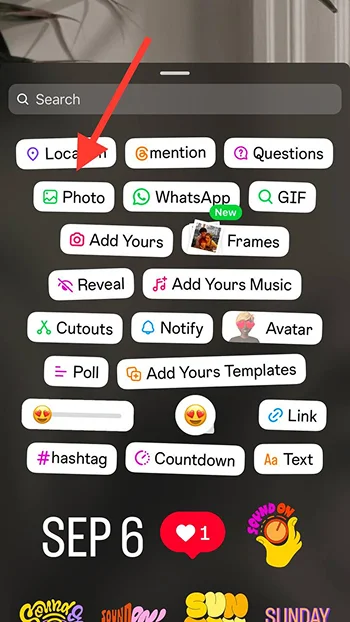
Step 3- Tap on the sticker icon and choose “Photo.”
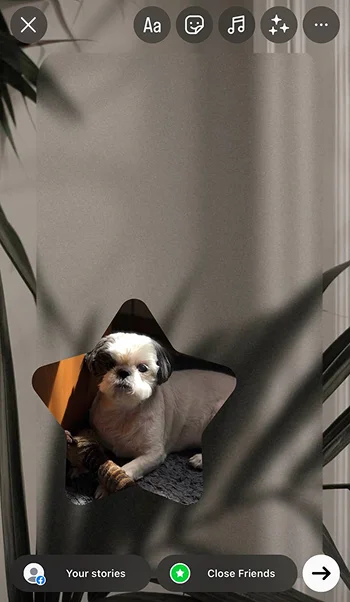
Step 4- Add the desired photo. Tap on it to change its shape into a heart, circle, rectangle, square, or star.
Step 5- Place it in the right place to finish the process.
Use “Font” apps to import custom fonts
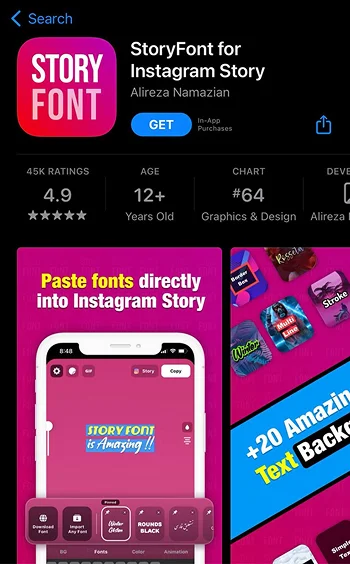
If you want to stop sharing stories using Instagram fonts, you can use font applications to import custom fonts into your stories to make them more exclusive.
This method lets you use a unique font representing your brand and style.
You can use various applications, such as Story Font, Fonta, Story Art, and more. Download an application, choose your favorite font, write your message, and copy and paste it into your stories.
You can also visit “Instagram Font Generator” and follow the same process to access various unique fonts.
Share “Boomerangs”

One of the best ways to create and share stories that keep your audience engaged is boomerangs.
You can record boomerangs using Instagram’s camera or turn your live photos into boomerangs and share them in your stories.
Use the “Layout” feature
This is one of Instagram’s coolest features: It allows you to share collage photos without using a third-party app to create them.
This is how you can use this feature in your stories:
Step 1- Open the Instagram camera.
Step 2- Choose the layout icon from the camera options.
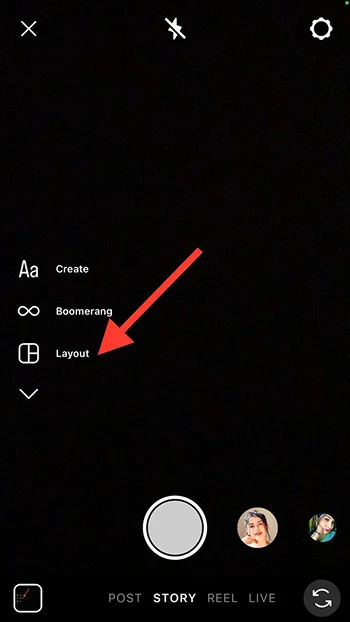
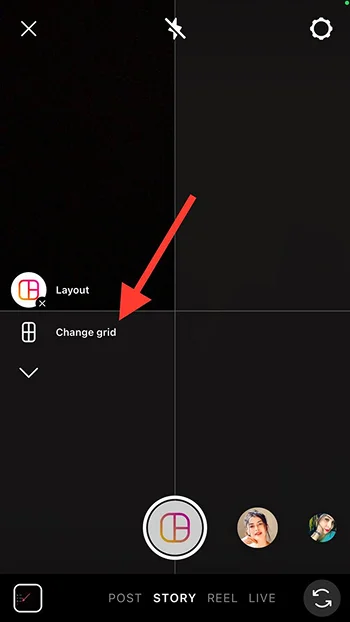
Step 3- Tap the “Change grid” icon under layout to select the desired grid for your layout.
Step 4- Take new photos or select pictures from your gallery.
Step 5- Set their size and click the “tick” button.
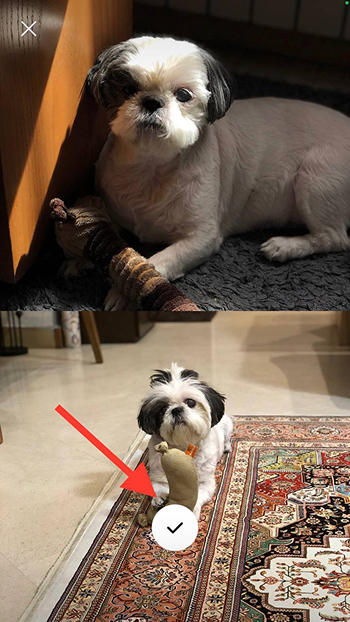
Step 6- Now, adjust the necessary edits and share your story.
Add your brand’s specific element to your stories
Always share something that reflects your brand’s identity. For example, use a specific emoji, font, text style, theme color, and anything relevant to your products, logo, brand, or services.
This brings more engagement and builds trust among your followers and profile visitors.
Use the “Green Screen” filter
One of the best ways to share unique content in your stories is to use the green screen filter to show something behind you while recording yourself on it.
You can use this feature to share stories about commenting on something or create special videos to keep your followers engaged.
This is how you can mention an account in your stories:
Step 1- Open the Instagram camera.
Step 2- Scroll the filters to the end and tap “Browse effects.”
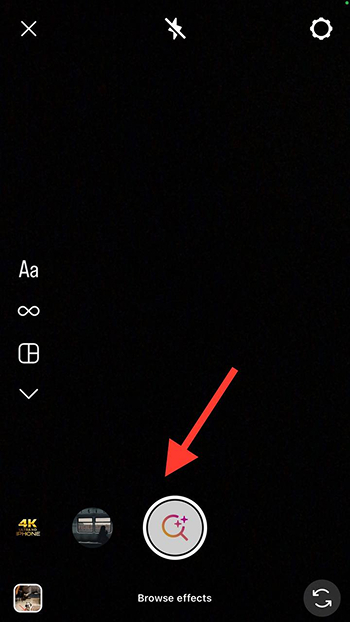
Step 3- Search for “Green Screen” in the search bar and choose the best option.
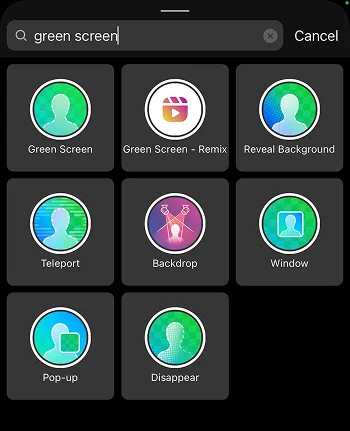
Step 4- Now, take photos or record videos using this filter to create engaging content.
These are some of the most common methods for editing your stories to stand out from your competitors while increasing engagement and brand awareness.
Conclusion
Instagram stories are the key to success on Instagram. They help you promote your products and services like a pro, attract more target followers, keep your audience engaged, and increase sales.
Therefore, editing your stories to make them stand out among others is important. Always remember that people prefer to see high-quality content on Instagram, which means value quality over quantity!
If you share six high-quality stories daily, you will get better results than twenty low-quality stories!
I hope you find this article helpful and start using the mentioned tips to share quality content!

Emi Daniel
Buy an Established Instagram Account
Skip starting from zero. Browse Instagram/TikTok accounts with audiences across many niches.
See Available AccountsRelated articles
-
Instagram Hashtags That Actually Work in 2025: Strategy, Research & Reels
Instagram posts with hashtags see 70% higher engagement rates and 12.6% more reach than those without. Yet most Instagram users struggle with hashtag strategy in its complex…
25 min readEmi Daniel
-
Top 30 Black Instagram Models to Follow in 2025
Black models are among the most followed in the industry on Instagram. A great example is “Naomi Campbell,” who has over 15 million followers. The main reason…
22 min read -
Good Times to Post on IG: Maximize Engagement and Reach in 2025
Your Instagram posts are getting lost in the noise. Since 2020, engagement rates have dropped by 30% across the platform. This means timing your posts has never…
27 min read