


If messages in an Instagram chat are disappearing, Vanish Mode may be turned on. This feature makes messages temporary, which can be confusing when you want to keep plans, photos, or important details in the conversation.
You can turn Vanish Mode off in the same chat and return to regular messaging in a few steps. Once it is off, new messages should remain visible in the conversation. Messages that disappeared while Vanish Mode was active cannot usually be restored.
This guide explains how to turn off Vanish Mode, what happens after you disable it, and what to do if the setting does not appear in your chat. For feature releases, interface changes, and new tools, follow the latest Instagram updates.
Buy an Established Instagram Account
Skip starting from zero. Browse Instagram/TikTok accounts with audiences across many niches.
See Available AccountsQuick Answer
Open the Instagram chat where Vanish Mode is active. Swipe up from the bottom of the conversation and release to turn it off.
If swiping up does not work, look for a Turn Off Vanish Mode button near the top of the chat. You can also tap the person’s name at the top of the conversation and look for a Vanish Mode or disappearing-messages setting.
Once the setting is off, new messages should stay in the chat. Messages that have already disappeared cannot be restored.
What Is Vanish Mode on Instagram?

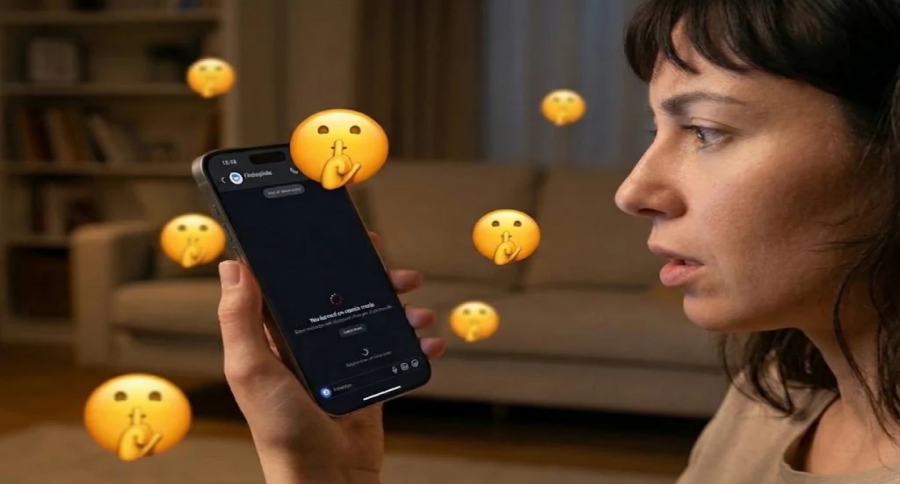
Vanish Mode is an Instagram direct-message feature that makes messages, photos, videos, and other content disappear from the chat after they have been viewed and the conversation is closed. It is intended for temporary, private exchanges rather than messages you need to keep for later.
When Vanish Mode is active, the chat usually has a darker appearance and Instagram shows an in-chat notice that disappearing messages are turned on. Messages sent before Vanish Mode was enabled should remain in the regular chat history.
Keep in mind that disappearing messages are not completely risk-free. The other person can still take a screenshot or screen recording before the content disappears. Instagram may notify people in the chat when it detects a screenshot or screen recording of a Vanish Mode message.
If you want your future messages to stay visible in the conversation, turn Vanish Mode off using the swipe-up steps above.
How to Turn Off Vanish Mode on Instagram
If your Instagram chat has switched to a dark screen and messages are disappearing after they are viewed, Vanish Mode is active. You can turn it off directly from that conversation and go back to sending regular messages that stay visible in the chat.
- Open the Instagram app and tap the Messages icon.
- Open the chat where Vanish Mode is turned on.
- Swipe up from the bottom of the chat screen.
- Release your finger when Instagram shows that Vanish Mode has been turned off.
The chat will return to its normal appearance, and new messages you send should remain in the conversation.
If swiping up does not turn it off, tap the person’s name at the top of the chat and look for a setting related to Vanish Mode or disappearing messages. Instagram’s Help Center describes Vanish Mode as a chat feature for messages and other content that disappear from the thread.
Use the Turn Off Vanish Mode Button Instead
In some Instagram chats, you may see a Turn Off Vanish Mode button or banner near the top of the conversation. Tap it to leave Vanish Mode without using the swipe-up gesture.
This option is useful if swiping up is difficult to perform or if the gesture does not respond. After you tap the button, the chat should return to its normal appearance, and new messages should remain in the regular conversation.
When Vanish Mode Can Be Useful

Vanish Mode is best for casual messages you do not need to keep, such as a quick reaction, a temporary plan, or a lighthearted conversation. It can reduce clutter in a chat because viewed messages disappear after the chat is closed.
However, do not treat Vanish Mode as a guarantee that a message cannot be saved. The other person may still take a screenshot or screen recording before the content disappears.
Use regular Instagram messages instead when you need a record of an address, date, work detail, payment information, or an important conversation. If you use separate personal and professional profiles, learn how many Instagram accounts you can make and how to manage them more easily.
Is Vanish Mode safe?
Vanish Mode offers more privacy than a regular message thread because viewed messages disappear after you leave the chat. However, it does not make a conversation completely private or permanently untraceable.
The recipient can still take a screenshot or screen recording before the message disappears. Instagram may notify you if it detects a screenshot taken during a Vanish Mode chat, but a notification cannot prevent someone from keeping a copy.
Avoid sharing passwords, financial details, intimate images, or other highly sensitive information through any disappearing-message feature.
Things to Remember About Vanish Mode

Before you rely on Vanish Mode for a private or temporary conversation, it helps to understand exactly what disappears, what remains visible, and what the other person can still do with the content.
- Vanish Mode is optional and is used in an individual Instagram chat.
- Messages sent while Vanish Mode is active disappear after they have been viewed and the chat is closed.
- Messages sent before Vanish Mode was enabled should remain in the normal chat history.
- The other person can still capture a message before it disappears.
- Instagram may notify chat participants when it detects a screenshot or screen recording of a Vanish Mode message.
- If you feel unsafe, you can block the account or report the conversation to Instagram.
Troubleshooting Vanish Mode Issues
Vanish Mode will not turn off
Open the affected chat and swipe up from the very bottom of the conversation screen. Hold briefly, then release when Instagram shows the prompt to return to a regular chat.
If nothing changes, close Instagram completely, reopen it, and try the gesture again. Updating the app from the App Store or Google Play may also help if the chat controls are not appearing correctly.
Vanish Mode does not appear
Vanish Mode may not be available for every account, chat, location, or version of the app. Update Instagram first. If the option still does not appear, use regular messages or Instagram’s disappearing photo and video tools instead.
Messages disappeared before you turned it off
Messages that disappeared while Vanish Mode was active generally cannot be restored in the chat. If the content involves harassment, threats, or another violation, report the message or conversation to Instagram as soon as possible. Instagram says a Vanish Mode message or chat may be reportable for up to 14 days after it disappears.
You cannot send messages
Check your internet connection, force-close and reopen Instagram, and make sure the app is updated.
If you still cannot send messages or Vanish Mode continues to turn on or off incorrectly, contact Instagram through the app by going to your profile, tapping the menu, and selecting Settings and privacy > Help > Report a Problem.
Describe what happened, name the affected chat if appropriate, and attach a screenshot of the issue if it is safe to do so.
If Important Messages Disappeared: What To Do Next
If you lost an important message before turning off Vanish Mode, do not assume it can be recovered from the chat. Instead, take a few practical steps right away, especially if the message involves safety, work, money, travel plans, or another issue you may need to document.
- Ask the other person whether they saved the message, took a screenshot, or can resend the information.
- Check related notifications, emails, calendars, payment records, or other apps for copies of important details, such as an address, date, booking number, or link.
- Take screenshots of anything that is still visible in the chat, including the account name, date, profile, and any remaining messages.
- If the message involved harassment, threats, fraud, or another violation, report the chat to Instagram immediately and block the account if needed.
- Write down what happened while the details are fresh, including the account involved, the approximate time, and the substance of the message.
Instagram says Vanish Mode messages or chats may still be reported for up to 14 days after they disappear. This makes quick action especially important when a vanished message raises a safety concern.
Final Thoughts
Turning off Vanish Mode returns the affected Instagram conversation to regular messaging, so future messages remain visible in the chat.
Open the conversation, swipe up from the bottom of the screen, and release when Instagram confirms that Vanish Mode is off. Remember that turning the feature off does not restore messages that disappeared earlier.
For messages you may need later, such as plans, addresses, links, or important details, use a regular chat instead of temporary messaging.
FAQs
Can I recover messages that disappeared in Vanish Mode?
Usually, no. Once a message has disappeared from the chat, it cannot be restored through the conversation. If the message involved abuse, harassment, or another policy violation, report it to Instagram promptly.
Q. Are chats encrypted?
Yes, chats sent in Vanish Mode are end-to-end encrypted like regular Instagram chats.
Can someone screenshot a Vanish Mode message?
Yes. A person can take a screenshot or screen recording before the message disappears. Instagram may notify participants when it detects this activity, but you should still avoid sharing highly sensitive information.
Does turning off Vanish Mode restore old messages?
No. Turning the feature off only affects future messages. It does not bring back messages that disappeared while Vanish Mode was active.
Can I turn Vanish Mode back on?
Yes. In a supported chat, swipe up from the bottom of the conversation to enable it. Swipe up again to return to the regular chat.
Does Vanish Mode work on Instagram on a computer?
Vanish Mode is primarily an Instagram mobile-app feature. If you are using Instagram on a computer and do not see Vanish Mode controls, open the same conversation in the Instagram app on an iPhone or Android device instead.

Emi Daniel
Buy an Established Instagram Account
Skip starting from zero. Browse Instagram/TikTok accounts with audiences across many niches.
See Available AccountsRelated articles
-
How to Use Instagram: The Creator’s Guide to Building an Audience
Instagram in 2026 is no longer just a place to collect followers. The creators who grow consistently are the ones who understand how to earn attention, turn…
17 min readEmi Daniel
-

How to Go Live on Instagram: A Step-by-Step Guide
Going live can feel more stressful than posting a Reel. You cannot remove a pause, rewrite a sentence, or start over after an awkward moment. But that…
17 min read -
Instagram Instants Feature: What It Is, How It Works, and How to Turn It Off
The first time I opened Instagram Instants, I almost backed out. I had taken a normal photo. Nothing worth editing. Nothing worth posting. Nothing that needed an…
11 min read