


One of the main reasons Instagram is such a popular social media platform among people of different ages is the useful features this application provides to its users.
Instagram’s note feature is one of these exciting features, which was released in 2022, and almost every user liked it from the moment they could use it.
Instagram notes allow users to share short text messages with their followers and friends about a trend, important event, or funny stories.
Buy an Established Instagram Account
Skip starting from zero. Browse Instagram/TikTok accounts with audiences across many niches.
See Available AccountsThis feature helps users to have a more personal space to leave comments about anything they want; they can use up to 60 characters for the note they want to share.
However, some users reported that the Instagram note option stopped showing on their accounts.
In this article, we will explain everything you need to know about this fantastic feature and how to fix the issue of it not showing on your account in simple steps.
What Is Instagram Note Feature?
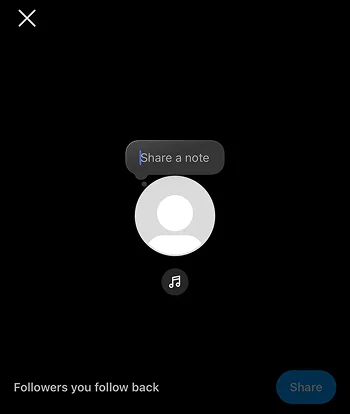
Instagram launched this feature in December 2022 and announced it as a new way to share your thoughts and comments with your friends.
As mentioned before, you can write up to 60 characters for the note you want to add to your account, and similar to Instagram stories, it will disappear after 24 hours.
If you are wondering where you can see your friends’ notes, you just need to swipe the Instagram home page to the left, and you will see the notes above the direct messages.
On December 13, 2022, Instagram launched the Notes feature, a new way to share your thoughts with friends.
Finally, this feature is now available in all countries around the world, and both iOS and Android users are able to use it.
How to Add a Note on Instagram
Now that you know what the Instagram note feature is, it is time to learn how to add a note to your account.
Follow the steps below to share your very first note with your friends:
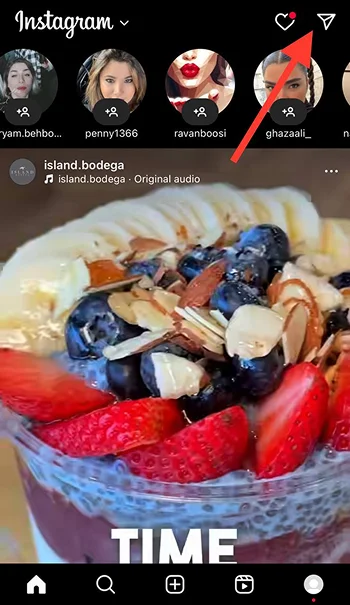
Step 1- Open the Instagram application on your device and tap on the Direct Message icon in the top right corner of the screen.
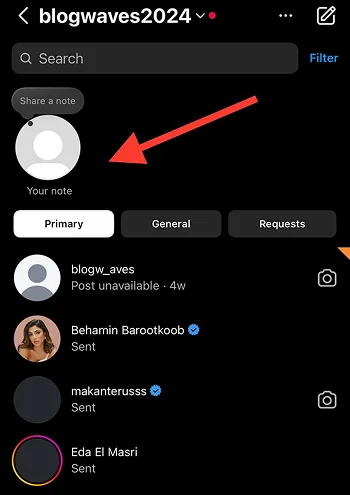
Step 2- At the top of your chat list, you can see your profile picture and the “Your note” sign; tap on it.
Step 3- Write down what is on your mind and do not exceed the 60-character limit.
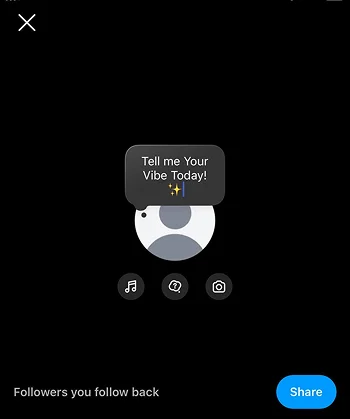
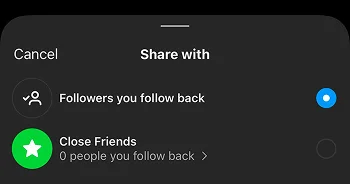
Step 4- Determine who can see your note, which is your followers or close friends.
Step 5- Tap share to finish the process.
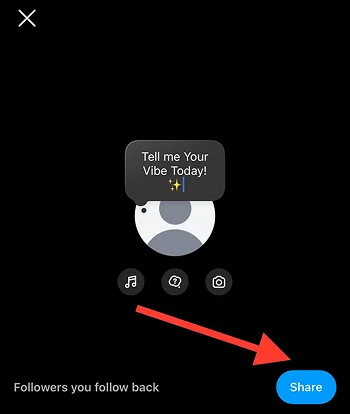
That is how simply you can share a note, and your friends and followers can reply to it. You will see the replies in the direct message section.
How to Delete a Note on Instagram
If you ever change your mind after sharing a note and want to delete it from your account, you should know that it has a very simple and fast process.
The only thing you have to do is tap on the note you have shared and select the “Delete” option.
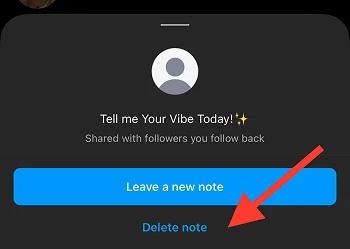
However, keep in mind that the notes are just like stories and will be removed from your account after 24 hours.
Characteristics of Instagram Notes

The Instagram note feature is a great way to share a quick update with your followers or leave a short comment about something.
Let’s dig more and learn other characteristics of this feature:
Characteristics:
- They will disappear after 24 hours.
- You have an option called “Leave a new note.” When you tap on it, you can share a new note, which will remove the previous one.
- You can share a short video note and add a text message to it (with a 60-character limit).
Advantages of sharing a note:
- You can instantly share a thought without posting it or adding it to your story.
- It encourages more meaningful and straight interactions, which helps you build better relationships with your followers.
- Your friends and followers communicate with you much easier.
Who can see your notes:
- You can choose either your followers or close friends to see your note.
How to Fix Instagram Note Not Working
You can not use the note feature on your account for various reasons. In this section, we are going to discuss the most common reasons that cause an issue to use Instagram notes and explain how you can fix the problems quickly.
1- You need to update the Instagram application
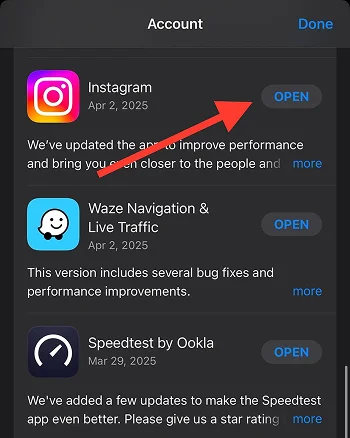
Did you know that one of the most common reasons you can not use Instagram’s different features is that you are using an old version of Instagram?
To use this application more effectively, you should always update it to the latest version. You can check for new updates on Apple Store (iOS users) and Google Play (Android users).
Once you update Instagram to the newest version, go back to the app and look for the “Your notes” option above the chat list in the DM section.
2- Change your regions
Although the note feature is now available in all countries, sometimes Instagram may not detect your location, and as a result, it won’t let you use it.
Therefore, if you have moved to a new place and are sure this feature is available, you must update your location settings in the app to set up your new region.
3- Switch your account to a professional account
It is good to know that switching your account to a professional account solves many bugs and enables you to access more special tools on the app.
Follow the steps below to switch your account:
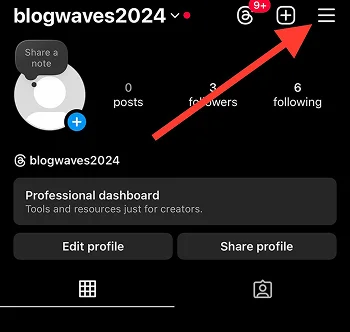
Step 1- Go to your profile and tap on the three-line icon in the top right corner of the screen.
Step 2- Scroll down the menu and select “Settings.”
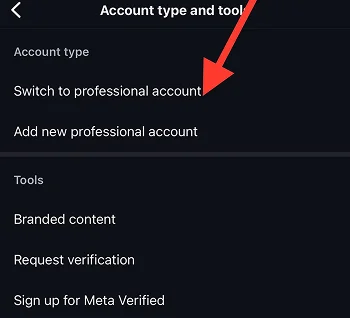
Step 3- Click on the “Switch to professional account” option.
4- Turn on the activity status on your account
Sometimes turning on the activity status on your account is all you need to do to use this feature.
To do so, follow the steps below:
Step 1- Open the Instagram application on your device.
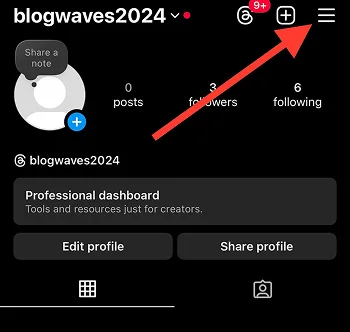
Step 2- Go to your profile and tap the three-line icon in the top right corner of the screen.
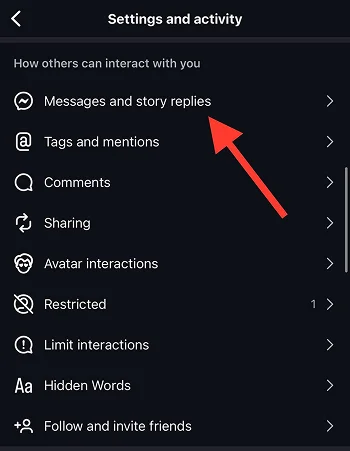
Step 3- Scroll down the menu and select “Messages and story replies.”
Step 4- Tap on the “Show activity status” option.
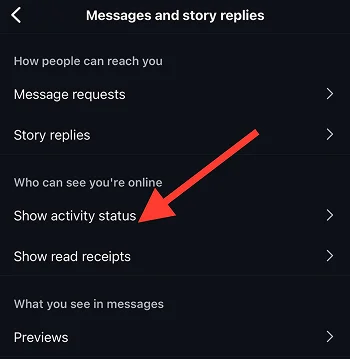
Step 5- Switch the slider before this option to turn it on.
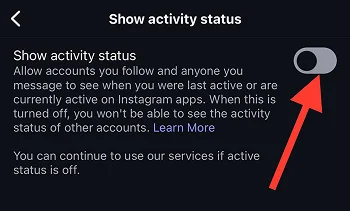
Now, you have to open the direct message section and refresh the page; you are most likely to access the note feature.
5- Update your device’s operating system
Another possible reason you can’t access this feature is that your device’s operating system is outdated. You can check the settings menu of your device to see if there is any new updates.
Check updates on iOS devices:
Step 1- Go to the “Settings” menu on your mobile.
Step 2- Search for “Software Update” in the search bar (or scroll down the menu to find it).
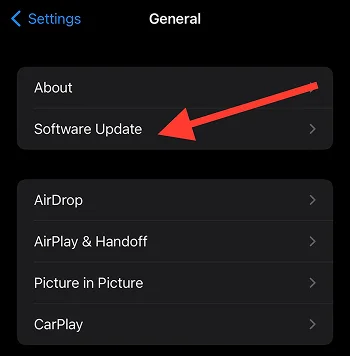
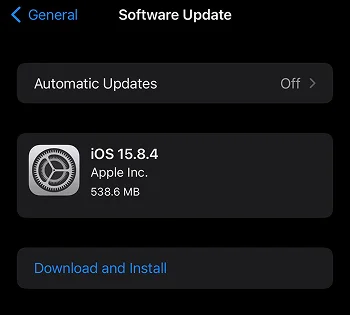
Step 3- Tap “Software Update” and update your device to the latest version.
Check updates on Android devices:
Step 1- Go to the “Settings” menu on your mobile.
Step 2- Tap on the “About phone” option.
Step 3- Here, you can see if there is any new update for your mobile. Start the updating process to access the notes on Instagram.
6- Log out and log in to your account
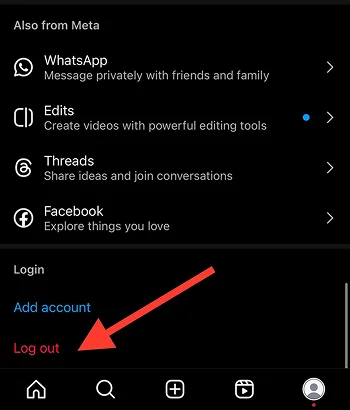
You may find it interesting to know that sometimes you just need to log out from your account and try to log in again after a few minutes, and the problem is solved.
The important thing to keep in mind is that you must remember all the information about your account to be able to log in; otherwise, it may be a challenging process for you!
7- Uninstall the app and reinstall it
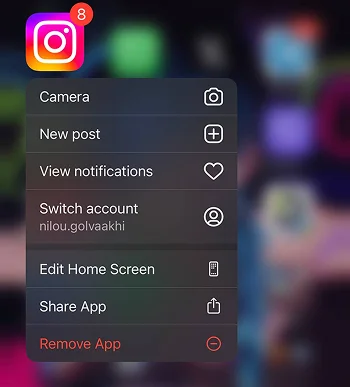
Yes, that is correct! You can try deleting the application from your device and installing it again to solve the issue.
However, you should note that you may lose access to your account, which requires you to add your username and password to log back into your profile.
8- Contact Instagram support
Finally, if you have tried all the mentioned methods and still can not use this feature, it is time to contact the Instagram support team, explain your issue, and they will guide you to fix this problem.
Follow the steps below to contact Instagram support:
Step 1- Go to the Instagram application and tap on your profile icon.

Step 2- Tap on the three horizontal line icon to open a new page.
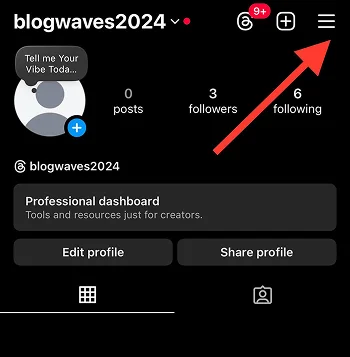
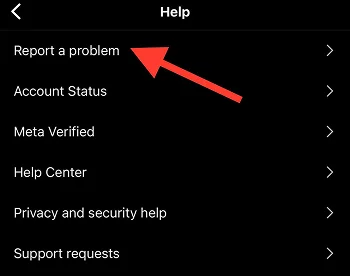
Step 3- Scroll down the menu and select “Help.”
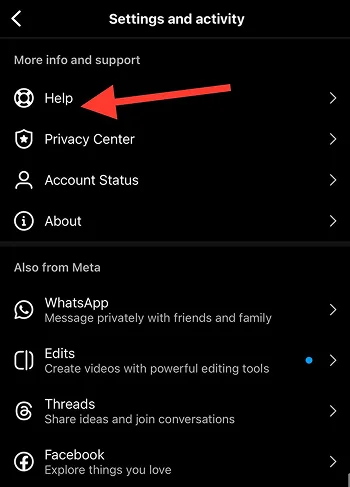
Step 4- Choose the “Report a Problem” option and follow the instructions to explain your issue.
Conclusion
Instagram always releases helpful features that help users keep in touch with their friends and followers all over the world, and the “Notes” feature is currently one of the most popular ones.
Therefore, if you want to communicate with your followers, build stronger relationships, reach more audiences, and enjoy other benefits, it is better to use these amazing features.
In this comprehensive article, we shared everything you need to know about Instagram notes to use them better and reach more engagement.
We hope you find this article helpful and start creating interesting notes on your account.
FAQs
1- Why can’t I find Instagram notes on my account?
If you have tried all the methods mentioned and still can’t use the note feature, it may be because of account activities when multiple accounts are logged in. To solve this issue, log out of all other accounts and log back into your main account.
2- Can I share notes only with my close friends?
Yes, you can choose your close friends as the audience who will see your notes.
3- Can I mute notes from specific users?
Yes, you can mute notes from the accounts you don’t want to interact with. To do so, open the Instagram app, go to the DMs, tap on the note you want to mute, and choose the “Mute notes” option to finish the process.

Emi Daniel
Buy an Established Instagram Account
Skip starting from zero. Browse Instagram/TikTok accounts with audiences across many niches.
See Available AccountsRelated articles
-
How to Use Instagram: The Creator’s Guide to Building an Audience
Instagram in 2026 is no longer just a place to collect followers. The creators who grow consistently are the ones who understand how to earn attention, turn…
17 min readEmi Daniel
-

How to Go Live on Instagram: A Step-by-Step Guide
Going live can feel more stressful than posting a Reel. You cannot remove a pause, rewrite a sentence, or start over after an awkward moment. But that…
17 min read -
Instagram Instants Feature: What It Is, How It Works, and How to Turn It Off
The first time I opened Instagram Instants, I almost backed out. I had taken a normal photo. Nothing worth editing. Nothing worth posting. Nothing that needed an…
11 min read