

As of 2026, Instagram continues to be one of the most widely used platforms, especially after recent updates to its integration with Facebook via the Meta Account Center. One of its most convenient features remains cross-posting, which allows users to instantly share content across both platforms.
However, many users still report Instagram not sharing to Facebook, even when their accounts are properly linked. This issue can affect posts, stories, and reels on both personal and business accounts.
If you are experiencing the same issue and are looking for guaranteed ways to fix it, you are in the right place, as we are here to walk you through the process of resolving the problem of Instagram not sharing posts on Facebook.
Why You Can’t Share Instagram Posts to Facebook
If you want to share your Instagram posts directly to Facebook, you must link the two accounts and ensure you have enabled the necessary sharing permissions on your device.
If Instagram is not sharing posts to Facebook, the most common reason is that the accounts are either not linked correctly or content sharing is turned off for posts, stories, or reels.
In the next section, we will provide useful tips that help you solve and fix the issue of Instagram not sharing posts on Facebook.
How To Fix Instagram Not Sharing To Facebook
If Instagram is not sharing to Facebook, the most common cause is that the two accounts are not properly linked through the Meta Account Center, or content-sharing permissions are disabled.
1- Link Instagram and Facebook accounts
Step 1- Open the Instagram application and go to your profile from the bottom left corner.

Step 2- Tap the three-line icon to access the settings menu.
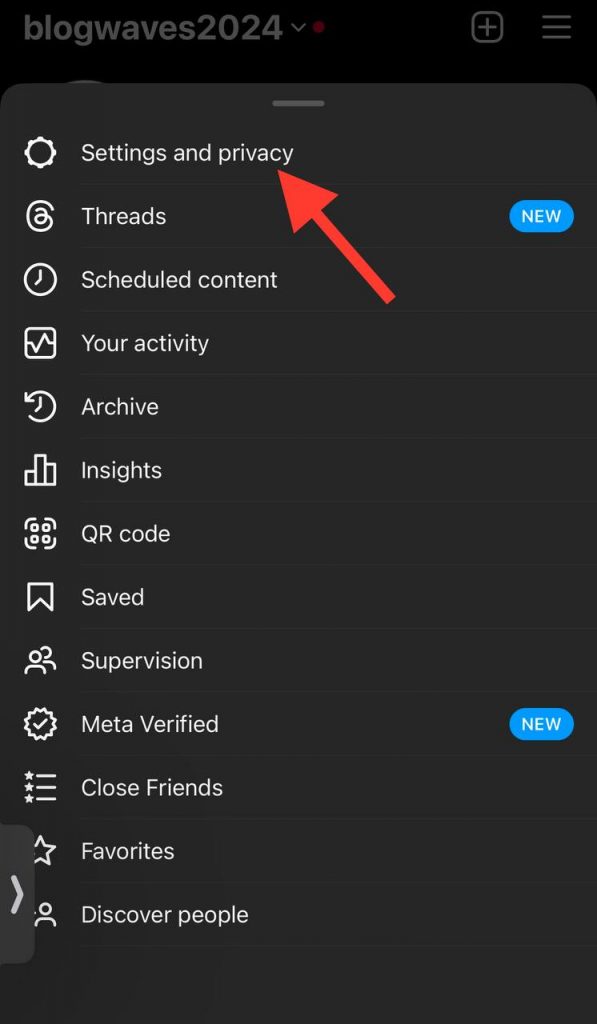
Step 3- Then tap on the ‘Accounts Center’ option, and choose ‘Accounts’ from the menu.
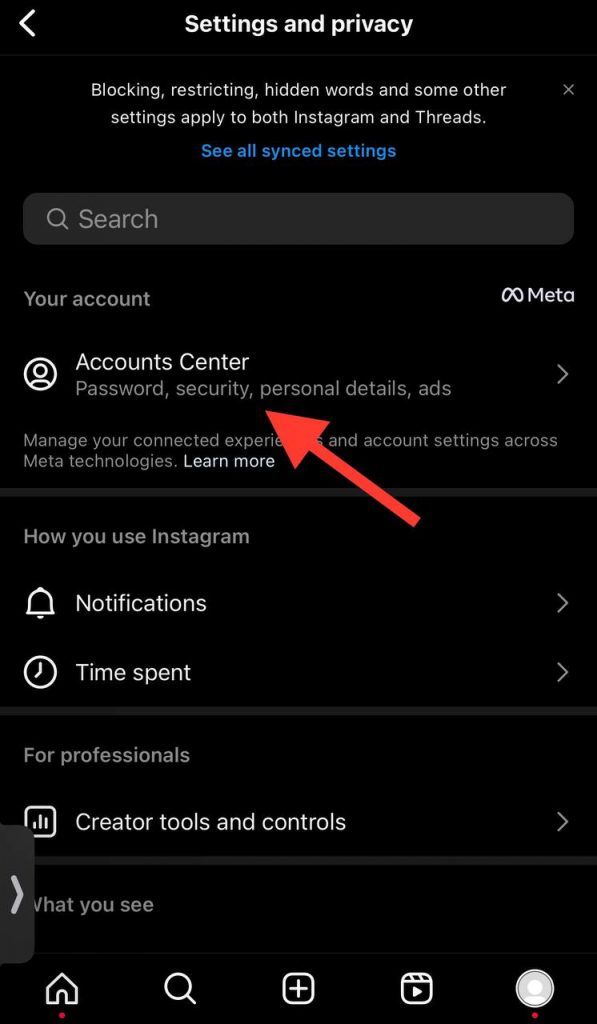
Step 4- Now, select the ‘Add accounts’ option.
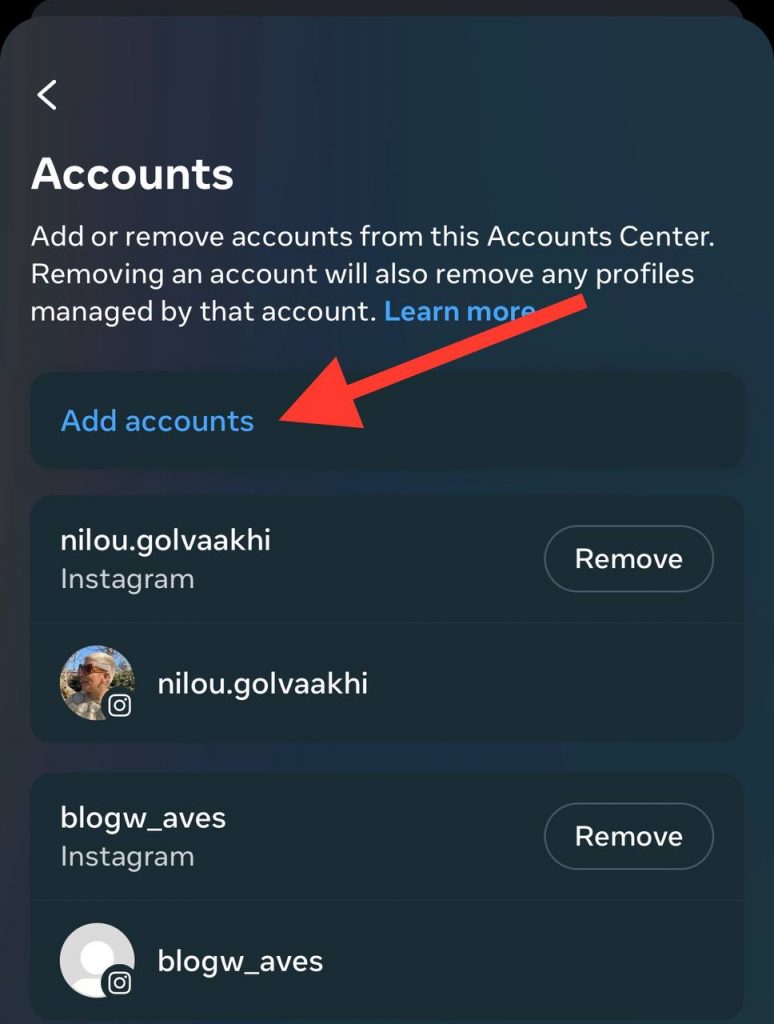
Step 5- Choose ‘Add Facebook account.’ Confirm the process and click on Continue.
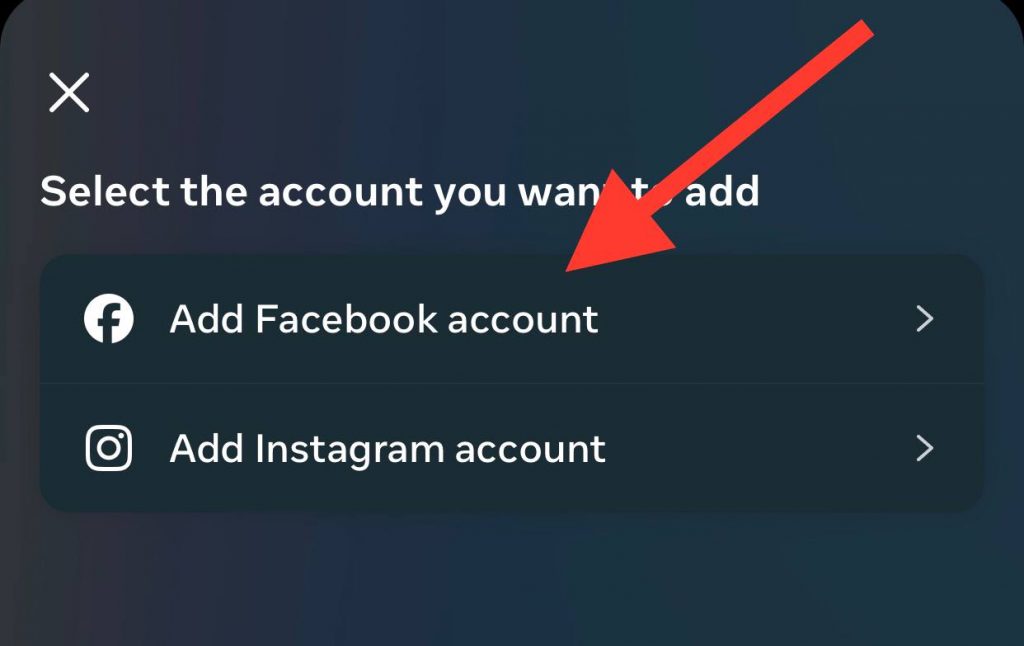
Step 6- To add your Facebook account, you should log in to your account or create a new one if you don’t have a Facebook account.
Step 7- Once you complete the steps above, your Facebook account will be linked to your Instagram account.
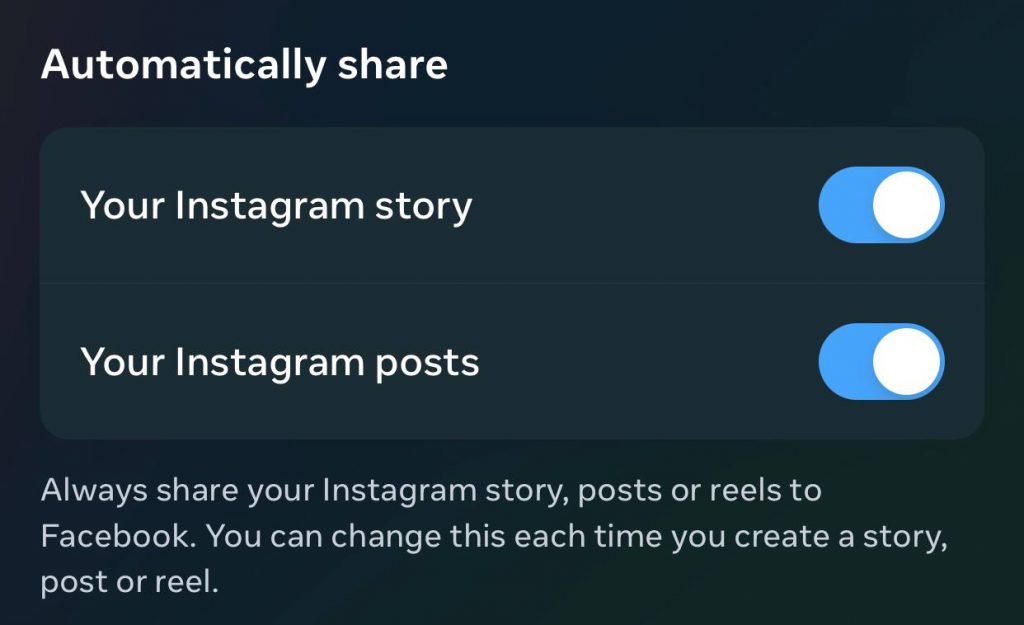
Step 8– Now, you should make sure that the toggle next to your desired content, such as stories, reels, and posts, is enabled.
If you’re having trouble finding settings like the Meta Account Center, our Understanding Instagram Navigation: A Simple Guide will help you locate all the menus and options quickly.
2- Update both Instagram and Facebook
When most users have issues with Instagram not posting to Facebook, it is most likely that the current versions of both applications are out of date. So, you must ensure your IG and FB accounts are updated to the latest version.
You can update these applications on your phone by following these simple steps:
iOS users
1- Open your mobile
2- Launch the App Store
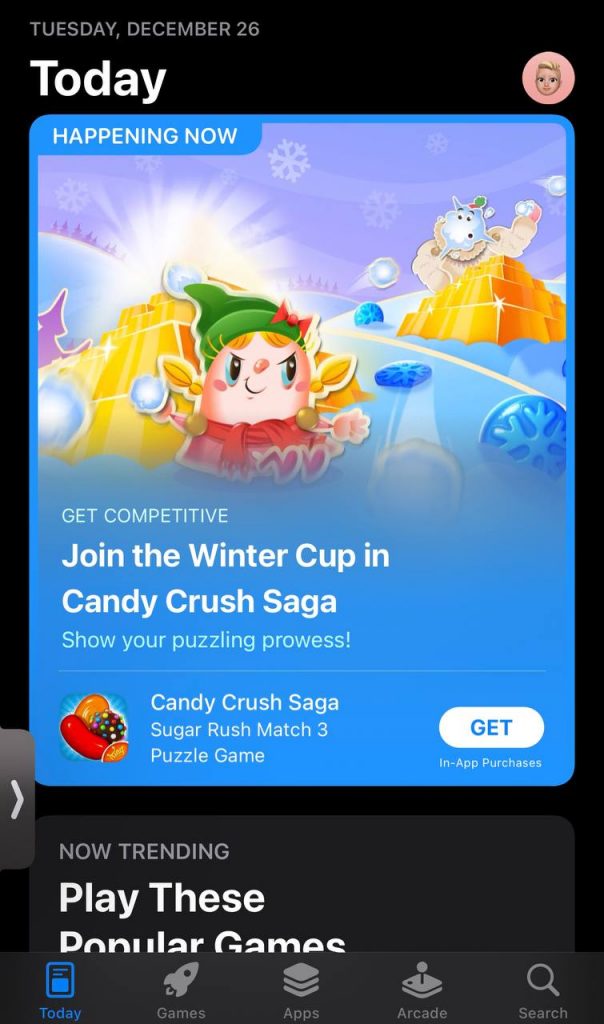
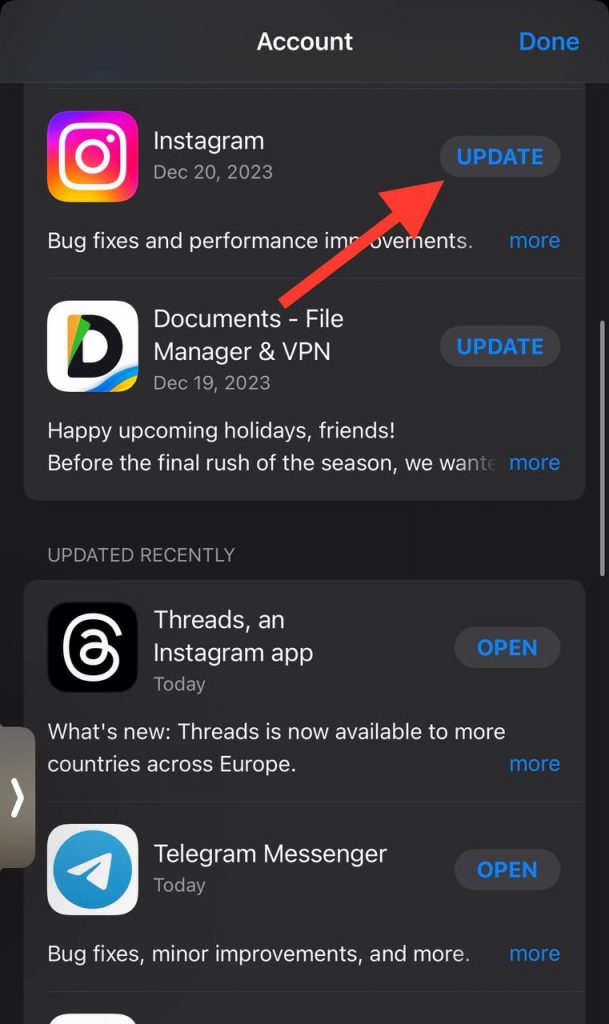
3- Search for Facebook and Instagram
4- Click on “update” if it’s available.
Android users
1- Open the Google Play Store on your device
2- Tap on your profile image at the top right corner of the screen
3- Click on “Manage apps & device”
4- Select Update All or search for available updates for Instagram and Facebook.
3- Change your Facebook account’s password
Always remember to change your Facebook password from time to time; this will log you out from all Facebook sessions, which may be the reason you can’t share your Instagram posts to Facebook.
Follow the steps below to learn how to change the password of your Facebook account:
Step 1- Open the Facebook application on your device and tap on the “Menu” icon in the bottom left corner.
Step 2- Scroll down to find “Settings & privacy.” Tap Settings.
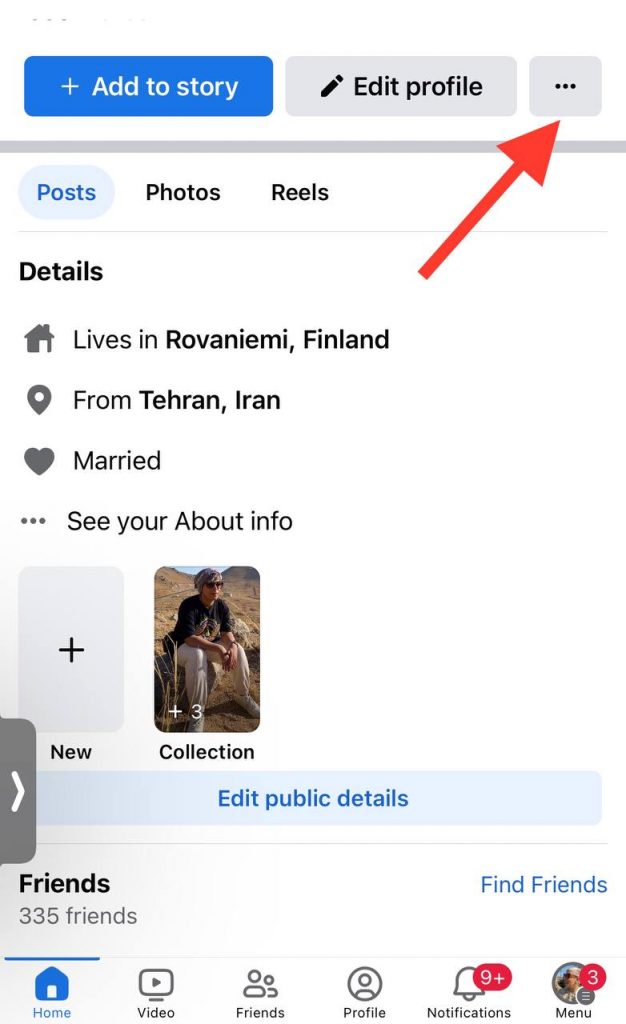
Step 3- Select “Meta Accounts Center” and then tap on “Password and security.”
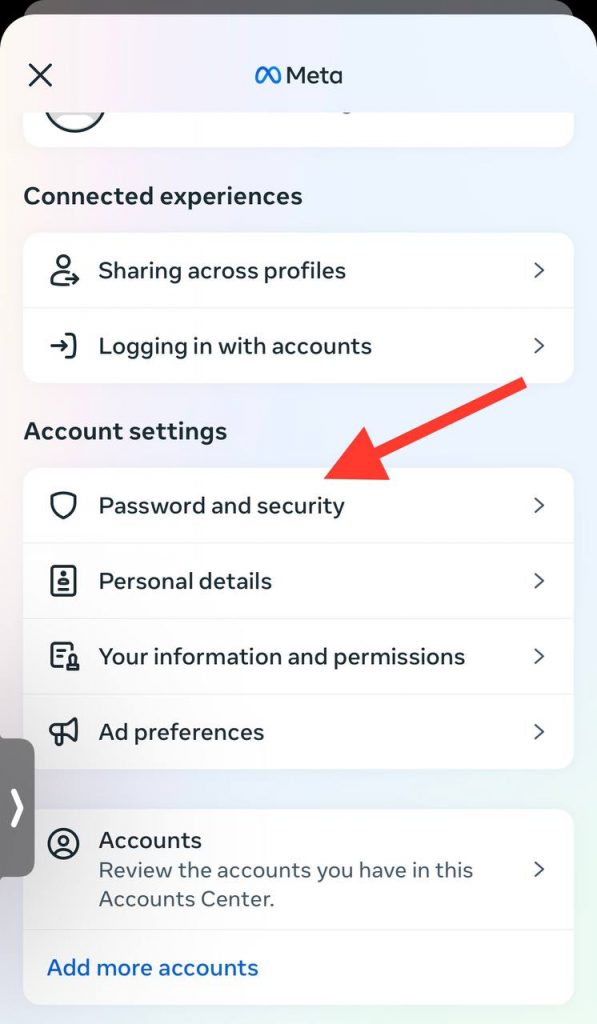
Step 4- Now, you can see the “Change password” option; tap on it.
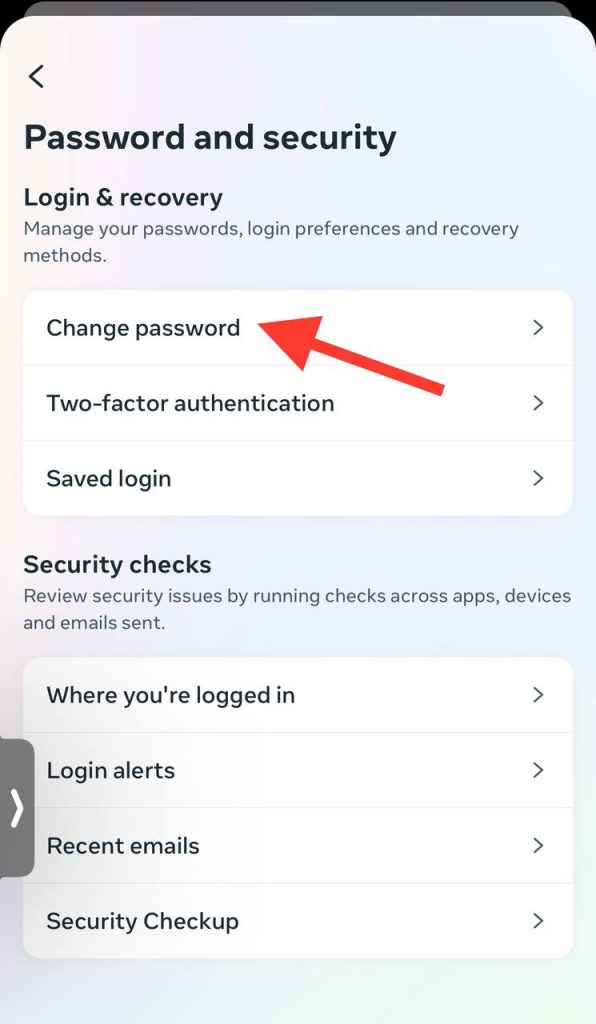
Step 5- You should enter your current and new passwords, then click on “Update passwords” to finish the process.
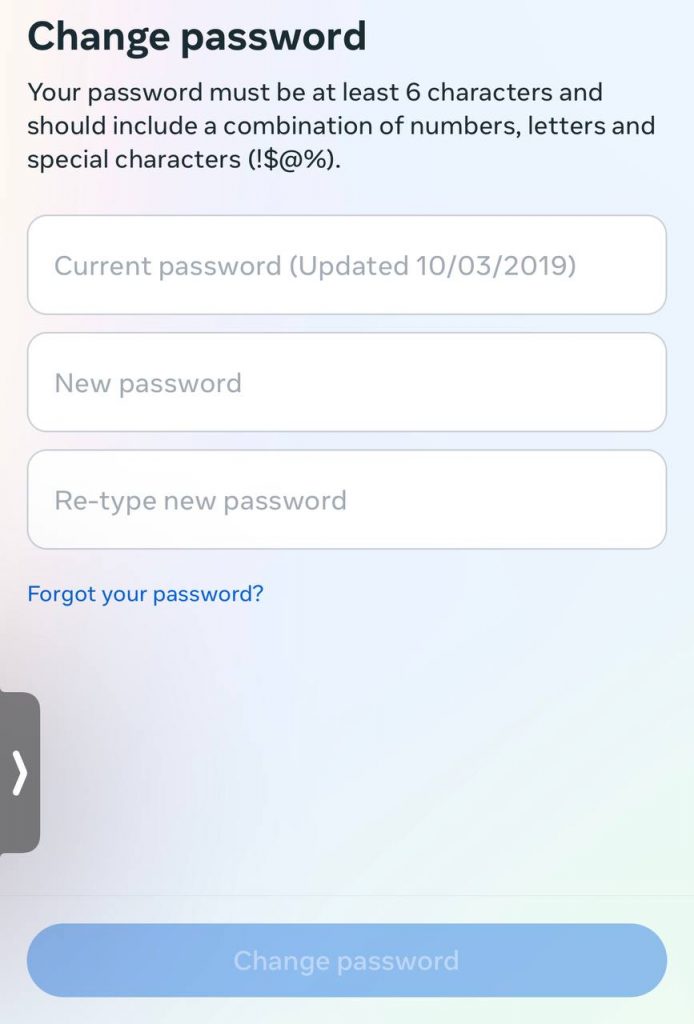
Note that doing these steps will log you out of all the linked Facebook apps, and once you sign up with your new password, you can try to relink your Instagram account and start posting on both applications.
4- Log out from your Instagram and Facebook accounts
Logging out from Instagram and Facebook accounts can help you fix this issue easily because it will stop or block all the possible bugs that cause the problem.
Let’s see how you can log out of Instagram and Facebook in simple steps.
Logging out from Instagram
1- Open Instagram on your device
2- Go to your profile
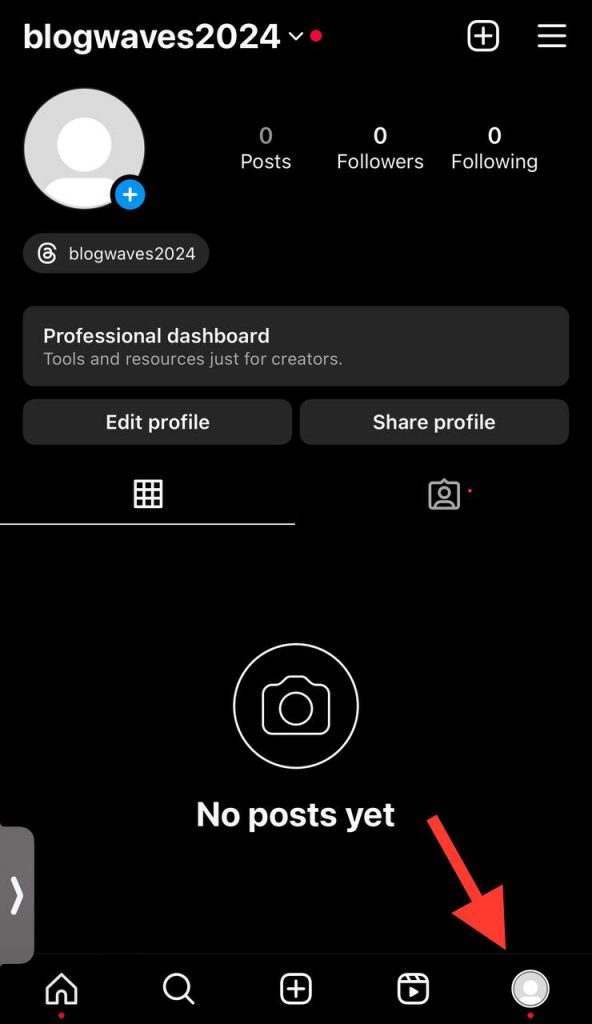
3- Tap on the hamburger menu in the top right corner
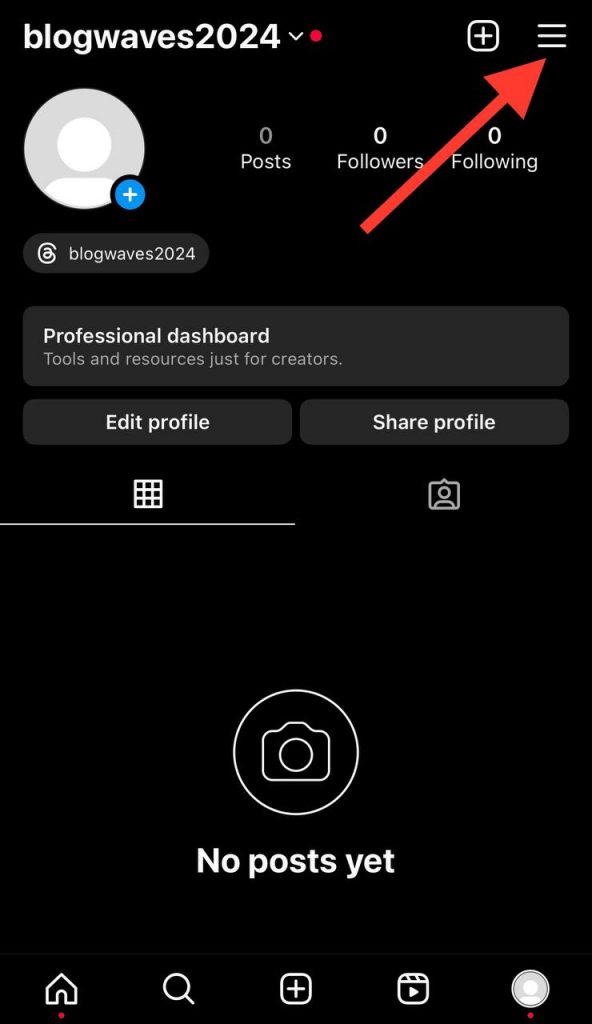
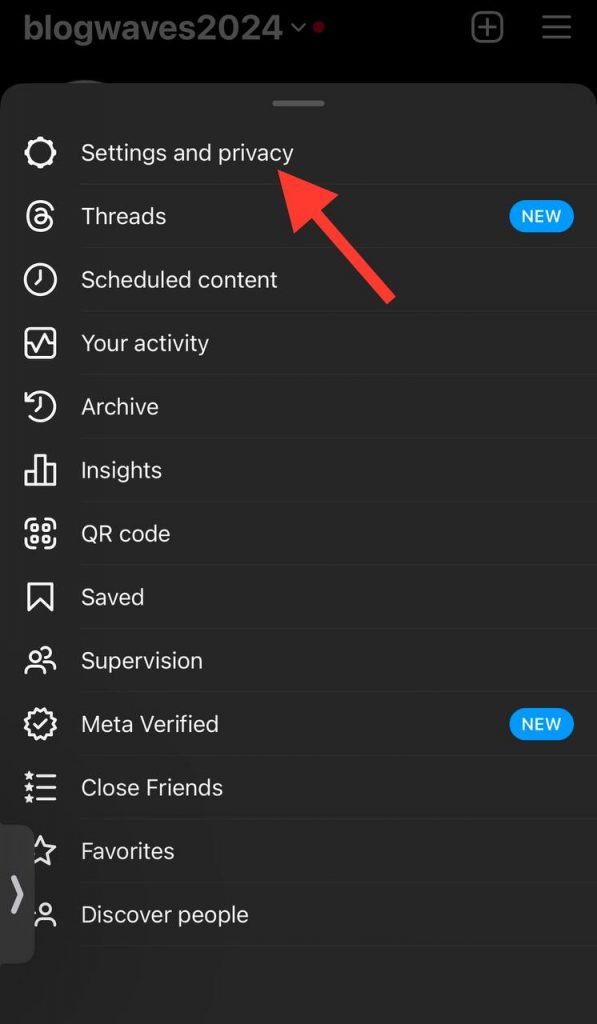
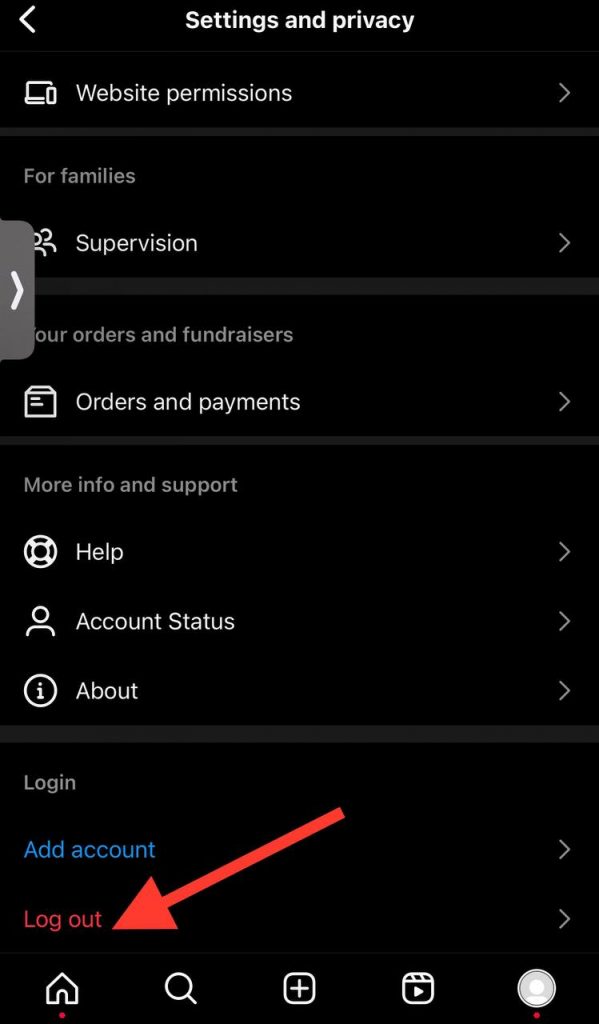
4- Scroll down and tap on “Log Out.”
Some sharing issues may be related to recent platform changes; see all the key updates in our Top Instagram Updates in 2025: A Simple Guide for Social Media Managers.
Logging out from Facebook
1- Open the Facebook application and go to your profile
2- Scroll down and tap on “Log Out” at the bottom of the screen
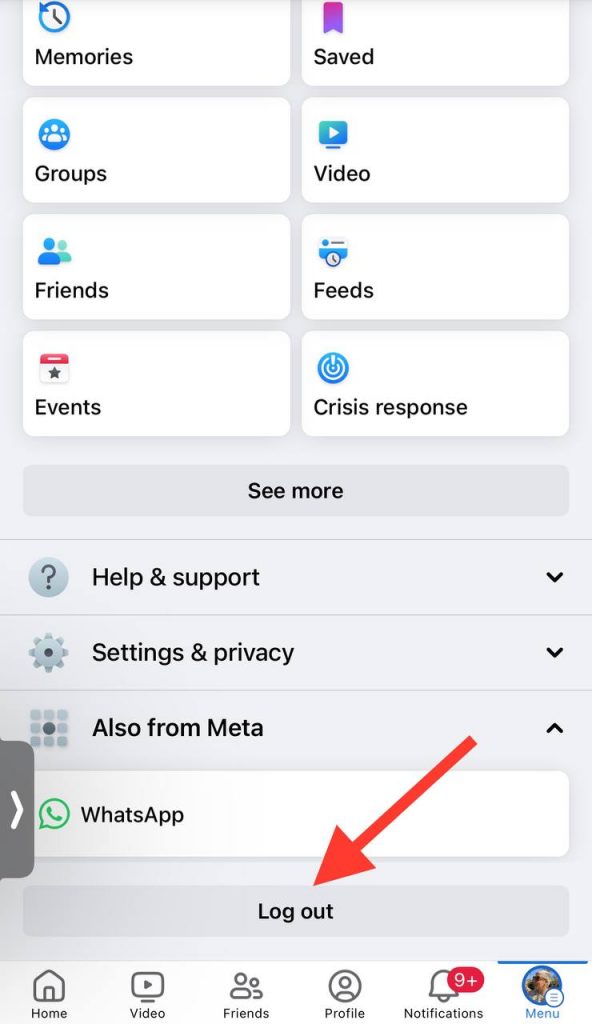
3- You have two options to choose from; “Save and Log Out” and “Don’t Save and Log Out.” This means whether you want the application to save your login information before logging out or not.
After finishing these steps, you need to log in to your accounts and relink them together; hopefully, you will not face any issues with sharing your Instagram posts to Facebook.
5- Relink your Facebook account to Instagram
If you tried all the mentioned methods and still can’t share your Instagram posts on Facebook, you may want to break the current link between these two apps and relink them again to avoid any bugs or errors.
Step 1- Open Instagram on your device.
Step 2- Tap on the profile icon at the bottom right of the screen.
Step 3- Tap the three-line icon and select “Accounts Center.”
Step 4- Tap on ‘Accounts’ and choose your Facebook account.
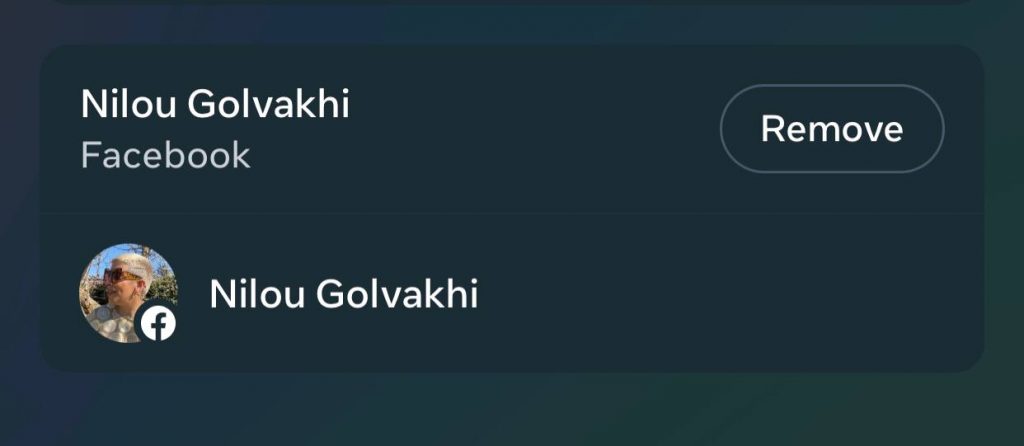
Step 5- Tap ‘Remove’ next to your account, and click on ‘Continue’ to finish the process.
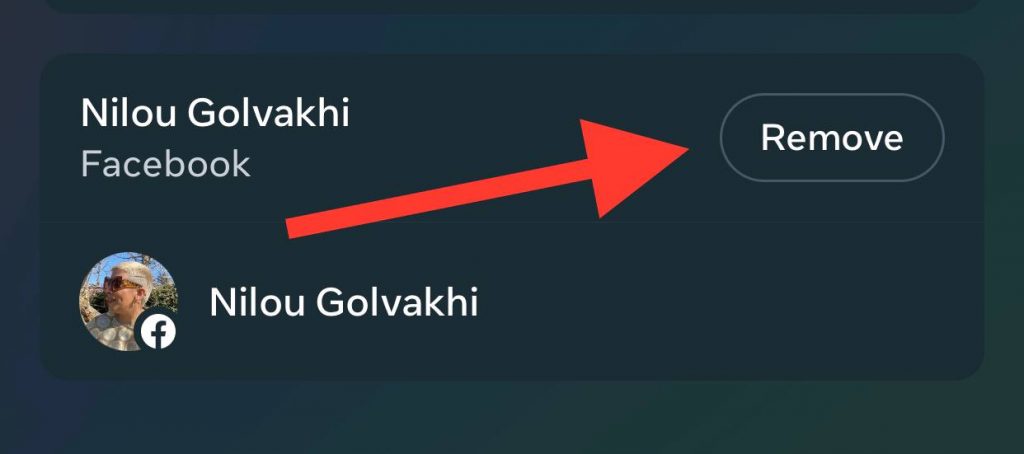
Step 6- Now, choose “Accounts Settings” under “Accounts.”
Keep in mind that after finishing this process, you should relink your Facebook account to Instagram, which we explained already.
6- Clear Instagram and Facebook cache (Only available for Android users)
Unfortunately, this option is not available for iOS users. So, if you are an Android user, you can try to clear the cache of both the Instagram and Facebook applications on your device to solve the problem.
Step 1- Open your mobile and go to settings.
Step 2- Scroll down the menu and select Apps.
Step 3- Choose Manage apps.
Step 4- Find Instagram or Facebook among your phone’s installed applications.
Step 5- Choose and tap on Instagram/Facebook, then click “Clear data.”
Step 6- Now, you have two options: “Clear all data” and “Clear cache,” tap on clear cache, and you are done.
7- Change or enable Instagram sharing preferences
As mentioned earlier, when you link your Instagram and Facebook accounts, you need to choose what content you want to share to your Facebook. If you haven’t done this yet, it might be the reason you can’t share Instagram posts to Facebook, so follow the steps below to change or enable this option.
Step 1- Open Instagram and go to your profile.
Step 2- Choose “settings and privacy” from the hamburger menu.
Step 3- Choose ‘Accounts Center’ then tap on “Sharing across profiles.”
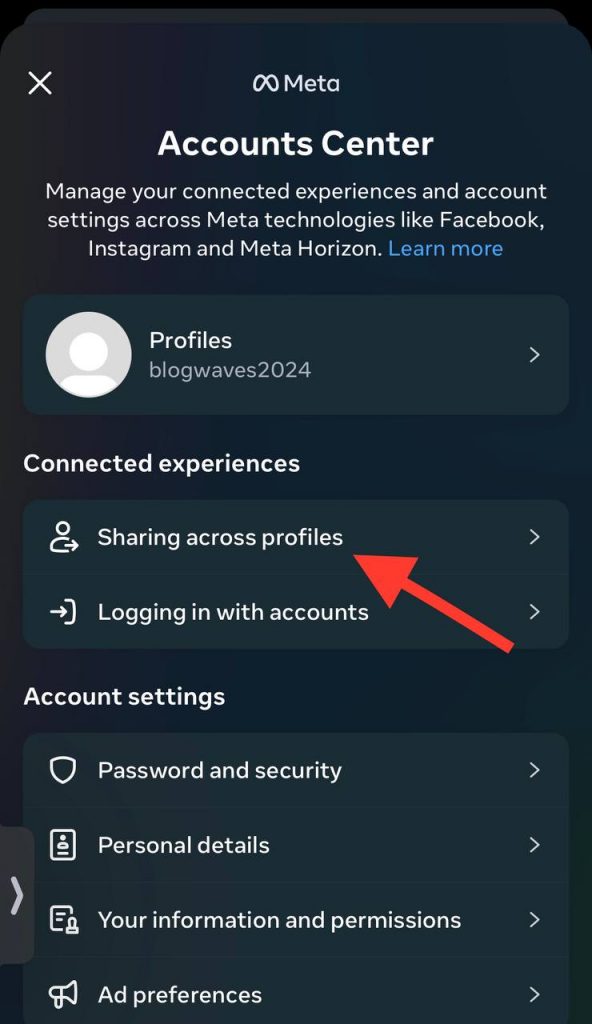
Step 4- Now, you should select your Instagram username.
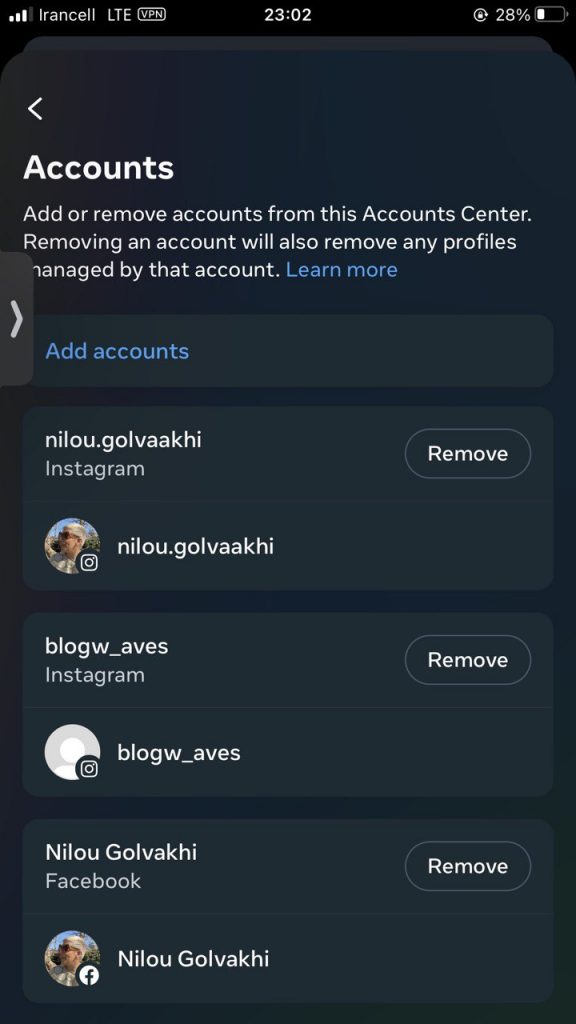
Step 5- Select your main Facebook account instead of other pages connected to it.
Step 6- Toggle Instagram story, reels, and posts under the “Automatically share label.”
Disable VPNs, Ad Blockers, or Private DNS
Sometimes, VPNs, network restrictions, or private DNS settings can interfere with how Instagram communicates with Facebook.
If you are using any of these, it may prevent your posts, stories, or reels from sharing properly.
Follow these simple steps to check:
Step 1- If you are using a VPN on your device, temporarily turn it off.
Step 2- Disable any ad blockers or network-level filtering apps.
Step 3- If you have a private DNS enabled on your phone, turn it off.
Step 4- Once these are disabled, try sharing your Instagram posts to Facebook again.
This often fixes issues caused by network restrictions or blocked connections between the two apps.
Check App Permissions on Mobile
Instagram or Facebook may not have the necessary permissions to share your posts, stories, or reels properly.
This can include storage access, background data, or network permissions.
Follow these steps:
Step 1- Open Settings on your device.
Step 2- Go to Apps and select Instagram (repeat the same for Facebook).
Step 3- Tap Permissions and make sure all essential permissions, such as storage, network, and background activity, are turned on.
Step 4- Once permissions are enabled, try sharing your Instagram posts to Facebook again.
By updating these settings in 2026, you can prevent most cross-posting errors caused by restricted app access.
Quick Fix Summary for 2026
If Instagram is not sharing to Facebook, try these steps in order:
- Link Accounts in Meta Account Center: Make sure Instagram and Facebook are connected and sharing toggles for posts, stories, and reels are enabled.
- Select the Correct Facebook Profile or Page: Especially for business or creator accounts, ensure your content is shared to the intended profile or Page.
- Update Both Apps: Install the latest versions of Instagram and Facebook on your device.
- Check App Permissions: Allow storage, network, and background activity for both apps.
- Log Out and Relink Accounts: Log out from both apps, then relink to refresh the connection.
- Clear Cache (Android Only): Clear Instagram and Facebook cache to remove temporary bugs.
- Disable VPNs, Ad Blockers, or Private DNS: Network restrictions can interfere with cross-posting.
- Check for Temporary Issues: Some problems may be caused by Meta server updates; wait 24–48 hours and try again if all else fails.
How To Automatically Share Instagram Stories to Facebook
If you want to automatically share your Instagram stories on your Facebook account, you can follow the method below, which works on both Android and iOS devices.
Step 1- Open the Instagram application on your device.
Step 2- Swipe the home screen to the right to open the app camera.
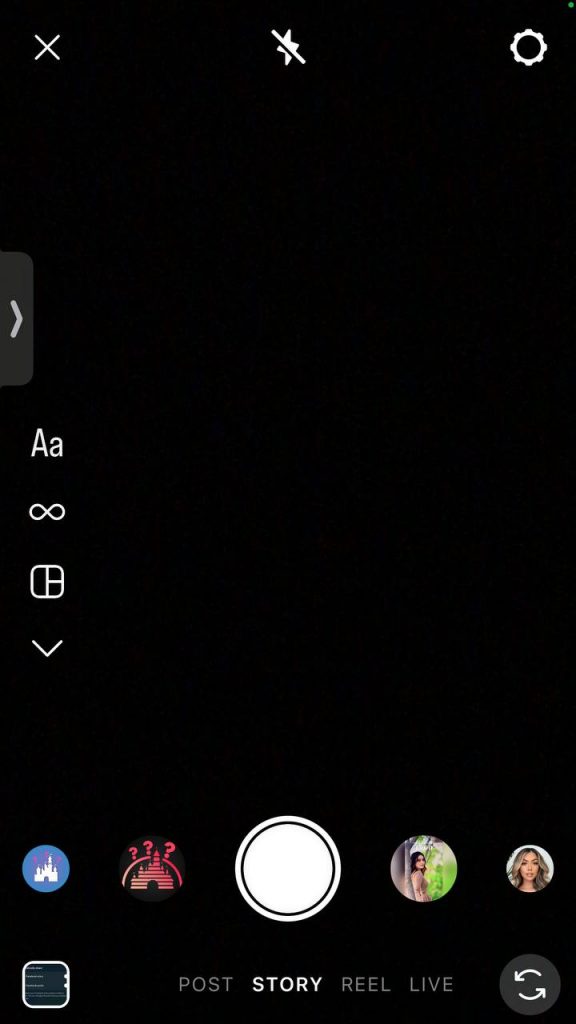
Step 3- Take a picture or choose the picture you want to add to your story and share it on Facebook.
Step 4- Tap on the arrow icon in the bottom right corner to open a couple of sharing options.
Step 5- Under the “Your story,” you will see the “Sharing options” button; click on it.
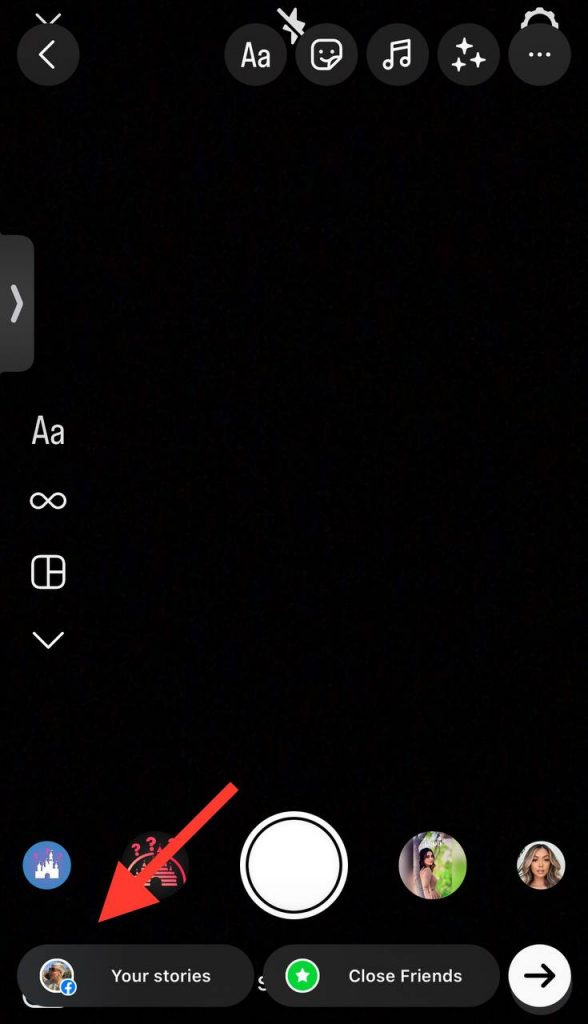
Step 6- A notification pops up, saying “Share to Facebook.”
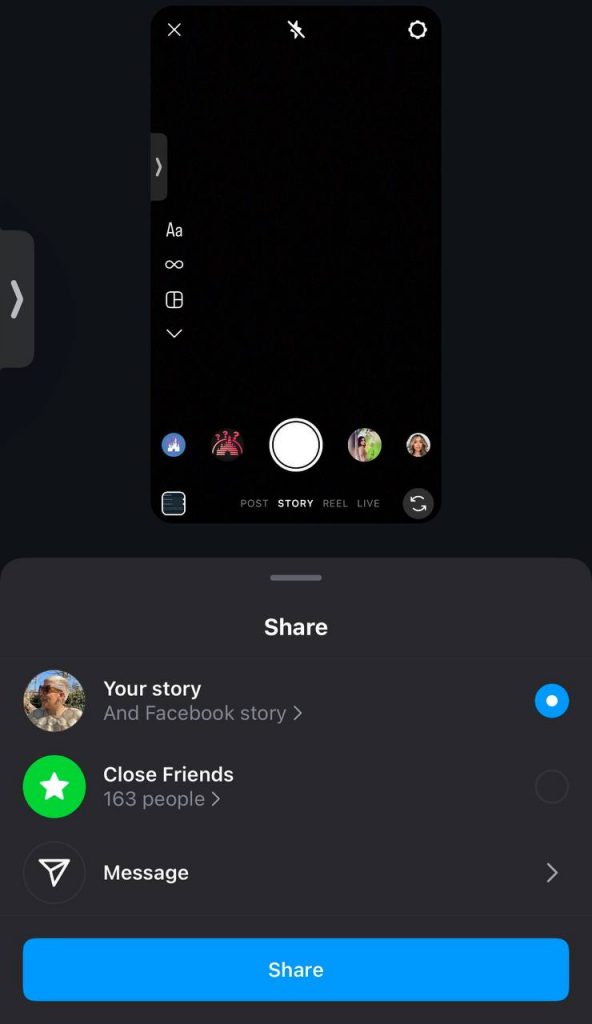
Step 7- Now, you have two options: Share to Facebook every time and Share once; choose share story to Facebook every time, and the story will be shared automatically to Facebook.
However, if you don’t see such options, you must return to your Instagram profile.
Step 1- Go to your Instagram profile and tap on the three horizontal lines at the top right of the screen.
Step 2- Click on settings and privacy from the menu.
Step 3- Scroll all the way down to find the “sharing and remixes” option; click on it.
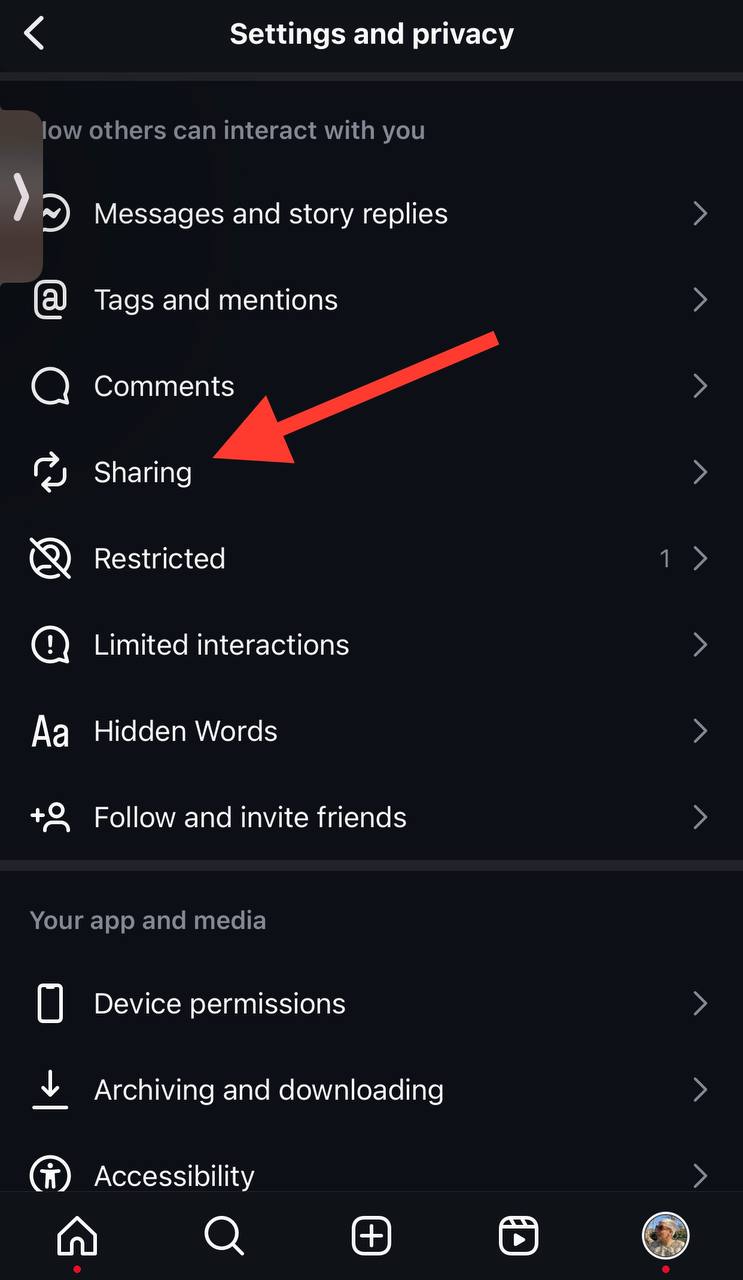
Step 4- Now, you should enable the “share story to Facebook” option to finish the process.

Further Steps to Take When Instagram Is Not Sharing to Facebook

If you’ve tried all the fixes above and Instagram is still not sharing to Facebook, the issue may be related to account-level restrictions, temporary platform bugs, or Meta-side syncing problems that users cannot resolve manually.
In this case, your next step should be to contact Instagram or Facebook support directly. You can do this by visiting the Instagram Help Center or Facebook Help Center, where Meta provides up-to-date guidance on cross-posting issues, account linking errors, and sharing limitations.
You can also:
- Report the issue directly from the Instagram app under Settings and privacy → Help → Report a problem.
- Check Meta’s Account Status for any posting or sharing restrictions.
- Review recent policy updates or feature rollouts that may temporarily disable automatic sharing.
Because Meta regularly updates how Instagram and Facebook interact through the Meta Account Center, some cross-posting issues resolve automatically after server-side updates. If everything is set up correctly, waiting 24–48 hours and trying again may fix the issue.
If these fixes don’t work, you can get help directly from Instagram through our guide on How Do I Contact Instagram?
Conclusion
Sharing Instagram posts on your Facebook account can save time and effort, allowing you to post content across platforms instantly.
Cross-posting is one of Instagram’s most convenient features, but sometimes technical issues or account settings prevent posts, stories, or reels from appearing on Facebook.
If you experience problems with Instagram not sharing to Facebook in 2026, following the steps outlined in this guide, including linking accounts through the Meta Account Center, checking sharing permissions, updating apps, and relinking accounts, should resolve most issues quickly.
For persistent concerns, contacting Instagram or Facebook support through their Help Centers is recommended, as some issues may be temporary or related to recent platform updates.
By following these methods, you can restore smooth cross-posting and ensure your content reaches both platforms efficiently.
FAQs
Why can’t I share my Instagram story on Facebook?
If you want to share your stories on Facebook, you must add your Facebook and Instagram accounts to the same Accounts Center.
Can I post Facebook stories on Instagram?
Yes, you can visit your Facebook settings and toggle on to automatically share Facebook stories, posts, and reels to Instagram.
What happens when I share my Instagram post to Facebook?
The posts you share to Facebook will appear as a Facebook post on your account.
Why do my Instagram reels not share to Facebook automatically in 2026?
As of 2026, reels require you to enable specific sharing permissions in the Meta Account Center under “Sharing across profiles.” Also, business or creator accounts must select which Facebook Page to post to, as Meta no longer defaults to personal profiles for reels.
