


I bet you didn’t know that almost 40% of social media users use Instagram daily to check their home feed, share a story, communicate with others, and more.
Over 500 million people use Instagram stories, which means it is important to know how to use this feature and learn how your stories work, such as how many users watched your story, replied to it, interacted with it, etc.
What you need to learn is Instagram insights, specifically the “navigation” part; the Instagram navigation shows how people react to your stories and posts, comments, profile visits, views, and interactions.
Buy an Established Instagram Account
Skip starting from zero. Browse Instagram/TikTok accounts with audiences across many niches.
See Available AccountsLong story short, Instagram navigation is the main key to using Instagram properly; if you are looking to learn about navigation on Instagram, you are in the right place.
In this comprehensive article, I will discuss all the detailed information you need to know about Instagram navigation, including what it is, how it works, and more.
Let’s not waste the time and jump into this matter!
What Does Instagram Navigation Mean?
Allow me to be straight with you, Instagram navigation is the map that helps you explore every section of this platform and better manage your Instagram account.
In the section below, we will examine the basics of Instagram navigation together:
The bottom navigation bar:

This is where you can access all the sections of Instagram, including the home feed, explorer page, Reels, and your profile.
The home feed:

The home feed of Instagram is where you access most features of this app, such as stories and posts. You can check your Instagram feed and view or upload stories by tapping the home icon.
The Explore page:
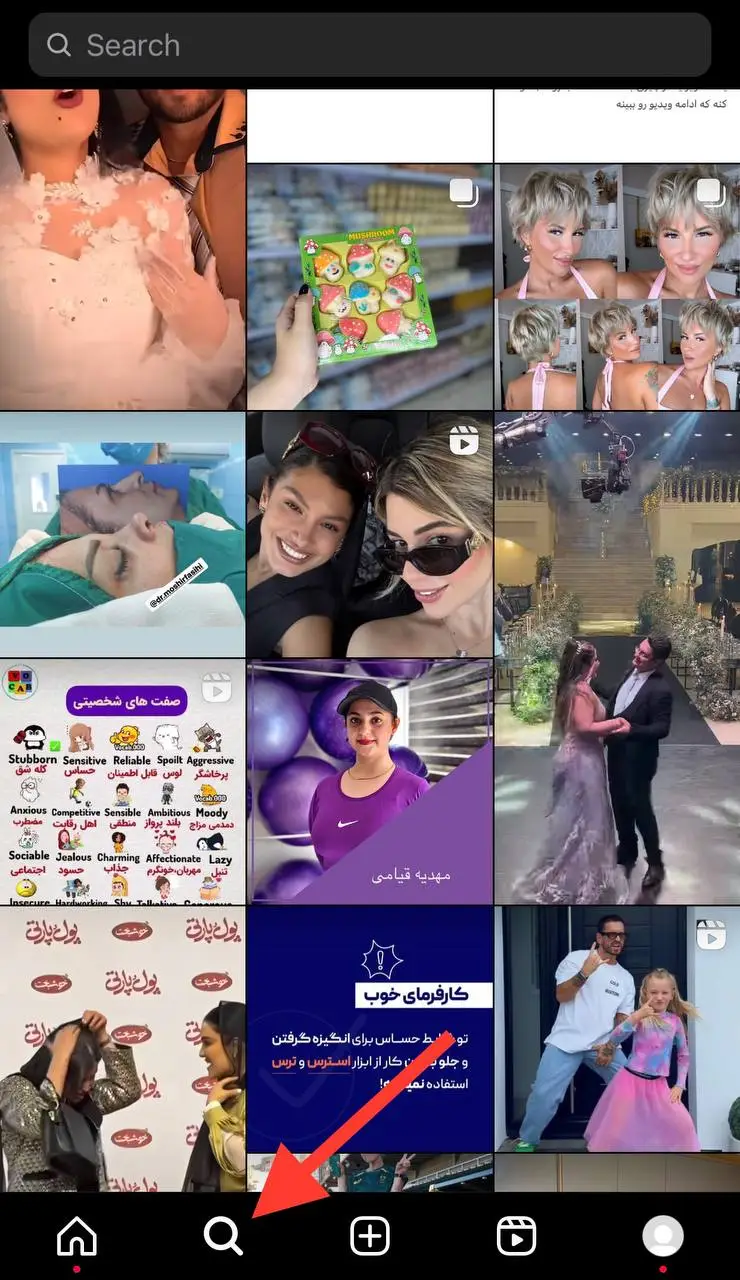
I can tell you that Instagram users mainly spend their time on this tab; you can access the Explore page by tapping on the magnifying icon next to the home feed button; You can find all the top and trendy posts in this section!
The plus (+) icon:
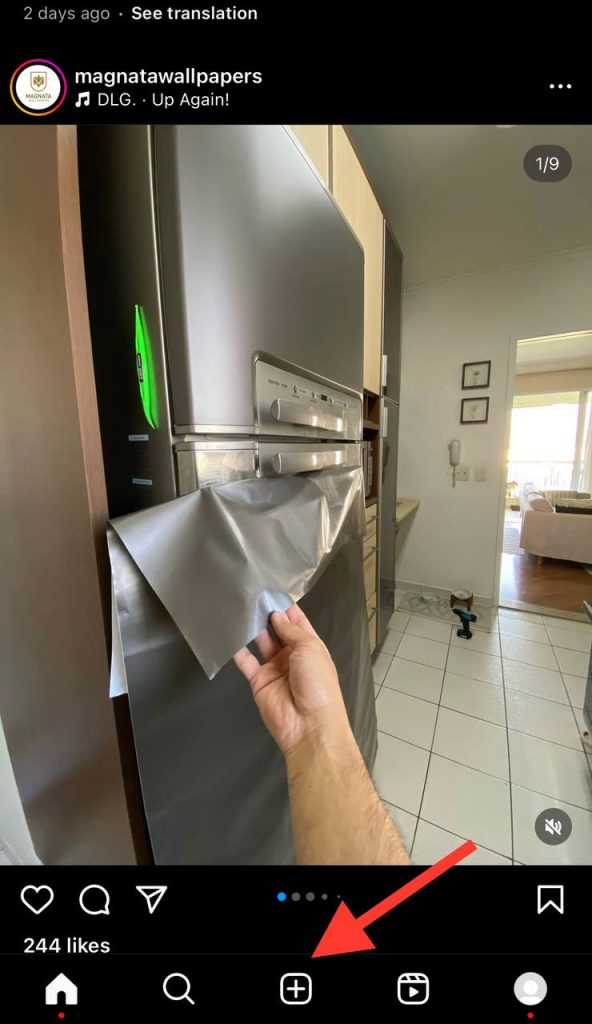
Are you wondering how to share a post on Instagram? Selecting the plus icon is all you need to do. Going to this section allows you to upload a post, story, Reel, or even go live on your account.
The Reel section:

Since Instagram launched the Reel feature, I have been obsessed with it, and I bet you are too! So, if you want to access this section, tap on the Reel icon from the bottom navigation bar, which leads you to a new world of short videos.
Your profile:
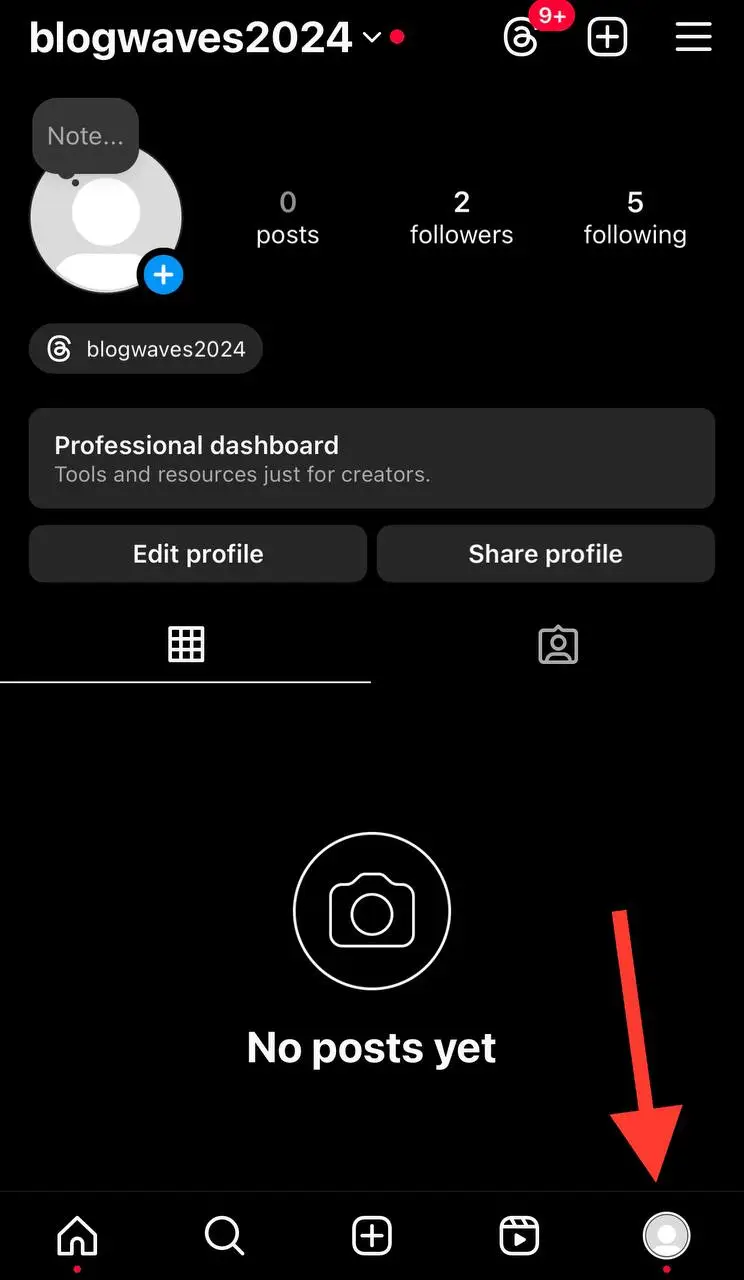
This section leads you to all the private information and settings of your Instagram account, helping you better manage it and customize your profile.
What Is Instagram Story Navigation?

Instagram story navigation is users’ interaction with your stories, allowing you to analyze their actions better.
The followings are the data you can access through the Instagram story navigation:
- Swiping left or right, which is the action users take to move between different stories.
- Tapping the screen, which allows users to pause your story, answer a poll, and more.
- Exiting the story, which means users stopped viewing your content.
These data help you better track how your audience interacts with your content to share more relevant and engaging stories.
What Are Instagram Navigation Metrics?

Let’s see what are the Instagram navigation metrics:
Forward taps:
This metric shows how often viewers tap your story to move ahead to the next segment of your stories.
If the number this metric shows is high, it means that they didn’t like your content and skipped ahead, and if the number is low, it means they find your story engaging.
Back taps:
It measures how many times your followers tap to revisit your previous stories; if the number is high, it means your content is engaging, and if it’s low, it means that the content wasn’t worth rewatching.
Next story swipes:
This metric indicates how often your audience swipes to the next story in their feed. If the number is high, it means they didn’t find your content engaging; on the other hand, if the number is low, it means you shared engaging stories that keep your followers interested in continuing to watch your content.
Exit story taps:
This metric shows the number of times viewers tap to exit from your story. Note that if the number is high, your audiences weren’t interested in what you shared, and if it’s low, it shows that your stories were highly valued and worth watching to the end.
By understanding these navigation metrics, you can better analyze your Instagram stories, learn what type of content your audiences are interested in, and how to increase your engagement.
Differences Between Instagram Navigation Forward and Next Story

Now that you are familiar with the Instagram story navigation metrics, you may wonder what the difference between the forward and next story navigation is.
Let me explain each in simple words:
Forward navigation:
The forward tap in Instagram stories is when a viewer taps your story to skip to the next part of your content.
It is good to know that a forward tap is a positive sign because it shows that your audiences find your content engaging and are interested in what you share.
Next story swipe navigation:
This metric differs from the forward tap and is a bit more concerning based on the user’s interest.
When your followers swipe to the next story, they choose to leave your story because they didn’t like it and move to another account’s story to find what they are looking for.
Ultimately, both the next story swipe and forward tap navigation are about moving to another story, and they differ in viewer engagement and interest.
How to Check Instagram Story Navigation Insights
As mentioned earlier, Instagram story navigation insights enable you to have more control over what you share on your profile; therefore, knowing how to access and check these navigation insights is important.
In this section, I will guide you on how to check the Instagram story navigation insights step by step:
Step 1- Switch to a business account

First, you must check your account type and switch to a business one if your account is regular.
To successfully switch to a professional or business account, you should go to your account’s settings, search for “Switch to Professional Account,” and choose this option.
Step 2- Access the Instagram analytics
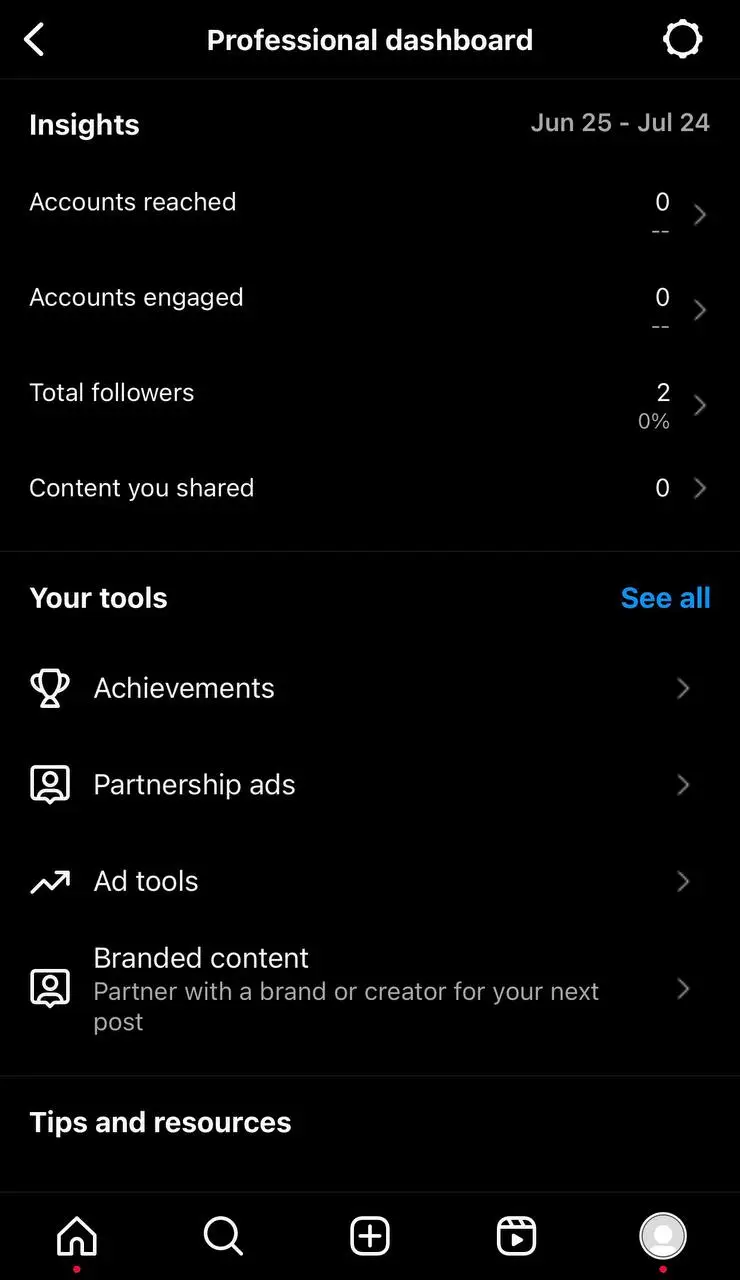
You will access Instagram analytics once you change your personal account to a business or creator account.
Step 3- Checking story navigation metrics
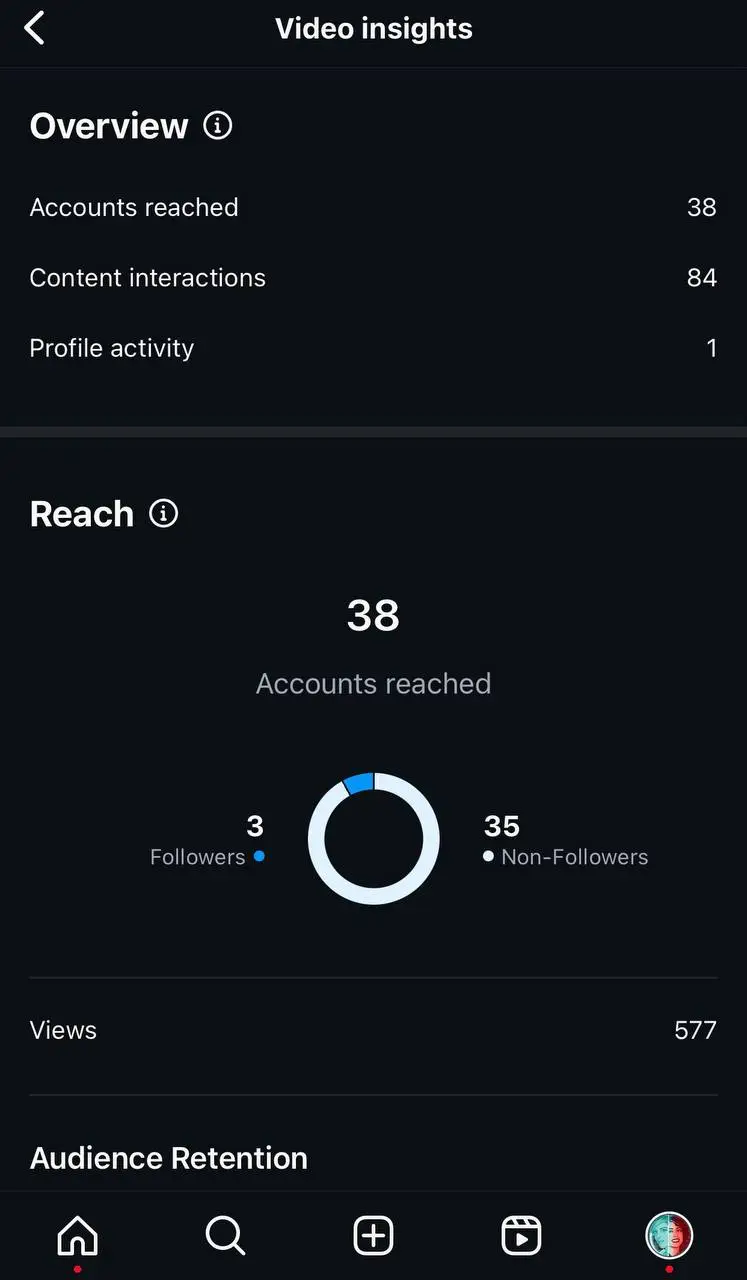
To access these metrics on your Instagram stories, tap on the eye icon, go to the insights tab, and scroll down the screen to access the navigation metrics. These include forward taps, back taps, next story swipes, and exit story taps, which I fully explained in the previous section.
Benefits of Using Instagram Story Navigation

You are now familiar with all aspects of Instagram story navigation, so it’s time to see the benefits of using this amazing feature.
The main advantage of using this feature is that it enhances user experience and increases your account engagement by making it easier for your audience to interact with your content.
Besides, Instagram story navigation enables you to create more engaging stories, making more users interact with your content.
Ultimately, it increases the chances of attracting more target audiences by sharing more unique stories.
Conclusion
In conclusion, understanding how to analyze your Instagram content, especially Instagram stories, helps you manage your account more effectively.
When you know what each navigation means on this platform, you can use this application’s features to grow your follower’s community, create more relevant content, build better relationships with your audiences, and better use Instagram.
In this comprehensive article, I walked you through all the information you need to know about Instagram navigation to better use this feature.
I hope you find this article helpful. Start using Instagram navigation today!
FAQs
1- Where can I find Instagram’s navigation bar?
You can find the Instagram navigation bar at the bottom of the Instagram application.
2- What is the definition of Instagram navigation?
Instagram navigation is a set of actions and interactions your followers take on your stories and Instagram posts.
3- Can I see how many times someone viewed my Instagram stories?
You can see how many people viewed your stories, but it is quite impossible to check how many times someone viewed your content due to Instagram privacy policies.

Emi Daniel
Buy an Established Instagram Account
Skip starting from zero. Browse Instagram/TikTok accounts with audiences across many niches.
See Available AccountsRelated articles
-

How to Clear Instagram Cache on iPhone, Android & Desktop
Instagram can quietly build up a lot of temporary files while you scroll through Reels, watch Stories, save posts, and upload your own content. You may not…
12 min readEmi Daniel
-

How to See Who Reposted Your Instagram Post (2026 Guide)
Someone reposted your Instagram post, but you have no idea who it was. You check notifications, search through your profile, and still cannot find a clear answer. …
18 min read -

How to Reset Instagram Algorithm in 2026
Instagram can start showing too much of the same type of content. Your Explore page may no longer match your interests, Reels may feel repetitive, or suggested…
12 min read