


When you visit a website for shopping or search the internet about a particular subject, websites can gather information about your shopping behavior. But, of course, you are revealing any personal information in this process, which might not be what you want.
Nowadays, it is impossible to visit a website without getting attacked by ads, which is even more noticeable on Facebook. You can only watch a video easily if you see an advertisement in the middle, and most of the time, changing your account setting will only make the same.
Facebook was always a popular social media platform, but nowadays, it is losing popularity because of an exceeding amount of ads popping up for users. Approximately each Facebook user clicks 11 ads per month, which is why many companies count on Facebook to promote their brand for 2.14 billion users.
Buy an Established Instagram Account
Skip starting from zero. Browse Instagram/TikTok accounts with audiences across many niches.
See Available AccountsYou might receive many Facebook Ads while scrolling through Facebook to see what your friends are up to, and you are not interested in seeing these Ads. If visiting Facebook has become annoying rather than entertaining, you can stop them quickly. Continue reading this article to learn about different methods to block Ads and have fun browsing Facebook again.
Why Is Facebook Feed Covered With Ads?
Facebook is overfilled with different kinds of ads, and there is always the risk of downloading a virus by clicking on an ad. So, you should always use anti-virus to avoid that from happening.
If you are using a Facebook mobile app, there is not much you can do to stop ads, but if you are using desktop or mobile browsers, some methods can help you get rid of these ads quickly, such as using an ad blocker.
You are seeing ads on Facebook for many reasons, and the primary truth behind that is that Facebook tries to show personalized ads to users based on their interests. For example, searching for a specific product shows that you like that product or service, and Facebook will use this reason to customize advertisements for you and display them on your feed.
Below are some reasons you may see many ads on your Facebook feed.
Retargeting
When you visit a website before, you might receive retargeted ads. Websites use retargeting to send ads to previous visitors by making an email list.
The main goal of retargeting is to attract new customers on social media platforms or by Email. For example, when Facebook hears about a company, retargeting will provide more information to them about the company’s product or services. As a result, they will customize the message for you in your feed.
Retargeting ads have two types: pixel-based and list-based retargeting.
Pixel-Based Retargeting
This retargeting uses Javascript to add a cookie or pixel to a website’s visitor’s browser. Then, every time a visitor leaves the site and browses the internet, the cookies let the retargeting platform know, and this way, retargeting platform knows it should start sending ads on the new websites a person is visiting.
List-Based Retargeting
This kind of retargeting lets the website owners create a contact list and use it in social media advertising campaigns. Then, the advertising platform uses this list to recognize people who use the same contact list on social media and send retargeting ads to them.
Sponsored Ads
These types of ads are paid advertisements that were set up from a Facebook business page. Sponsored ads will be sent to the target audience to get likes, comments, shares, and views. Businesses use sponsored ads to gain more audience and turn them into customers who will buy their services or products.
Demographics
One of the necessities for building marketing strategies is using demographics that can recognize audience members, their needs, interests, and traits. Demographics also involve other types of information, such as age, gender, location, and income. Businesses use this info to find out who buys their products and which of their services is more attractive to different groups of people.
Interests And Behavior
When you browse or search for a specific product or service, you will show your interest area. Facebook uses this information and sends you related ads. In addition, Facebook gathers piles of information about your priorities and behavior. Third-party providers and Facebook algorithms can collect this data.
For example, when you add an item to your shopping cart and are willing to pay for it, you show Facebook that you are interested in the product and will spend money on it. Marketers use this information, and by analyzing it, they will predict what you might buy in the future.
Methods For Stopping Facebook Ads
You can never eliminate all ads, but you can at least determine what ads to see and which data is used for choosing these ads for you. Then, you can select any ads popping up for you and hide them; you can hide inappropriate ads or find out why you see them.
After that, you will better understand how to stop Facebook ads when you see one. Below: are some methods you can use to stop Facebook ads from popping up.
Use an Ad Blocker
An Adblocker can remove advertisements that invade you while you are online. When you visit a website, the ad blocker tracks anything that might be blacklisted and tags it as an ad. Blocking Ads is helpful because of the viruses and malware because many ads include viruses that you might click on and download accidentally.
Block Ads can help you remove Facebook ads, but not all might work, so you should try some of them and find the right one for yourself. You can use ad-blocker apps for your mobile or download ad-blocker extensions for Google Chrome, Microsoft Edge, or Safari.
Stop Ads That Are Showing Up Based On Relationship Status, Employer, or Job Title.
- Go to your Facebook account
- Go to “Settings & Privacy” under your name.

- Choose “Ads” in the left menu.
- Choose Topics
- Under Ad topics, there are topics showing interest categories advertisers use
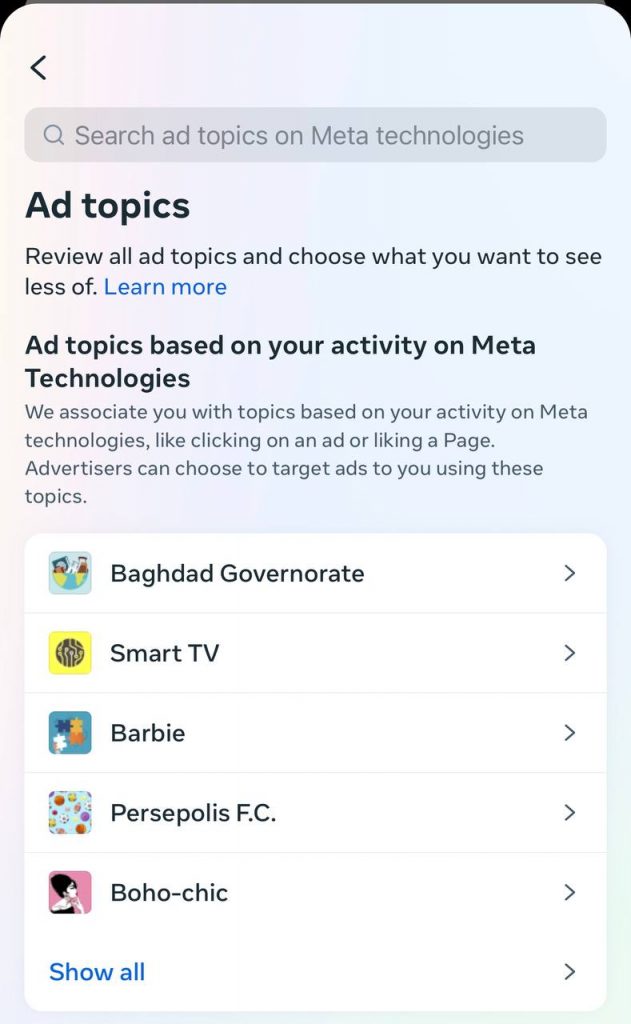
- To see less, add a topic, and choose the topic you want to see less.
- Choose See Less.
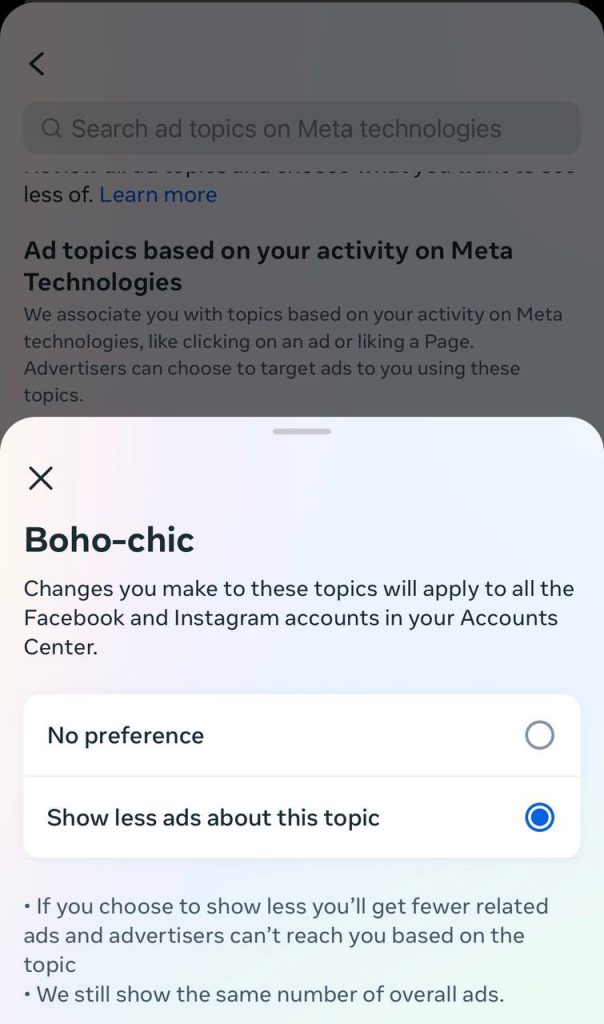
- You can change this ad preference anytime by selecting a topic and then-No preference.
Use A Browser That Blocks Ads.
If you are using browsers for going online, it is a good idea to use ad-blockers for web browsers. Famous browsers such as Google Chrome will let websites gather personal data when you purchase or search online.
Some browsers have built-in ad blockers that can identify and block ads, helping web pages load faster without ads popping up.
Hide Ads
You can hide the ads if you don’t like downloading browser ad-block extensions. You don’t need to change your browser or a third-party app to do this. Facebook makes hiding unwanted ads simple. It only takes a few steps to complete the process.
You can hide ads on Facebook by following some simple steps. Based on Facebook’s instructions, you can’t remove the ads entirely, but you can hide them. Hiding specific ads will determine what social media platforms can send through your feed in the future.
By following the below steps, you can hide ads on Facebook.
- Choose the three dots at the top right of the ad.
- Choose Hide ad.
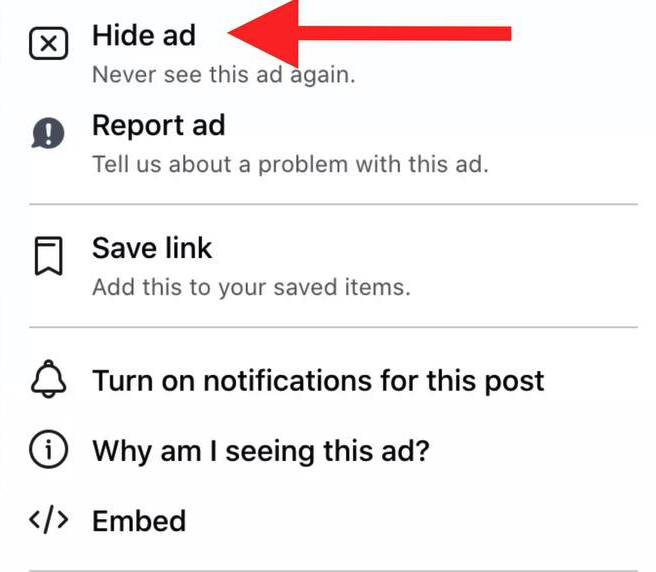
- For hiding all posts from a specific Facebook page or advertiser,
- Choose to hide all from that particular company.
- Or choose the three dots.
- Choose why am I seeing this ad.
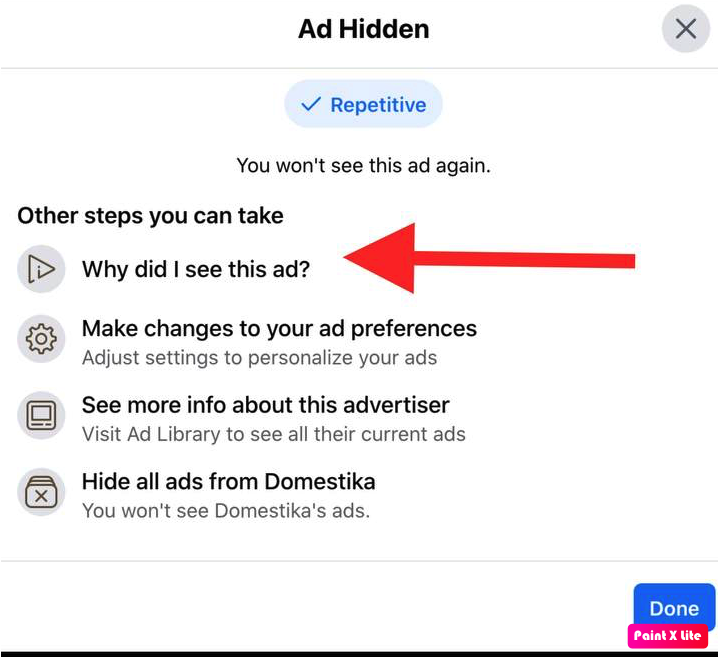
- Click the Hide button next to Hide all ads from this advertiser.
Block Specific Types Of Facebook Ads.
You might not want to see particular ads when you check your Facebook feed. Scrolling through your Facebook feed can be less annoying when you can control what types of ads to see. For example, Facebook lets you see fewer ads from a specific subject, and these subjects could be about politics, sports, culture, drug use, etc.
Turn off Personalized Ads.
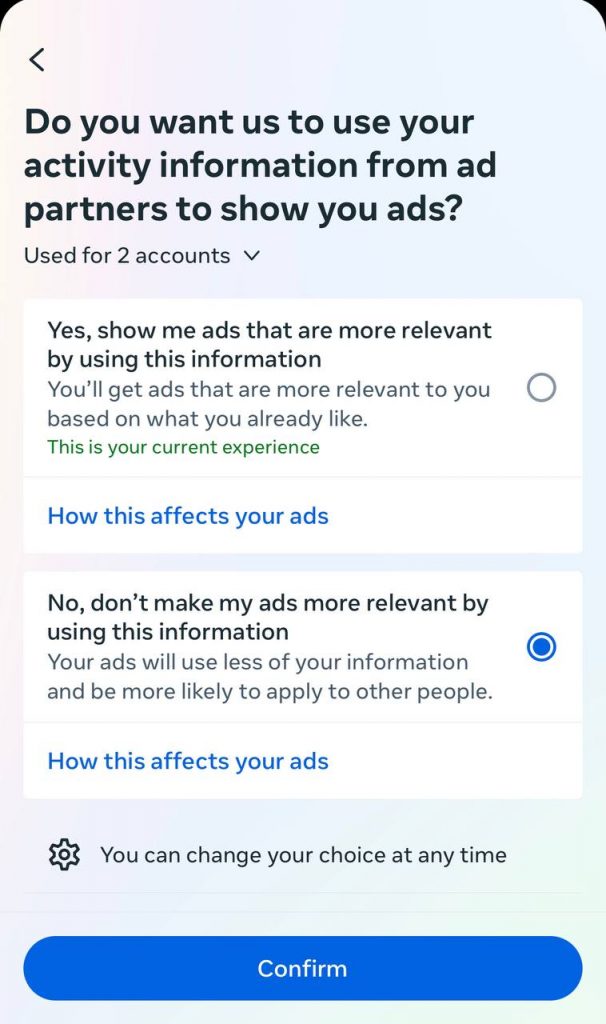
Facebook can use your information and pop up personalized ads based on your previous searches and interests. If your interested subjects have been changing or you don’t want Facebook to use your personal information and send suggestions, you can turn off Ad settings.
To change your personalized ad settings, follow the below steps:
- Go to Settings
- Choose Ads
- Choose Ad Settings
- Choose Data about your activity from partners
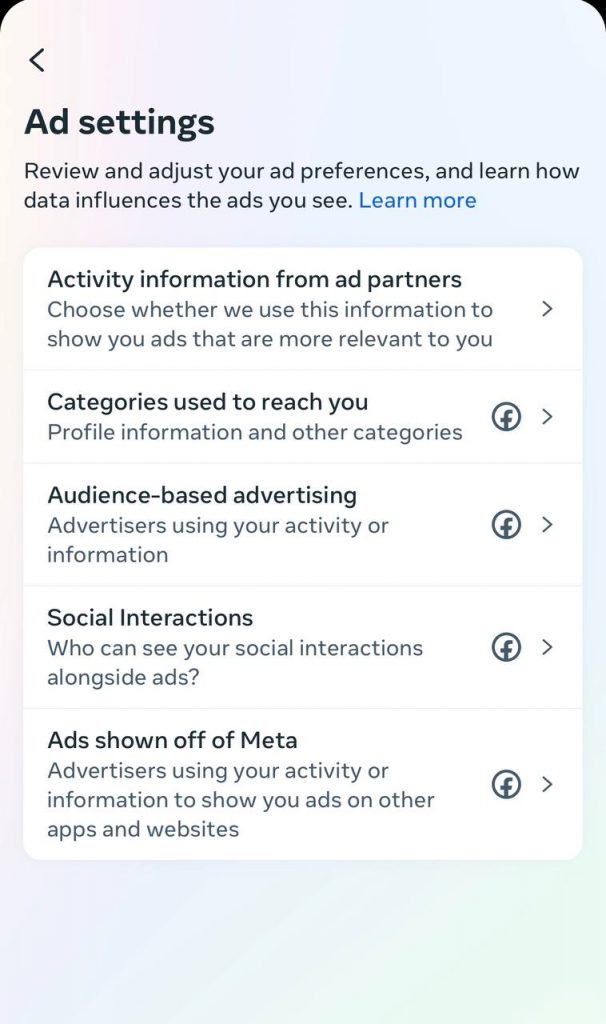
- Change the toggle button to Not Allowed.
Report Inappropriate Ads
You can block inappropriate ads popping up for you on Facebook. There can be many reasons why these ads are showing up for you. One of the reasons is that you might have been logged into Facebook while looking for a specific product or service.
Another reason is that you might match the target demographic that a brand should show its ads to them. Another reason is that you may have bought a product or service from a company before, and that purchase is mainly targeted at you.
Despite the reason you are receiving these improper ads, you can block them or put a stop to them by following the below steps:
- In your feed, choose the three dots next to the ad you’re reporting.
- Click on Report Ad
- Follow the instructions
- Select the reason you are reporting it.
Facebook lets you report ads for the following reasons:
- Misleading or scam
- Sexually inappropriate
- Offensive
- Violence
- Advertisers pretending to be someone else
- Prohibited content
- Spam
- False news
- Political candidate or issue
- Other
Best Facebook Ad Blockers
Ad blockers are the best tools for removing or blocking different types of ads on a website. This software detects annoying ads like pop-ups, Facebook ads, YouTube video ads, banners, and other online advertising.
Ad blockers will help you block these ads, or they can help you filter specific websites you put on your blocklist and allow non-invasive ads to pop up for you. Some of these advertisement blockers can also detect and block dangerous malware and viruses which can damage your device.
When browsing online, you should use an ad blocker for your safety because there are always so many intrusive ads and pop-ups that will disrupt your online searching experience, whether you are visiting a website or scrolling through Facebook.
We prepared a list of the best ad blockers for you with the features, pros, and cons you can choose for your browser, and we suggest you choose the one which fits your needs and priorities best and ensures your safety.
AdBlock Plus
This tool is one of the best ad blockers among users, and it provides extensions for Firefox, Chrome, Safari, Edge, and Opers. You can set up an Ad blocker plus easily and quickly, and it provides a filter list that helps users to block the ads they want.
Features:
- Block banners, video ads, and pop-ups
- Remove browser, Ad, and third-party tracker
- Includes customer support via EmailEmail
- PriceEmaile Time Free (Open source Tool)
Pros
- Compatibility with all the major devices
- The clarity in the policy
- More than 20 languages are available on the list
- Block specific elements
Cons
- Not all ads can be blocked
- You should enable or disable some features manually
- Does not support script blocking
TotalAdblock
This tool is a Chrome extension that will help users block pop-ups and intrusive ads, and it does also remove cookies. As a result, you can browse faster with Total Ad Block on the internet, and it also won’t allow third-party trackers to follow your activities.
Features:
- Support browsers like Chrome, Firefox, Edge, Safari, and Opera
- Block pop-ups, autoplay video ads on Facebook
- Remove trackers on YouTube™, Facebook, Yahoo!, ESPN
- Helps Web Pages load faster
- Provides data saving, and Block Unlimited Ads
- Provides customer support via Contact Form, Live Chat, Email, and Phone
- Price: Plans start at $29 a year.
- Free Trial: Life Time Free Basic Plan
Pros
- It can block most online ads effectively
- Blocks all ads on video streaming sites
- Compatible with many web browsers and iOS devices
- Increase page load times and faster browsing
- They provide an excellent level of customer service
Cons
- There is no option for setting block rules
- The Ad Blocker needs to enhance its privacy features
- Their support team responds slowly, sometimes
AdLock
This tool is a separate software for blocking browser ads and advertises in other apps such as Skye or different games.
You can run Ad Lock in the background, and it can use filters to block pop-ups, ads, and videos. In addition, it can increase the loading speed of web pages and use safe browsing features to block dangerous websites.
Features
- Support browsers like Chrome, Firefox, Edge, and Safari
- Block malware and filter ads tracker
- Supports features such as, Hide your data, tracking spyware, and bugs, saving mobile data, saving battery power, filtering HTTPS sites
- Offers customer support by Contact Form, Email, and Phone
- Price: plans start at $3.5 a month—a 35% discount on yearly Payments.
- Free Trial: 14 Days Free Trial
Pros
- Easy-to-use and powerful tool
- Blocks all kinds of advertisements
- Removes ads from videos
- Provide effective protection
- Offers different customization options
Cons
- A bit expensive
- Limited browser extensions
- Does not support script blocking
AdGuard
This tool is designed for Chrome and is an extension that helps users protect themselves from tracking web pages and online phishing. AdGuard is one of the most popular Chrome browser ad blockers that can block intrusive banners, pop-ups, and videos. You can use Ad Guard for Windows, Mac, Android, and iOS devices.
Features
- Block malware and text ads, and also involve Facebook AdBlock
- Offers Privacy Protection, and Parental Control
- Provides customer support via EmailEmail
- PriceEmailns start at $2.49 a month.
- Free Trial: Life Time Free Basic Plan
Pros
- Multiple scripts can be blocked
- Easy to import and export
- Prevent tracking cookies
Cons
- Doesn’t provide Live chat support
- A fee may be charged for some features
Ghostery

This tool is a simple ad blocker that focuses mainly on blocking trackers. Ghostery can block pop-ups, ads, cookies, and also DNS. Ghostery’s database is significantly updated with different trackers and can even block new web pages not on the list. It can also increase the speed of a web page’s loading time.
Features
- Blocks ads, site analytics trackers, and social media trackers
- Follow trackers to see who’s trying to collect your data and stop that tracking
- Ghostery’s improved Anti-Tracking can make your data anonymous.
- Offers basic web protection.
- More enhanced protection starts at $4.99 a month
- the $11.99 monthly fee supports a built-in VPN
- Some versions of Ghostery work with Android and iOS devices.
Pros
- Extensive free version
- Blocks ads and trackers
- User-friendly interface
- Provides Whitelisting and blacklisting features
- Decline cookies automatically
Cons
- No customer support on the free version
- Not support Chrome for Android (only Firefox for Android)
To Sum it up
You have seen ads on your Facebook feed at least once. These ads can have different forms, usually customized based on your recent search history. For example, if you visited eBay and were looking for a Mother’s Day gift, you may see some Facebook ads related to Mother’s Day gifts and products.
Many users believe Facebook has become so annoying because they are highly targeted. People think of this situation as an intrusion into their privacy on Facebook. As a result, many users prefer to block Facebook ads to decrease the number of advertisements that are stalking them and increase their privacy level.
If you are frustrated with the number of ads you receive on Facebook, you are not alone. You might believe that you are receiving irrelevant content on Facebook, or inappropriate content might be suggested to you, and you don’t want to see these kinds of ads anymore.
But, as you already know, many methods can help you to block unwanted ads. Of course, as we explained, you can’t remove all of these ads, but at least you can decrease the number of these ads or at least control what type of ads show up for you.
We tried to provide you with different methods and tricks to block Facebook ads and have a better experience while browsing through your Facebook feed. We hope that this blog has been helpful to you and you will be able to enjoy more and get annoyed less while scrolling through your Facebook feed.

Emi Daniel
Buy an Established Instagram Account
Skip starting from zero. Browse Instagram/TikTok accounts with audiences across many niches.
See Available AccountsRelated articles
-

Best Influencer Marketing Software in 2026: Top Platforms to Grow Your Brand
Influencer marketing used to feel optional, something you tried after you’d “done” everything else. Now it’s often the first place customers hear about a brand. The problem…
18 min readEmi Daniel
-

The Ultimate Digital and Social Media Marketing Playbook: From Basic to Advanced Tactics
Are you tired of trying different methods and realizing your brand doesn’t get the attention it deserves? If so, you need to come up with the right…
23 min read -
Social Media Competitor Analysis: Tools, Benchmarks, and Strategy Guide
Are you getting fewer likes lately? You’re not alone. On Instagram, the average engagement dropped to about 0.45% in 2025, down 24% from last year. Still, the…
26 min read