


“Keep Instagram open to finish posting.” This prompt annoys most Instagram users, and almost 80% of them have reported they encountered that notification at least once! How about you?
This message usually appears when uploading content is delayed due to various factors, such as a slow internet connection, app glitches, or large file sizes.
When Instagram sends you this message, it is better to take it seriously before ignoring it and closing the app! You don’t want your content to be shared incompletely or for you to have to take the steps all over again to publish your post.
Buy an Established Instagram Account
Skip starting from zero. Browse Instagram/TikTok accounts with audiences across many niches.
See Available AccountsIf you are tired of seeing this notification every time you want to upload a post or share a story, you are not alone. Please note that posting multiple content on Instagram requires patience, and most importantly, you must keep the application open to ensure your content is successfully uploaded.
In this article, I will explain why you must keep Instagram open to finish posting, what happens if you close the app, and review helpful tips for fixing Instagram that is stuck on posting.
Why Is Keeping Instagram Open Necessary to Finish Posting?

Let’s review why you should keep Instagram open to finish uploading your post.
Prevent incomplete uploads
If you close the app while posting, it may lead to incomplete uploads, leaving your device with unsynced data. You don’t have to be worried about security reasons; however, to avoid incomplete uploads, it is better to keep Instagram open and wait until your content is published successfully.
There are no auto-resume option
Sometimes, Instagram may continue uploading your post after interruptions (if you’re lucky!), but it’s not guaranteed. Since there is no auto-resume option on Instagram, closing the app may require you to restart the uploading process.
User experience
Instagram cares about your app experience, especially when you want to share your moments with your friends. Saying so, it is recommended to keep the app open, allow it to complete the uploading process, and share your content in the highest quality.
Editing issues
The app usually saves your unpublished content as a draft but edits like captions, tags, or filters may be lost if you close the app. To avoid such editing and finalization issues, keep Instagram open.
To secure data transmission
To protect your security, Instagram always ensures your content is securely transmitted to its servers. When you keep the app open while posting, it maintains a proper internet connection that reduces the risk of data loss or corruption.
What Happens If You Close Instagram While Posting?

Here are some common things you may face if you interrupt the uploading process by closing the app.
Broken images: Suppose you want to share a carousel post. If you suddenly close Instagram before finishing posting, it may lead to sharing broken images or incomplete uploads.
You may need to re-upload content: If you close the app, you may need to repeat all the uploading steps, including selecting content, tagging, writing captions, etc.
Incomplete captions: It is better to keep Instagram open until you finish posting to avoid missing your captions or rewriting them. Otherwise, it may lead to incomplete captions.
Mute videos: Closing Instagram before publishing the post may affect your videos and Reels. For example, your videos may be uploaded as mute, which means you have to delete your content and re-upload it.
Posting may be interrupted: Lastly, if you close Instagram, your content won’t be published successfully, and you will need to spend more time and energy finishing the post.
How to Fix Instagram Post Stuck on Posting?

If you are wondering how to fix Instagram posts when they are stuck on posting, the following list will help you.
Check internet connection
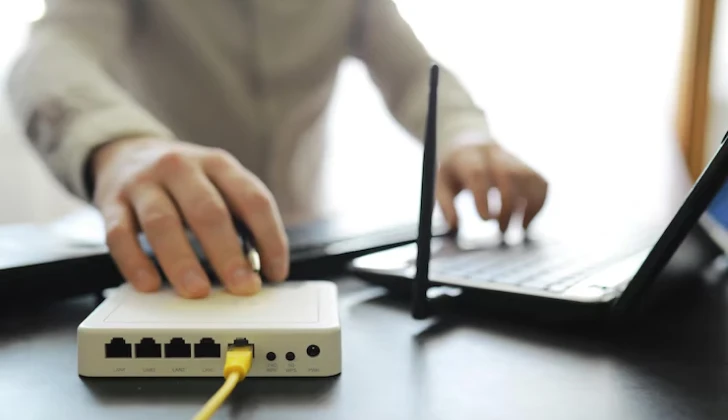
Turn off and on your mobile internet, disconnect and connect to Wi-Fi, and put your device in airplane mode and disable it.
Restart the application
It may sound like a useless method, but it works! Restart Instagram by closing and re-opening it. This will stop other applications in the background and help you solve the problem.
Log in and log back
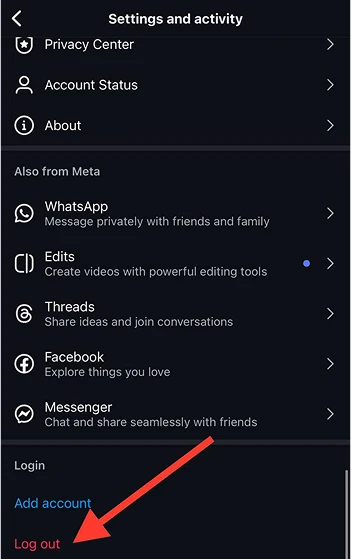
You must have your login information to use this method; otherwise, it will cause a new problem for you. This is how you can log in and log back to your Instagram account:
To log out of your Instagram account, Open Instagram, Tap your profile picture, Tap on the three horizontal line icon, Scroll through the menu, and select “Log out.” Then, Confirm the action.
To log in again, Open the app, Enter your login information, and Tap “Login.”
Update the date and time on your device
You may think it’s an irrelevant action, but such small details may affect Instagram’s posting process, so it’s better to pay attention to it.
This is how to update the date and time on iOS devices:
Step 1- Open settings.
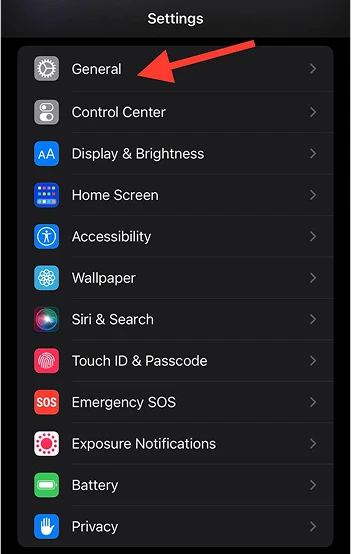
Step 2- Tap “General.”
Step 3- Select “Date & Time.”
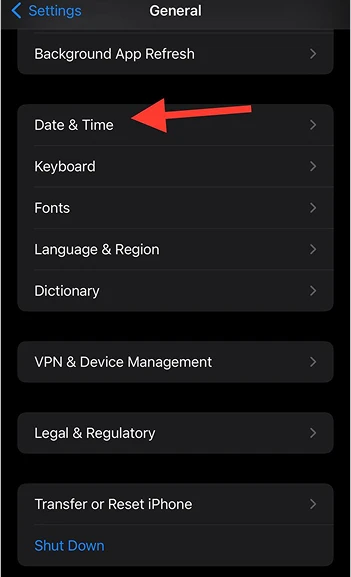
Step 4- Adjust necessary changes.
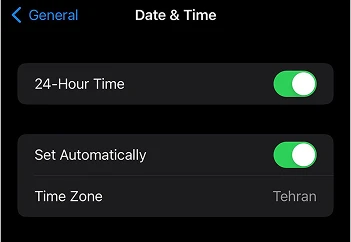
This is how to update the date and time on Android devices:
Step 1- Open settings.
Step 2- Tap “Additional settings.”
Step 3- Select “Date & time” to update it.
Clear cache
Remember that iOS doesn’t provide a direct option to clear the cache for each application. However, there are a few ways to clear the cache indirectly. Clearing the cache allows you to experience a smooth posting on Instagram.
This is how to clear the cache on iOS devices:
Offload the app: Open settings> Tap General> Select iPhone Storage> Find Instagram> Choose “Offload App.”
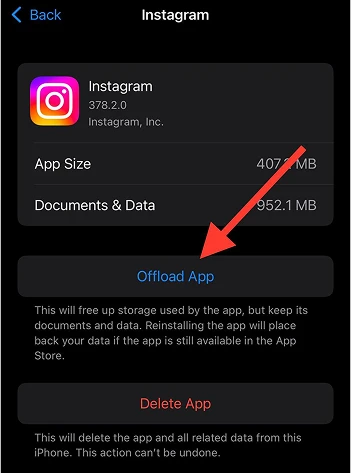
This is how to clear the cache on Android devices:
Step 1- Open settings.
Step 2- Tap “Apps.”
Step 3- Select “Manage apps.”
Step 4- Find Instagram.
Step 5- Tap “Storage.”
Step 6- Select “Clear data.”
Wait and don’t switch apps
Instagram experts suggest being patient while posting on Instagram and avoiding switching to other applications. If your files have a standard size, it won’t take so long to finish posting, so it is worth waiting a few moments to let Instagram finish uploading properly.
Check your content

Always check your content before publishing it. If it contains any items that are against Instagram policy, you should remove them. Even if you are lucky and the app publishes your content, it won’t take long to delete it from your account! It may also ban or limit your account.
Reinstall the app
Another effective way is to delete the app from your device and reinstall it. Doing so will solve any possible glitches and errors and help you share your posts faster.
Check (reduce) the file format
Uploading files with large sizes takes more time. Therefore, check the size of your files and reduce them by using various apps to boost uploading time. Note that you can consider lower quality and resolution.
Use another device

If the problem continues, use another device and try to upload your post using that device. It helps you determine if the issue is with your mobile or the app.
Close applications running in the background
One effective and easy solution is to close other applications running in the background. Doing so allows Instagram to upload your posts faster without any glitches.
Use third-party tools
Did you know that various iOS and Android device tools help users post on Instagram? They detect and fix any possible bugs or glitches on the app and enable you to use Instagram better and share your content more easily.
Contact Instagram support
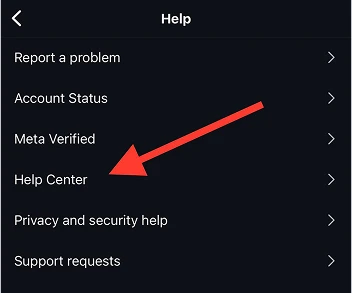
If none of the methods mentioned solve your problem, contact Instagram support and explain the issue clearly. They will help you out.
You can contact Instagram support through Email, the application, and the Help Center.
Conclusion
Here we are! You are now a master at detecting Instagram glitches while posting.
Note that if you want to share your content at the highest quality, you must be patient and keep the app open to allow it to upload your post smoothly without any interruption.
Now, you know 13 effective methods to fix issues to stop your content from being published on your Instagram account.
I hope you find this article helpful and enjoy reading it!
FAQs
Why am I stuck on Keep Instagram open to finish posting?
This can happen for various reasons, such as a weak internet connection, an outdated version of Instagram, or large files.
Can I lock my phone when posting on Instagram?
Yes, however, it is better not to do so because it may interrupt uploading, incomplete captions and images, and mute Reels.
Why won’t my Instagram reel finish posting?
Check your internet connection, ensure your file has a standard size, check your content before publishing, use a secondary device, and reinstall the app to fix the issue.
Should I keep my Instagram open?
If you want your content to be published smoothly, keep Instagram open and allow it to finish posting.
Why won’t my Instagram story finish uploading?
It is better to stay on the app and let it finish uploading your story. If the issue continues, make sure you are connected to a stable connection.

Emi Daniel
Buy an Established Instagram Account
Skip starting from zero. Browse Instagram/TikTok accounts with audiences across many niches.
See Available AccountsRelated articles
-
How to Use Instagram: The Creator’s Guide to Building an Audience
Instagram in 2026 is no longer just a place to collect followers. The creators who grow consistently are the ones who understand how to earn attention, turn…
17 min readEmi Daniel
-

How to Go Live on Instagram: A Step-by-Step Guide
Going live can feel more stressful than posting a Reel. You cannot remove a pause, rewrite a sentence, or start over after an awkward moment. But that…
17 min read -
Instagram Instants Feature: What It Is, How It Works, and How to Turn It Off
The first time I opened Instagram Instants, I almost backed out. I had taken a normal photo. Nothing worth editing. Nothing worth posting. Nothing that needed an…
11 min read