


Instagram 5xx server error is one of the common problems IG users face when working with the Instagram app.
There is no need to be worried about it because it’s one of the normal Instagram server issues and error codes. many times you can fix it yourself, and in very rare situations, you have to have your smartphone checked.
In this article, we’re going to let you know what this error exactly is and how you can fix this Instagram error.
Buy an Established Instagram Account
Skip starting from zero. Browse Instagram/TikTok accounts with audiences across many niches.
See Available AccountsWhat Is the Instagram 5xx Server Error?

Users of Instagram might get an internal server error called: 5xx. It displays on Instagram’s server, which will be unable to process the request. The website won’t show the required data when the problem occurs. The 5xx server error affects other social media platforms in addition to the Instagram app.
It might be caused by a number of things, including a network fault, a server issue, an overloaded server, and an HTTP request error.
What Causes the 5xx Server Error on Instagram?
The 5xx server error on Instagram login has a number of causes. Knowing the source of the error is necessary before thinking of the solutions.
You may choose the most practical solution out of various options with the aid of a thorough understanding of the mistake cause, which will also help you save time.
The list of reasons for Instagram server errors is provided below:
- Poor internet connection
- The Instagram server is unresponsive or sluggish
- A flaw in the Instagram app
- The Instagram application is not up to date
- Network authentication on Instagram failed
- HTTP version not supported
- Instagram app server downtime
Different Types of Error Codes You Might See on Instagram?
Different variations of the Instagram 5xx server error exist. You may act appropriately after knowing the correct code for the issue.
Understanding the precise error number and determining what it represents is critical. Here are various types of error codes to help you know what you’re facing.
Error Code 500
This is an internal server error that occurs when the server encounters an unexpected error. The server error may result from a broken server, a loaded server, or a crashed server.
When this occurs, the client’s request won’t be honored. It can be a resource bottleneck, a broken script, or a process failure.
It should be noted that Instagram’s 5xx server errors might range from type 500 to type 511.
Error Code 501
When a user’s activity is not carried out, the code “not implemented” is generated. In a sense, we might claim that the server did not fulfill the requests or specifications. In this case, the server is unable to offer any resources because it misidentifies the request method.
Error Code 502
When the code is 502 (aka Bad Gateway,) the server responds with an invalid server response. It will deliver a false response from the upstream server that was requested.
When the web server serves as a proxy or gateway, this occurs. The primary server and upstream are linked to code 502.
Error Code 503
The service is not accessible according to code 503. It takes place if there is a maintenance issue with the website. It could also occur as a result of brief website maintenance or overload. You can try loading Instagram again after some time if this issue is only momentary.
Error Code 504
In this instance, the error results from the web server not getting a fast response. A 504 Gateway Timeout is sent when the web server fails to complete the request while serving as a proxy or gateway. The upstream server’s specified request URL will return error code 504 if there is a delay in the response.
Error code 505
If error code 505 appears, it indicates that the HTTP version is not supported. The HTTP protocol version is rejected by the web server, which causes an error.
Error Code 511
A 511 code indicates that Instagram’s network authentication is issuing a caution. You must understand that this is only a warning.
According to the problem, you may be attempting to connect to any public Wi-Fi without inputting the proper code, preventing you from full internet access.
How To Fix Instagram 5xx Server Error
Now that you are familiar with the server errors on Instagram, you’d better learn how to fix them. Before reading the solutions, you have to know that Instagram allows you to report technical problems. Here is how:
- Go to your profile
- Tap on the three horizontal lines
- Click Settings
- Tap on Help
- Tap on Report a Problem
- Now, you have two options: 1. Go Back and Shake the Phone 2. Report Problem without Shaking.

Of course, when facing the error, you might not be able to go to this setting. In these situations, you can try the options below:
Restart the app again
After quitting Instagram, open it again. Because it restarts the app, this might fix any minor platform issues.
As soon as the app restarts, it will have the likely causes of its termination. It’s conceivable that new features or software upgrades have been added. So, practice patience, and you can get past the Instagram 5xx Server Error.
Knowing that an Instagram 5xx Server Error indicates a problem with Instagram servers is insufficient.
Wait till Instagram’s server is corrected
Let’s say you’ve found that most folks have the same issue. If you see an Instagram 5xx server error, you may be certain that Instagram outages may be occurring.
Because the issue isn’t with your computer or the internet, you are powerless to solve it. At that moment, the Instagram outage server-side is down and unable to process requests.
All that’s left to do is wait for the Instagram servers to resolve the problem, complete maintenance, or complete an update. The Instagram app will refresh as soon as it starts up, and you can notice an update or new features.
Find out which nations are presently having issues with Instagram. Go to the Live Instagram Outage Map.
Check your internet connection
Poor internet connection might potentially cause the Instagram 5xx server error. The Instagram news feed will load slowly or not at all, as well as sharing Instagram posts. Change your network connection if it’s unreliable or if you are experiencing a network issue.
Check to see if the connection is strong and unbroken. Try moving closer to the router or restarting it if Wi-Fi links you. The use of social networking sites is preferable with a reliable internet connection.
Sometimes your mobile’s internet network might cause an Instagram 5xx error. So try to change your internet connection type to see if that helps to resolve the Instagram 5xx server error.
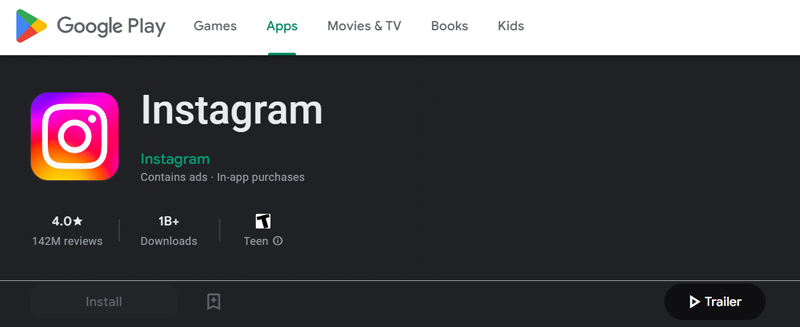
Update the Instagram app
Using an outdated Instagram app on your phone may also result in the Instagram 5xx server error message. The most recent version is required for popular social networking networks to operate properly.
To do that, you have to go to Google Play (on Android devices) or Play Store (on iOS devices.)
Install Instagram again
If restarting the smartphone doesn’t help, try uninstalling and reinstalling Instagram.
How to reinstall Instagram on iPad and iPhone:
- On the Home screen, tap and hold the Instagram app icon until it vibrates.
- Tap an app to delete it.
- Your profile information and photo will be saved on Instagram.
- Install Instagram from the App Store again and sign in using your username and password.
How to reinstall Instagram on Android
- On your tablet or smartphone, select Apps from the Settings menu.
- Tap on it after going to Instagram.
- From the menu, choose Uninstall.
- Install the Instagram app again, then sign in with your username and password using the Google Play store.
Now check if you see the Instagram server error codes again.
Conclusion
The 5xx error on your Instagram app is not something you should be worried about. Most of the time, you can fix it by yourself. Of course, if you see Instagram server errors after trying all the mentioned methods, you don’t have another chance but to have it checked by an expert.

Emi Daniel
Buy an Established Instagram Account
Skip starting from zero. Browse Instagram/TikTok accounts with audiences across many niches.
See Available AccountsRelated articles
-

How to Clear Instagram Cache on iPhone, Android & Desktop
Instagram can quietly build up a lot of temporary files while you scroll through Reels, watch Stories, save posts, and upload your own content. You may not…
12 min readEmi Daniel
-

How to See Who Reposted Your Instagram Post (2026 Guide)
Someone reposted your Instagram post, but you have no idea who it was. You check notifications, search through your profile, and still cannot find a clear answer. …
18 min read -

How to Reset Instagram Algorithm in 2026
Instagram can start showing too much of the same type of content. Your Explore page may no longer match your interests, Reels may feel repetitive, or suggested…
12 min read