

Over 40% of Gen Z uses TikTok more than Google for search, but not all interactions are positive. It is also interesting to know that more than one billion users now actively participate in the short-form video content creation on the worldwide popular social media platform TikTok every day.
You can perform various activities on TikTok to either demonstrate your creativity to others or maintain social connections or view entertaining videos through the platform interface.
Despite its popularity, TikTok carries the same standard risks which all other social media platforms present. To keep your TikTok experience positive, you need to block users who leave unwanted comments or send disruptive messages.
Buy an Established Instagram Account
Skip starting from zero. Browse Instagram/TikTok accounts with audiences across many niches.
See Available AccountsThe blocking process on TikTok exists with an easy learning curve for all users. Read this step-by-step guide to learn how blocking and unblocking users works on TikTok since it includes various blocking options. You can also get answers to common questions, and find helpful tips on staying protected.
Top Reasons to Block Someone on TikTok and When You Should Do It
Understanding the need to block someone on TikTok requires an initial overview of potential blocking scenarios. Since TikTok functions as an open platform, you may encounter a wide range of users who might not respect your personal boundaries. The following list includes several standard reasons that lead people to block someone:
- Cyberbullying or Harassment: Blocking someone becomes necessary when they engage in harmful cyberbullying activities through abusive messages or trolling behavior since this protects your mental health.
- Unwanted Attention: The constant communications from ex-partners or acquaintances or strangers may invade your personal space in an unwanted manner. When you activate blocking, it protects your content because viewers lose their access to see or interact with it.
- Spam or Scams: Users need to be cautious because TikTok contains fake accounts that spread deceptive “get rich quick” tricks or phishing scams. User blocking functions to maintain a clean and protected feed environment.
- Content Control: Users can prevent specific content from appearing on their For You Page (FYP) through blocking during times when creators post videos that cause discomfort. This process removes all videos from the blocked creator from your FYP.
- Privacy Concerns: Users have better management of their visible content through Blocking since it enables them to prevent targeted individuals from accessing their profile and videos and personal data.
The decision to block someone on TikTok is a personal choice. The platform lets users customize their experiences discreetly from blocked users. The following section explains the step-by-step procedure.
How to Block Someone on TikTok Fast: Complete Step-by-Step Guide
You can block users through multiple methods provided by TikTok regardless of whether you focus on one account or several at the same time. This section discusses the standard blocking approaches beginning with the basic process.
Method 1: Blocking Someone from Their Profile (Mobile App)
By using your mobile app, you can block single users right from their profile screen through the application on both iPhone and Android platforms. Here’s how:
- Open TikTok: Launch the TikTok app on your smartphone and log in to your account.
- Find the User’s Profile: Navigate to the profile of the person you want to block. You can do this by:
- Searching for their username using the magnifying glass icon at the top of the Home or Discover tab.
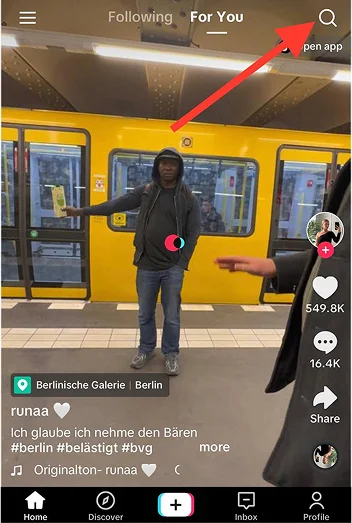
- Tapping their username from a video on your For You Page.
- Checking your Followers, Following, or Notifications tab if they’ve recently interacted with you.
3. Access the Share Menu: On their profile page, look for the share icon in the top-right corner. It typically looks like an arrow pointing right (on some devices, it may appear as three dots).
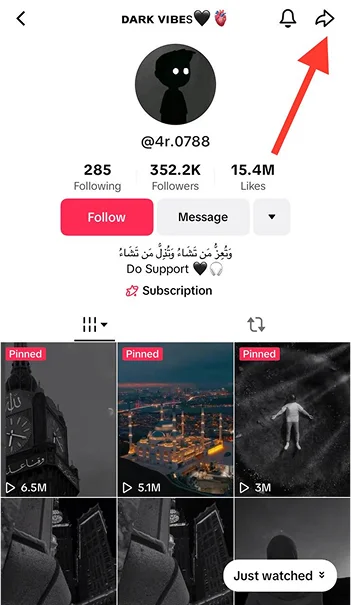
4. Select “Block”: Tap the share icon to open a menu. Scroll through the options and select “Block.”
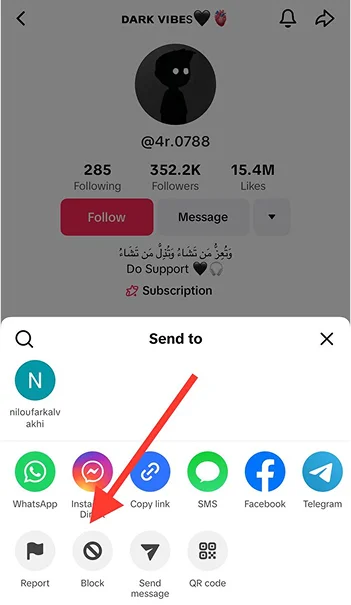
5. Confirm the Action: A pop-up will ask you to confirm your decision. Tap “Block” again to finalize it.
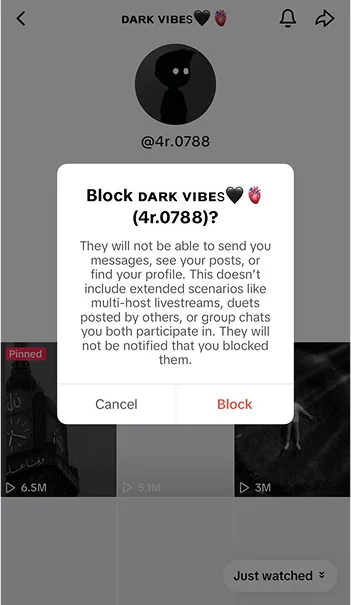
After finishing the blocking process the user will lose complete access to your TikTok account including your profile viewing rights and video watching privileges and message sending abilities along with every other type of interaction. The blocked account will be removed from your follower and following lists accordingly.
Method 2: Blocking Multiple Users at Once (Bulk Blocking)
When confronting several disruptive accounts through the TikTok bulk-blocking tool you can manage 100 accounts together. Here’s how to do it:
- Go to Your Video: Open the TikTok app and navigate to one of your videos where the unwanted comments appear.
- Open Comments: Tap the speech bubble icon (Comments) on the right side of the screen to view the comment section.
- Select Comments: Long-press on a comment from a user you want to block, or tap the pencil icon in the top-left corner to enter “Manage comments” mode.
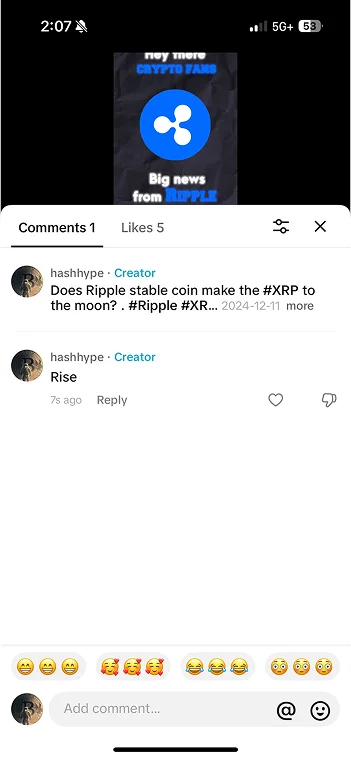
4. Manage Multiple Comments: Choose “Manage multiple comments” from the options that appear. Then, tap the circles next to each comment from the accounts you want to block (up to 100).
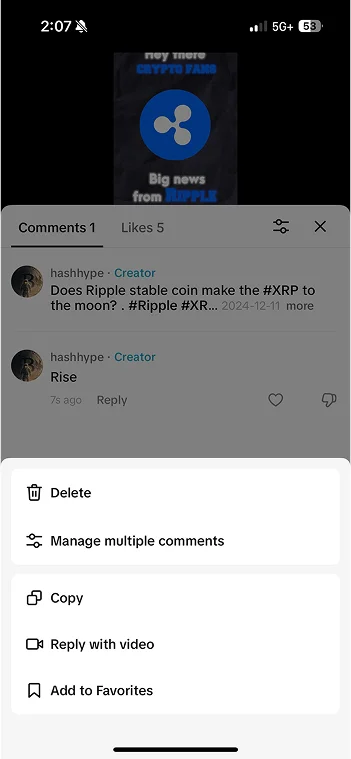
5. Block the Accounts: Tap “More” at the bottom, then select “Block accounts.” Confirm your choice by tapping “Block” again.
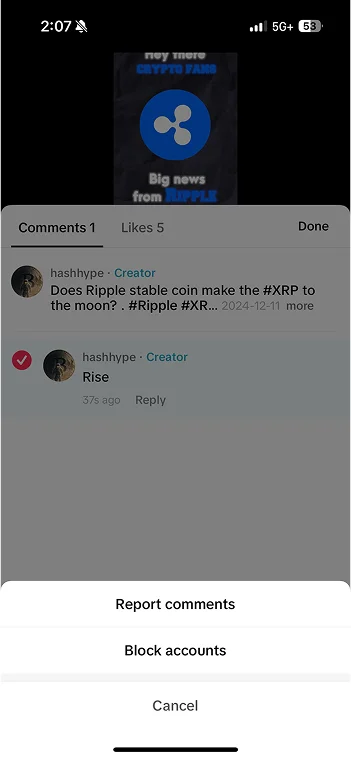
The bulk blocking approach proves highly beneficial for rapid maintenance of your comment area and stops any future contacts from additional users simultaneously.
Method 3: Blocking via Desktop
The blocking procedure through the desktop version of TikTok remains available for users who want to work on their computer. Here’s how:
- Visit TikTok.com: Open your web browser, go to www.tiktok.com, and log in to your account.
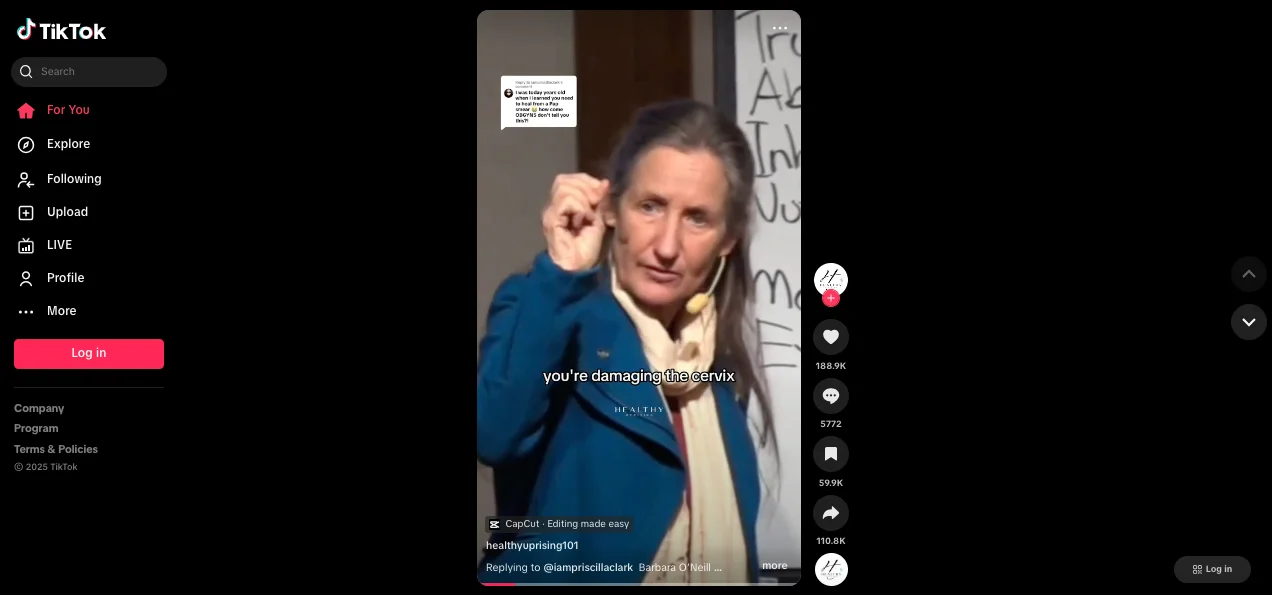
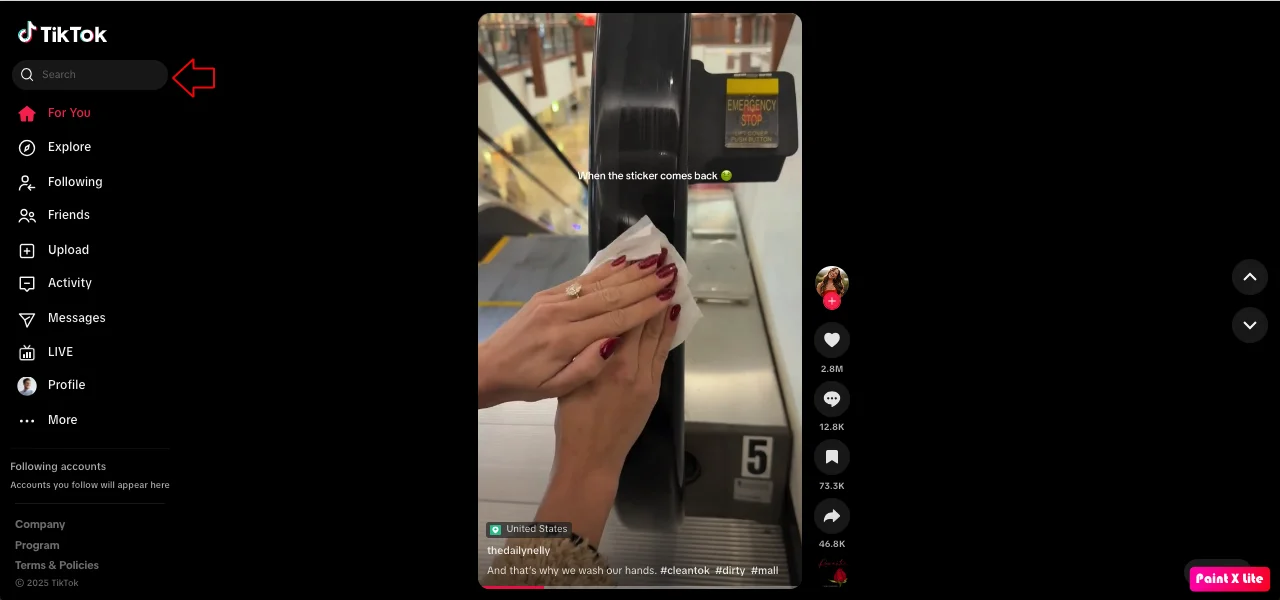
2. Locate the User: Search for the person’s profile using the search bar at the top, or navigate to it via your notifications or video feed.
3. Open the Menu: On their profile page, click the three-dot icon (overflow menu) next to their username.
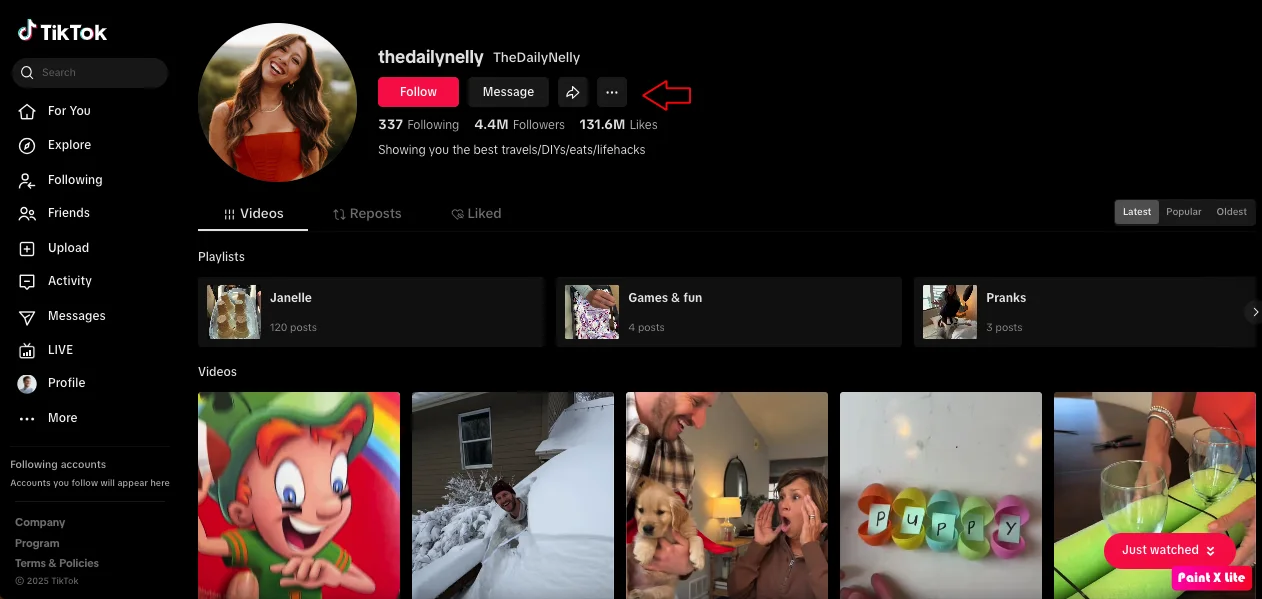
4. Choose “Block”: Select “Block” from the dropdown menu and confirm the action when prompted.
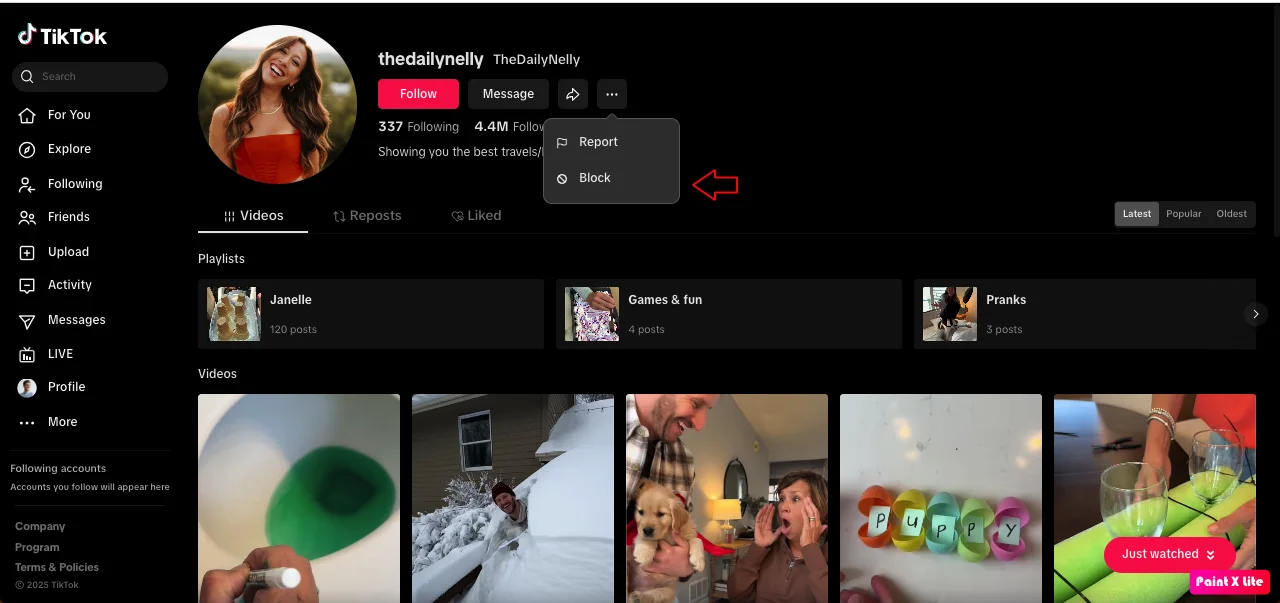
The result is the same as on mobile—the user will be blocked and unable to interact with you.
What Happens When You Block Someone on TikTok?

Blocking someone on TikTok has immediate effects that help you maintain your privacy and peace of mind. Here’s what happens:
- No Notifications: TikTok doesn’t notify the blocked user, keeping your action discreet.
- Content Invisibility: They can’t see your profile, videos, or stories, and you won’t see theirs on your FYP.
- Interaction Blocked: They’re unable to send messages, leave comments, like your posts, or follow you.
- Search Restrictions: Your profile won’t appear in their search results, effectively making you invisible to them on the platform.
- Follower Removal: If they followed you (or vice versa), they’re automatically removed from your followers/following list.
However, there are a few limitations to note:
- Blocked users might still see your content indirectly (e.g., through mutual friends reposts or public videos if not logged in).
- Persistent users could create new accounts to bypass the block, though TikTok’s moderation tools aim to curb this.
How to Find Your Blocked List on TikTok
If you’ve blocked someone on TikTok and want to review your blocked list, follow these simple steps:
- Open the TikTok App: Make sure you are logged into your account.
- Go to Your Profile: Tap the “Profile” icon in the bottom right corner of the screen.
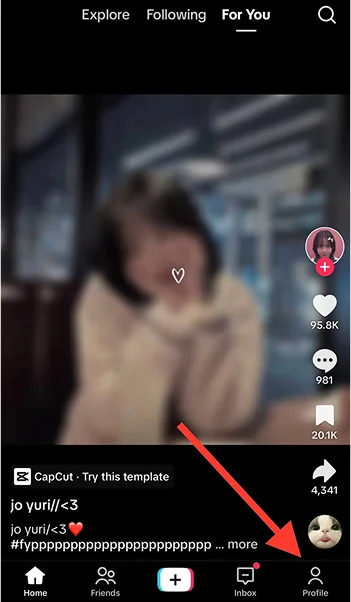
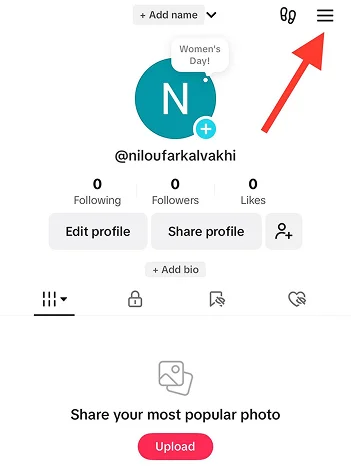
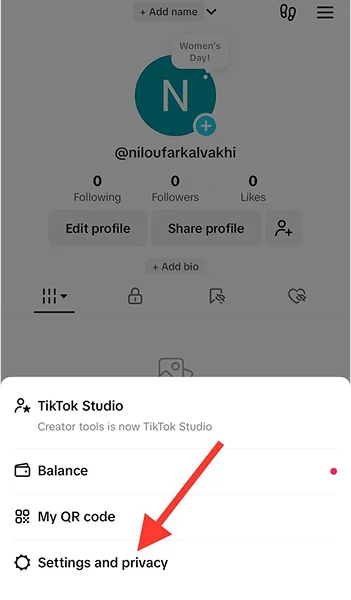
- Access Settings: Click the three lines (menu) in the top right corner and select “Settings and privacy.”
- Go to Privacy Settings: Scroll down and tap “Privacy.”
- Find Blocked Accounts: Under the “Interactions” section, select “Blocked accounts.”
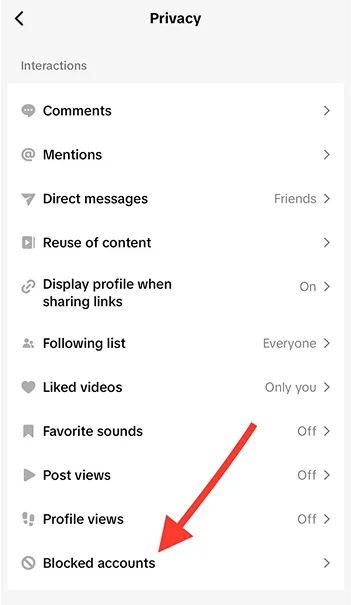
You will now see a list of all the accounts you have blocked. From here, you can choose to unblock users if needed by simply tapping the “Unblock” button next to their name.
How to Unblock Someone on TikTok: Easy Steps to Restore Access
Sometimes, you might change your mind—whether it’s reconciling with a friend, giving someone a second chance, or simply clearing your blocked list. Unblocking is just as easy as blocking. Here are two methods to do it.
Method 1: Unblocking from Their Profile (Mobile App)
- Open TikTok: Launch the app and ensure you’re logged in.
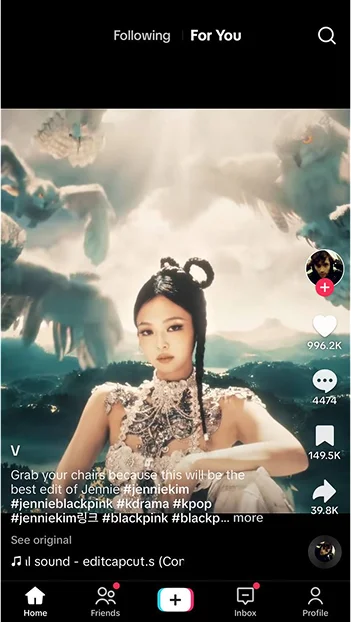
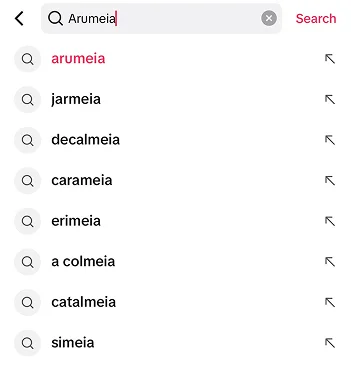
2. Search for the User: Use the search bar (magnifying glass icon) to find the profile of the person you’ve blocked. You’ll see “Blocked by you” under their username in the search results.
3. Unblock Them: Tap into their profile, then hit the red “Unblock” button prominently displayed in the center of the page. Confirm if prompted.
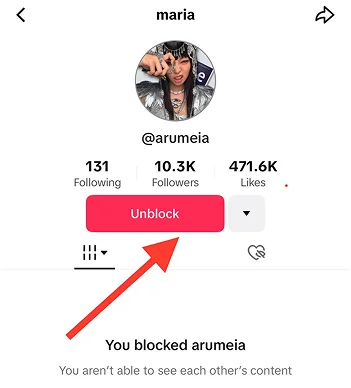
After unblocking, they’ll regain the ability to view your content (if your account is public) and interact with you again.
Method 2: Unblocking via Settings (Blocked List)
This method is ideal if you don’t remember the username or want to review all blocked accounts:
- Go to Your Profile: Tap the “Profile” icon in the bottom-right corner of the app.
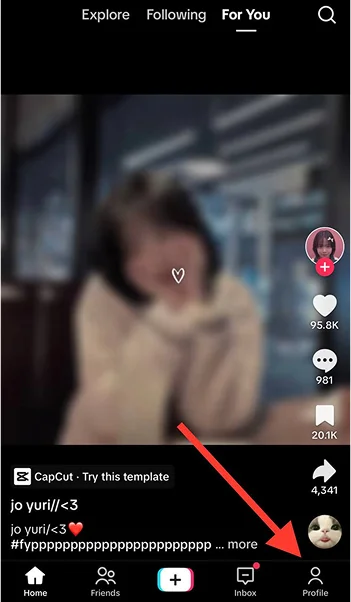
2. Access Settings: Tap the three-line (hamburger) menu in the top-right corner, then select “Settings and privacy” from the pop-up.
3. Find Blocked Accounts: Scroll down to “Privacy,” then tap “Blocked accounts” under the Interactions section.
4. Unblock Users: You’ll see a list of everyone you’ve blocked. Tap “Unblock” next to the name of the person you want to unblock.
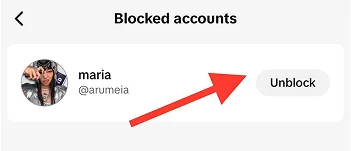
You can’t unblock multiple users at once via this method—you’ll need to do it one by one—but it’s a great way to manage your blocked list efficiently.
What to Do Instead of Blocking on TikTok: 6 Alternative Actions
Blocking someone on TikTok is a strong step, but it’s not the only option if you want to manage interactions on the platform. Here are some alternative actions you can take:
- Mute Users: If you want to stop seeing someone’s videos without blocking them, you can mute them. This way, their content won’t appear on your feed, but they won’t know you’ve muted them.
- Restrict Comments: You can control who comments on your videos by adjusting your privacy settings. You can limit comments to only friends or turn them off entirely.
- Use the “Not Interested” Feature: If you see videos you don’t like on your For You Page (FYP), tap “Not Interested” to improve your feed recommendations.
- Limit Direct Messages: You can change your settings to only receive messages from friends or turn off direct messages altogether.
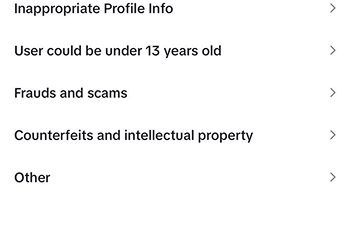
- Report Inappropriate Content: If someone is violating TikTok’s guidelines, you can report their content without blocking them.
- Remove Followers: Instead of blocking, you can simply remove a follower. They won’t be notified, and they’ll lose access to your private content.
How to Use TikTok’s Community Guidelines and Reporting Features to Stay Safe
Understanding TikTok’s Community Guidelines is important for maintaining a safe and positive experience on the platform. These guidelines set clear rules about acceptable behavior, covering topics like harassment, hate speech, and inappropriate content. By familiarizing yourself with these rules, you can better protect yourself and contribute to a respectful community.
How to Report a User or Content on TikTok:
Reporting a Video:
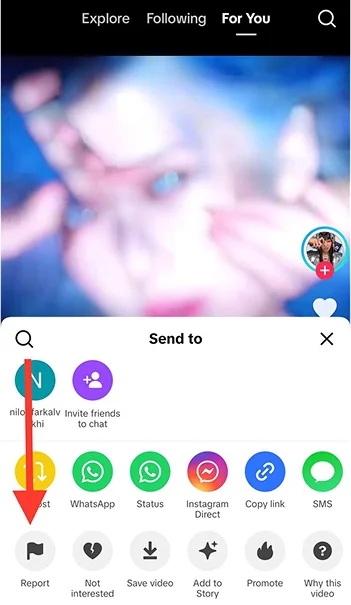
- Tap the share icon (arrow) on the video.
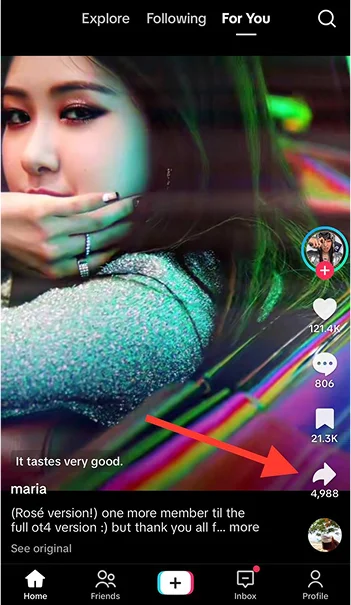
- Select “Report” and follow the prompts to choose the reason for your report.
Reporting a Comment:
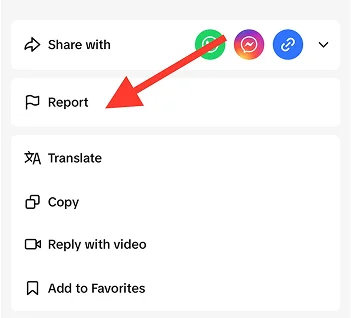
- Press and hold the comment you want to report.
- Tap “Report” and choose the appropriate category.
Reporting a Profile:
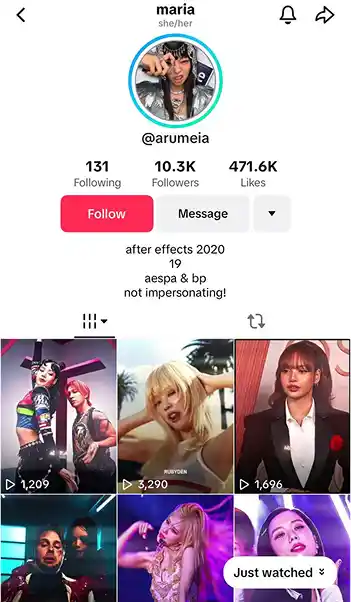
- Visit the user’s profile.
- Tap the three dots in the top right corner.
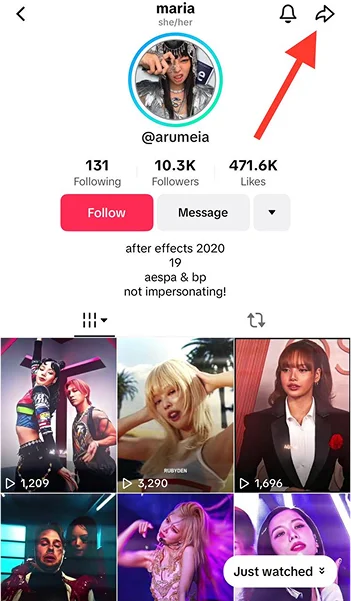
- Select “Report” and specify the issue.
Final Thoughts
TikTok offers a dynamic social setting that you should actively mold according to your preferences. The act of blocking someone provides an efficient solution for both making your feed better and guarding your privacy against negative content.
TikTok operates with simplicity because blocking one user or handling several accounts simultaneously or restoring access through unblocking is all possible with its intuitive interface.
You can experience a better and more protected TikTok experience by learning the basic steps in combination with the platform’s privacy features. Reach total control of your TikTok universe while retaining the positive energy in your feed.
Frequently Asked Questions
Can I block then unblock someone on TikTok?
Yes, you can block someone on TikTok to prevent them from viewing your profile and interacting with your content. You can unblock them at any time through your privacy settings.
How do I unblock someone from TikTok?
Go to your profile, tap the three lines (menu) at the top, select “Settings and privacy,” navigate to “Privacy,” then “Blocked accounts.” Find the user you want to unblock and tap “Unblock.”
How do you quickly block someone on TikTok?
Visit the user’s profile, tap the three dots (menu) in the top right corner, and select “Block.” Confirm the action, and the user will be blocked immediately.
How to block someone on TikTok you don’t follow?
You can block any user by visiting their profile, even if you don’t follow them. Tap the three dots in the top right corner and select “Block.”
Can I block someone on TikTok without them knowing?
Yes, TikTok does not notify users when they are blocked. They will only notice if they try to view your profile or interact with your content and find they no longer can.

Emi Daniel
Buy an Established Instagram Account
Skip starting from zero. Browse Instagram/TikTok accounts with audiences across many niches.
See Available AccountsRelated articles
-

From 1,000 to 1 Million Followers: How Much TikTok Pays at Every Level
In my research, I have seen TikTok help ordinary people earn from short videos. Some creators now work on TikTok full time. Many started with a phone…
14 min readEmi Daniel
-
TikTok Creator Rewards Program (Formerly Creator Fund): Everything You Need to Know in 2026
Gone are the days when TikTok was just an app for funny videos and quick trends. Today, it is also a serious income stream for creators. Some…
18 min read -
TikTok Creative Center: Complete 2026 Guide to Trends, Ads & Analytics
Mastering TikTok Creative Center is quickly becoming the secret advantage behind top-performing ads, viral videos, and fast-growing brands in 2026. Whether you’re a creator, marketer, or eCommerce…
22 min readLina Stewart