

Have you ever found yourself in such a situation that you wish you could only reply to an Instagram message with a simple emoji?
The good news is that as long as you are using the latest version of Instagram, you can easily react to Instagram messages with interesting emojis.
In simple words, the Instagram message reaction feature is a great way to respond to a message without typing anything.
Buy an Established Instagram Account
Skip starting from zero. Browse Instagram/TikTok accounts with audiences across many niches.
See Available AccountsIn this article, we are going to discuss how you can react to Instagram messages using your mobile or the web version, how to fix the issue of not being able to react to Instagram messages, and more.
Reacting to Instagram Messages With Emojis
You can react to Instagram messages on your mobile device and on the web version; both are very simple. Let’s see how you can react to messages in less than a second!
Reacting to messages using the mobile application
Note that it doesn’t matter you are using an Android or iOS device, the steps are the same.
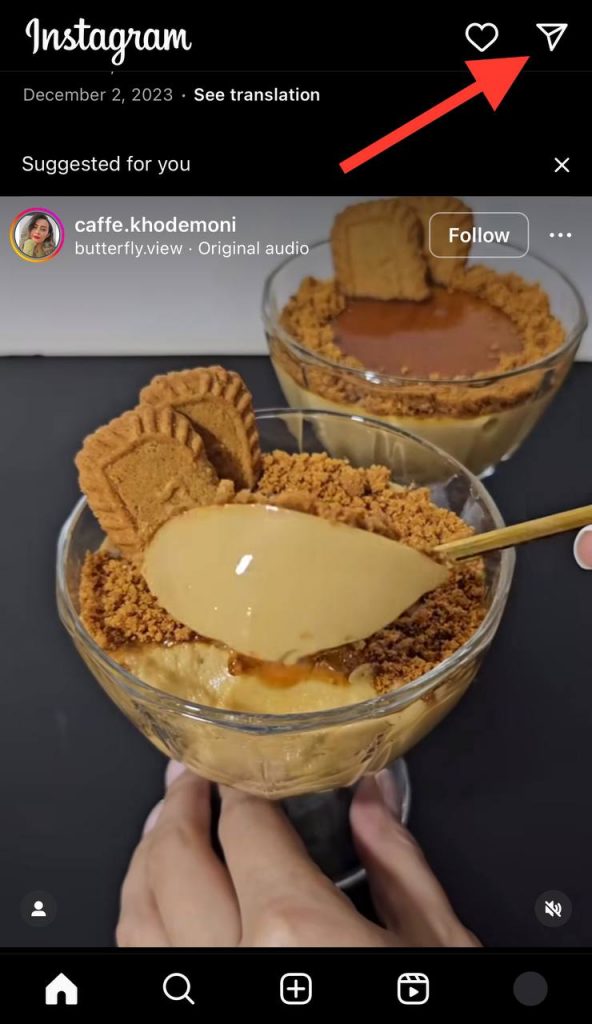
Step 1- Open the Instagram application on your device and go to the Direct Message section by tapping the “airplane” icon.
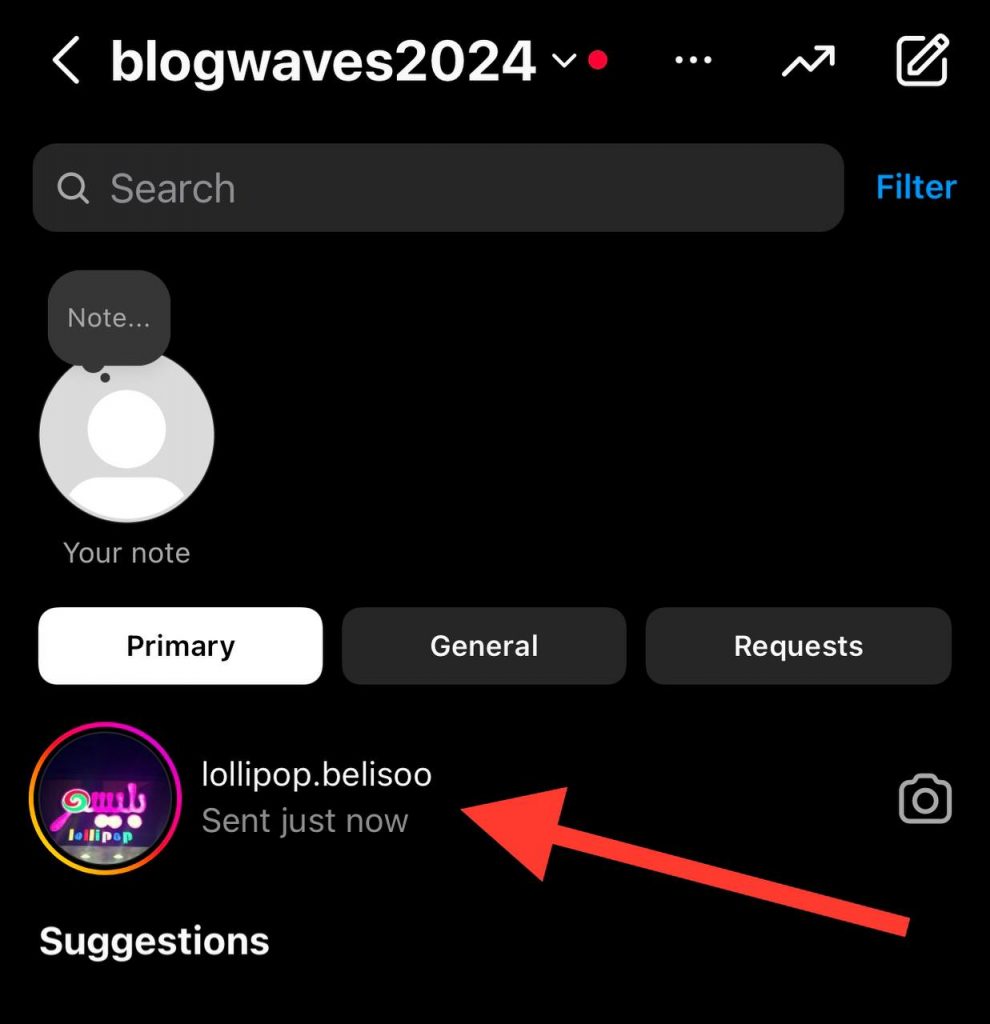
Step 2- Choose the conversation you want to react to and tap and hold the selected message.
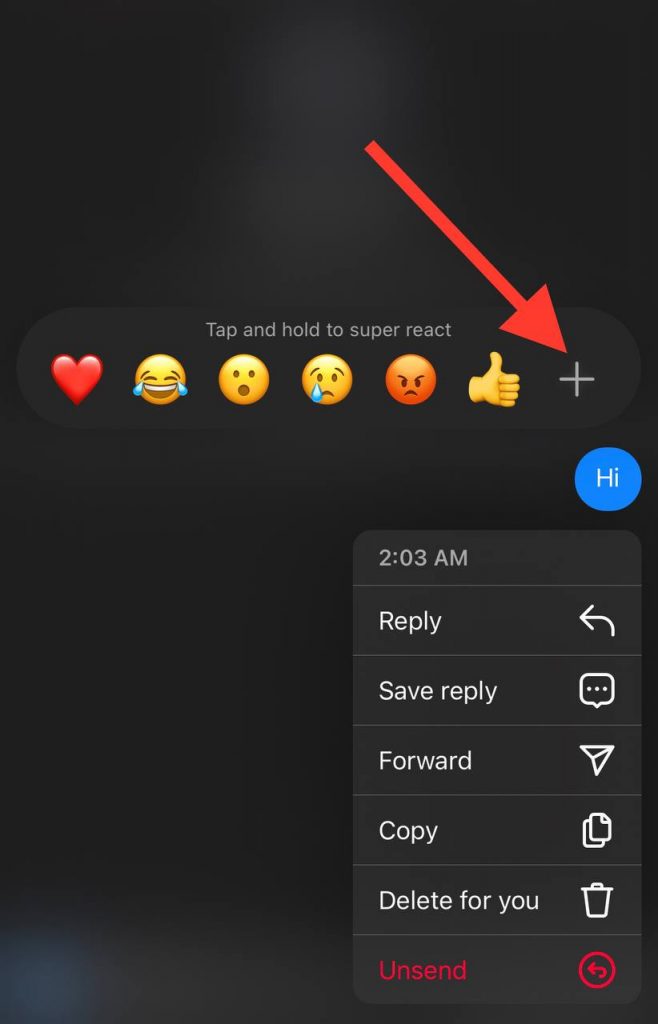
Step 3- Now you see almost six emojis that you can choose the best that fits the conversation and message.

Tip: Not that, you can customize the emojis by tapping on the “plus” icon and choose and customize the list of emojis you can react with.
Reaction to messages using the web version
Suppose you are using Instagram on your laptop, then you can follow the steps below to easily react to messages on Instagram.
Step 1- Open the browser you want to use and go to www.instagram.com, then you need to log in to your account.

Step 2- Go to your DMs on the right side of the screen.
Step 3- Choose the desired Direct Message, tap on the message; now, you can see a smiley face, click on it to react to the message.
Why Can’t I React to Messages on Instagram
Although reacting to Instagram messages is an easy task, sometimes you can not react to the messages with an emoji. There are several reasons for this issue, which we gathered them below.
1- The first and most common reason is that you are using the outdated version of the application. To see if your Instagram is updated to the latest version, you need to check it on the App Store (iOS devices) or Google Play Store (Android devices).
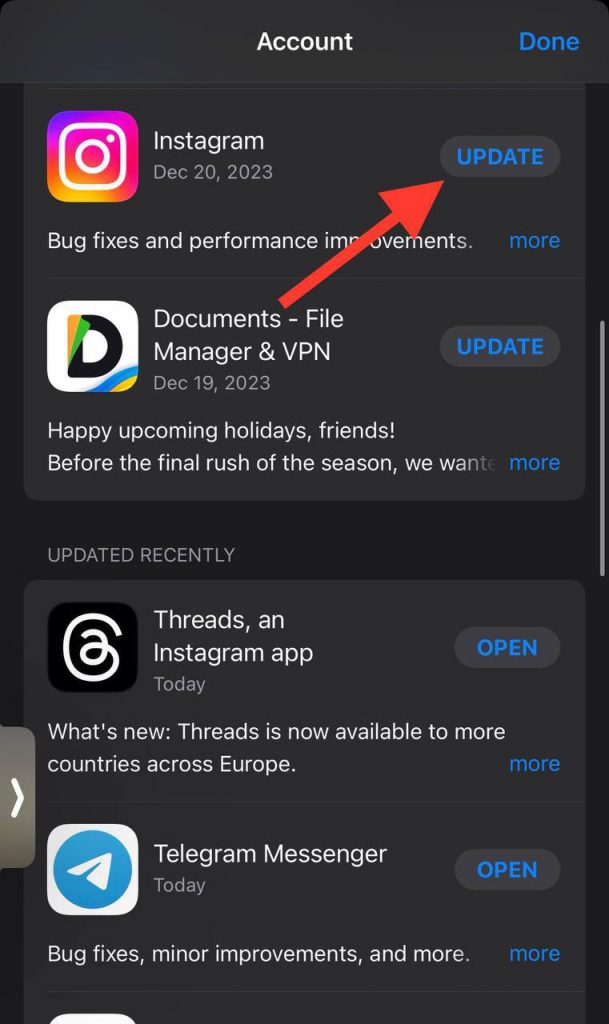
2- Sometimes, there is no important reason behind this problem, and a bug may be the reason you can’t react to Instagram messages. You can wait for a few minutes and then retry or report it to Instagram support.
3- Another reason may be because your Instagram Direct Message is not updated to the last version, so you are not able to react to messages using emojis.
4- Finally, it can be due to poor internet connection. So, ensure you have a stable connection before reacting to Instagram messages.

How to Fix Instagram DM Emoji Reactions Not Working
Now that you know how to react to Instagram messages and are aware of the reasons you can’t react to messages, it is time to learn how you can easily fix this problem.
1- Quit the app and open it again
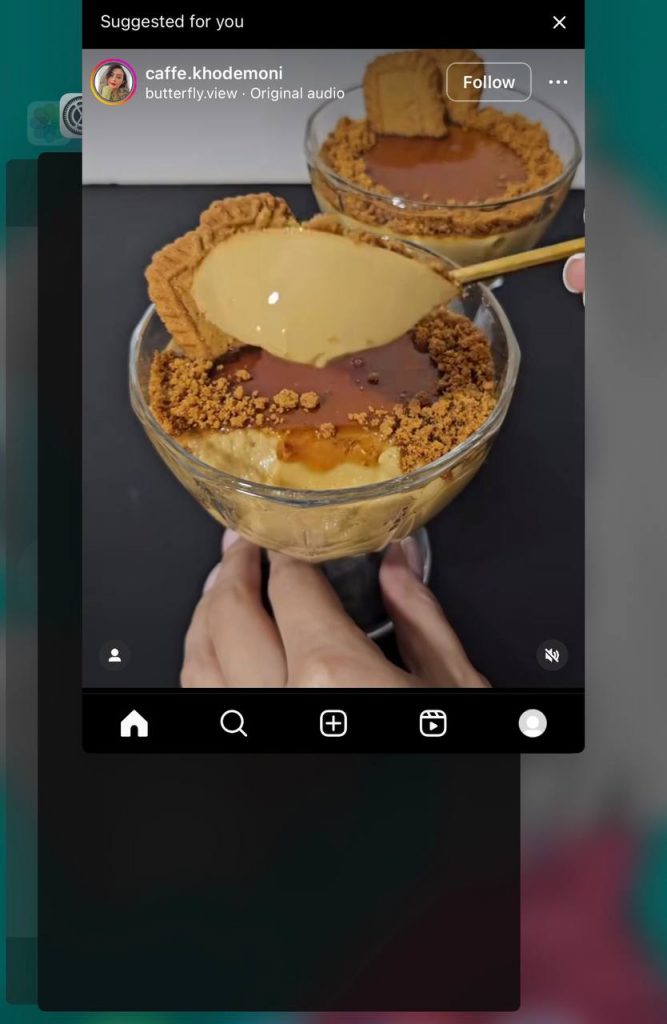
The first and easiest thing you can do is to quit the application and then open it again. It may look very easy, so many people won’t do this and look for harder methods instead. But remember that sometimes a simple restart fix various basic issues.
2- Update Instagram to the latest version
Always keep in mind that to better use Instagram, you need to ensure you are using the latest version of it. Therefore, to easily fix this issue, go to App Store or Google Play Store, update and install the newest version.
3- Ensure you have stable internet connection

As mentioned earlier, you can’t react to messages on Instagram when you have weak internet connection.
So, when you face such as issue in your DMs, it is better to check your internet connection and if it’s weak, restart your Wi-Fi or router to solve the problem.
4- Clear Instagram cache on Android devices
You can not clear cache on iOS devices, so this method works for those who use an Android device. To do so, open Settings on your mobile, go to Apps, search for Instagram, and tap on Clear Cache. It’s an easy yet effective solution to fix the issue in less than a minute.
5- Use the web version of Instagram
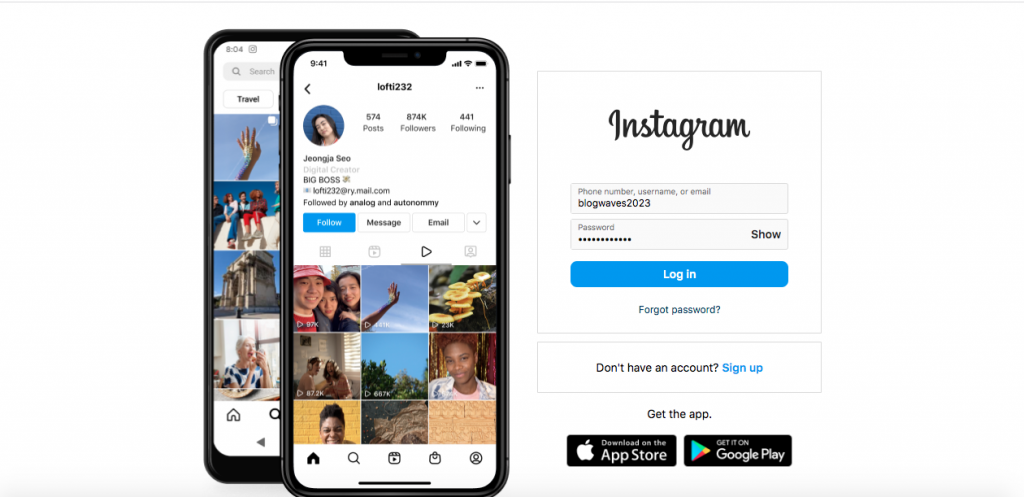
You learned how to react to Instagram messages when you are using the web version. If you are not able to react to messages on the application, you can try it on the web on your laptop and respond to messages with emojis.
6- Update Instagram Direct Message
Another effective solution to fix the issue is to update the Instagram Direct Messages to Messenger. Doing so enable you to use more messaging features including reacting to messages easily.
7- Log out and log in
If you tried all the mentioned methods and still emoji reactions are not working on your device, you can log out from your account and log back again. Note that, you must remember your password to pass this easily; otherwise, it may take longer to recover your password or creating a new one.
Conclusion
So far, you know that reacting to Instagram messages using emojis is such an easy task that is very useful when you don’t want to type a word in your DMs.
As mentioned earlier, to react to messages on Instagram, all you need to do is hold the message and select the proper emoji that best fit the conversation.
Moreover, we discussed why sometimes you can’t use this feature and provide the best tips that help you better use Instagram Direct Message and chat with your friends and followers.

Emi Daniel
Buy an Established Instagram Account
Skip starting from zero. Browse Instagram/TikTok accounts with audiences across many niches.
See Available AccountsRelated articles
-
How to Clear Instagram Cache on iPhone, Android & Desktop
Instagram can quietly build up a lot of temporary files while you scroll through Reels, watch Stories, save posts, and upload your own content. You may not…
12 min readEmi Daniel
-
How to See Who Reposted Your Instagram Post (2026 Guide)
Someone reposted your Instagram post, but you have no idea who it was. You check notifications, search through your profile, and still cannot find a clear answer. …
18 min read -
How to Reset Instagram Algorithm in 2026
Instagram can start showing too much of the same type of content. Your Explore page may no longer match your interests, Reels may feel repetitive, or suggested…
12 min read