


Teenagers are interested in using Instagram as a social media platform to share photos and videos. They can post selfies, memes, and anything else they like and let others leave comments.
While this is a great social networking tool, it is essential to supervise your child’s online activities to ensure they are not dealing with inappropriate content. If you see Social Tradia’s IG account categories, you can find some niches that might be inappropriate for kids.
Meta’s first goal is to improve the user experience. Therefore, they added parental controls to Instagram. So parents can limit inappropriate content for their children on Instagram. This feature is optional, and parents will be notified if their child ends this feature.
Buy an Established Instagram Account
Skip starting from zero. Browse Instagram/TikTok accounts with audiences across many niches.
See Available AccountsParents want to do whatever it takes to help their children use social media safely. Instagram has different privacy settings that you can use to supervise your child’s activity. Luckily, Meta is actively developing parental control features on Instagram.
This article explains how to activate parental controls and other privacy settings for your child’s Instagram.
Is it safe for kids to use Instagram?
Kids can explore, interact and keep in touch with their friends and family on Instagram. However, Instagram can also expose children to inappropriate content, such as photos of people with risky behavior.
Additionally, children tend to be impacted by everything they see online, leading to social anxiety and self-confidence problems.
Instagram has in-app control features, such as creating a list of banned words. The blocked word list prevents posts containing those words from appearing in comments on your child’s feed and prevents kids from using blocked words.
You can create a list of banned words with your child, allowing you to have open and honest communication regarding technology. You can also discuss with your child about being a responsible digital citizen.
Parents must talk to their children about using social media responsibly and monitor their activities. You can also speak to them about alternative ways to manage their privacy; this way, they can continue communicating with their friends and families.
Instagram recently tried to face cyberbullying and harassment with the “nudging” feature. When a user leaves a comment containing harmful or abusive language, Instagram essentially “nudges” the user with a notification encouraging them to respect another user’s profile.
According to Meta (Instagram’s parent company), since the feature’s launch, about 50% of people have edited or deleted their comments after seeing this reminder. While this can be considered the right move, remember that not everyone will change their language due to nudging, so your child may still be exposed to cruel comments.
What parents need to know about Instagram parental controls
Undoubtedly, social media platforms like Instagram are ruling the world. Everyone shares photos and stories with friends and followers on Instagram. There’s nothing wrong with using Instagram, but there are some things parents should know before allowing their children to use Instagram. That is why Instagram has introduced parental controls to protect young users better.
It’s important to discuss online safety and privacy with your child. Instagram can be a lot of fun, but it’s essential to understand the possible risks.
Due to claims about cyberbullying on Instagram, we encourage you to discuss how to stay safe online with your children.
Second, supervising your child’s activity on Instagram is more crucial than ever. While you trust your child to use the platform accountably, we ask that you continue monitoring your child.
Parenting tools and insights for Instagram help parents protect their teens on Instagram. You can limit inappropriate content by enforcing restrictions on Instagram for children under 18. This feature allows parents to connect their Instagram accounts to their child’s accounts and have access to their accounts to monitor their activity.
Parents can use this feature to set daily time limits for the app, see how much time their child spends in the app, see when their child posts/reports accounts, etc. This tool only works for users between 13 and 17 years old. If your child is under 13, please delete their account as it violates Instagram’s Terms of Service. If they are 13 or older, you can set parental controls for their accounts.
Another thing you should know about these tools is that you need an Instagram account to set up parental control. If you don’t have one, you should create one and use the latest version of Instagram. Setting parental controls requires consent from both a parent and a child, and only one parent can monitor the child’s account.
Unfortunately, it is easy for children to avoid parental control. One security features require users to enter a date of birth to verify that they are 13 or older. Still, it would be easy for a minor child to enter an age older than that.
Another feature allows users to turn off direct message replies from strangers. This feature is designed to prevent strangers from contacting your child.
However, nothing stops the kids from turning it back on as soon as the parents look the other way. Children can turn these monitoring features off at any time.
This feature is based on your child’s will to get monitored unless there is a lock function or PIN code.
How to active/deactivate Instagram parental control
Setting up parental controls on Instagram is optional. You and your teenager have to agree with this. First, you or your child should send an invitation for supervision.
If the invitation is accepted, Instagram will implement restrictions for users under 18. Children who send invitations must verify that the parent or guardian who receives the invitation has permission to manage their account.
Please note that invitations expire 48 hours after being sent.
Create a new invitation for parental control on Instagram
Follow the below instructions to create a new invitation for parental control.
- Open the Instagram app on your iPhone.
- Go to your profile by clicking the profile icon at the bottom right.
- Then click the three-line menu at the top right and select Settings.
- Select Supervision.
- Create an invite link.

(For parents: Create an invitation. Then choose the app to send the link. / For teens: Choose Next → Set up supervision. To send the link, select the app of your choice.)
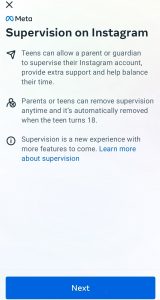
Click Next, then you’ll see:
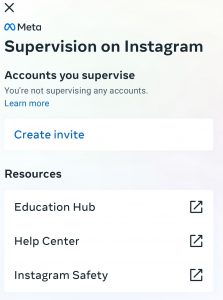
Create invite, and then you’ll see:
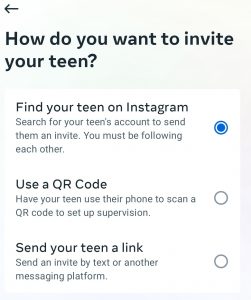
Text the link to your child. They’ll have 48 hours to answer before the invite expires.
- Once your child accepts the invitation, you’re set up for supervision on Instagram.
- Follow the instructions from your Family Center (accessible via Settings>Supervision) to view or make changes to your child’s Instagram settings.
Note: If parents or children block each other on Instagram, they cannot send or accept parental control invitations. Also, children can’t block parents’ accounts while parental control is turned on. Children must remove the supervision feature first to block their parents.
You can only monitor your teen’s account from one account in case you have different Instagram accounts. To do this, open the invite link while logged into the selected account. You can log in and reopen the link.
Instagram only allows one active invite link to be sent at a time. Teenagers with multiple Instagram profiles must set or accept supervision for each account separately. So parents can monitor all of their accounts.
Suppose you want to turn off parental supervision tools on Instagram as a parent or a teen. In that case, you can remove Instagram parental controls at any moment.
Parents or teenagers can remove Instagram Parental Controls at any time. If you or your child decide to turn off Parental Controls on Instagram, you should follow the below steps:
- Go to your profile, click the three-line icon → Settings.
- Select Supervision.
- For parents: Choose the account from your supervise list. Click Remove → Remove supervision.
- For teens: Select Remove and click Remove supervision.
When supervision has ended, you will be informed about that.
What can you monitor on your child’s Instagram account?
After activating Parental control, you can restrict Instagram content and supervise different activities on your child’s account. Supervised accounts allow parents to:
- Set a daily time limit for Instagram
- Schedule daily breaks when you can’t access Instagram
- Check your child’s followers and who they are following. Also, you can see the accounts your teen blocked.
- See your child’s screen time on the app (total, average, and per day)
- As a parent, you can manage your child’s account’s privacy, sensitive content, and messaging settings. If your teen changes any of these settings, you will be notified.
- Receive notifications when your child gets new followers
- Get notified when your child reports a post/account, including who/what was reported and the type of report.
Some tips about Instagram parental controls
Several Instagram features let your child manage who can see their posts, stories, and reels. You can now discover and report content that violates or interferes with Community Guidelines. The screen monitoring feature lets parents gather information about their child’s communications with others and the content they view. Here’s how to set privacy settings for your child’s account:
- Make a private account
- Open the Instagram app.
- Tap your child’s profile picture in the bottom right corner.
- At the right of the screen, click the three dots in the top “…”.
- A screen will get open from the left. At the bottom, Tap Settings.
- Scroll down and click Account Privacy.
- Click to toggle and enable Private account.
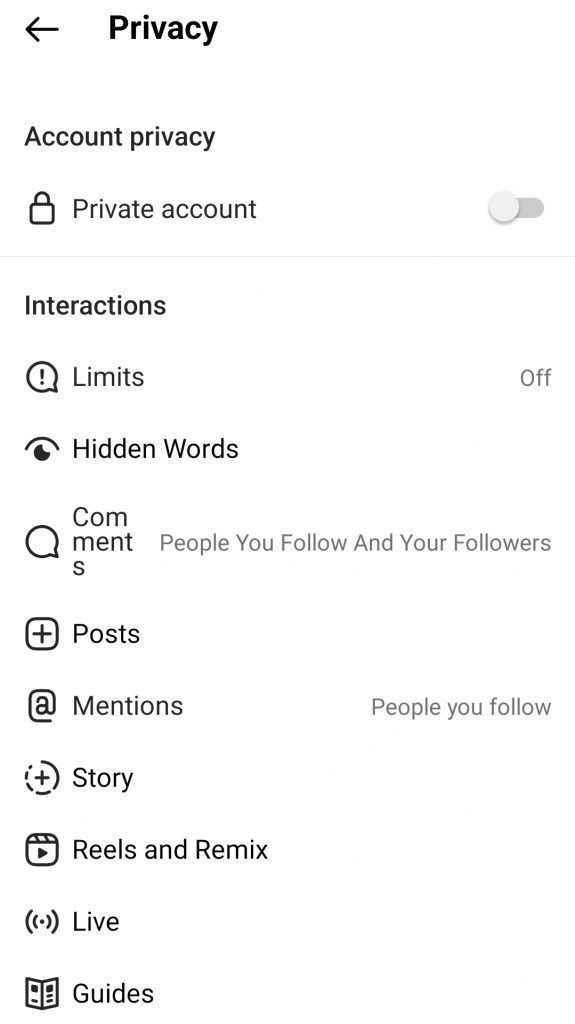
- Block unknown accounts
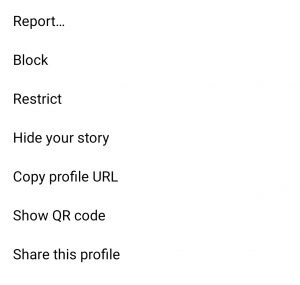
- Click the insulting user’s username or profile photo, and you will be directed to their profile page.
- Click the “…” in the top right corner.
- Click Block.
- Limit inappropriate accounts
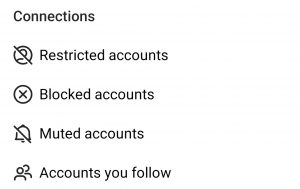
- Open the app and go to your child’s profile.
- Click the three dots in the upper right corner “…”.
- From here, you can see the option “Restricted Accounts.” Click that.
- Manage comments
- Open the Instagram app.
- Tap your child’s profile picture in the bottom right corner.
- At the upper right of the screen, click “…”.
- A screen will get open from the left. At the bottom, Tap Settings.
- Scroll down and click Comment Controls.
- In this section, you can manage comment control and find inappropriate ones.
- Manage mentions
- Open the application.
- Click on the Privacy option in the Settings menu.
- Click on the “Mention” menu and select whom you allow to take this action.

- Manage messages
Instagram is releasing updates introducing new methods for filtering account activity, such as spam limits, hidden word limits, Instagram live privacy, and IG post interactions. Go to the privacy menu in settings to arrange your message settings.
Final thoughts
Instagram is a fun app for kids. On the other hand, Instagram might also cause concern for parents because of privacy violations and inappropriate content for young people. Parents need to learn how to monitor their child’s activities and engagements to protect them from potential risks on Instagram. As parents, we want to do whatever it takes to protect our children from trauma. But tracking your kids’ activities online can be challenging in today’s digital world. With so many social media platforms and online activities, it can be hard to track what your child is doing. You can control your teen’s social media presence by setting parental controls on Instagram. There are many ways to keep your children safe online, but one of the best ways is to create a private account. Suppose you are still concerned about your child’s Instagram activities. In that case, it is best to activate Instagram parental control for more observation and, of course, with your child’s consent.

Emi Daniel
Buy an Established Instagram Account
Skip starting from zero. Browse Instagram/TikTok accounts with audiences across many niches.
See Available AccountsRelated articles
-
How to Use Instagram: The Creator’s Guide to Building an Audience
Instagram in 2026 is no longer just a place to collect followers. The creators who grow consistently are the ones who understand how to earn attention, turn…
17 min readEmi Daniel
-

How to Go Live on Instagram: A Step-by-Step Guide
Going live can feel more stressful than posting a Reel. You cannot remove a pause, rewrite a sentence, or start over after an awkward moment. But that…
17 min read -
Instagram Instants Feature: What It Is, How It Works, and How to Turn It Off
The first time I opened Instagram Instants, I almost backed out. I had taken a normal photo. Nothing worth editing. Nothing worth posting. Nothing that needed an…
11 min read