

Have you ever considered creative ways to make your Instagram stories more unique and personal? If so, you should start using story features, such as the temperature sticker, a fun way to keep your followers engaged and updated.
It doesn’t matter whether you are enjoying your vacation on a sunny beach or holding a cup of hot coffee while chilling at home! Adding the temperature sticker on your Instagram stories adds more sparkles to your content.
In this complete guide, I will explain how to add temperature to your Instagram story, troubleshoot if you can’t find this option, and review other popular story features to enhance visibility on social media.
Buy an Established Instagram Account
Skip starting from zero. Browse Instagram/TikTok accounts with audiences across many niches.
See Available AccountsHow to Add Temperature to Instagram Story?
Here, you will learn how to add the temperature sticker to your Instagram stories.
Step 1- Open Instagram and swipe the home page to the right to create a story. (Or tap on your profile picture in the top left corner.)
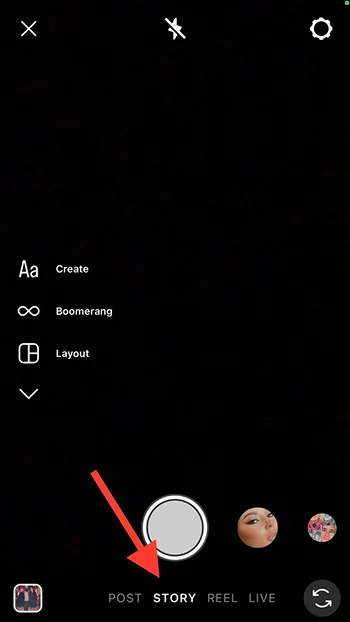
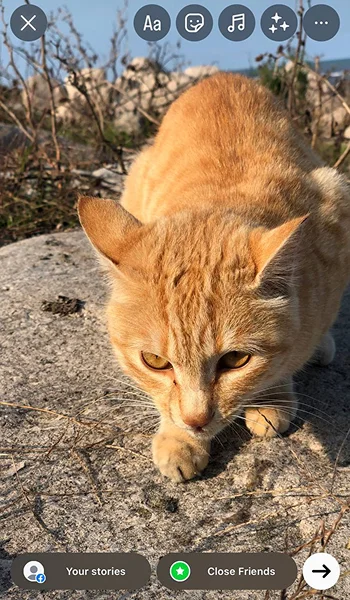
Step 2- Select the desired photo or video.
Step 3- Tap the “Sticker” icon in the top right corner.
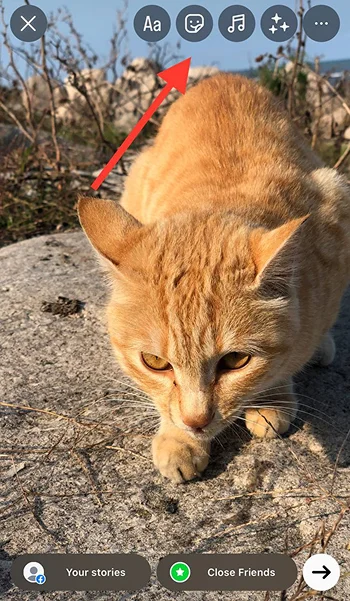
Step 4- Select the temperature sticker and tap it to change its appearance.
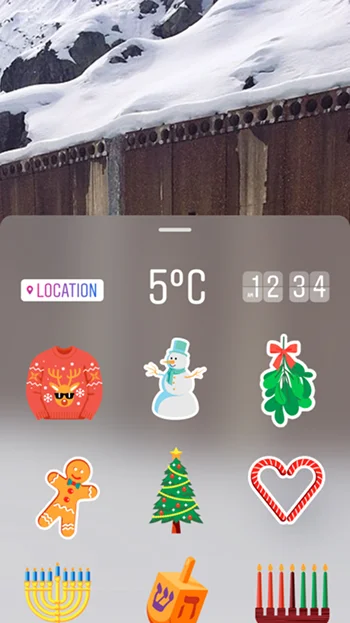
Note that Instagram displays the temperature as Fahrenheit to Celcius based on your region. By tapping on the sticker, you can change its appearance and type.
How to switch from Fahrenheit to Celcius on an Instagram story?
Instagram displays the temperature based on your location.
In the US, it’s Fahrenheit, and in the UK it’s Celsius. Just tap on the sticker, and it will change!
Reasons You Can’t Add Temperature Sticker to Your Instagram Story (with easy solution)

Let’s examine why you can’t use or find the temperature sticker on Instagram and how to fix such issues.
Server issues
Sometimes, your device may stop connecting to the internet because of server issues.
Solution: Restart Instagram or your mobile, and the problem will be solved.
Instagram glitch
If something doesn’t work on Instagram for you, it’s a bug or glitch that needs to be fixed.
Solution: Restart your device, update the app to the latest version, check your internet connection and clear Instagram’s cache on your device.
Wrong GPS
When your phone’s GPS doesn’t work, Instagram can’t detect your location and position to give you the right temperature.
Solution: To fix this issue, you must enable GPS on your mobile, which is explained here.
Enabling GPS on your device:
Step 1- Open “Settings” and tap “Privacy & Security” from the menu.
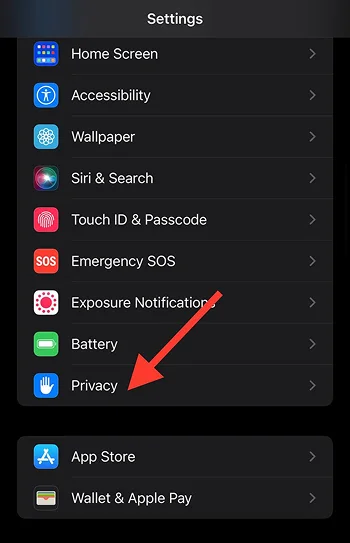
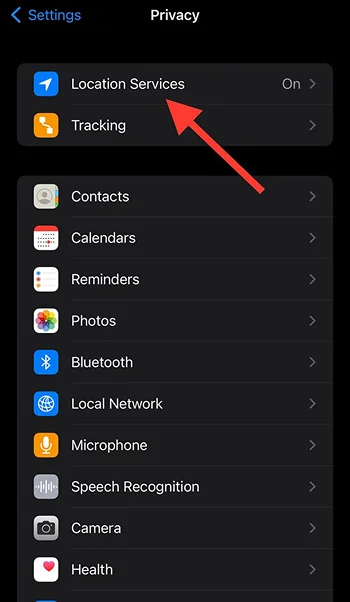
Step 2- Select “Location Services.”
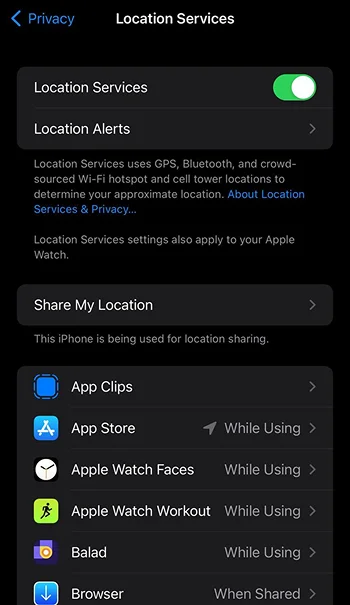
Step 3- Turn it on to enable GPS.
Enabling GPS on Android devices:
Step 1- Open “Settings,” scroll the menu, and select “Location.”
Step 2- Turn on “Location access.”
Outdated version
Instagram temperature stickers were launched in 2016. If you can’t use or find story stickers, update the app to the latest version.
Solution: Open the App Store or Google Play, look for the latest version of Instagram, and keep the app updated.
Denied location access
One clear reason is you didn’t allow Instagram to access your device’s location, so it can’t detect the temperature around you.
Solution: You should allow Instagram to access your mobile’s location.
Allowing Instagram to access your location on iOS devices:
Step 1- Open “Settings,” scroll to the menu, and tap “Apps.
Step 2- Select Instagram.
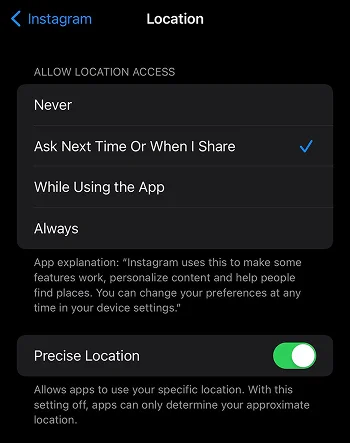
Step 2- Tap “Location.”
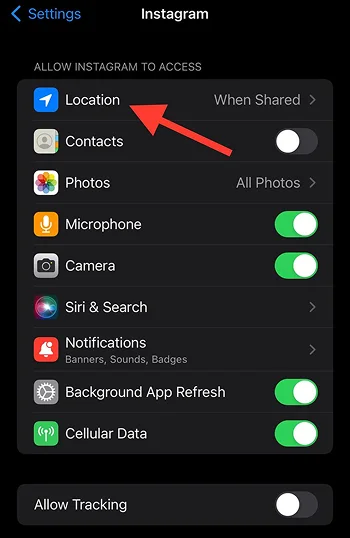
Step 3- Choose how you want to allow access. (Never, Ask Next Time Or When I Share, While Using the App, and Always).
Allowing Instagram to access your location on Android devices:
Step 1- Open “Settings” and select “Apps.”
Step 2- Tap “Manage apps.”
Step 3- Find Instagram and tap it.
Step 4- Select “App permissions.”
Step 5- Tap “Location.”
Step 6- Choose how to allow the access. (Allow only while using the app, Deny).
Unstable internet connection

Another common reason is a poor internet connection.
Solution: Put your device on Airplane mode and disable it, connect to another server, and check your Wi-Fi.
Using VPN
Using a VPN will not allow Instagram to detect the temperature in your area and may show you the wrong data.
Solution: Disconnect the VPN to let the app access your exact location and give you the right information.
How to Use the Temperature Sticker Creatively

To encourage your followers to engage with your stories, you must be creative. This section helps you use the temperature sticker creatively.
Use it for brand storytelling
One effective way is to use this sticker for brand storytelling to build a deeper connection with your audiences, making them feel they are part of your brand’s journey.
For example, share a story of an outdoor event or activity with your team members in hot or cold weather and add the temperature sticker with the text: “Our team never stops growing because we don’t care how cold/hot it is out here!”
Use it to create seasonal themes
If you want your followers to interact with your stories, try creating seasonal themes using the temperature stickers. It doesn’t matter whether your content is about a cup of hot chocolate or an iced coffee; using this sticker in different seasons boosts your stories and increases engagement.
Use temperature GIFs
You can go beyond creative by using temperature GIFs! To do so, follow the steps below:
Step 1- Open Instagram and create a story.
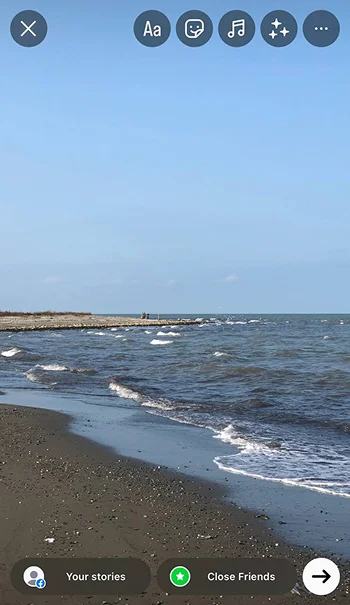
Step 2- Tap on the “Sticker” icon.
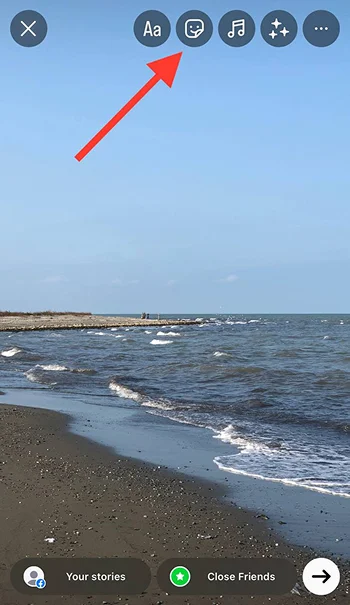
Step 3- Select “GIF.”
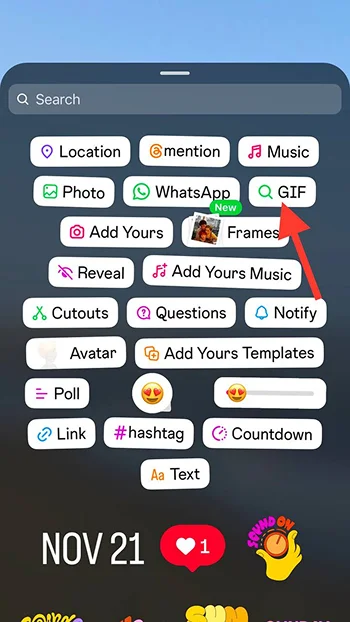
Step 4- Search for “temperature” or something like that and add a relevant GIF to your story.
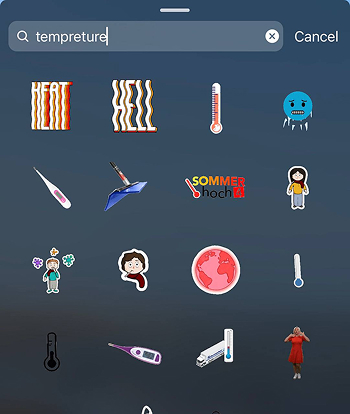
Use it to promote your business (products or services)
If you have a business account, use this sticker to promote your product or services. These examples may inspire you:
- It’s -5 degrees out there! Keep yourself warm with our latest hot chocolate flavor.
- Want to keep your body cool? Our fresh cocktails are waiting for you! It’s 40°C.
Use it to create traveling stories
Are you going to travel anytime soon? To encourage your audiences to interact with your stories and watch all of them, it is better to use the temperature sticker to help them feel the environment around you.
Alternative Methods to Show Temperature in Instagram Stories

If the temperature sticker is unavailable, don’t worry. With a bit of creativity and the help of other methods, you can display temperature in your Instagram stories.
Add a temperature GIF
If you tap on the sticker icon while sharing your story, tap GIF, and search for relevant terms such as “temperature,” “warmth,” “cold weather,” “sunny,” etc., you can show the temperature in your stories. This method is also helpful for attracting more attention and encouraging your followers to interact with your content.
Add a temperature photo

Every mobile now has a weather application, which means you can take a creative screenshot of the current temperature and use the cutout or photo feature on the Instagram story to add a picture of the temperature.
Use text and emojis
One easy way is to explain the weather using text and niche emojis.
For example:
“It’s -6 degrees tonight! 🥶❄️”
“Chilling and freezing! 🌨️☃️”
“Keep yourself warm with our jackets! 🌧️🧊”
“All I need to escape this sunny day is 🍦! It’s 40°C.”
“On a beach, in 38 degrees heat! ☀️”
Draw the temperature
This method requires patience and creativity at the same time! Tap on the three-dots icon in the top right corner of your story and tap “Draw.”
Now, you can draw a cute sun in sunny and hot weather or a funny cloud to show the cold, rainy weather. If you are good at art and drawing, add more details to show off your talent and grab more attention.
Use custom temperature graphics

Last but not least, you can use third-party editing tools, like CapCut, Picsart, or Canva, to create custom temperature graphics for each season and weather.
Privacy Consideration When Sharing Location-Based Information on Instagram

Always protect your privacy before sharing location-based information on social media. Here are some privacy considerations that help you avoid sharing sensitive data in your Instagram stories.
Don’t overuse location stickers
Adding location stickers in addition to temperature enhances your story’s reach; however, it is better not to overuse this feature, especially if you are traveling alone.
For example, you don’t need to share location-based information about your hotel or anywhere you visit.
Avoid sharing real-time location
It is better not to share real-time locations to avoid potential risks, such as unwanted attention from strangers. If you want to share such information, you can add it to your story after leaving that area.
Use a VPN while traveling

If you are traveling and want to share stories of new places you visit, using a VPN reduces the potential risk of tracking because it adds an extra layer of security to your IP address.
Turn off location services
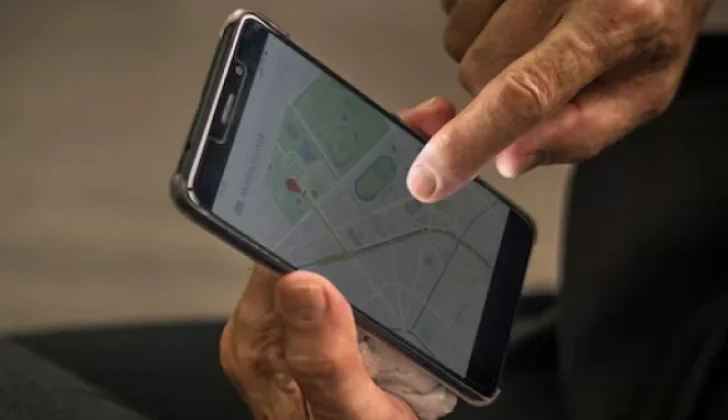
Turn off Instagram location services unless you need them to use specific features, such as location or temperature stickers. Doing so will prevent Instagram from collecting extra and unnecessary data.
Share location for close friend list
One effective way to protect your privacy is to share your location information only with your close friend list. However, if you don’t know who is on your list, check and update the list of people you truly trust.
What Are Other Popular Features to Use to Boost Your Instagram Story

There are also other popular story features to increase engagement and boost visibility on the platform:
- GIFs
- Location
- Photos
- Music
- Cutouts
- Poll
- Question box
- Countdown
- AI stickers
- Avatars
- Emojis
- Mention
- Reveal
- Link
- Frames
- Hashtag
- Add your music
Conclusion
That’s it! Using Instagram story features helps you create more engaging stories and encourages your followers to interact with your content, leading to more engagement.
To use temperature stickers effectively, it is better to be creative and use them in the relevant context. Otherwise, your audiences may find it useless.
I hope this article helps you learn how to use various story features to boost your account’s visibility on the platform.
FAQs
Why is there no temperature on my Instagram story?
You may be using outdated applications, have not enabled location services, or have not allowed Instagram to access your location.
How to add weather temperature in Instagram story 2025?
Open Instagram> Swipe right to the home page to create a story> Select your content> Tap on the sticker icon> Choose temperature.
Can I add the temperature sticker to the videos?
Yes, you can add it to pictures, Reels (if added to the story), and videos.

Emi Daniel
Buy an Established Instagram Account
Skip starting from zero. Browse Instagram/TikTok accounts with audiences across many niches.
See Available AccountsRelated articles
-

How to Clear Instagram Cache on iPhone, Android & Desktop
Instagram can quietly build up a lot of temporary files while you scroll through Reels, watch Stories, save posts, and upload your own content. You may not…
12 min readEmi Daniel
-

How to See Who Reposted Your Instagram Post (2026 Guide)
Someone reposted your Instagram post, but you have no idea who it was. You check notifications, search through your profile, and still cannot find a clear answer. …
18 min read -

How to Reset Instagram Algorithm in 2026
Instagram can start showing too much of the same type of content. Your Explore page may no longer match your interests, Reels may feel repetitive, or suggested…
12 min read