

When you link your Instagram account to Facebook or other apps, it can feel convenient. You get faster logins, easy sharing options, and everything in one place.
But with growing concerns about online privacy, many people are rethinking these connections. Do you need all your apps to work together? Does linking them improve your experience?
Keeping your accounts separate gives you more control over your personal information, how it’s shared, and who sees it. The good news is, it only takes a few minutes to unlink Instagram from Facebook or disconnect other connected apps, and it’s simpler than you might think.
Buy an Established Instagram Account
Skip starting from zero. Browse Instagram/TikTok accounts with audiences across many niches.
See Available AccountsStudies show that 72% of users worry about how Meta (Facebook and Instagram) tracks activity across apps and websites. Unlinking accounts or managing your connected apps can reduce data sharing and strengthen your online privacy.
Whether you’re removing links you no longer use or just want clearer boundaries between platforms, this guide will show you how to safely unlink Instagram, disconnect third-party apps, and take control of your digital privacy, without affecting your content or followers.
Why You Might Want to Unlink Instagram
Unlinking your Instagram account from Facebook or other apps gives you more control over your online presence and personal data.
Here are the main reasons you might consider it:
1. Protect Your Privacy
When accounts are linked, your activity on Instagram can influence Facebook suggestions, ads, and content recommendations. Unlinking limits cross-platform tracking and keeps your personal information more private.
2. Take Control of Your Data
Linked apps share information automatically. By unlinking, you decide what data is shared and with whom, giving you full control over your digital footprint.
3. Reduce Algorithm Influence
Keeping Instagram separate from other apps prevents your activity from shaping content or ad recommendations across platforms, allowing for a more independent social media experience.
4. Separate Personal and Professional Accounts
If you manage multiple accounts (personal, business, or professional), unlinking helps you maintain distinct workflows, ensuring business data and personal activity don’t get mixed.
5. Simplify App Management
Disconnected accounts make it easier to manage permissions and reduce security risks, especially if you use third-party apps connected to your Instagram.
Unlinking doesn’t delete your content; it simply gives you more control over how your accounts interact and how your data is shared.
How to Unlink an Instagram Account From Facebook on Mobile
Step 1- Open Instagram and go to your profile by tapping your profile picture in the bottom right corner.
Step 2- Tap the hamburger menu (three horizontal lines) in the top right corner.
Step 3- Select “Accounts Center” from the menu that appears (this is where connections between Meta platforms are managed).
Step 4- Tap “Accounts.”
Step 5- Select your Facebook account from the list.
Step 6- Tap Remove from Accounts Center and confirm.
How to Unlink Instagram From Facebook Using a Desktop Browser
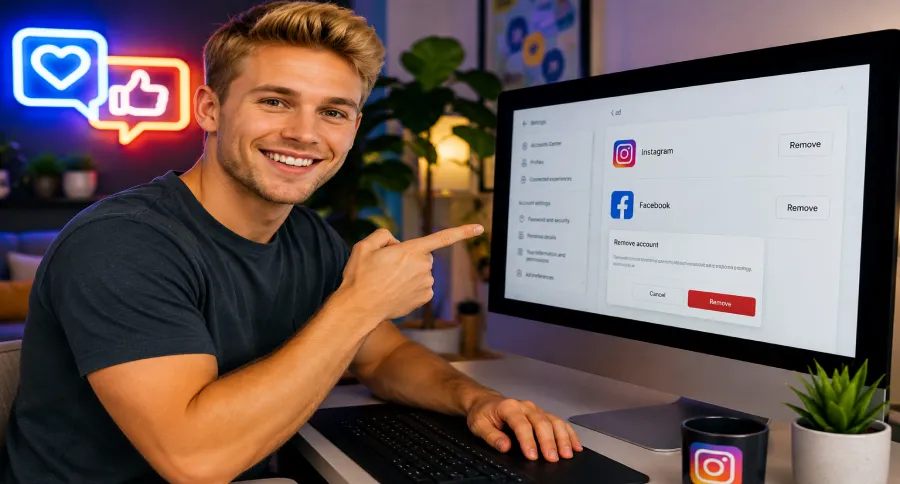
If you prefer managing your social media on a computer, you can also unlink accounts through the web version:
1. Open instagram.com and log in to your account.
2. Tap on your profile picture at the top right corner.
3. From the menu on the left, select “Accounts Center.”
4. Tap on “Accounts and profiles” to view your connected accounts.
5. Select the Facebook account that you want to disengage from.
6. Select “Remove” and follow through with the confirmation steps.
7. Verify your identity if asked and complete the disengagement.
For those who prefer working from a computer, you can also learn how to post on Instagram from your PC to keep your content flowing smoothly.
How to Unlink Instagram Business Accounts From Facebook Pages
Unlinking your business Instagram account has a similar process like a regular account. However, I provided some key information to help you better manage and use your business Instagram account.
Business accounts have deeper integration with Facebook than personal accounts. Thus, before unlinking a business account, document your current workflows to understand what might be affected. Some business users choose to maintain the connection for professional accounts while separating personal profiles.
If you want to minimize disruption to your business features when unlinking, it is better to export any cross-platform analytics data you need before disconnection, update your content planning calendar to account for separate posting schedules, and inform team members about the change in workflow if multiple people manage your accounts.
If you’re considering stepping back from a business profile or simplifying your social presence, learn how to sell your Instagram account safely and efficiently.
Pros and Cons of Unlinking Instagram From Facebook and Other Apps
Unlinking your Instagram accounts can affect privacy, convenience, and app functionality in different ways.
Pros (Benefits)
- Enhanced Privacy: Your activity on Instagram is less visible to Facebook and other connected apps.
- Better Control Over Data: Changes on one platform no longer automatically sync to others, so you decide what is shared.
- Reduced Algorithm Influence: Other apps won’t use your Instagram activity to influence recommendations, ads, or content suggestions.
- Clearer Personal vs. Professional Separation: Especially useful if you have business, personal, or third-party app integrations.
- Improved Security: Fewer connected accounts reduce potential points of unauthorized access.
Cons (Trade-offs)
- Loss of Convenience: Automatic cross-posting or shared features between Instagram and other apps may stop working.
- Login Adjustments: You may no longer be able to log in using third-party credentials like Facebook or Google.
- Potential Business or App Impact: Analytics, scheduling, or app-based integrations may need manual updates.
- Extra Management Needed: You’ll need to manage apps separately, including checking permissions and syncing features.
Even if you unlink, you can reconnect accounts later if you find certain features or integrations are helpful.
How to Reconnect Your Instagram Business Accounts If Needed for Marketing
If you discover that unlinking negatively impacts your marketing efforts, reconnecting is always an option:
1. Go to Instagram Settings and return to the Accounts Center.
2. Select “Add accounts” to begin the reconnection process.
3. Log in to your Facebook account when prompted.
4. Choose which information and features to sync between platforms.
5. Confirm the connection.
There’s no penalty for reconnecting previously unlinked accounts, making this a reversible decision if your strategy changes.
What Happens After Unlinking an Instagram Account
Unlinking your Instagram account from Facebook or other apps doesn’t delete any of your content, it just changes how your accounts interact.
Here’s what you can expect:
1. Your posts stay intact
Photos, videos, and stories you’ve already shared on Instagram or Facebook remain visible. Unlinking only stops future automatic sharing.
2. Cross-posting stops
Instagram will no longer automatically post content to Facebook or other linked apps. If you still want content on multiple platforms, you’ll need to share it manually.
3. Login changes
You may no longer be able to log in to Instagram using Facebook credentials or other connected app logins. Make sure you have your Instagram username and password set up directly.
4. Analytics and integrations may be affected
For business accounts, some cross-platform analytics, scheduling tools, or app integrations may need adjustment after unlinking; export any important data before disconnecting.
5. Privacy improves
Separating your accounts limits data sharing between platforms, helping you control what each app sees and uses for recommendations or ads.
Unlinking is reversible! If you later find certain integrations helpful, you can reconnect accounts easily through Instagram’s Accounts Center.
If you notice Instagram isn’t sharing content to Facebook as expected, our guide on Instagram not sharing to Facebook can help you fix it quickly.
Troubleshooting Problems When Unlinking Instagram
Sometimes the unlinking process doesn’t go smoothly. The following are solutions to common issues:
- Can’t find Accounts Center: Ensure your Instagram app is updated to the latest version. Previous versions can have varying menu options.
- Disconnection doesn’t save: Try logging out of both Instagram and Facebook completely, then log back in and attempt the process again.
- Error messages: Take a screenshot of any error messages and look up Instagram’s Help Center for complete details on the error codes.
- Account immediately reconnects: This usually happens when you’re still using Facebook login for Instagram. You’ll need to set up direct Instagram login credentials first.
- Missing “Remove” option: Make sure you’re the admin of both accounts. Business accounts may have different requirements for disconnection.
If problems persist, you can contact Instagram support!
Disconnecting Third-Party App Access to Instagram
Other than Facebook, Instagram most likely has connections to other third-party apps that you’ve logged into before.
To locate them, do the following:
1. Open Instagram and go to your profile.
2. Tap the hamburger menu (three horizontal lines) in the top right corner.
3. Scroll down and select “Website permissions.”
4. Tap “Apps and websites.”
5. Click “Remove” next to the app you’d like to remove.
How to Manage Multiple Apps Connected to Instagram
If you have several apps linked to your Instagram, it’s important to stay on top of them. Regularly reviewing connected apps, monthly or quarterly, helps you maintain control over your data and privacy.
Tips for managing multiple apps:
- Remove unused or suspicious apps: Prioritize apps you no longer use or don’t recognize.
- Check permissions: Some apps only need basic profile info, while others request broad access. Review what each app can see or do.
- Set a review schedule: Make it a habit to check your connected apps regularly to prevent unwanted data sharing.
Remember: Every connected app is a potential point of data sharing. Being selective is a simple but effective step for good digital hygiene.
Privacy Benefits of Unlinking Instagram
If you think you would put your privacy at risk by unlinking your Instagram account from Facebook, the following advantages help you make a more informed decision!
Enhanced Control Over Personal Information
Separating your Instagram and Facebook accounts creates stronger boundaries around your personal information:
- Profile details stop syncing automatically between platforms
- Changes to personal information on one platform no longer affect the other
- You can present different aspects of your identity on each platform
- Contact information can be selectively shared on each service
- Professional connections on one platform won’t automatically see personal content on the other
This separation allows for more intentional identity management across your social presence.
Reducing Data Sharing Between Platforms
Unlinking significantly reduces behind-the-scenes data sharing:
- Your Instagram activity becomes less influential on Facebook algorithms
- Facebook interactions stop affecting Instagram content recommendations
- Each platform develops a more independent understanding of your preferences
- Cross-platform tracking for advertising purposes becomes more limited
- Your social graphs (connections and relationships) become more compartmentalized
This reduction in data sharing helps create more distinct experiences on each platform.
Limiting Facebook’s Access to Instagram Activity
Facebook’s visibility into your Instagram behavior changes after disconnection:
- Instagram searches no longer influence Facebook suggestions
- Time spent viewing specific Instagram content stops informing Facebook’s algorithm
- Instagram message activity remains separate from Facebook Messenger data
- Location check-ins on Instagram aren’t factored into Facebook’s location history
- Shopping and product interest data become platform-specific
For privacy-conscious users, this separation creates meaningful boundaries around behavioral data.
Best Practices for Managing Connected Apps
Keeping your Instagram account secure isn’t just about passwords; it also means managing the apps and services you’ve connected.
Here are some simple best practices to maintain control over your data and protect your privacy:
- Review connected apps regularly
Check which apps have access to your Instagram at least once a month (or quarterly for casual users). Remove any that you no longer use or don’t recognize.
- Check app permissions carefully
Some apps only need basic profile information, while others request access to messages, contacts, or more sensitive data. Only keep apps that truly require the permissions they request.
- Prioritize security and privacy
If an app seems suspicious or hasn’t been updated in a long time, it’s safer to disconnect it. Reducing unnecessary connections limits potential data leaks.
- Keep business and personal accounts separate
If you manage a business Instagram account, consider which apps need access to it versus your personal account to prevent accidental data sharing or workflow disruption.
- Make it a habit
Set a calendar reminder to review connected apps periodically. Regular maintenance is the easiest way to stay on top of your digital privacy.
Disconnecting apps doesn’t affect your content; it just limits how much third-party services can see or share. Think of it as a simple privacy tune-up!
Conclusion
Unlinking from Facebook and checking third-party apps regularly helps protect your privacy.
As social media platforms evolve, regularly check your connection settings to ensure they still align with your goals. Virtual boundaries are a maintenance undertaking, but the payoff to privacy is worth the effort.
By following the steps outlined in this guide, you’ve made positive strides toward a more intentional social media presence – one where you’re able to control the relationships between your various online personas.
FAQs
Will I Lose Followers If I Unlink Accounts?
No, removing the link between your Instagram and Facebook accounts won’t hurt your followers. Your followers that you have now are still linked to your account, whether you’re linked to Facebook or not.
Can I Still Log In to Instagram Using Facebook Login?
After you’ve de-linked your accounts, in the majority of situations, you will not be able to log in to Instagram with Facebook credentials.
How Do I Check Connected Apps Frequently?
Security experts recommend reviewing your connected applications quarterly.
Does unlinking improve my privacy?
Yes. It limits Facebook’s access to your Instagram activity and gives you more control over what each platform sees and shares.
Will unlinking Instagram from Facebook delete any of my posts?
No, posts already shared on both platforms will stay up. Unlinking just stops future automatic sharing.

Emi Daniel
Buy an Established Instagram Account
Skip starting from zero. Browse Instagram/TikTok accounts with audiences across many niches.
See Available AccountsRelated articles
-
How to Clear Instagram Cache on iPhone, Android & Desktop
Instagram can quietly build up a lot of temporary files while you scroll through Reels, watch Stories, save posts, and upload your own content. You may not…
12 min readEmi Daniel
-
How to See Who Reposted Your Instagram Post (2026 Guide)
Someone reposted your Instagram post, but you have no idea who it was. You check notifications, search through your profile, and still cannot find a clear answer. …
18 min read -
How to Reset Instagram Algorithm in 2026
Instagram can start showing too much of the same type of content. Your Explore page may no longer match your interests, Reels may feel repetitive, or suggested…
12 min read