

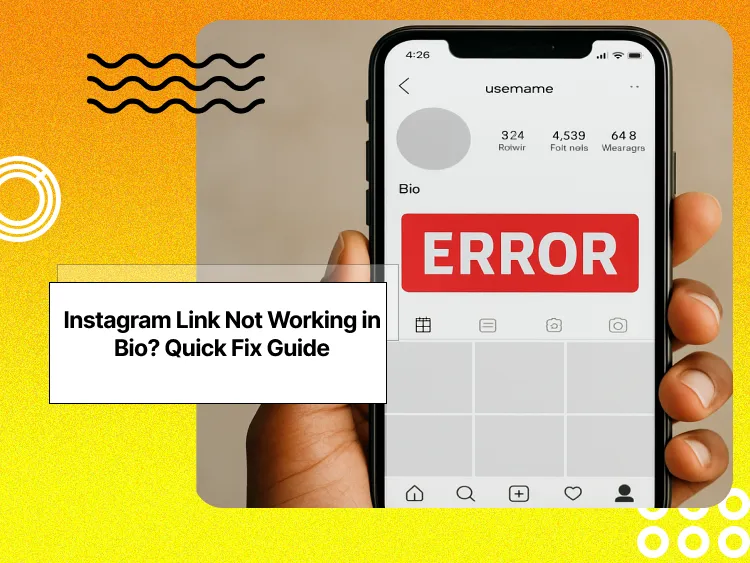
Each time someone lands on your Instagram profile, your bio link has a chance to convert them from follower to visitor, yet if it’s broken, you lose what could’ve been your main traffic source.
Over 31 million Instagram users now rely on a “link-in-bio” tool to channel followers to external content, making that one link in your bio critical.
So, your Instagram bio link isn’t just decoration. Just like a link you might share in an Instagram post or Story, it’s the gateway between your followers’ curiosity and your actual business goals. That single clickable spot can turn a casual scroller into a customer, no matter if your goal is sales, sign-ups, or views.
Buy an Established Instagram Account
Skip starting from zero. Browse Instagram/TikTok accounts with audiences across many niches.
See Available AccountsIn this post, we’ll cover why Instagram links in your bio sometimes stop working, how to fix the problem quickly, and smart ways to prevent it from happening again, so you never miss out on valuable clicks.
Why Links Break on Instagram (Unseen Causes)
Not all types of links break in the same way. Here’s a closer look at the most common hidden reasons:
Common Formatting Errors
A surprising number of link issues come down to tiny formatting errors. Forgetting to add https:// at the start, leaving an accidental space before or after the link, or placing an emoji right next to it can confuse Instagram’s parser. Even something as small as using a “smart quote” instead of a regular one can stop your link from opening properly.
Instagram App Issues
Like any social media platform, Instagram’s app is constantly evolving, but that also means bugs slip through. An outdated version of the app might not handle certain link formats well, or the app’s cache could be interfering with how links open. Sometimes, simply updating Instagram or clearing cache and cookies can resolve a link that looked completely broken.
Device or Network Issues
Not all devices are equal. A link may open smoothly on iOS but stall on Android, or vice versa. Similarly, switching from Wi-Fi to mobile data can change how Instagram routes traffic to external sites. What feels like a platform issue could actually be your phone or network struggling with the request.
Redirect Overload
Link shorteners (like bit.ly) and link-in-bio tools (like Linktree) often stack redirects. If one step in that chain expires, misconfigures, or gets flagged, the entire path collapses. Too many redirects can also slow load times, leading impatient users to give up before reaching your content.
Instagram Filters
Instagram is protective of its community and scans bio links for safety. If your domain, or the service you’re using to shorten/redirect, has been associated with spam or abuse, Instagram may block it. Even legitimate businesses sometimes get caught in this filter if their provider is widely abused.
Policy Changes You Didn’t Notice
Instagram updates its policies regularly, and sometimes without much fanfare. Certain categories (like adult content, restricted products, or aggressive affiliate schemes) can get banned overnight. If your link points to something newly restricted, Instagram won’t let it load, and you might not get a clear explanation.
Quick Fix Checklist (Try These First)
Before you try advanced troubleshooting, start with these quick checks. They solve the majority of broken bio link problems in minutes:
- Double-Check Placement
Make sure your link is actually in the Website field of your profile settings. If you just paste it into the text of your bio, it won’t be clickable, and many people overlook this simple mistake. - Refresh the App
Instagram glitches often disappear with a refresh. Log out and back in, clear your cache, or even reinstall the app. A fresh start can eliminate temporary bugs that block links. - Test the URL in a Browser First
Copy your link and open it in Safari, Chrome, or another mobile browser. If it doesn’t work there either, the issue isn’t Instagram, it’s your link or destination page. - Use a Clean Version of the Link
Sometimes extra tracking codes or UTM parameters cause hiccups. Strip your link down to the bare domain and page (e.g., https://yourwebsite.com/page) and test again. If it works, you know the add-ons were the problem. - Switch Between Mobile Data and Wi-Fi
Network issues can disguise themselves as Instagram problems. If your link won’t open on Wi-Fi, try mobile data, or vice versa. This helps rule out connectivity hiccups that have nothing to do with your bio link.
Step-by-Step Troubleshooting Blueprint
Use the following step-by-step guide. Start from what you see happening and follow the path:
- My link is clickable, but it goes to an error page.
If tapping the link takes you somewhere but shows an error message, the issue likely isn’t Instagram itself. Test the link directly in a browser to confirm it works outside the app. Then check for expired redirects or broken short links that might be failing along the way. You can also run the URL through a free HTTP status checker (like httpstatus.io) to see if it returns a proper 200 OK response or something like 404 Not Found or 500 Server Error. - My Instagram bio link isn’t clickable at all.
When a link doesn’t turn into a tappable hyperlink, it’s almost always a placement problem. Instagram only activates links entered in the Website field of your profile, pasting it into the bio text won’t work. Double-check that your URL is in the right spot, and confirm it starts with https:// or http://, since Instagram won’t recognize it otherwise. - My link works on desktop but not on mobile.
If your bio link opens fine in a web browser but fails inside the Instagram app, the problem may be tied to your phone. Make sure your app is updated to the latest version, clear the cache, or reinstall Instagram to wipe out any corrupted files. Testing on both iOS and Android can reveal if the issue is tied to a specific operating system. - My link works for me, but not for others.
When the link loads correctly on your device but not for your audience, it’s important to step outside your setup. Open the link in an incognito or private browsing window to rule out cookie or cache interference. Ask a friend or colleague to test it from their Instagram account, on a different device and network. If they hit a wall too, your domain may be suffering from a reputation issue. - My domain is flagged.
If Instagram or its filters have decided your domain isn’t trustworthy, your link will be silently blocked. You can confirm this by checking the domain against blacklist tools like Google Safe Browsing or IsItBlocked.org. If it’s listed, you’ll need to file a review request to clear it. In the meantime, setting up an alternate subdomain (like go.yourdomain.com) or using a trusted link-in-bio service can keep your traffic flowing until the block is lifted.
Advanced Fixes for Broken Bio Links
If the quick fixes didn’t solve your problem, these advanced troubleshooting steps will help you dig deeper and uncover the hidden reasons why your Instagram bio link isn’t working.
Check your redirect chain
If you’re using a short link or a link-in-bio tool, your URL may bounce through several redirects before reaching your landing page. Too many hops can confuse Instagram or slow down load times. To investigate, use tools like WhereGoes or Redirect Detective. These will show you the exact redirect chain, step by step, so you can spot any expired or broken links in the path.
Inspect your domain reputation
Every webpage returns a status code that shows if it’s working. For example, 200 means success, 301 means permanent redirect, 403 means forbidden, and 404 means not found. Tools like httpstatus.io or Hurl.it let you paste in your link and instantly see the response code. This makes it easy to figure out if the error comes from your site, your host, or Instagram’s filters.
Be picky with link shorteners
Instagram uses external security databases to decide if a domain is safe. If your DNS records appear on spam blacklists, Instagram may block your link even if your site is legitimate. Services like Google Transparency Report or MXToolbox Blacklist Check can show if your domain or IP has been flagged. Fixing DNS reputation issues often means contacting your host or requesting removal from blacklist providers.
Safe link shorteners vs ones Instagram blocks
Not all shorteners are created equal. Popular services like Bitly or Rebrandly are generally trusted, but lesser-known or overused free shorteners often get abused by spammers, which can land them on Instagram’s blocklist. When in doubt, test your shortened link in Instagram before promoting it widely. Better yet, create branded short links using your own domain (e.g., go.yourdomain.com/page), they look more professional and are less likely to be flagged.
Other reasons Your Link Might Still Fail
Even if your link looks fine at first glance, Instagram can trip it up in less obvious ways. These are the tricky scenarios that often catch people off guard:
Affiliate or marketplace links
Platforms like Amazon, Etsy, or certain affiliate networks are frequently targeted by scammers, so Instagram sometimes blocks these links by default. Even if yours is completely legitimate, it may get caught in the crossfire. Using a redirect through your own domain (e.g., shop.yourdomain.com/etsy) can often get around this problem.
Domains on shared hosting
If your website lives on a shared hosting server, you’re sharing an IP address with dozens (sometimes hundreds) of other sites. If one of those “neighbors” gets flagged for spam or abuse, Instagram’s filters may penalize every site on that IP, including yours. In cases like this, contacting your host about moving to a dedicated IP can solve the issue.
Overly long tracking URLs
Links stuffed with UTM codes or long query strings can sometimes confuse Instagram’s parser. While analytics are important, test a clean version of your link (without the extra parameters) to confirm that it works. If it does, consider using a branded short link that preserves tracking without overwhelming the system.
Regional restrictions
Sometimes a link will open perfectly in one country but fail in another. This often happens when your hosting provider, payment processor, or linked service limits traffic from certain regions. What looks like an Instagram bug may actually be a geographic restriction on the target site. If your audience is global, be sure to test your link through a VPN in multiple regions.
How to Future-Proof Your Instagram Bio Link
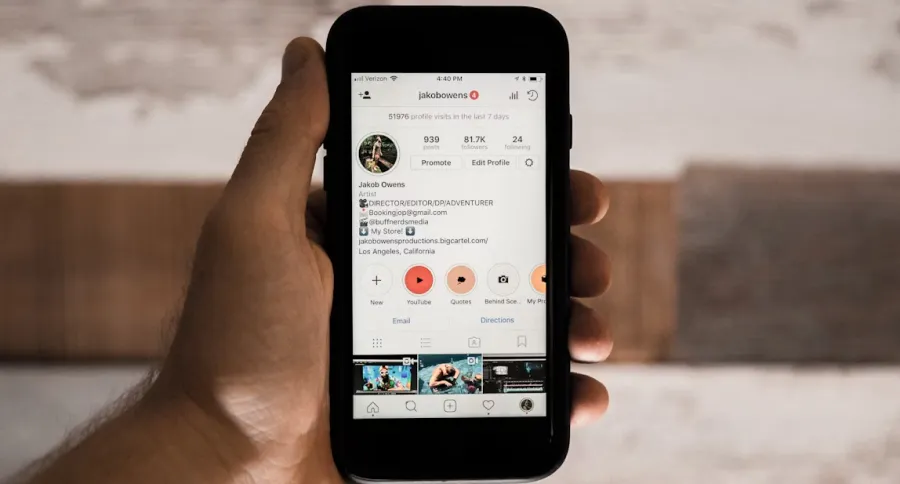
Fixing a broken link is one thing but keeping it reliable over the long run is even more important to increase engagement and keep your audience flowing to your content. Here’s how to future-proof your Instagram bio link:
Always use HTTPS
Instagram expects secure links. If your site doesn’t have an SSL certificate (https://), it may be blocked or flagged. Most hosting providers offer free SSL certificates, so there’s no excuse to skip this step.
Keep URLs simple and short
The fewer moving parts in your link, the less chance something will break. Avoid unnecessary parameters or long query strings. If you need tracking, consider a clean branded short link instead.
Regularly test your link from multiple devices
Don’t assume your link always works just because it loads on your phone. Check it periodically on iOS, Android, desktop, and different networks (Wi-Fi vs mobile data) to catch issues before your audience does.
Maintain domain hygiene
Think of your domain like your online reputation. Avoid spammy redirects, keep your SSL certificate up to date, and check occasionally to make sure your site isn’t blacklisted. A clean domain is far less likely to be blocked by Instagram’s filters.
Monitor Instagram’s updates on linking policies
Instagram quietly adjusts what’s allowed and what isn’t. Make it a habit to skim their help center or community updates so you don’t get blindsided by a policy change that suddenly blocks your bio link.
Have a backup plan
Even if you do everything right, links can still break. Always keep a Plan B ready, this could be a branded short link (go.yourdomain.com), a secondary domain, or a reliable link-in-bio service. That way, you can swap in an alternative quickly and keep your traffic flowing.
Final Thoughts
Your Instagram bio link is one of the most important parts of your profile. If it stops working, you lose clicks, traffic, and opportunities, from sales to sign-ups to content views. Fortunately, most issues come down to a handful of fixable causes: formatting errors, redirect problems, app glitches, or Instagram’s own link filters.
By following the troubleshooting steps in this guide, from testing your URL in a browser to checking redirects, monitoring domain reputation, and keeping your app updated, you can quickly identify why your Instagram bio link isn’t working and get it back online.
For long-term success, stick to best practices: always use secure HTTPS links, keep your URLs clean and short, regularly test on different devices, and stay informed about Instagram’s linking policies. And don’t forget to maintain a backup option, this could be a branded short link, a secondary domain, or a reliable link-in-bio tool.
In general, a working bio link means smoother traffic flow from Instagram to your website, store, or content. By being proactive, you’ll avoid costly disruptions and make sure every follower who clicks through lands exactly where you want them to.
FAQs about Fixing Instagram Bio Links That Don’t Work
How to fix Instagram links not working?
If Instagram links aren’t working, first make sure your link is in the Website field and starts with https://. Clear the Instagram app cache, update to the latest version, and check your phone’s default browser settings. If the problem persists, reinstall the app.
Does Instagram block links in bio?
Instagram may block certain links in your bio if they’re flagged as unsafe, spammy, or against its community guidelines. This often happens with some affiliate links, adult content, or domains on blacklists.”
Does Instagram allow clickable links?
Instagram doesn’t allow clickable links in captions or comments. The only clickable spots are your bio (where you can now add up to five links) and Instagram Stories via the Link Sticker.
How do you compress a link for an Instagram bio?
You can compress a link for your Instagram bio using a trusted URL shortener like Bitly, Rebrandly, or a branded short domain (e.g., go.yourwebsite.com). These make long links shorter, cleaner, and easier for Instagram to handle.
Why can’t I mention someone’s handle in my Instagram bio even after adding it?
You can’t mention someone’s handle in your Instagram bio if the username is typed wrong, attached to punctuation/emoji, the account is blocked/restricted, or there’s an app glitch. Make sure it’s spelled correctly, spaced cleanly (@handle), and update the app, then it should become clickable.

Emi Daniel
Buy an Established Instagram Account
Skip starting from zero. Browse Instagram/TikTok accounts with audiences across many niches.
See Available AccountsRelated articles
-
How to Clear Instagram Cache on iPhone, Android & Desktop
Instagram can quietly build up a lot of temporary files while you scroll through Reels, watch Stories, save posts, and upload your own content. You may not…
12 min readEmi Daniel
-
How to See Who Reposted Your Instagram Post (2026 Guide)
Someone reposted your Instagram post, but you have no idea who it was. You check notifications, search through your profile, and still cannot find a clear answer. …
18 min read -
How to Reset Instagram Algorithm in 2026
Instagram can start showing too much of the same type of content. Your Explore page may no longer match your interests, Reels may feel repetitive, or suggested…
12 min read