


Have you ever thought about boosting and improving your business? Or have you been looking for a way to develop it?
If your answer is yes, we must say that one of the ways to strengthen your business is to use Google My Business properly and add a social media profile to it, which has many advantages to help your business. No matter what the category of your social media account is, it’s necessary for your brand to add it to your Google My Business.
In this article, we provide you with a comprehensive guide about adding social links to Google My Business and its benefits.
Buy an Established Instagram Account
Skip starting from zero. Browse Instagram/TikTok accounts with audiences across many niches.
See Available AccountsWhat is Google My Business?
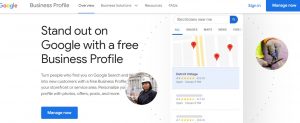
Google My Business is a practical tool that enables you to add your business’s social media profile link to it and manage and optimize your business in this way.
This service was previously known as Google Places.
Business owners can create a profile for their company in Google My Business and add various information about their business to it. Also, as a business owner, you can add your other social media profiles and get more input for your company.
When you add your business social media profile to Google My Business and register your information, you manage how the Google search engine displays your business.
Note, as mentioned, this tool was previously known as Google Places, so you can manage how to display your business information on Google Maps through Google My Business.
Helpful information that you can add about your business to Google My Business includes working hours, address, customer reviews, etc.
Why you should add your social media profile to Google My Business
Is adding a social media profile to your Google Business profile necessary for your business, and should you do it?
Well, it’s up to you to do this, but if you want to grow your business and increase your customers, add social media links to Google.
Because adding a social media profile to Google My Business makes your business profile appear in Google’s business profile, which makes more people know about your business and get important information about your business.
Other reasons why you should add your business account to your Google My Business page include the following:
- You can manage your business information:
By adding a social media profile to Google My Business, you can manage the information users find when searching for your business and ensure the information is correct.
- You can find out how users searched for your business:
Using Google My Business, you can find out how customers and users have searched and found your business, how many people contacted you through the contact number in your profile and became your customer, etc.
- You can communicate with your customers:
In this way, you can read customer comments and respond to them. This will make you look more credible and have more customers.
So, based on the things we mentioned, if you haven’t added your business social media to Google My Business, do it now!
Steps to add your social media profile to Google My Business
Step 1) Add your website link
The first thing you should do is add your website URL to Google My Business and make sure that the link you add is related to the main page of the website or its other page because this will make Google understand the connection between your website and your profile.
Also, note that your website link must be secure with the HTTPS protocol because it will make your profile rank higher in the Google search results and Google Maps.

Step 2) Create social media profiles
In this step, you should create the social media accounts you want to include in the Google My Business list.
You can share more information about your company and business when you add different user accounts to Google My Business.
To get the best results, you can create an account on various social media platforms such as Instagram, Twitter, Facebook, TikTok, YouTube, Pinterest, etc., to share comprehensive information in this way.

Step 3) Add external links to your social media profile
After adding your website link to Google My Business, you should make sure that your website contains some external links.
The critical point is that you must ensure that these external links are entirely correct and accurate; otherwise, they may give a 404 error when used.
For more information, it is necessary to mention that external links are hyperlinks that point to domains other than the website’s main domain, that is, the original source.
These external links help you get a higher rank in search engines, so as we said, make sure that these links are correct.
Step 4) Add schema markup to your website
This step is a bit difficult and technical but essential. Your website should have local schema markup with the same attribute that is suitable for all social media profiles.
In fact, schema markup is the programming code you add to your website, and search engines can use this code to understand your content better and show related search results.
You add various social media icons to Google business profiles by adding schema markup.
Note that you must enter the desired code in your website’s “Head” section and add a “sameAs” feature for each social media that you want to be included as an icon in your Google Business.
Step 5) Share links on the social media websites
At this stage, try to share links related to your website and business on different pages of your website. To do this, you can also place related links that include a list of social media hyperlinks on your website pages or other similar businesses.
In general, try to get links related to your business and social media as much as possible and share them. Doing this shows Google that your social media accounts are completely related to your business.
Therefore, the more you connect your social media accounts to related hyperlinks, the better your social media will be shown in Google My Business listing.
Step 6) Create local business listing
Doing this step is completely optional, but it helps add your business’s social media profiles to Google My Business faster.
When you create a local business directory that Google trusts, you let Google know that your business is connected to specific social media profiles and that all the added links are correct and relevant.
Local business listings are also crucial for SEO because they provide users with important information about your business. All these factors help you to have more chances to be seen than your competitors.
Some famous local business directories are Yelp, Hotfrog, Local.com, Bing places, Crunchbase, etc.
To do this easily, you can create a new account and link it to your website and all your business social media profiles to confirm that your business is connected to these accounts.
Step 7) Share quality posts to get engagement
Try to produce and share attractive, quality content on your social media profiles to find new followers and get more engagement.
Because with this work, Google realizes that your user accounts on different social media platforms are both active and related to each other, making the process faster.

Step 8) Wait for your social media profile to be added
After you have completed all the mentioned steps completely and carefully, wait for Google to confirm the added information and links so that your social media profile is added to Google My Business and you can use its facilities to boost your business.
Note that this process may take a few minutes to a few business days, so be patient!
What are the advantages of adding social media profiles to Google My Business?
When you use different tools to improve your business, you need to know the benefits of using those tools.
In this section, we will review some of the benefits of adding a social media profile to Google My Business:
- Audiences and customers can communicate with you through different channels
- You can share your important business information correctly
- You can strengthen your presence in the business world
- More people find your business and become your customers
- You can have a higher rank in search engines
- You can boost your SEO
- Your business will be shown on Google Maps
- People can comment on your business
- Your website and social media will be seen more
In general, adding a social media profile to Google My Business will help you achieve your primary goal as a business owner: to increase your customer base and grow your company.
Conclusion
Considering all the things we have mentioned, you have realized how helpful Google My Business can be for your business.
Don’t doubt that if you add your business-related social media profiles to Google My Business in the ways we mentioned, you will help your business grow, and you will easily be a few steps ahead of your competitors.
So don’t hesitate to do this and use Google My Business right now with the help of the explanations we provided in this article; add your social media profiles to it and enjoy its features and benefits!
In this article, we have collected comprehensive information about how to add a social media profile to Google My Business for business owners.
Moreover, we explained what Google My Business is in the first place and why business owners should use it.
Then we explained all the steps required to do this in complete and precise detail and described the unique benefits of using Google My Business.
Therefore, as a business owner, you will find all the information you need in this field in this article.

Emi Daniel
Buy an Established Instagram Account
Skip starting from zero. Browse Instagram/TikTok accounts with audiences across many niches.
See Available AccountsRelated articles
-

Best Influencer Marketing Software in 2026: Top Platforms to Grow Your Brand
Influencer marketing used to feel optional, something you tried after you’d “done” everything else. Now it’s often the first place customers hear about a brand. The problem…
18 min readEmi Daniel
-

The Ultimate Digital and Social Media Marketing Playbook: From Basic to Advanced Tactics
Are you tired of trying different methods and realizing your brand doesn’t get the attention it deserves? If so, you need to come up with the right…
23 min read -
Social Media Competitor Analysis: Tools, Benchmarks, and Strategy Guide
Are you getting fewer likes lately? You’re not alone. On Instagram, the average engagement dropped to about 0.45% in 2025, down 24% from last year. Still, the…
26 min read