


If someone got into your Instagram tonight, how fast could they lock you out of your own account? Most users don’t think about this until it actually happens.
Changing your Instagram password is simple if you still know your current login details. Open Instagram, go to your profile, tap the menu, then choose Accounts Center → Password and security → Change password.
If you forgot your password, you can reset it from the login screen using your username, email address, or phone number. Instagram will send instructions to help you create a new password.
Buy an Established Instagram Account
Skip starting from zero. Browse Instagram/TikTok accounts with audiences across many niches.
See Available AccountsIn this guide, I will show you how to change or reset your Instagram password on iPhone, Android, and a computer. I will also share a few simple security tips that can help keep your account safe.
Change your Instagram Password on your Smartphone
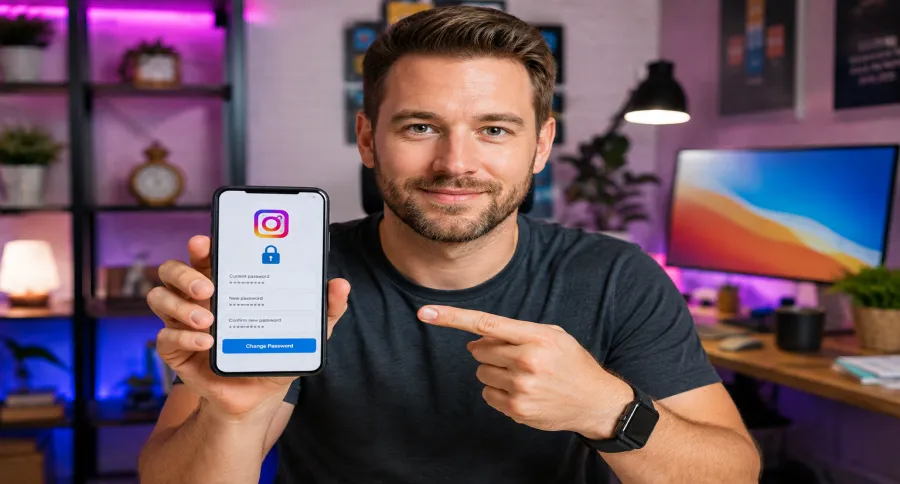
You can change your Instagram password from the mobile app on both iPhone and Android. The steps are almost the same on each device.
- Open the Instagram app and tap your profile picture in the bottom-right corner.
- Tap the three horizontal lines in the top-right corner.
- Select Accounts Center.
- Tap Password and security.
- Choose Change password.
- Select the Instagram account you want to update.
- Enter your current password.
- Enter your new password and tap Change password or Save.
If you use multiple Instagram accounts, select the correct account before changing the password. Each Instagram account can use a different password, so updating one account does not change the password for the others.
Change your Instagram Password on your Browser
If you’re using the Instagram app on your desktop browser, you can use the following procedure to change your Instagram password.
- Open the site of the Instagram app or tap this login link: instagram.com/accounts/login
- Open your profile.
- Click Settings or Accounts Center.
- Select Password and security.
- Click Change password.
- Choose the Instagram account you want to update.
- Enter your current password.
- Enter your new password and save the change.
The desktop layout can look a little different depending on your browser or Instagram account settings. If you cannot find Change password in Settings, open Accounts Center and look under Password and security.sword. This is how you can change your Instagram password using the settings menu on the web version of the Instagram app.
How to Recover your Instagram Password after you Forgot it
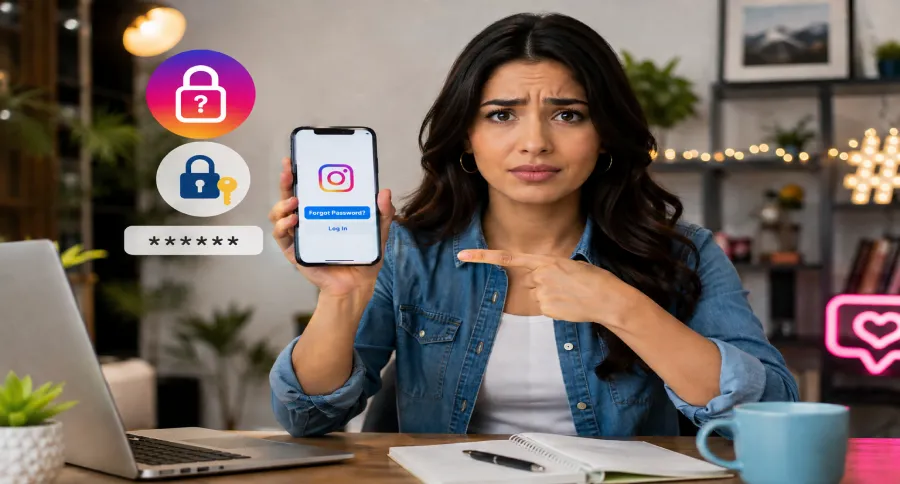
You can’t change your Instagram password if you’ve lost or forgotten it. In this case, you have to reset or recover your Instagram password. Fortunately, the platform lets you reset your Instagram password whether you’re using the mobile app or the browser version on your desktop computer. In any case, you have to use the login screen to reset your Instagram password. Here is how:
Reset the Instagram password using the Android app
HerHere is how to reset and change your Instagram password on your Android device when you’ve forgotten it.
- Open Instagram to go to the login screen
- Find Get help logging in under the username and password lines
- Type either an email address, your phone number, or your IG username
- Tap Next
- Wait to receive a message with instructions about resetting your Instagram password
This way, you can change your Instagram password and set a new one. Save the password in a trusted password manager, or keep a written copy somewhere secure that nobody else can access.
Reset the Instagram password using the iOS app
Here you can learn how to reset your forgotten Instagram password.
- Open Instagram to go to the login screen
- Click on “Forgot password?” under the username and password fields
- Select between Username and Phone
- Enter the requested credentials that you had chosen when creating your profile page
- Tap Next
- You’ll receive some instructions to reset your password
Reset the Instagram password using the desktop site
You can also reset your Instagram password using the web version of Instagram if you forgot the password. Here is how:
- Go to the Instagram address in a browser
- Under the username and password fields, click Forgot password
- Choose between Email Address, Phone Number, and Username
- Tap Send Login Link
- You’ll receive instructions on how to reset your password
That was how to change your Instagram password or reset it using the “Forgot password” option on the app. But now, it’s good to consider some more Instagram tips on passwords and their security.
What to Do If Your Instagram Account Was Hacked
If you notice something unusual on your account, do not wait too long. Maybe your password no longer works, your email address looks different, or you see activity you did not make. Those can all be signs that someone else got into your account.
Start from the Instagram login page. Tap Forgot password?, then enter your username, email address, or phone number. Instagram will show you the next steps for getting back in.
I would also check my inbox right away. If someone changed the email connected to your account, Instagram may send a message asking whether the change was really yours. If it was not, use the option in that email to undo it.
If you can still open your account, change the password first. Then look through your login activity and sign out of devices you do not recognize. Turning on two-factor authentication is worth doing too, especially after anything suspicious happens.
Be careful with emails that claim to come from Instagram. Scammers often use messages like “Your account will be deleted” or “We noticed unusual activity” to make people panic and click quickly. You can check recent official emails inside Instagram settings, which makes it easier to tell a real message from a fake one.
Sometimes the normal reset option is not enough. If you cannot get in with your username, email, or phone number, continue with the recovery steps in the app. Instagram may ask you to confirm that the account is yours, and you may be asked to record a short video selfie.
Instagram Password Security Tips
Here are some tips about Instagram security, especially if you want to buy or sell accounts on Instagram.
Turn On Two-Factor Authentication
Two-factor authentication adds an extra security step when Instagram notices a login attempt from a device it does not recognize.
Go to:
Accounts Center → Password and security → Two-factor authentication
Choose the Instagram account you want to protect, then follow the instructions to set it up. Instagram recommends two-factor authentication as an extra layer of account security.
Use a Strong, Unique Password
Use a password that you do not use for your email, online shopping, banking, or other social media accounts. Avoid using your name, birthday, phone number, or anything visible on your profile.
A password manager can help you create and save a long, unique password without needing to memorize it.
Check Your Login Activity
If you think someone else may have entered your account, check where you are logged in.
- Open Instagram and go to your profile.
- Tap the three-line menu.
- Tap Accounts Center.
- Select Password and security.
- Tap Where you’re logged in or Login activity.
- Log out of any device or location you do not recognize.
Instagram advises users to check recent login activity and remove unfamiliar sessions if they suspect unusual access.
Do Not Share Reset Links or Codes
Instagram will not ask you to send your password or login code through a direct message. If someone asks for a security code sent to your email or phone, do not share it.
If you receive a password-reset email you did not request, check the sender carefully. Instagram says official password-reset emails come from @mail.instagram.com.
What to Do If the Reset Link Does Not Work
Sometimes a password-reset link expires or does not open properly.
- Request a new reset link and use the newest email or text message.
- Check that the message came from Instagram and not a lookalike address.
- Open the link in the Instagram app or a current browser.
- Do not forward the reset link to anyone.
- If you still cannot reset your password, return to the login screen and continue through Instagram’s in-app recovery options.
Instagram notes that users should select the specific password-reset option in the email rather than using a general login button from the message.
Final Thoughts
Now you know how to change your Instagram password and how to reset it if you forget it, whether you’re on mobile or desktop. Taking a moment to update your password and store it somewhere safe can save you a lot of trouble if anything ever goes wrong.
If you also follow the basic security tips in this guide, like using strong, unique passwords and turning on two‑factor authentication, you’ll make it much harder for anyone to hack your account. That means your photos, messages, and personal information stay under your control, not someone else’s.
FAQs
How often should I change my Instagram password?
Change your password if you suspect unusual activity, reuse the same password elsewhere, shared it with someone, or receive an unexpected reset request.
What can I do if I can’t access my email or phone anymore?
Try the username‑based recovery options and check if you’re still logged in on another device. If not, you may need to follow Instagram’s in‑app account recovery steps, which can include identity checks.
Will changing my password log me out of other devices?
After changing your password, check where you’re logged in and remove devices you do not recognize.
Is it safe to use the same password for Instagram and other apps?
No. If one site is hacked, attackers can test that same password on your other accounts. Always use unique passwords.
Can I change my password if I’m already logged in but don’t know the current one?
In most cases, you need your current password to change it from inside the app or web. If you don’t know it, log out and use the “Forgot password?” option to reset it instead.
How do I know whether an Instagram security email is real?
Do not trust an email just because it uses Instagram’s logo or says your account is at risk. If you are still logged in, open Instagram and check the official emails Instagram has sent in the last 14 days through your settings. You can also check the sender address; Instagram says legitimate password-reset emails come from @mail.instagram.com.

Emi Daniel
Buy an Established Instagram Account
Skip starting from zero. Browse Instagram/TikTok accounts with audiences across many niches.
See Available AccountsRelated articles
-
How to Clear Instagram Cache on iPhone, Android & Desktop
Instagram can quietly build up a lot of temporary files while you scroll through Reels, watch Stories, save posts, and upload your own content. You may not…
12 min readEmi Daniel
-
How to See Who Reposted Your Instagram Post (2026 Guide)
Someone reposted your Instagram post, but you have no idea who it was. You check notifications, search through your profile, and still cannot find a clear answer. …
18 min read -

How to Reset Instagram Algorithm in 2026
Instagram can start showing too much of the same type of content. Your Explore page may no longer match your interests, Reels may feel repetitive, or suggested…
12 min read