


Instagram is one of the best social media platforms for helping individuals and businesses increase their discoverability and engagement.
One of this application’s most popular features is the option to tag others in their posts, stories, and comments.
This option is a great opportunity for brands because when someone tags a brand or a specific place in their posts or stories, it helps the brand to get more engagement and reach more followers.
Buy an Established Instagram Account
Skip starting from zero. Browse Instagram/TikTok accounts with audiences across many niches.
See Available AccountsIn addition, sometimes you hang out with your friends and take pictures, so when they want to share these moments, they may tag you on the story or post, allowing others to see your account.
However, sometimes, you don’t want anyone to tag you on a post or story because you prefer to protect your privacy. What should you do in such a situation?
The answer is quite simple. The only thing you need to do is to untag yourself from that post or just not allow other accounts to tag you on their posts, comments, and stories.
In this article, we are going to discuss how to untag yourself on Instagram in less than a minute, and you will learn important information about the tagging feature on Instagram.
Who Can Tag You on Instagram

As you may know, Instagram provides its users with the opportunity to choose who can interact with their content or account. Therefore, you can choose who can tag you on Instagram, which means whether it’s your followers, the people you follow back, or no one.
You can set the settings of each feature of Instagram in your account’s settings section, and the tag feature is no exception.
Instagram allows you to easily choose who can tag or mention you in their Instagram posts, captions, comments, and stories.
If you want to manage these settings, we suggest checking out the tag settings in your privacy settings section.
Who Can See Your Tagged Photos on Instagram

Have you ever considered who can see the posts you tagged on Instagram? If yes, then you should know that the answer to this question is also related to the privacy settings of your account.
In other words, you choose who can see your tagged posts.
Therefore, if you have a private account, only your followers will be able to view your tagged posts on your account.
However, if your account is public, everyone can see the posts you have been tagged in. So, if you care about your privacy, you can switch your account to private.
How to Tag Someone on Instagram Posts and Stories

Before we go any further, it is good to know how you can tag others in your posts and stories.
You can tag others when adding a photo or video to your Instagram account to show that they were with you in that specific moment you want to share.
Moreover, tagging a brand or an individual on your stories is a great way to attract more attention to your account.
Let’s see how to tag people on Instagram posts and stories.
Tagging people on Instagram Posts
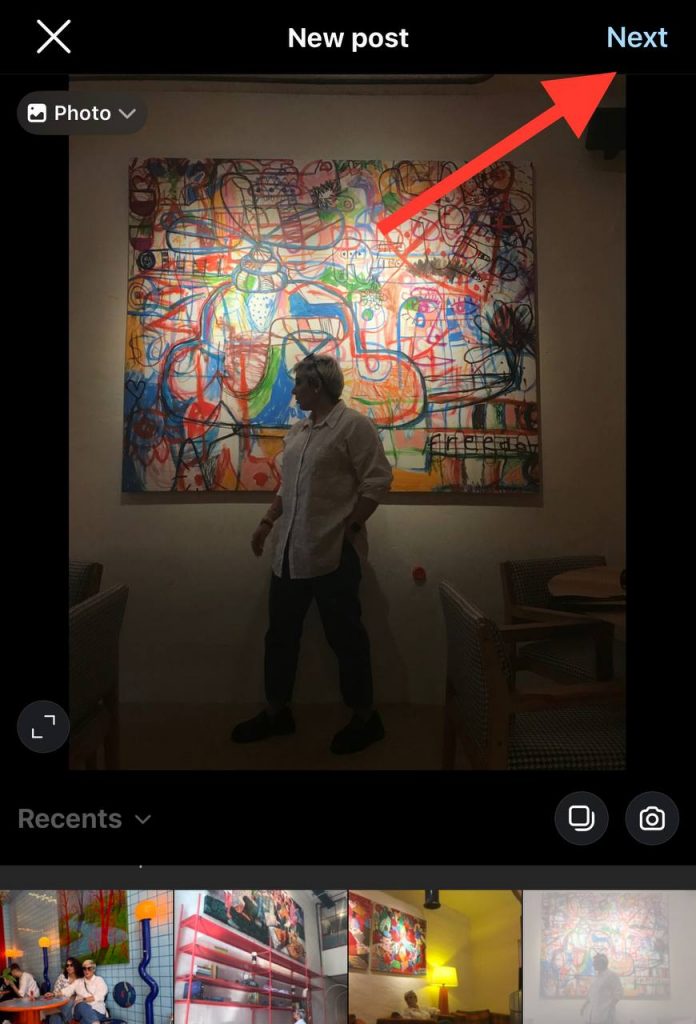
Step 1- Go to Instagram, choose the photo you want to upload, and tap on “Next.”
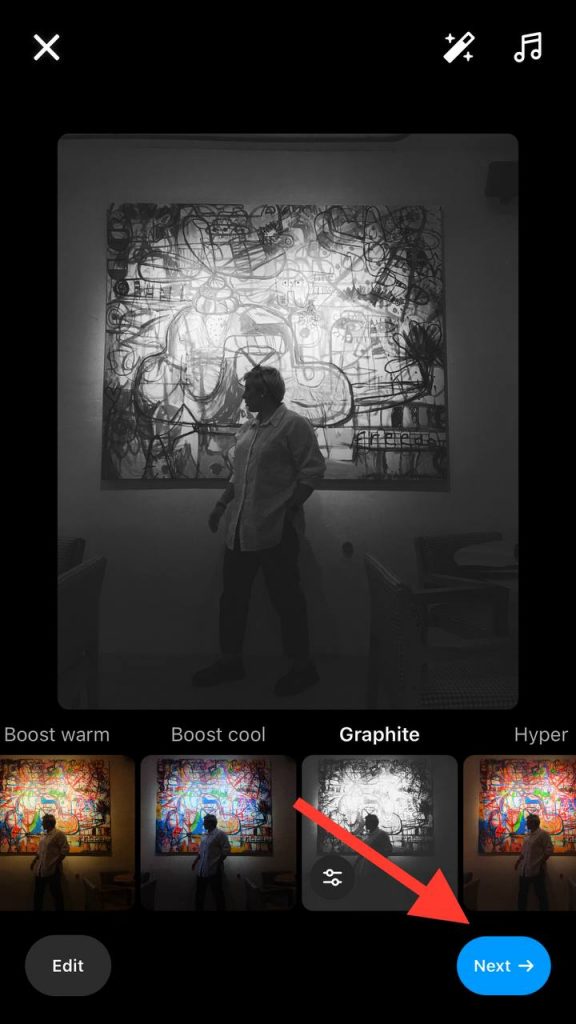
Step 2- After adjusting the desired edits to your content, click on “Next” in the bottom right of the screen.
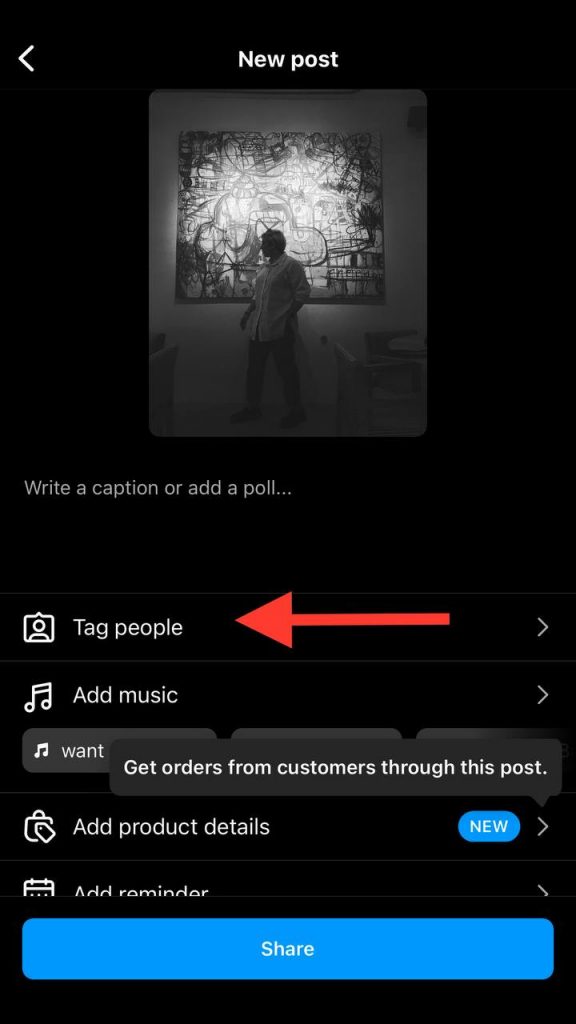
Step 3- Under the caption section, you can see the option “Tag people,” tap on it.
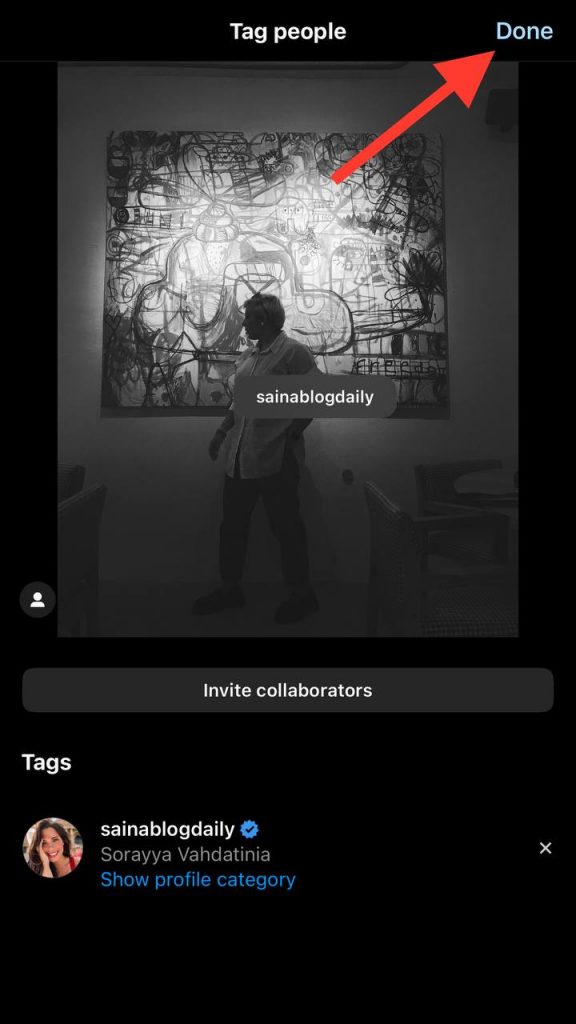
Step 4- Tap on any part of the photo, and you will see a page where you can search for the account you want to tag.

Step 5- After selecting the desired account, tap on “Done” in the top right corner.
Step 6- Now, share your photo and the user you have tagged will be notified about your post.

Tagging people on Instagram Stories
Step 1- Create your story and adjust all the edits you want.

Step 2- Tap your story to add text. Click on the “Aa” icon at the top of the screen.
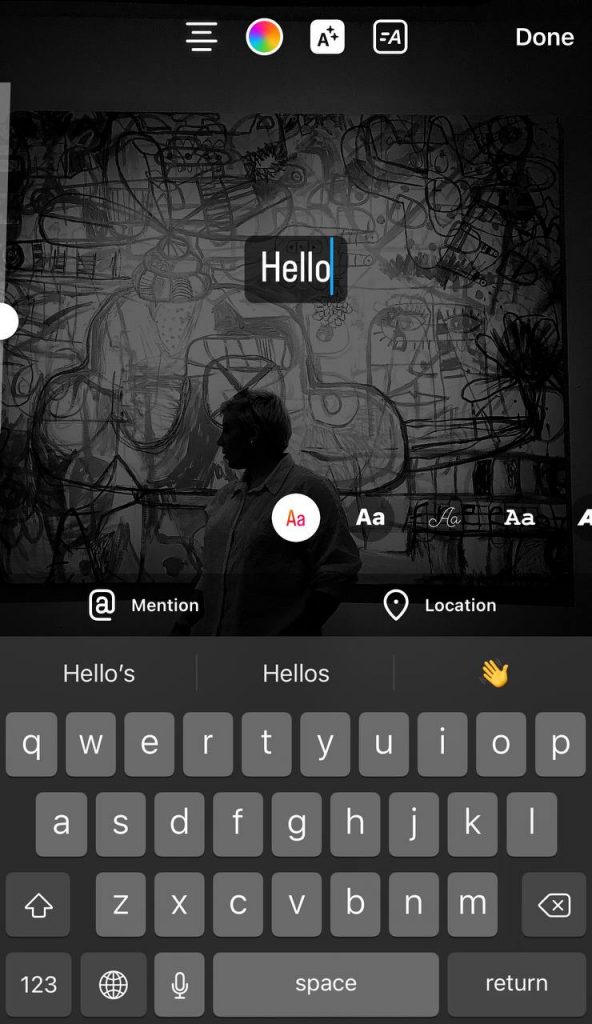
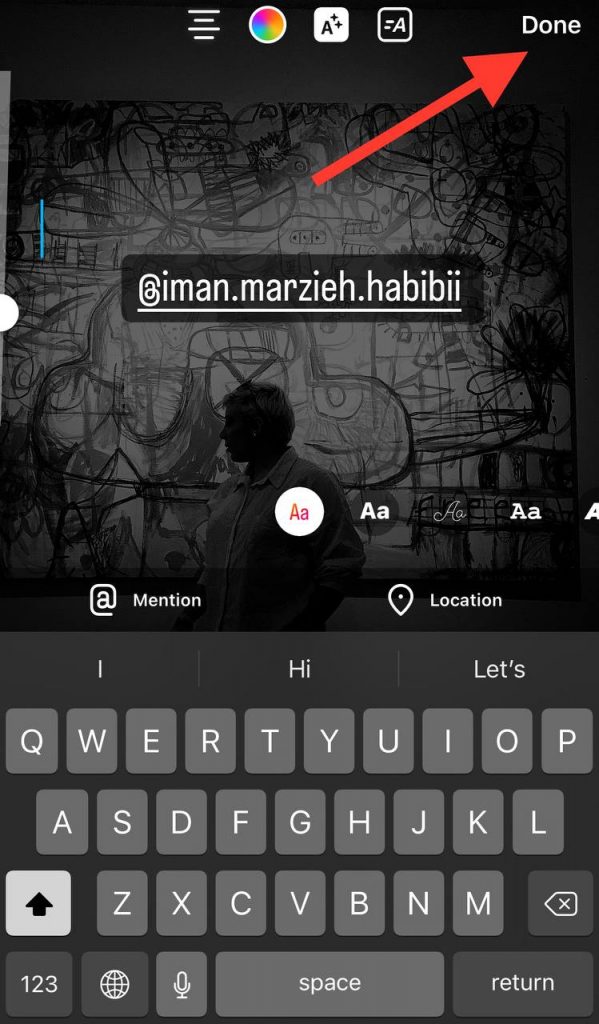
Step 3- Type “@” and search for the username of the person or business you want to tag.

Step 4- Select the desired username and tap “Done” to finish the process.
How to Stop Others From Tagging You on Instagram
As mentioned earlier, sometimes you don’t want others to tag you on their posts or stories, so you need to change the settings of your account to choose who can tag you.
In the following section, you will learn how to stop people from tagging you on Instagram.
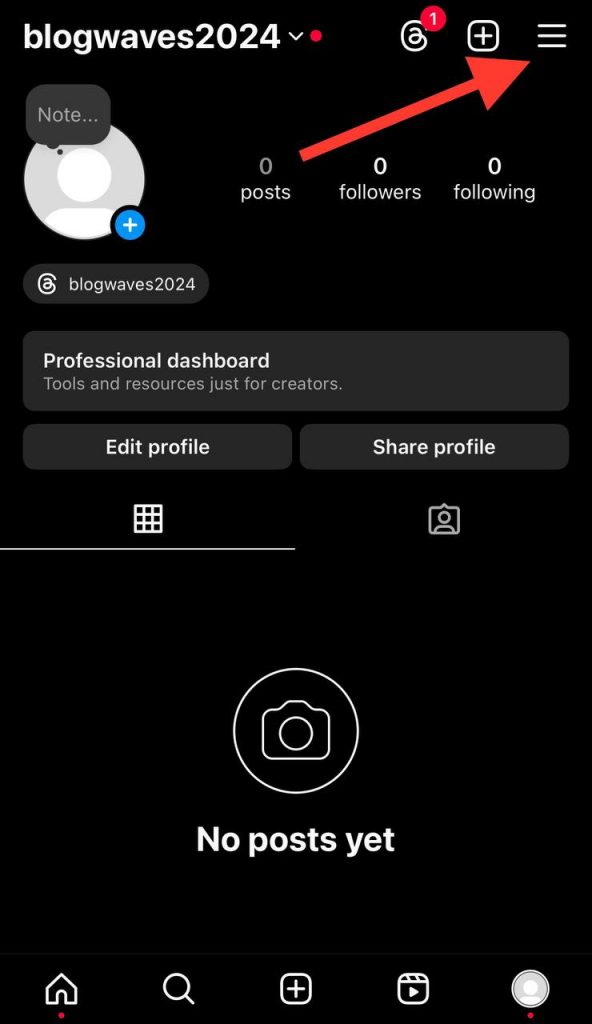
Step 1- Open Instagram and go to your profile.
Step 2- Tap on the three horizontal line icon in the top right corner of the screen.
Step 3- Scroll down the menu and choose the “Tags and mentions” option.
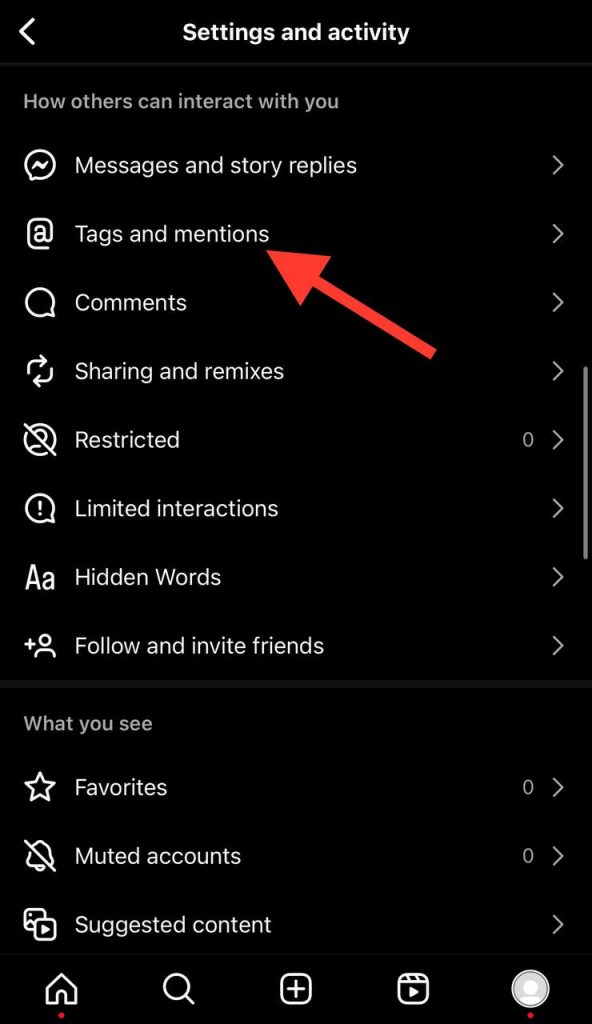
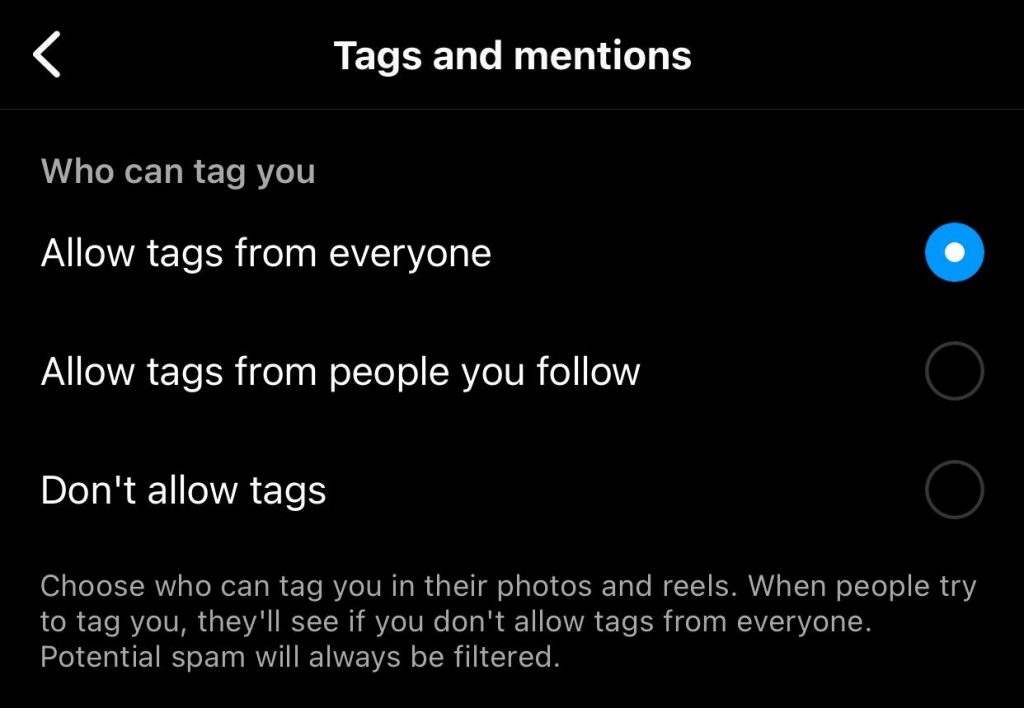
Step 4- Now you can see three options, including “Allow tags from everyone,” “Allow tags from people you follow,” and “Don’t allow tags.” You have to choose the “Don’t allow tags” option to stop others from tagging you on their posts and reels.
How to Untag Yourself From an Instagram Post
We were all in a situation when our friends posted a picture on Instagram, which was the best photo of them and the worst of ours. The thing is that they tagged us in that specific image, which is unpleasant.
As you know, other users can see the accounts tagged in a post, so if you are tagged on an ugly picture of yourself, you may want to remove the tag.
The good news is that you can untag yourself on Instagram posts in less than a minute, which we will explain in the section below.
Step 1- Open Instagram on your device and go to your profile.
Step 2- Go to the tagged section under the “Share profile” icon.
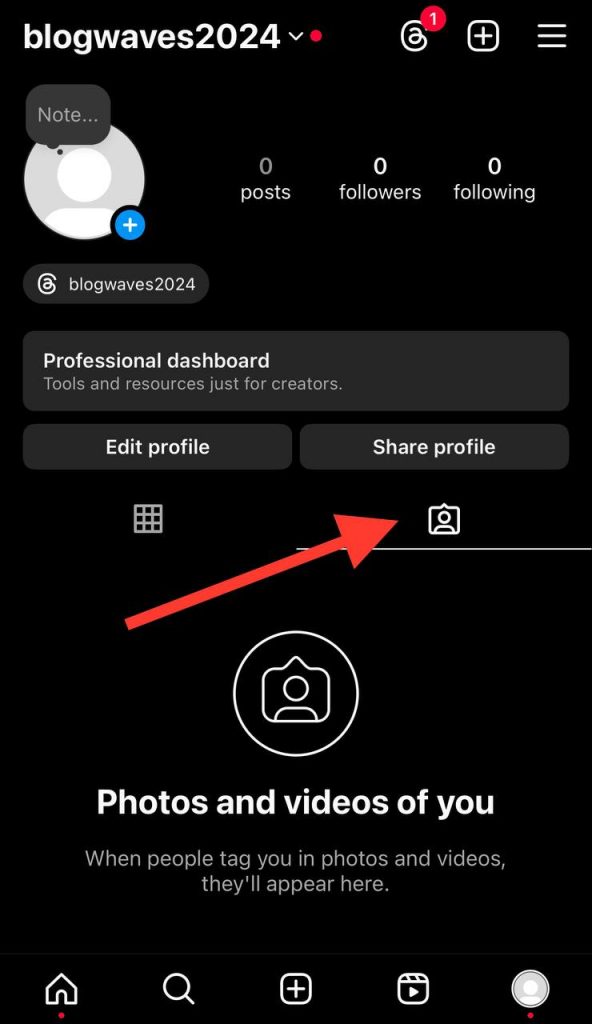
Step 3- Choose the post you want to untag yourself from.
Step 4- Tap on the post to see your name tagged.

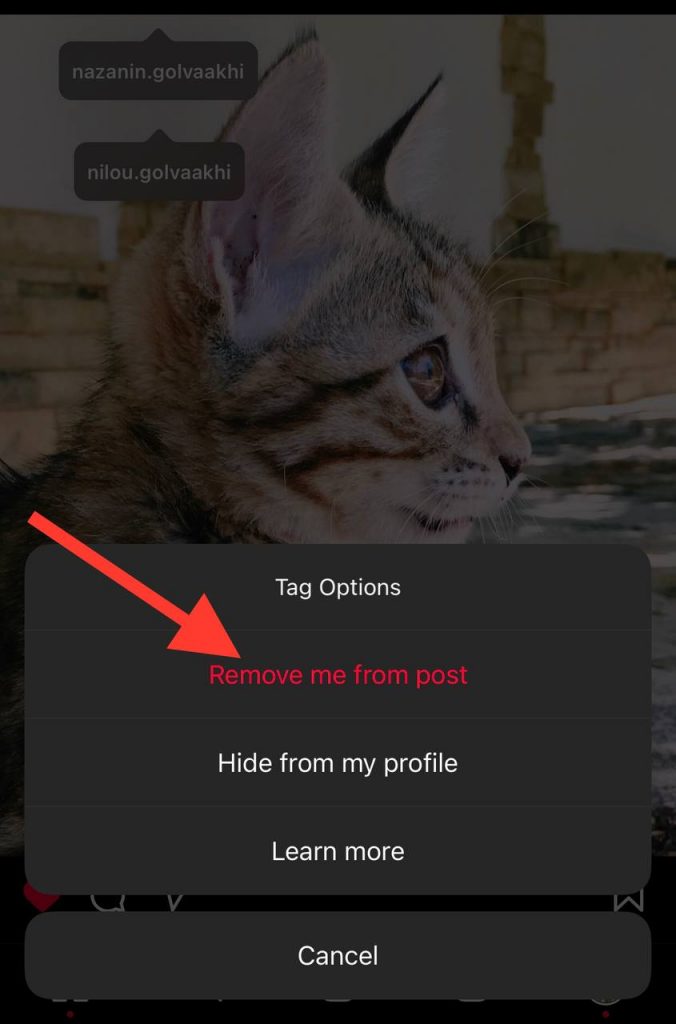
Step 5- Tap on your username, and a “Tag Options” menu appears.
Step 6- Select “Remove me from post.”
That’s how you can easily untag yourself from any post on Instagram that you don’t want others to see you are tagged in.
How to Hide Tagged Posts on Your Instagram Profile
Sometimes, you want others to be able to tag you on their posts, but are not comfortable with the post showing on your account.
That’s when you can easily hide tagged posts on your account so no one would be able to see them.
Follow the steps below to hide tagged posts. Note that the process is the same as untagging yourself from Instagram posts.
Step 1- Go to your profile and choose the post you want to hide from your profile.
Step 2- Tap on the post to see your username.
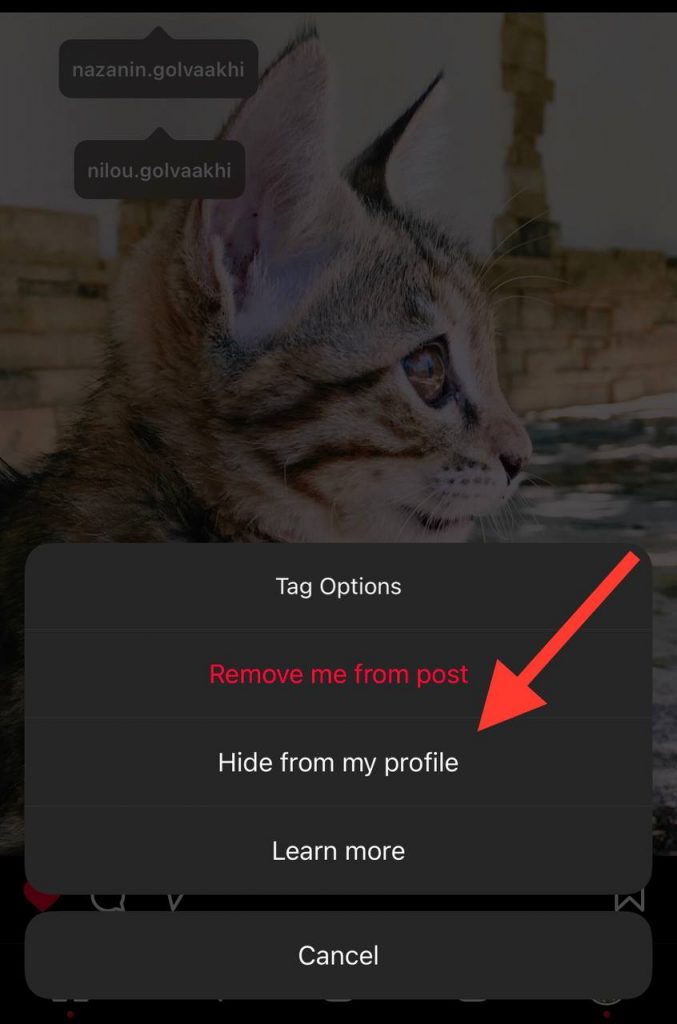
Step 3- To finish the process, select your username and choose the “Hide from my profile” option.
Conclusion
The tag feature is a useful tool that helps regular and business accounts reach more audiences and increase their account engagement.
However, it is essential to know the settings of this feature to better manage and control who can tag you, see your tagged posts, etc.
In this article, we covered everything you need to know about Instagram tagging, including how to tag someone on your posts, how to set the settings of this feature, how to untag yourself from a post, and more.
We hope you find this article helpful and start untagging yourself from the posts you don’t want to be shown on your profile.
FAQs
1- Will others be notified if I untag myself from a post
If you wonder whether Instagram will notify others when you untag yourself from a post, you should know they won’t be notified about removing your name from their content.
Moreover, you can easily hide your tagged posts without worrying that others will be notified.
2- Can I edit tags on Instagram after posting?
Yes, you can easily edit tags after posting or even remove the tagged accounts from your post. You only need to tap on the three-dot icon at the top right of your post, then tap on edit, adjust the changes, and tap on done or the checkmark to finalize the edit.
3-Is there a limit to tagging people on Instagram posts?
Yes, you can tag up to 20 people on each photo or video you share on Instagram. Remember that the number is less for Instagram stories, which is up to 10 tags.

Emi Daniel
Buy an Established Instagram Account
Skip starting from zero. Browse Instagram/TikTok accounts with audiences across many niches.
See Available AccountsRelated articles
-
How to Use Instagram: The Creator’s Guide to Building an Audience
Instagram in 2026 is no longer just a place to collect followers. The creators who grow consistently are the ones who understand how to earn attention, turn…
17 min readEmi Daniel
-

How to Go Live on Instagram: A Step-by-Step Guide
Going live can feel more stressful than posting a Reel. You cannot remove a pause, rewrite a sentence, or start over after an awkward moment. But that…
17 min read -
Instagram Instants Feature: What It Is, How It Works, and How to Turn It Off
The first time I opened Instagram Instants, I almost backed out. I had taken a normal photo. Nothing worth editing. Nothing worth posting. Nothing that needed an…
11 min read