


Do you want to have a Snap in your gallery forever? You can always screen-record it!
Want to know how? Great! Today, we’re going to tell you all about screen recording on Snapchat and answer all your questions.
In this guide, you’ll be walked through this fantastic feature. This is something that every Snapchat user must know!
Buy an Established Instagram Account
Skip starting from zero. Browse Instagram/TikTok accounts with audiences across many niches.
See Available AccountsLet’s know more!
Understanding Screen Recording on Snapchat

Snapchat’s screen recording feature lets you capture moments from your favorite Snaps. It could be a funny one or an exciting Story you want to revisit.
Everyone can use it, and there are different techniques to screen record Snaps. Let’s dive into all that!
How to Screen Record Snaps
Screen recording on Snapchat is a handy feature that allows you to capture and save your favorite Snaps and Stories. Whether you’re an Android user or have an iPhone, we’ve got you covered with step-by-step instructions for both platforms.
Screen Recording on Android
Method 1: Built-in Screen Recorder
For Android
Many Android devices have a screen recording feature by default and you can use it. Here’s how!
Quick Settings
Swipe down from the top of your screen. This helps you access Quick Settings. Now, look for the screen recording icon which is among the Quick Settings tiles.
It’s easy to find since it looks a little like a camera with a recording symbol.
Start Recording
Start recording by tapping the screen recording icon. Sometimes it aks you to confirm it.
Record Your Snaps
Open Snapchat. Now you’re able to capture the Snaps you want to record. You can use this method for Instagram, YouTube, and other platforms.
Stop Recording
Remember to stop recording so it saves the Snap screen record. To stop it, tap the screen recording notification in your notification bar. You can also do it by accessing Quick Settings and tapping the icon again.
For iPhone
If you’re using an iPhone with iOS 11 or later, you also have a built-in screen recording feature. You may ask about how to use it, right?
Enable Screen Recording
Go to Settings > Control Center > Customize Controls. Add “Screen Recording” to your Control Center. This makes it easy for the next time you want to screen record something.
Access Control Center and Start Recording
Swipe down from the top right corner of your screen. This opens the Control Center.
Start Recording
Tap the screen recording icon. It looks like a circle with a dot inside. This way, you can begin recording. You can capture the Snaps you want by opening Snapchat.
Stop Recording
Remember to stop recording. Tap the red status bar at the top of your screen and confirm your action. Then, it’ll be automatically saved.
Method 2: Third-Party Apps

You can always download the Screen Recording Apps available on the Google Play Store.
Apps like AZ Screen Recorder and DU Recorder are popular choices. But there are other apps, too. Here are some of our suggestions!
OBS Studios
This app works best for Windows, macOS, and Linux. It lets you screen record and stream, and it’s an open-source app. It has a very friendly interface.
So, if you use Snapchat and screen recording with your PC, OBS Studios is a perfect choice!
AZ Screen Recorder and Native Screen Recorder
This app works best for Android. AZ Screen Recorder and Native Screen Recorder are both hot screen recording apps these days.
Method 3: QuickTime on Mac (for iPhone)
If you have a Mac computer, you can use QuickTime Player to record your iPhone screen:
Connect Your iPhone
Use a USB cable to connect your iPhone to your Mac. make sure the connection is working.
Use QuickTime Player
Launch QuickTime Player on your Mac. then, from the “File” menu, select “New Movie Recording.” if you click the arrow next to the record button, you can choose your iPhone as the camera source.
Start Recording
After choosing the camera source, click the record button to begin recording. If you’re recording with your iPhone, open Snapchat on it and record what you want.
Stop Recording
Simply click the stop button in QuickTime Player to end the recording.
Legal Implications of Snapchat Recording

Is it illegal to screen-record a Snapchat Snap?
Snapchat allows users to record their Snaps, but things get trickier when recording someone else’s content without their consent.
Recording Snap itself is not illegal and Snapchat itself doesn’t prohibit you from doing so. But if you abuse the content or give it to others without the owner’s consent, then they can charge you for legal issues.
So, always remember to respect others’ privacy and only screen record Snaps with good intentions.
How to Screen Record on Snapchat Without Getting Caught

Snapchat notifies the user if someone takes a screenshot or screen record of their Snaps and Stories. But you want to screen-record without raising any eyebrows, right?
Let us teach you some techniques for discreet screen recording on Snapchat.
Switching off the Internet Connection
Want to be undetected while screen recording? Load the Snap, then disconnect from the internet and start screen recording.
When you stop recording, it’s safe to connect to the internet again. This is not a hundred percent safe but it reduces the chances of the owner being notified.
Enabling the Airplane Mode
Another smart trick is to enable Airplane Mode. This technique not only disconnects you from the internet but also prevents incoming calls and notifications from interrupting your recording session.
Like the previous method, Load the Snap, then put your device on Airplane Mode and start screen recording. Turn Airplane Mode off when you’re done!
Using a Third-Party Software
If you’d like a third-party app that doesn’t give away the notification of you, recording someone’s Snaps, you should look for the ones that have features like “Stealth Mode”.
mSpy, EyeZy, BlurSpy, and Phonsee are some of the apps that screen record without sending notifications to the Snap owner.
Just remember, some third-party apps violate the rules of Snapchat. Always check them because they might get you banned from Snapchat.
Mirroring Phone on PC
You should promise to use this method responsibly because it works a hundred percent!
Screen mirror your phone to a computer. You can control the recording from your PC while keeping your phone’s screen off.
Using Another Phone
This one is pretty easy, too. If you have another device, you can record what you want from Snapchat using the other one. Snapchat won’t know because the device you’re viewing the Snap-on it is unaffected.
Protecting Your Privacy on Snapchat
Worried about others recording your Snaps and Stories without you knowing? Well, you’re not the only one with privacy concerns!
Here are some tips for safeguarding your content and information.
Control Your Story Privacy
You can determine who views your Stories. You can share them with everyone, only your friends, or customized audiences.
If you feel unsafe, change story viewers to friends only!
Manage Friend Requests
Don’t just accept everyone who sends you a friend request. Only accept the ones you know and trust.
Being selective helps you have a safe Snapchat!
Enable Two-Factor Authentication
Enabling two-factor authentication (2FA) gives you an extra layer of protection. Having it on means that only you can access your Snapchat account.
Use Strong Passwords
Just like any other app, Snapchat requires you to create a strong password for your account. Avoid using easily guessable information. So, birthdays, your pet’s name, and things like this are not acceptable.
Regularly Update the App
Keep your Snapchat app updated since it develops security with each update. Every time, the features help you have the best protection against the newest hacking methods.
Updating your app late makes you vulnerable to new ways of content theft.
How to Tell If Someone is Screen Recording Your Snapchat
Are you worried that someone might be secretly screen-recording your Snapchat content without your consent?
While Snapchat sends notifications when someone takes a screen recording of your Snaps or Stories, some might use Stealth Mode or modes that Snapchat can’t detect.
Although there isn’t any way to keep yourself safe if someone’s recording your content from another device, you can use these techniques to keep your content safe from other screen recording methods.
The Red Dot Indicator
When someone starts screen recording on Snapchat, a small red dot typically appears on the screen, indicating that the recording is in progress.
Screen Flickering or Flashin
Sometimes, when someone starts screen recording your Snaps, the screen may flicker or flash for a short time. It may be hard to notice, so pay attention.
Notification Bar Activity
If you see any kind of unusual activity in the notification bar, it means you’re probably being screen-recorded! In this case, you may see signs like a sudden change in icons or notifications disappearing.
Frequently Asked Questions
Is it illegal to screen-record a Snapchat Snap?
Screen-recording a Snap may not be illegal, but it can violate Snapchat’s terms of service and the trust of the user who sent you the Snap. Abusing the snaps without the consent of the user is illegal, though.
Does Snapchat let users take a screen recording without notifying the creator?
Snapchat notifies the sender when someone takes a screen recording of their Snap because it respects its users’ privacy. The best thing to do is to let the user know that you’re going to screen-record their content.
Can you screen-record on Snapchat without someone knowing?
There are some techniques that you can use for subtly screen recording Snaps and videos. For example, using third-party apps or other methods mentioned in this article to screen-record without permission. However, these methods can have risks, including getting banned from Snapchat if you violate the rules.
How do I screen-record a private Snapchat story without them knowing?
It’s important to respect others’ privacy and not try to screen-record private Snapchat stories without their consent. However, by methods like using another phone, mirroring your device on your phone, or using Quicktime Player on your Mac, you’d be able to do so.
What are the best third-party apps for screen recording on Snapchat?
There are many options available when it comes to choosing the best screen recording app, but it depends on the device you’re using. Good apps include OBS Studios for PC and AZ Screen Recorder for Android and IOS.
Final Remarks
In the world of Snapchat, where moments are captured, stories are shared, and connections are made, it’s important to create a balance between fun and protecting your privacy.
There are ways that you can keep your Snapchat safer. For instance, you can activate two-factor authentication, restrict people you don’t know from viewing your stories, and use a strong password.
But what if you want to screen-record some Snaps or videos?
Snapchat has thought about this!
It allows you to screen-record the content you want right from its Screen Record feature! While this feature allows you to capture your moments, it’s important to respect the privacy of users and the platform’s rules.
This method of screen recording sends the content owner a notification. But together, we learned that you can still screen-record discretely. You just have to pick a method, like putting your device on flight mode or disconnecting it from the internet.
So, the next time you want to surprise your friend by creating a video clip of their Snaps and videos, you can use these methods to capture their fun moments!
Now, snap away, stay safe, and come back whenever you need to try a new method of Snapchat screen recording without notifying anyone!

Emi Daniel
Buy an Established Instagram Account
Skip starting from zero. Browse Instagram/TikTok accounts with audiences across many niches.
See Available AccountsRelated articles
-

How to Go Viral on Instagram: A Practical Guide
A viral Instagram post can begin with something very simple, like a clear idea, a familiar feeling, or a moment that makes someone think, ‘I need to…
25 min readEmi Daniel
-
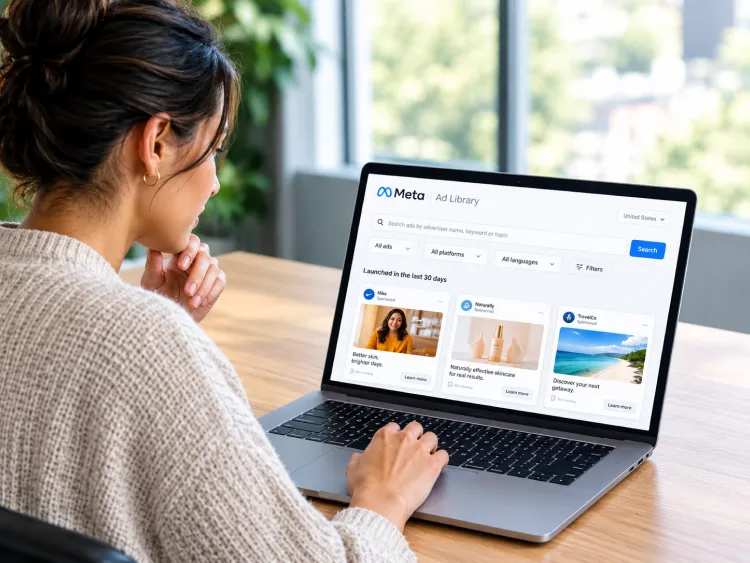
Meta Ad Library: How to Find and Analyze Competitor Ads
Some ads are easy to ignore until you notice the same brand appearing in your feed again and again. You may start wondering what they are saying,…
18 min read -

Best Influencer Marketing Software in 2026: Top Platforms to Grow Your Brand
Influencer marketing used to feel optional, something you tried after you’d “done” everything else. Now it’s often the first place customers hear about a brand. The problem…
18 min read