


Have you ever encountered this notification “@(the user’s name) wasn’t notified about this message because they’re in quiet mode.” while sending a direct message on Instagram?
If so, you should know it’s because of the “Quiet Mode” feature on Instagram that many users are now using it to avoid receiving late direct message notifications.
People enable this feature on their Instagram accounts for various reasons, but one of the main reasons is that users want to avoid receiving messages when they want to sleep at night.
Buy an Established Instagram Account
Skip starting from zero. Browse Instagram/TikTok accounts with audiences across many niches.
See Available AccountsHowever, you may notice that this feature is not working on your device, which can be due to different reasons that we will discuss later.
In this article, we are going to share valuable information about this useful feature; you will learn how to enable and disable quiet mode, how to fix it if it’s not working, and the potential reasons it may not work on your account.
What Is Instagram Quiet Mode?

Instagram’s quiet mode feature pauses receiving notifications from people who want to send you private messages.
When you enable quiet mode on Instagram, the application will automatically warn the users that you are in quiet mode.
As said earlier, you will face this notification when you send a message to someone who has this feature on: “@(the user’s name) wasn’t notified about this message because they’re in quiet mode. Turn on quiet mode.”
Moreover, Instagram automatically updates this feature’s status from active to inactive, which means people won’t receive such a notification when you are not in a quiet mode.
Therefore, if you need more concentration or prefer to avoid getting messages at specific times, you can easily turn this feature on and get rid of unwanted or late notifications.
How to Enable Quiet Mode on Instagram
Now that you know what Instagram quiet mode is, you may want to enable it on your account. The good news is that enabling quiet mode is very simple; follow the steps below:
Step 1- Open the Instagram application on your device.
Step 2- Tap on your profile picture in the bottom right corner of the screen.
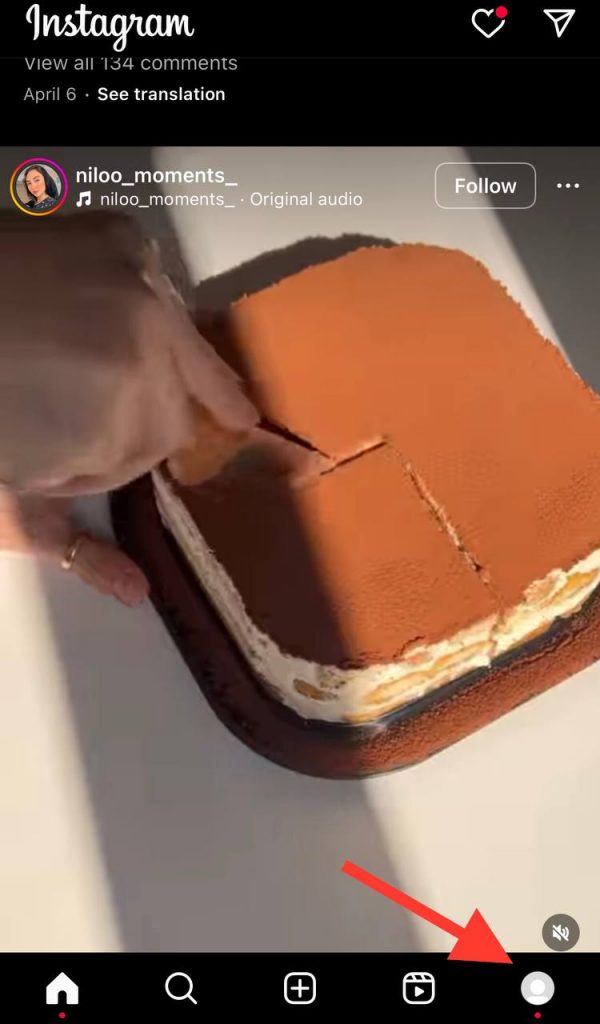
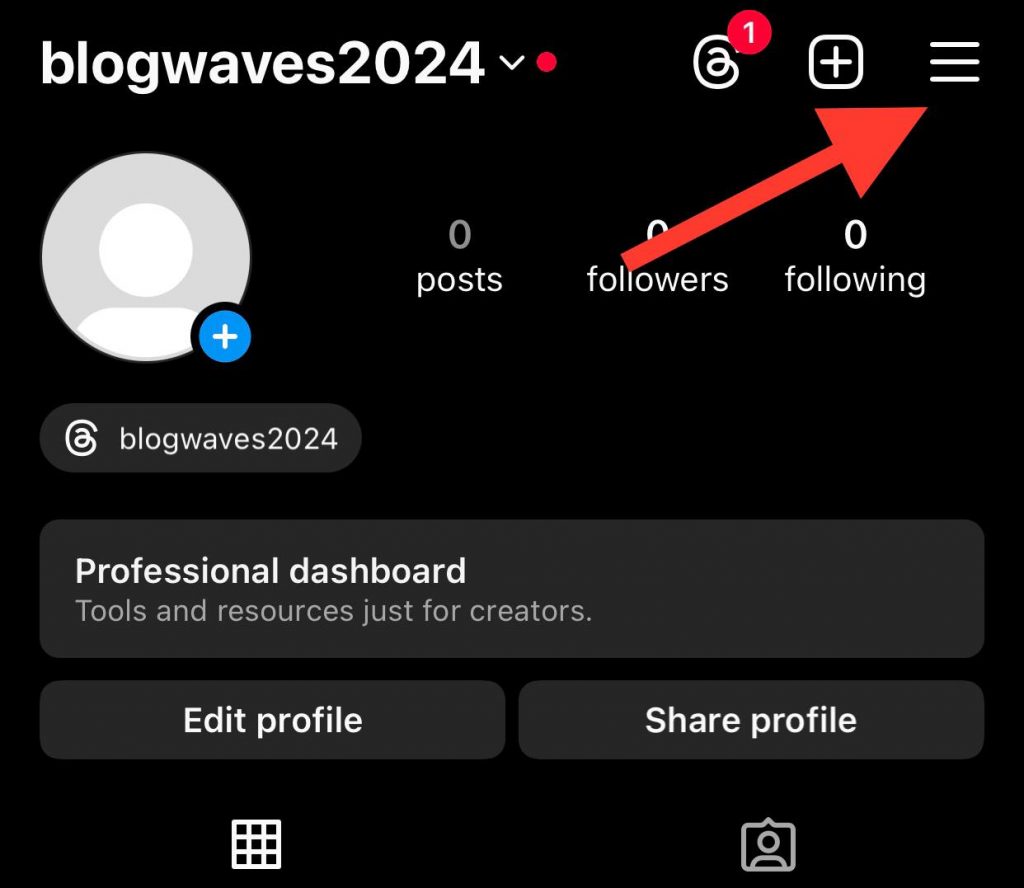
Step 3- Tap on the three-line icon in the top right corner and select “Notifications” from the menu.
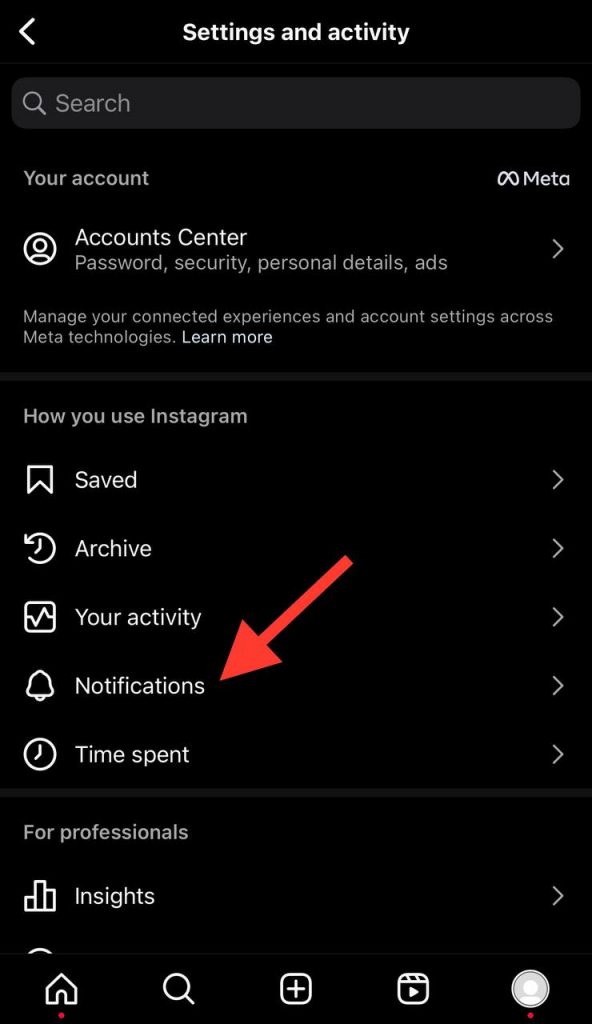
Step 4- Now, you can see the “Quiet mode” option; choose it.

Step 5- Toggle the switch to on.
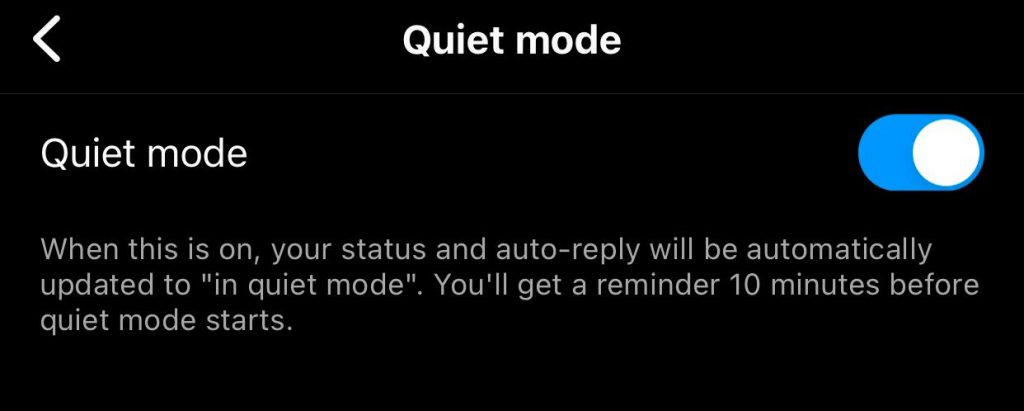
Step 6- Now, you need to select a start and end time to set up the time you want this feature to be active.
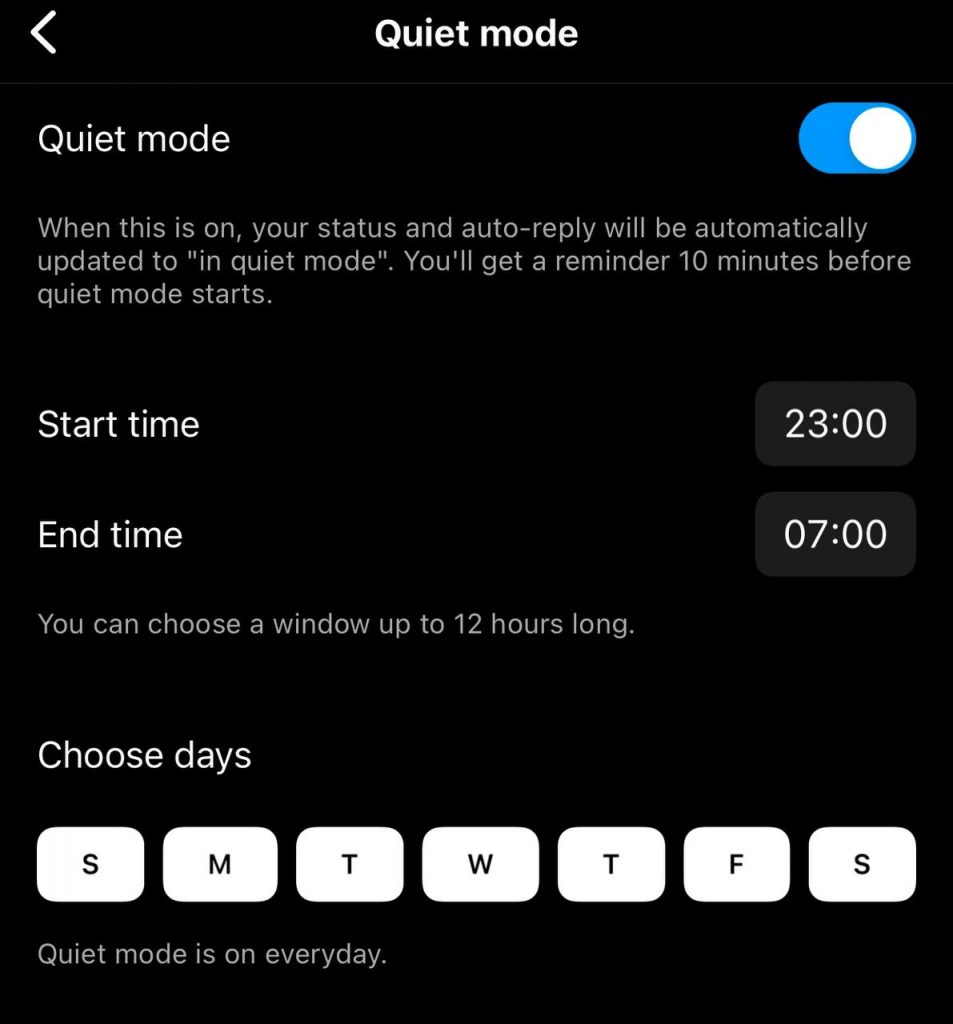
Note that you can also choose specific days during the week to have this feature enabled. Once you take all the mentioned steps, this feature is activated, and you will no longer receive messages or notifications at the time you have set.
Why Quiet Mode Does Not Work on Instagram

As mentioned earlier, there are different reasons that quiet mode may not work on your device. The most common reason is that you are not using the latest version of the application, so ensure that Instagram is updated on your mobile phone.
In addition, if the quiet mode was working and suddenly stopped functioning, it may be because you accidentally disabled this feature, so it is better to check the notification section and make sure the quiet mode is still active on your device.
Another reason this feature is not working is that you may have uninstalled the recent updates to Instagram. To address this issue, you need to clear the cache data of Instagram on your device, and the problem will be resolved.
Keep in mind that you can only set a quiet time for up to 12 hours, no more and no less; thus if you set this period of time incorrectly, this feature may not work properly.
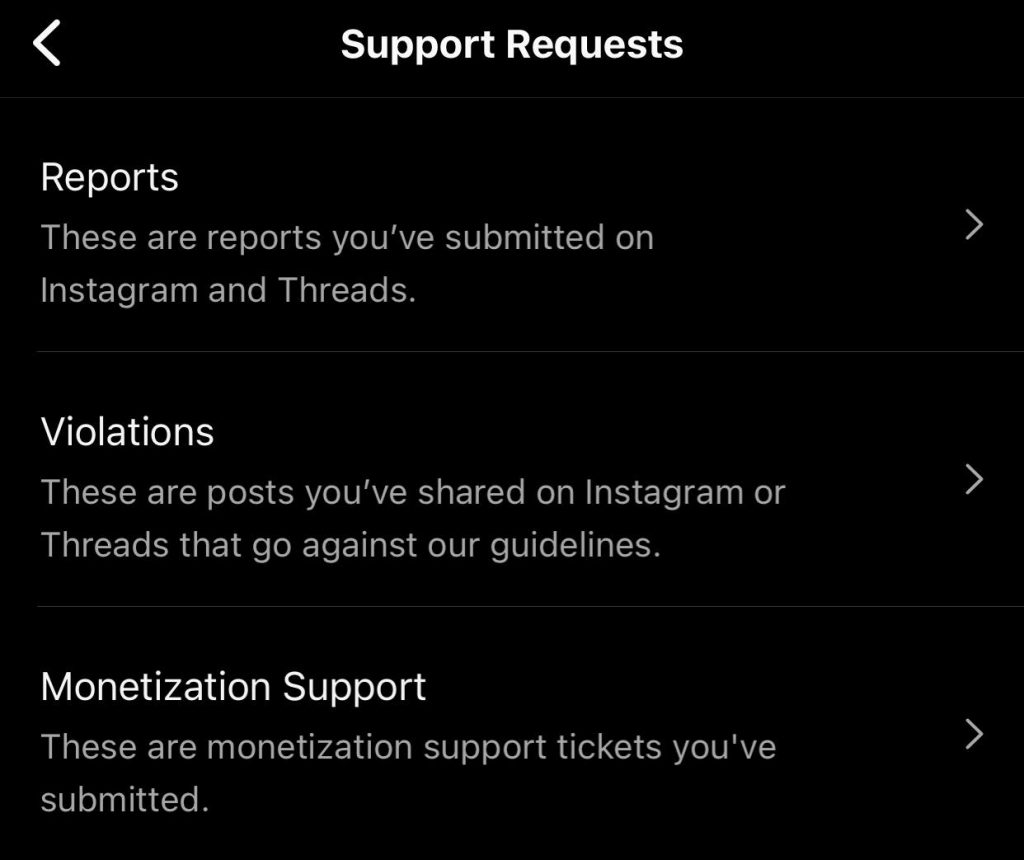
If you have tried all the mentioned items and it still does not work, there could be a bug in the app. You can contact Instagram support for help.
How to Fix Quiet Mode Not Working on Instagram
If quiet mode is not working on your Instagram, don’t worry. In this section, we will share multiple helpful ways to fix and troubleshoot this issue in simple steps.
- The first thing you must do is to ensure your Instagram is updated to the latest version.

- Check the quiet mode settings to ensure this feature is still activated on your device. As said earlier, you may accidentally turn this feature off.
- Restart your smartphone to fix the possible minor issues on your device.
- Remove Instagram from your device and reinstall it. It is better to take this step after you have tried everything and still haven’t solved the problem.
- Check your device for app updates to make sure you have all the updates for Instagram.
- Contact Instagram support. If you tried everything and the issue still persists, it is better to contact Instagram support and explain the issue so they can fix the problem.
- Clear the Instagram cache’s data on your device’s settings menu.
- Check Instagram’s notification settings to ensure they are enabled on your device.
How to Turn Off Quiet Mode on Instagram
Not all of us want to stop receiving notifications and messages on Instagram, or may change our minds and want to disable the quiet mode feature after a while; Follow the steps below to easily turn the quiet mode off:
Step 1- Open Instagram on your device and go to your profile.
Step 2- Tap on the three-line (hamburger) icon in the top right corner of the screen.
Step 3- Choose “Notifications.”
Step 4- Tap on the “Quiet mode” option and switch it off.
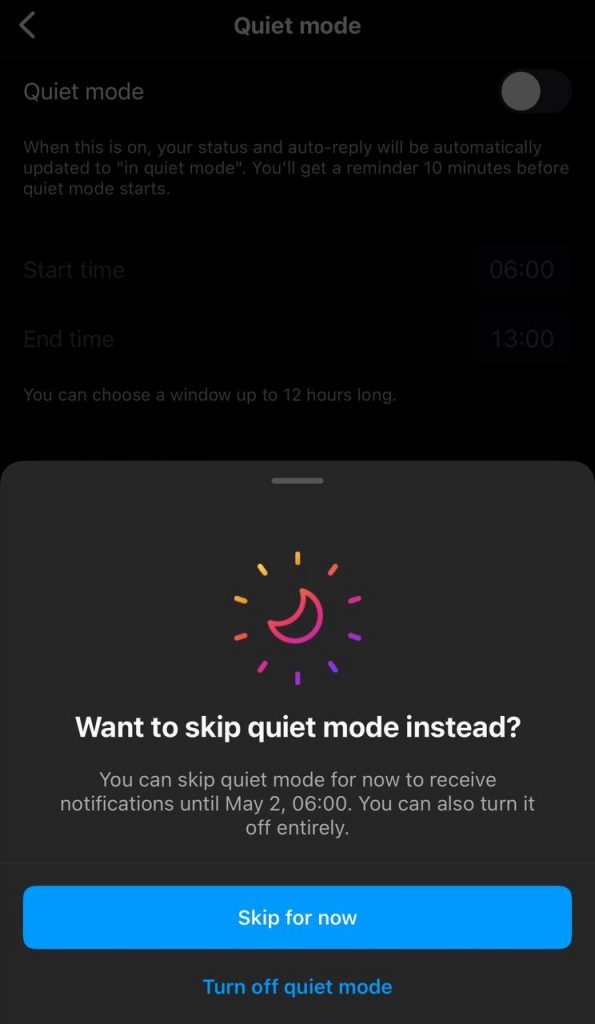
That’s it! You just disable the quiet mode on your device, and you will receive all the messages and notifications from Instagram all the time.
Conclusion
Sending messages on Instagram is a great way to communicate with our friends and followers through the application, but sometimes it gets annoying to receive messages when you want to sleep or during an important meeting.
Enabling the Quiet Mode feature on Instagram helps you concentrate better or sleep at night. However, noticing it is not working on your device can be frustrating.
In this comprehensive article, we have shared all the important information you need to know about this feature and how you can easily fix this issue.
We hope you find this article helpful and enjoy using Quiet Mode on your Instagram account!
FAQs
1- Can everyone use the quiet mode feature on Instagram?
Yes, this feature is now available for everyone in all countries; however, if you can’t use it on the application, you may want to update Instagram to the latest version.
2- Why can’t I use quiet mode on Instagram?
This feature is activated in all countries, but one reason you don’t have it on your device is that it is not active in your country yet, or you need to update Instagram on your device to make sure you are using the latest version of the app.
3- How should I get the moon icon on Instagram DM?
The only thing you need to do is to activate the Instagram “quiet mode” feature and the moon icon will appear in your Instagram direct messages.

Emi Daniel
Buy an Established Instagram Account
Skip starting from zero. Browse Instagram/TikTok accounts with audiences across many niches.
See Available AccountsRelated articles
-
How to Use Instagram: The Creator’s Guide to Building an Audience
Instagram in 2026 is no longer just a place to collect followers. The creators who grow consistently are the ones who understand how to earn attention, turn…
17 min readEmi Daniel
-

How to Go Live on Instagram: A Step-by-Step Guide
Going live can feel more stressful than posting a Reel. You cannot remove a pause, rewrite a sentence, or start over after an awkward moment. But that…
17 min read -
Instagram Instants Feature: What It Is, How It Works, and How to Turn It Off
The first time I opened Instagram Instants, I almost backed out. I had taken a normal photo. Nothing worth editing. Nothing worth posting. Nothing that needed an…
11 min read