

Do you use the Instagram story typing text effect?
Fortunately, Instagram allows you to tell stories in an animated manner, much like Snapchat. Each of the animated text fonts available on the social network has a distinct motion, ranging from rising up and down on the screen to suddenly appearing or appearing as typewriter font.
Nevertheless, if you want the words to move in your Instagram story, they must be enabled first. Otherwise, they will be released in normal static form. In this article, we’re going to explain how to use animated text as Instagram’s typing effects in your marketing strategy.
Create Animated Text Using Instagram Stories
First of all, let’s see to what extent the Instagram app provides you with typing effects. Here is a short step-by-step guide for creating animated text on Instagram Stories.
Step 1
Open the Instagram stories camera and take a shot or video as you normally would.
Step 2
Tap the word “Aa” to write something cool for your Instagram story.
Step 2
Touch the moving “A” icon in the top menu after finishing writing the text. The text will immediately be animated.
Step 3
Select the style you want and view the various available animations using the font menu.
Step 4
At the end of the edits, publish your Story as usual.
Third-Party Tools for Instagram Story Typing Text Effect
If you think you can’t find what you using the Instagram app itself, don’t worry. Fortunately, there is a chance to use an animated text video maker to add extra features to your Instagram story.
Remember that using third-party apps gives you a chance to outperform competitors. By looking at Social Tradia’s Instagram accounts for sale, you can see that the more accounts have used tools to add extra features, the more customers their accounts will have.
Here are some popular third-party apps to create animation effects.
FlexClip
Source: https://www.flexclip.com/
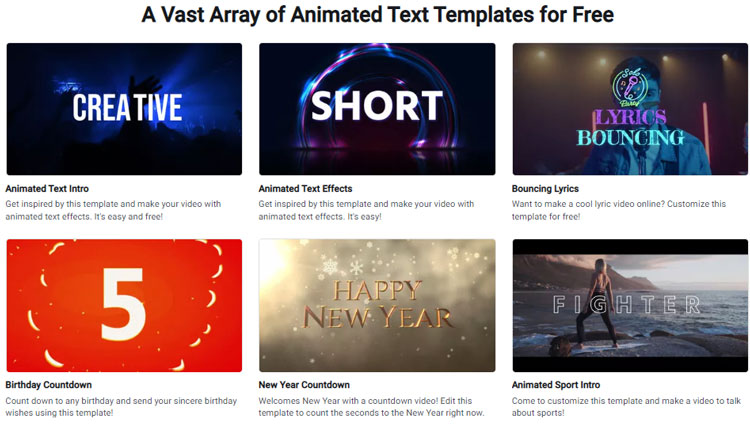
Do you want to employ more distinctive typefaces for your typewriter text effects in your video using a free app?
Producing typing text for your Instagram story video is easier and more convenient with FlexClip. This is a great online video producer and a professional editing tool that includes a variety of animated text elements and fonts to create typing text effects. With just a few clicks, you can use animation effects in your video.
Step 1
You can either sync a video from your mobile to its timeline or simply import content and then apply it. Remember to match your Instagram story video’s length of 9:16 with the appropriate ratio.
Step 2
Write your message by tapping the text box in the Text tab. Then you can select a title and change the text style along with its font, color, thickness, and many other things.
Step 3
To obtain the typewriter effect on your text, go to Motion on the top menu and choose Typewriter animation. Your text will automatically change as a result of the typewriter effect. Drag the Speed slider to adjust the pace of your text revelation.
Step 4
After that, you may decide when the message initially appears and then vanishes by adjusting its length of it. Drag and drop the text overlays on the Timelines as you see fit simply by clicking on the text.
Step 5
After completing the presentation, you may add filters, set background music, and more by clicking the play button. When you’re satisfied with the result, hit the Export button to save your video and share it on Instagram.
CapCut

Source: capcut.com
CapCut is another highly recommended option, which works on both iPhone and Android smartphones. It offers many gorgeous animation effects, and marketers can make beautiful content on Instagram, TikTok, and other platforms. It’s a free, powerful smartphone app.
It’s a bit different from Instagram’s own text editing feature, which only offers you a limited number of choices for text backgrounds and animated words.
CapCut gives you access to hundreds of different text animations, including bounce, ease, glitch, zoom out, and other options. You can also adjust how long the text animations will last.
CapCut offers Auto Captions, which automatically generate text for your speech if your video includes recorded audio narrations.
You may use text templates and stickers to spice up the text animations. You can import your video or photos by clicking the New Project button in CapCut.
Then, to display your words in the video pop-up style, click the Text tool, add words, type them, select an animation, and then choose font animations.
Next, you may select from a variety of renowned Instagram Story text animation templates by tapping the Text Animation Template option.
After previewing the video, save it in a lower-quality format with a lower frame rate. You’ll be able to convey essential material to viewers in an accurate manner if you blend high-quality video footage with engaging animated texts.
PicsArt Animator
With the aid of the tool, users are able to produce a variety of animations. The collection contains still photographs, moving images, and Instagram Stories.
It’s one of those programs that require a little time to get used to, but once you understand how it works, you’ll be able to produce some significant animated effects.
You must add the text frame one frame at a time in the application to be satisfied with how it moves. The lack of built-in fonts is, however, a sore point.
Consequently, you must swipe the screen in the desired direction to write your message. Because that’s what makes it so useful, that shouldn’t distract you from how easy it is to use this app in the first place. Do this to put it to good use:
- To launch the app, tap the “+” sign at the bottom of the screen.
- To apply the text to a photograph you picked from your Gallery or Camera Roll, tap the “Brush” button.
- You may choose the beginning frame for your text by tapping the + sign once again.
- Repeat the procedure whether you have a lot of frames or not.
- When you’re done with your animation, you can check it by clicking the checkmark button.
The method is easy, and the final products are outstanding in their own right. To make the text travel more leisurely, you should leave a blank frame between adjacent frames.
Moreover, the app includes various entertaining stickers that may be utilized to create something new to write in your next Story. Eventually, you may reload any animation anytime or save new effects.
Adobe Spark Post
Source: adobe.com
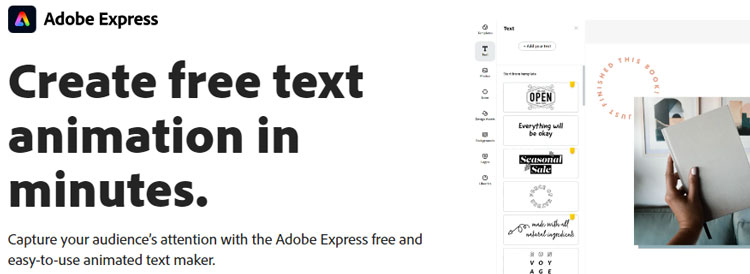
This is an excellent choice if you’re looking for an application that will help you accomplish your tasks quickly while lacking extra features. You can produce some photographs and a great story typing text effect that will stand out in your mind, even if you have restricted choices.
In addition to animating the text, the program allows you to modify the story background. Since it creates small movements on the screen, you may discover that it works especially well for your normal Instagram Stories. How the process works is as follows:
- Pick a picture from the gallery as a reference for your project.
- In the box, type the phrase you want.
- You may choose the effect you want to use by clicking on the “Effects” button.
- Choose the “Image” option from the menu to apply animation effects to the backdrop.
- When you finish the animation by clicking “Save,” the app will save it in your phone’s gallery.
Remember that you have three text effects to choose from. Slide, Fade, and Grow are the three terms used to describe them.
Final Words
Instagram Stories has many features, including typewriter font and animate button. You can choose your desired text styles and custom backgrounds and type animated text in your Instagram story. It’s good to try different styles to find a unique one that matches your brand culture when using an Instagram story typing text effect.
