


Have you ever changed your Instagram notifications?
Fortunately, you can choose whether you want to receive Instagram notifications on your smartphone.
In this article, we’re going to let you know how to use IG notifications in a way that matches your interests.
Buy an Established Instagram Account
Skip starting from zero. Browse Instagram/TikTok accounts with audiences across many niches.
See Available AccountsWhat Instagram Notifications Really Are
Just like every other app, IG also uses notifications as a tool to keep users updated with any changes.
Instagram has a variety of notifications to help you track different things. Here are some kinds of Instagram notifications:
- Instagram feed posts
- Stories
- Mentions
- Comments
- Your following/followers on Instagram
- Live
- IG direct messages
In other words, notifications aim to give you the best user experience on the platform, and Instagram is no exception.
The good news is that the Instagram notifications are customizable, so you don’t need to be worried about being bothered every often.
You can easily determine your preferences so that you receive only the updates you want. Customized Instagram notifications are the best way to be updated about the content that is crucial to you.
When DO You Receive IG Notifications?
Instagram’s support page indicates that you’ll get IG notifications for every activity on Instagram by default.
For example,
- When you receive a direct message from your friends,
- If you are mentioned (@) in a post,
- When your posts get commented on,
You’ll receive IG notifications on your smartphone. However, as you might consider many of these changes unimportant, you can change the notifications setting to avoid receiving the notification about it.
The Instagram notifications section on the platform lets you turn the alerts on/off. This is great because it gives you the opportunity to change different things, such as notifications about comments of posts or DMs.
Turning On IG Notifications
Here is how you can turn the Instagram notifications on via Android and iOS:
Instagram Notifications: iOS Devices
First, open the Instagram app. Then,
- Click the Settings
- Click Notifications

Source: Apple.com
Now that you’re in the IG notification settings, you can decide whether or not you want to allow IG push notifications. You just need to use the toggle to switch the options.
Aso, you can quickly turn your every Instagram notification on or off via the notification menu of your device.
You just need to
- Go to your mobile’s Settings
- Scroll and tap Notifications.
- Choose Instagram
- Choose Allow Notifications to enable Instagram notifications
- Slide the switch you see to green to allow IG notifications.
Once you’ve done this, go into your IG settings to see that your desired notifications are on.
Instagram Notifications: Android devices
For Android devices:
- Open your Android Settings
- Selecting Apps
- Scroll and tap Instagram
- Tap Notifications
- Check to see if you have turned IG notifications on or off
- Customize which Instagram notifications you want to get
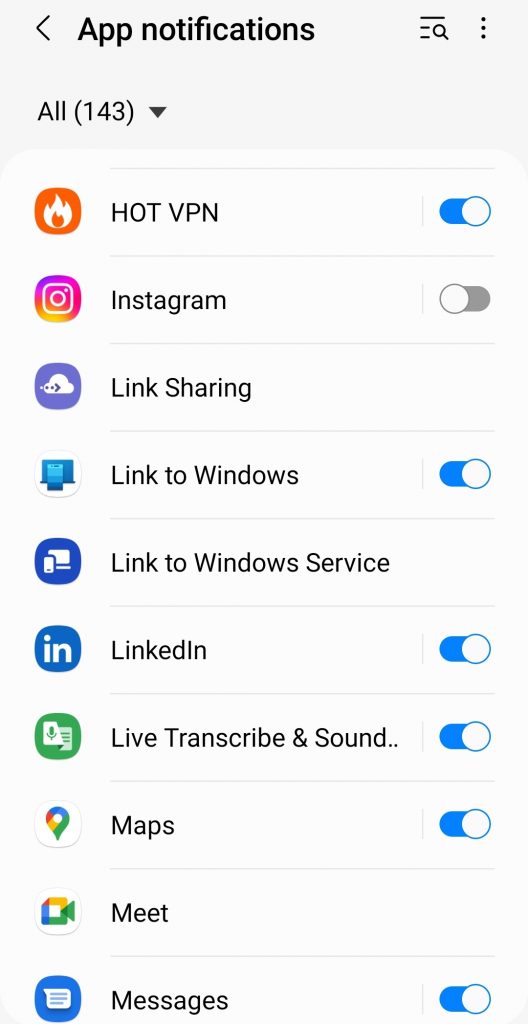
If you’re sure your IG notifications are enabled, go to the Instagram app to ensure everything is ok.
You’ll need to go to your Settings app provides you with.
- Tap on your Instagram app and then your profile page
- Choose the icon with three lines on the top right
- Tap on Notifications
- Choose your notification options
- Tap on your desired category in the list to customize your notifications for that category
How To Check Notifications On Instagram
Sometimes you want to ensure you never miss out on an Instagram notification. Fortunately, the “push notifications” ability is there to help you in this regard.
To enable push notifications, you must tap on your Instagram app profile tab. Then, you have to go into push notification settings to make sure you’ll receive every single Instagram notification.
In other words, you’ll get an alert whenever one of your approved IG notifications comes through.
How To Change Your Instagram’s Notifications Sounds
Apart from push notifications and what we discussed in the previous sections, there is another matter. Your phone might receive lots of notifications from different apps.
So how can you recognize whether a notification is from the Instagram app or not?
You can customize the sound of notifications so that you can easily recognize them when receiving notifications from Instagram.
Notification Sounds On iOS
It seems that you can’t change your notifs sounds for Instagram, but you can change the sounds for other apps. This way, you can recognize IG from others when you receive notifications.
Notification Sounds On Android
On Android, you have to tap on “Accessibility.” after going into your device settings page. Then, choose “Sound Notifications” to open a tab. Now, you can customize permissions and choose whether or not you want to turn notifications sounds on for Instagram.
Then, go into Settings on your Android smartphone and scroll until you see the “Apps and Notifications” section.
Tap on this and then go into the “Notifications” and scroll to find the “Advanced” tab. After that, choose “Default Notification sounds.” Now, to change the sound for Instagram, you can go to “Recently Opened Apps.” under the “Apps and Notifications” option. Then, choose Instagram and go into the Advanced tab again.
Now, you can hear your default sound library and select the specific notification sound you want for Instagram.
How To Fix Instagram Notifications
Sometimes, you’ll not receive notifications even after all the previous steps. This might happen in different situations, and you can do the following.
Clear The Cache And The Storage Data
First, you can remove the cache and also storage data. Your cache could prevent your device from working correctly.
Update Your Device
Outdated operating systems can also cause problems with your IGnotifications. Try updating your device to see if your notification problems are fixed.
Remove And Reinstall The Instagram Application
This one is simple. When you can’t understand the problem, you can easily remove your Instagram app and then reinstall it.
Check And Disable the “Power Saving Mode” and “Do Not Disturb Mode”
Power-Saving and Do Not Disturb modes can also be problematic for IG notifications. Try to disable them to see if your problem is fixed.
Final Words
If you want to receive notifications from the Instagram app, you have to customize it so that you make the most of it. Remember that Instagram alerts can keep you updated about different things. For example, it notifies you of comments, and therefore, you can react as soon as possible. This way, you’ll have an optimized Instagram journey.

Emi Daniel
Buy an Established Instagram Account
Skip starting from zero. Browse Instagram/TikTok accounts with audiences across many niches.
See Available AccountsRelated articles
-
How to Go Live on Instagram: A Step-by-Step Guide
Going live can feel more stressful than posting a Reel. You cannot remove a pause, rewrite a sentence, or start over after an awkward moment. But that…
17 min readEmi Daniel
-
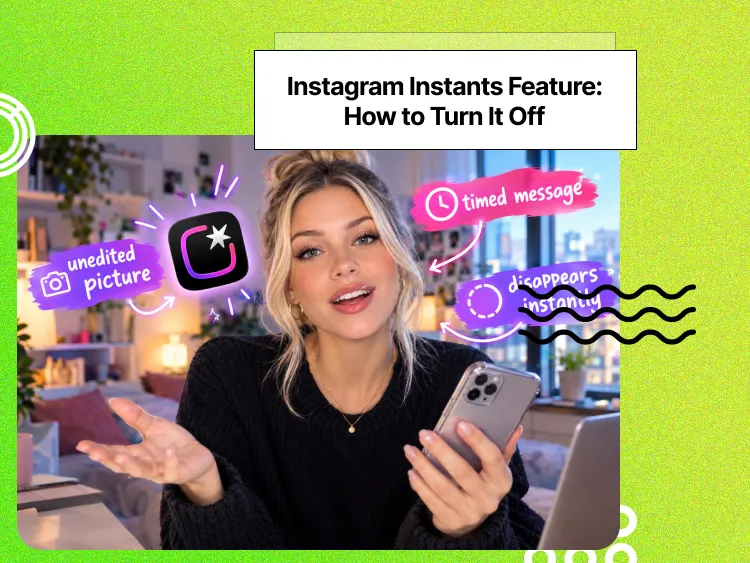
Instagram Instants Feature: What It Is, How It Works, and How to Turn It Off
The first time I opened Instagram Instants, I almost backed out. I had taken a normal photo. Nothing worth editing. Nothing worth posting. Nothing that needed an…
11 min read -
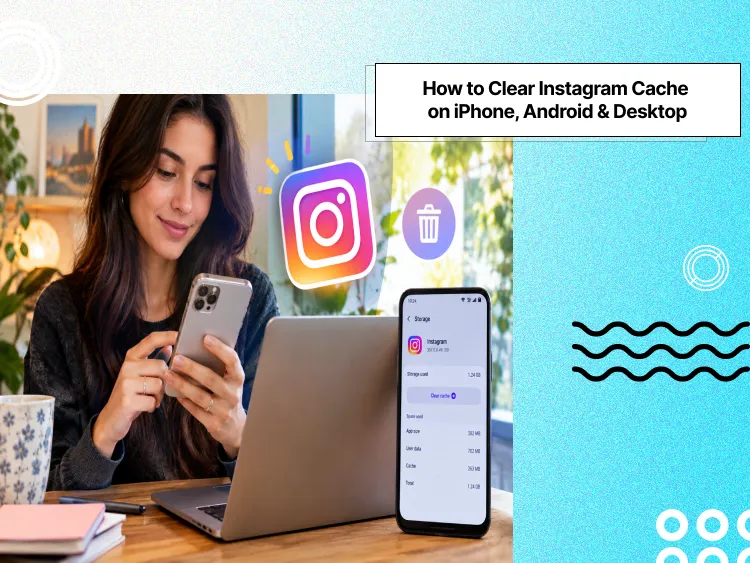
How to Clear Instagram Cache on iPhone, Android & Desktop
Instagram can quietly build up a lot of temporary files while you scroll through Reels, watch Stories, save posts, and upload your own content. You may not…
12 min read