


How To Create And Use An Instagram Group Chat
If you’re a business, creator, or influencer on Instagram, you most probably are on Instagram to utilize your Social Media Marketing Campaign Strategy. You’ll gain branding through an Instagram campaign, reach the target audience, boost engagement, achieve specific objectives, and attain key performance indicators that outline your brand’s digital marketing success. Suppose you’re a content creator applying Instagram Marketing Strategy. In that case, you already know that it’s essential to utilize as many features as the platform offers to achieve the most significant ROI from your Instagram Marketing.
One of these features is the Instagram Group Chat, which in this article, we’ll teach you how to create and use the Instagram Group Chat’s features to maximize your Instagram Marketing Return of Investment as a business or an influencer. So without further ado, let’s jump in.
The Steps To Creating An Instagram Group Chat
To start, let’s teach you how to create an Instagram Group Chat:
Buy an Established Instagram Account
Skip starting from zero. Browse Instagram/TikTok accounts with audiences across many niches.
See Available AccountsStep 1: Instagram App
Of course, you would be required to have the Instagram App on your Android or iPhone Mobile device. But to ensure you are using the Group Chat on Instagram to its full potential, you must ensure the Instagram App is updated to its latest version. However, remember that although the Instagram Direct messages do work on the Instagram Website on your desktop’s browser. The group chats on Instagram do not function on your browsers and through your desktop. Thus, if you wish to create a group conversation or access one, you must utilize the Instagram App. So avoid using your group chats while on Instagram’s website version. So first off, log in to your Instagram app on your Android or ios iPhone device.
Step 2: Create A Group Chat
Once you are on your Instagram app, you’ll have to:
- Tap the “Paper Airplane” icon leading you to the Instagram Direct Messages at the top right-hand corner of your Instagram Homepage screen.

- Once you Tap on the Direct Message Icon, you’ll be guided towards a new screen.
- Click on the “Pen and Paper” Icon or the “Create A Group” Icon at the top right-hand corner in the Direct Message screen. Which is next to the “Camera” Icon for creating a”New Video Chat.”

Step 3: Adding The Members Of The Instagram Group Chat
To create a new Group Chat, you would first need to add the users to the Group Conversation to complete it. Which preferably, you must be previously “following” their accounts before adding them within the Group Conversations. Otherwise, you should know the user’s Instagram Username, or you would need to search a lot before finding the people you wish to add.
- Once you click on the Pen and Paper Icon to create your Group Chats, you’ll be guided to a new screen with the suggested list of people you follow on Instagram.
- To create a group, you can either look through the “Suggested” list or search the users’ names within the “Search” bar to add new members.
- Once you have located the user you want to add to the Group Chats, tap the circle icon next to their profile photo, name, and username to get a blue tick.

- Once you have added all the users you want to the group conversation by ticking their name blue, click on the “Chat” button at the top right corner of your screen.

Step 4: To Create A New Group Conversation
The new Group Conversation won’t be officially created unless you send the first text, photo, or video message. You can only create a new group when you initiate the conversation using a text, photo, or video post within the group chats.
However, once you post the first Instagram direct message within the group chat, the users added will be notified of the new group conversation.
Step 5: To Create An Instagram Group Name And Photo
Once the Group Chat is created, you can change the Group Photo, Name, Settings, or Add more Members using the steps below:
- On the Instagram app, click on the Direct Message Screen to access your chats.
- In the list of “Chats,” select the Group Chat you’re looking to customize.
- In the Group Chat, click the profile photo and names at the top of the screen. Or click on the “i” icon for the “Details” Page.
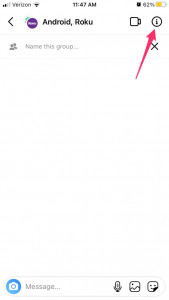
- Then, you’ll see the group chat’s “Details” page.
Here you can:
- Under the profile photos of the users sequenced back to back, click the “Change Group Photo” tab and edit the Group Photo by selecting one of the options to “Choose From Library” or “Take Photo.”
- Then there is a heading space where you can add the Group name instead of the list of member usernames. (Highly suggested for Brands and Influencers).
Step 6: Adding People And Modifying The Settings
After you have renamed the group conversation and added a group photo to identify it, you can choose to modify the settings to your liking, Add More members, or even leave and end the group conversation. You must only:
- After you rename the group and choose a new chat image, scroll down the screen.
- Go through the list of settings and choose if you wish to “Mute Messages,” “Mute Mentions,” “Mute Call Notifications,” or allow users to ask for Approval before joining by clicking the “Approval Required To Join” toggle.
- Furthermore, on this screen under “Members,” you can scroll down and click the “Plus” Sign with “Add People…” to start adding more members to the group conversation.

Finally, you could also choose to leave or end the chat by clicking the “Leave Chat” or “End Chat” at the bottom of the far left corner of the screen.
The Usage Of Creating A New Group Chat
Now that you know how to create a new Group Chat let’s discuss the best ways to utilize it for your Branding and Followers’ Engagement.
To Use A New Group Conversation:
Once you create a new Instagram Group Conversation, you can:
- Create a Video Call with up to four friends from the group conversation, which is excellent for business and creator accounts that wish to meet with their group of Social Media Marketers.
- Having 32 Members in one group conversation is great when promoting a limited deal. However, each member would have the freedom to add more people to the group. (However, note that once a person is added, the member that has been added can’t be removed unless they choose to leave themselves. Or if you want a group without the said member, you would have to create a new group.)
- If a member leaves a group, the chat won’t be accessible unless they ask a member through Instagram Direct Messages to add them to the conversation again.
- You can like individual messages within the group to acknowledge their messages.
- Create a Group Chat On Instagram as a Support Group for your Brand and Creator Team to Connect with your followers.
- Use the group chats in your business to coach, collaborate, analyze market research, and exchange business resources between your team members to curate the best experience for your platform’s audience by exchanging photo or video content.
To Create And Use The Instagram Group Chats
Creating and Using the Instagram Group Chats may seem redundant or its purpose limited. However, the usage, particularly among your Brand and Creator Team, is a lot and could be very functional if Used appropriately. So, give the group conversation feature a go and see how it can be helpful to your brand, business, and networking to create and use the Instagram Group Chats.

Emi Daniel
Buy an Established Instagram Account
Skip starting from zero. Browse Instagram/TikTok accounts with audiences across many niches.
See Available AccountsRelated articles
-
How to Use Instagram: The Creator’s Guide to Building an Audience
Instagram in 2026 is no longer just a place to collect followers. The creators who grow consistently are the ones who understand how to earn attention, turn…
17 min readEmi Daniel
-

How to Go Live on Instagram: A Step-by-Step Guide
Going live can feel more stressful than posting a Reel. You cannot remove a pause, rewrite a sentence, or start over after an awkward moment. But that…
17 min read -
Instagram Instants Feature: What It Is, How It Works, and How to Turn It Off
The first time I opened Instagram Instants, I almost backed out. I had taken a normal photo. Nothing worth editing. Nothing worth posting. Nothing that needed an…
11 min read