

Instagram video call feature was introduced in 2018 to users so they can have a video or voice chat with their friends and families through Instagram Direct messages in just a few seconds.
When you are on a video chat on Instagram, you can surf through your Instagram homepage or explorer, check your DMs and answer comments simultaneously, and your call won’t be disconnected.
You can make video chats on Instagram with up to 6 people with an Instagram account on an iPhone, Android, or PC. If you want to make a video call with a larger group of people, up to 50, you have to follow some steps, which we will explain to you in this article.
How to Make a Video Chat on Instagram?
You don’t need to download an extra application to start an Instagram video chat. IG video call is a built-in simple feature within the Instagram app. Follow the below steps to start a video chat on Instagram.
- Open Instagram and click on the Messenger icon on the top right. (make sure you are using the latest version of IG)
- Choose the video camera icon.

- Choose one friend or type a name from the list of Suggested friends under Invite to Video Chat.
(If you scroll down, you’ll see a list of suggested Facebook friends you can video chat with. They don’t need an Instagram account, so you can video chat with them. Your Instagram video chat can include Instagram followers and Facebook friends.)
- Choose a person and add them to your video chat (you can invite up to six people). Your friend will receive a notification that you are calling them.
- Choose the back button to remove someone from your video chat, then tap the X next to their name.
- When you’re ready, click Start to begin your video chat.
- You can end the call by clicking on the red phone icon at the bottom of the screen.

- After you start a video chat, you can access the group chat anytime by choosing the chat on your Messenger activity list.
- In the “Name this group box,” choose a name for your video chat group and type it.
- To start another chat with this group, choose the video camera icon. You can also type, send a voice message, or send a photo by the Message box.
There’s also no time limit for your calls on Instagram Video Chat, so your call can take as long as you want.
For Managing a Call While on an Audio or Video Instagram Call
- Choose full screen. Click in the top right to make your call screen window bigger.
- You can update the camera and audio settings by clicking on the top right to change your camera and audio settings.
- End a video chat by clicking at the bottom
To join a Video or Audio Call on Instagram
- Click on the left.
- From your Chats list, choose the conversation that you received an invite to join a call.
- Click Join.
To Enable the Camera for your Instagram Video Call
- Go to your phone’s Settings app
- Click the Apps & Notifications tab, then expand the list to “See all apps.”
- From there, find Instagram and click on it.
- Finally, make sure the option for the Camera and Microphone are on.

You may restart the Instagram app now to see if the camera works well.
For Adding Filters or Effects in a Video Call on Instagram: (for iPhone)
- Start a video chat
- Tap to view effects.
- Tap to view filters.
- Tap on an effect or filter to use in your video chat
- You can save, send, or search for more effects by tapping on the effect you’re currently using.
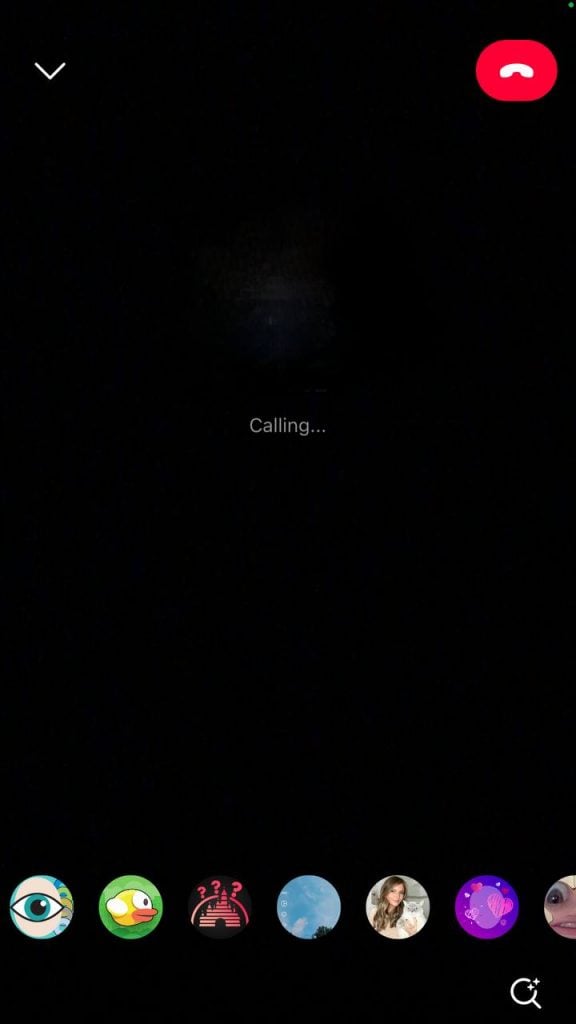
For Adding Filters or Effects in a Video Call on Instagram: (for Android)
- Start a video chat
- Tap to view effects.
- Tap to view filters.
- Tap on an effect or filter to use in your video chat.
- You can save, send, or search for more effects by tapping on the effect you’re currently using.
How to Start a Group Video Chat on Instagram
For starting a group video call with a large number of people, up to 50, you have to open a messenger room and share the video chat link with those people.
The people you want to invite to the video chat don’t need to have Instagram, Messenger, or Facebook, but to open a Messenger room on Instagram, you need to have a Facebook account.
Follow the below steps to open a group video chat on Instagram.
- Open Instagram on your mobile and click on the Messenger icon on the top right.
- Choose Rooms.
- Choose Create Room
- A message explaining that you’ll create this Room under your Facebook profile will pop up. To continue, click Create Room as [your name].
- Choose send to any Instagram or Facebook friends you want to receive the link or search for a friend’s name; choose Share link to send the Room link by email or text to friends who aren’t on Instagram or Facebook.
- When you’ve sent the link to your friends, tap Join Room on Messenger, and you’ll be forwarded to your Messenger room and wait for the video chat members you invited.
If you don’t want to participate in a video chat and prefer not to be contacted via Instagram video chat or direct messaging by someone on Facebook, limit Facebook interaction via Instagram settings.
Here’s How to Stop Facebook Friends from Messaging you Via Instagram
- From your account page, choose the menu (three lines)
- Choose Settings.
- Choose Privacy
- Choose Messages.
- Choose Facebook Friends or People You’ve Chatted With on Messenger.
- Choose Don’t Receive Requests
If you Want to Manage Video Chat Notifications
- Choose the three lines on the profile and tap ‘Settings.’
- Choose ‘Notifications’ and then ‘Direct messages and calls.’
- Scroll down to the list, choose video calls, and select your preferences.

How to Share a Photo of Your Instagram Video Call
The steps for sharing a photo of your video chat are straightforward if you are an iOS user. To do that, follow the below steps.
- While on the call, click on the circle at the bottom of the screen.
- Take a photo, and it will be saved to your photos.
- Select ‘Your Story’ to share it on your story, or just share it with your friends via DM.
- Your friends will be notified that you took a photo of the video chat.
For Browsing your Feed During an Instagram Video Call, Follow the Below Steps:
- While on a call, minimize the screen in the top-left corner.
- Then you can scroll through your feed while seeing a smaller video chat window. (nobody can see your phone screen, and your friends can just see your face)
You can also share your screen while in video chats on Instagram.
To Share Your Screen in an Instagram Video Call, Follow These Steps
- When you start a video chat, tap at the bottom.
- Click on the Screen Share icon, then click Start Now.
- Then click on it to make the call appear in a small window. And then, you can continue using Instagram as you always would.
- You can go to your device’s home screen or switch apps and continue using your device as you usually would.
- Click stop sharing from the video call to stop sharing your screen.
When you start sharing your screen, you will see a red phone icon on the upper left corner of your phone screen. If you stop the screen share, it won’t end your call. Everyone on the call can see your screens when you share your screen.
How to Find Out if Someone is on Video Call on Instagram?
When someone is on a call on Instagram, a green dot will be shown next to their Instagram DM profile icon. This dot shows that they are available, and you can call them.
In addition, when you go to their profile page, you can find their status showing that they are on a call, and when you reach out to them by Instagram direct message, you will see the message “is on a call” in the chat bubble.
When you see the green dot, you can at least know your call won’t be rejected because the other person is available. But, if the person rejects or ignores your call, the green dot will disappear, which indicates why they missed your call in the first place.
An end-to-end encrypted feature protects Instagram voice and video call content from when it leaves your device until it reaches the other person’s device.
Therefore, no one, not even Facebook, can see or hear your conversations. But, if you are uncomfortable using video calls on Instagram or don’t want to receive any video or voice call requests, you can disable your Instagram video call.
To Turn Off/Disable Video Calls on Instagram, Follow the Below Steps.
- Open the Instagram app, go to your profile, and choose the top left three-bar menu icon.
- Choose Settings
- Choose “Notifications.”
- Choose “Direct Messages.”
- Choose “Video Chats – Off.”
How to Record Video Calls on Instagram?
Instagram hasn’t introduced any feature within the app for recording video calls. To record a call on Instagram, you may need to download a third-party app from the App Store or activate your phone’s screen recording feature to do the recording.
Following the steps below, you can record video calls on Instagram on iPhones and Android mobile devices.
For iPhone user
- Activate the live access screen recording option, which by default is not active, and should be activated manually.
- Choose “Settings”
- Choose”Control Center.”
- Click on “Customize controls.”
- Select the option “Screen recording.”
- Screen recording will be added to the default controls.
- The “Screen recording” button will appear when sliding the top menu.
- Slid up the top menu and start the screen recording.

- Get back to Instagram and start a video call
- Finally, stop screen recording by dragging the top menu, and the video will be saved to your gallery.
For Android users
- Log in to Instagram and start the video call.
- Select the contact for joining the call.
- Display the menu, which is invisible at the top of the screen of the mobile device, and then activate “Screen recording.”
- When you activate the video chat option, return to Instagram and start the video call.
- Stop the recording on the screen at the end of the video call; the video will be saved in your gallery.
How to Make a Video Call On Instagram On PC?
Instagram doesn’t offer third-party apps for making a video call on a PC. Still, you can download the Instagram app from the Microsoft Store for Windows 10 and higher operating systems.
Mac users can work with the Instagram web, but, The most straightforward way is to use an Android emulator to help users run Android apps on a desktop.
Below are some methods to start a video call on Instagram on a PC.
Instagram for Windows 10 and Higher
The Instagram application, recently released for Windows, helps users access their Instagram account on PC. Follow the steps below to start an Instagram call using the IG application on your PC.
- If you use Windows ten or Mac OS, download Instagram from Microsoft Store and launch your IG account.
- On the Instagram feed, tap on the Direct Message icon in the top right corner.
- Select a conversation to access your followers list.
- Choose the phone icon from the top right corner to start a phone or video call on the laptop.
- If the call receiver is also using Instagram on PC, they won’t receive notifications, but they have to open their DM on the application to be able to join the call.
Instagram Web
If your device doesn’t support the application system requirements, you should find another method to make a call on Instagram web. To make this happen, follow the below steps.
- Launch Instagram web and Login into your account.
- Select the Direct Message icon from the top right corner.
- Choose a conversation to search for other usernames.
- Choose the phone or video icon on the top right corner to start the call
BlueStack
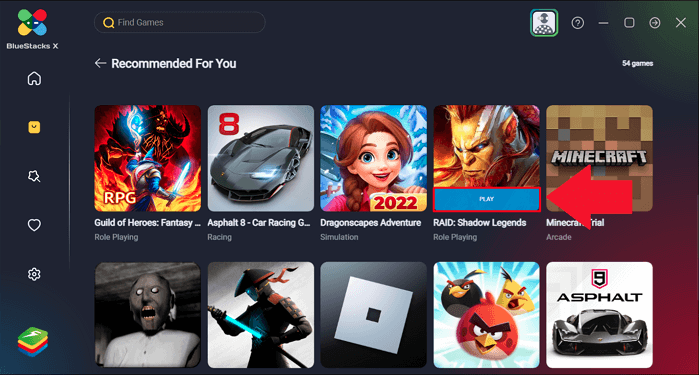
Suppose the previous methods didn’t work out for you. In that case, the best option is to use an Android emulator called BlueStack, a free Android emulator popular because of its speed and security. BlueStack works on Windows and Mac.
To use Instagram on your PC through BlueStacks
- Download BlueStacks from the official website and install it.
- Open the app and search for Instagram on the top bar.
- Install Instagram.
- Open Instagram from the BlueStacks homepage, and log in to your account.
- Click on the airplane icon on your homepage at the top right corner.
- Click the call button from the top bar and choose the person you want to call.
Nox Player
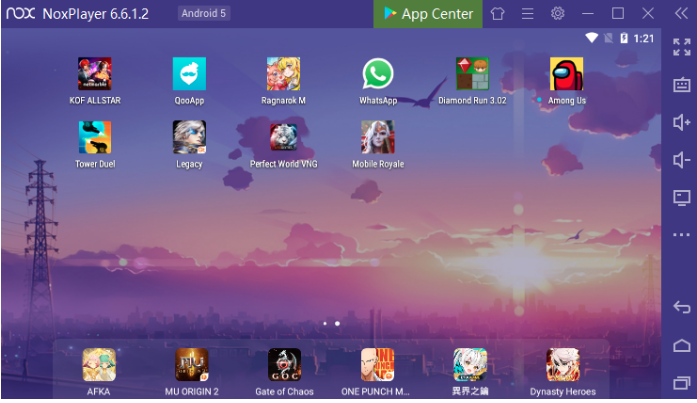
Another free Android emulator is Nox Player. This app helps decrease computer memory space and save extra storage. The Nox player also supports Windows and Mac. To open Instagram on NoxPlayer, follow the steps below and quickly start a video call on Instagram.
- Download NoxPlayer from the official website and install it.
- Open the app and search for Instagram on the bar at the top
- Install Instagram.
- Open Instagram from the Nox Player main page and log into your account.
- On your homepage, choose the airplane button in the top right corner.
- Click the call button from the top bar to choose who you want to call.
To Sum It Up
Instagram video calls will allow you to connect with your family and friends while using the app simultaneously. It can be an excellent alternative for staying in touch with friends because you can scroll down on your Instagram feed simultaneously, screen record the call, and even use filters.
But still, it doesn’t mean that Instagram video calls should be necessarily replaced with WhatsApp or Facetime. People can use each video call app based on their needs and preferences. On the other hand, businesses can also use Instagram video chat to communicate with their customers and keep them engaged and satisfied with their services.
