


For Brands and Businesses being on Social Media Platforms like Facebook and having a Digital Marketing Strategy in place is basically to gain organic reach, brand awareness, and customer leads. But if you wish to boost your business on Facebook by 135 percent without using Facebook paid ads you should learn how to make a Facebook Slideshow on Facebook. In a few quick and easy steps we can help you boost your business and enhance your organic reach by making the Facebook Slideshow feature active on your Facebook Page.
The Importance of Making a Facebook Slideshow
Generally, video is the king when it comes to Social Media Content Management for Facebook Marketing. On Facebook, videos alone get 8 billion views per day and give the Facebook Page holder an increase of over 135 percent more organic reach than any photo post. All in all, if a business wishes to beat the ever-changing Facebook algorithm, the video and the views the video receives is the easiest way to beat around the algorithm for free and without paying to get around the algorithm with Facebook Ads.
However, for many businesses who are just up and running or startups struggling to be seen on Facebook proper funding for videos or learning how to handle a video maker may be a hassle that would be hard to get by. Consequently, why Facebook Slideshow feature is so important, and to know how to make a Facebook Slideshow could ultimately turn into your advantage as a creator or business Facebook page.
Buy an Established Instagram Account
Skip starting from zero. Browse Instagram/TikTok accounts with audiences across many niches.
See Available AccountsIn the next upcoming headings, we’ll teach you how to make a slideshow with royalty-free music easily without having to go through the hassle of overworking yourself.
What To Make A Facebook Slideshow For?
There are several ways to use a Facebook Slideshow. Including:
#1. Instructional Product Videos and Demos
An organization can create a Facebook Slideshow for the sole purpose of teaching users valuable educational content. Educational posts are a great strategy in teaching cool tips and out-of-norm usages of using your product while also promoting it without actually promoting the product. So, to make a slideshow on Facebook you could engage users, promote your product, and enhance product sales all through a slideshow on Facebook. Remember that no one knows your product as well as you so go wild and stay creative.
#2. Story Telling
You could male a Facebook Slideshow to take your viewers on a visual adventure that creates engagement and forces interaction and response from the audience. You could create a slideshow on Facebook to share:
- A Motivational and uplifting story
- A behind-the-scenes look into your brand’s product creation and the ways it works.
- A notable story
- A Social or Community Inspired News, Activity, or Outreach Program
- Or an educational video related to your product but not necessarily promoting it, rather than just inspiring your audience to live better lives. For example ( Using your product to use less water and why water conservation is important)

#3. Make A Facebook Slideshow Collection
Facebook Slideshow Collections are a great way to entertain and boost viewers’ engagement for a specific time interval. You could use Facebook Slideshow Collection Series to show:
-
- End of Year moments and achievements targeted.
- Event Show offs and happenings (This could even be the setup for the event).
- Collection series of the everyday employee at your organization.
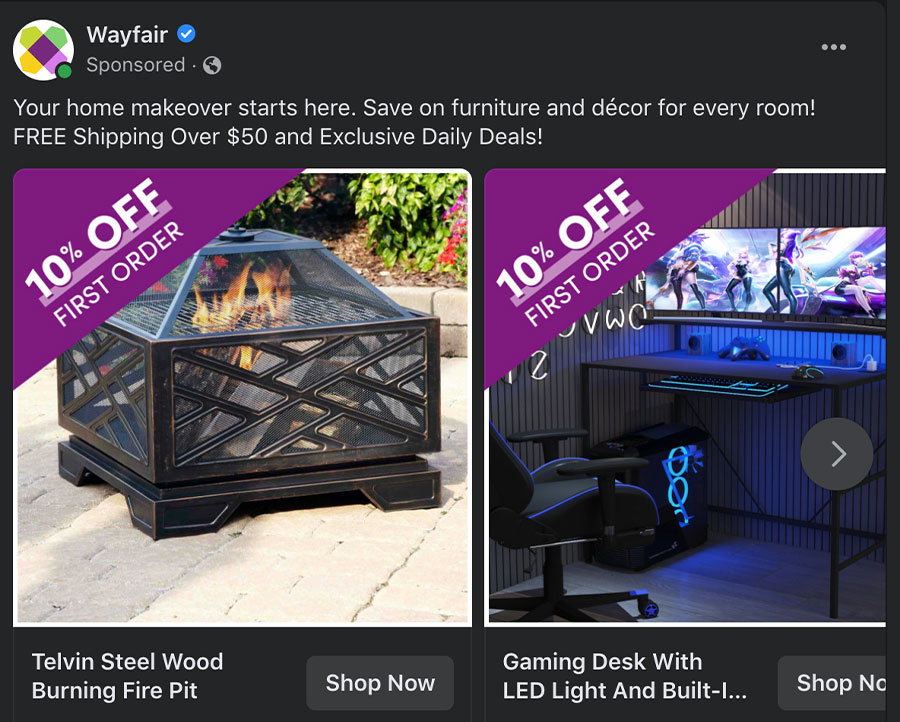
#4. Promote A To-Be Launched Product
One of the best aspects of any social media platform is that you can entice your viewer by pre-promoting an upcoming product way ahead of its arrival into the shops. So use the Facebook Slideshow to entice and tease users of an upcoming new product. Get them addicted and excited to see and purchase a new product by giving your customer leads a sneak-peak of what they could be looking forward to. You can show them the:
- Behind-the-scene photoshoot of the product.
- The production process of the product being made.
- First detail yet enticingly small shots of the product.
All of which could put your viewers at the edge of their seats and dying to see the actual product.
How To Create A Slideshow On Facebook?
Now that you know How to create a Facebook Slideshow let’s jump on and tell you how to do this easily by yourself. You just have to follow our lead.
Step 1: The Facebook App And Log In:
- Open Your Desktop Computer Device
- Either open a Search Engine Browser and open Facebook through the browser
- Or open The Facebook App on your Computer Device.
- Log In to your Facebook App account.
- Go to your Facebook Page.
- Go to your Status Bar and Status Update Section.
- Click on the “Photo/Video” Button
- Then select “Create a Slideshow.”
Step 2: Choosing The Video Settings
Once you click on the “create a slideshow” button, a new set of “settings menu” tabs will appear on your screen. In these settings, you can choose between the different technical elements of your video maker. You don’t necessarily have to make the perfect video slideshows because a slideshow can be changed, revised, and edited in the settings at any time before publishing your slideshows on your Facebook Page.
Among these settings each has different meanings like:
- “Aspect Ratio”: Aspect Ratio defines the size of your video. There are three Aspect Ratio choices that you can choose from:
- Square (1:1)
- Rectangle (16:9)
- Vertical (2:3)
- “Image Duration”: The Image Duration defines the number of seconds your video and photo slideshows will preview and stay on the screen.
- “Transition”: In this transition slideshow step, you could choose your slideshow videos’ transition and effects used on the images and videos. You can choose to have fading effects or no transitions at all while creating your interval between slideshows.

Step 3: Adding Music to Your Slideshow Videos
Within the same setting window, there is another tab within the slideshow option as a second tab by the name of “Music”. This is the greatest aspect of creating video slideshows, although certain disadvantages could get on your nerves.
In the Video Slideshow maker settings, you can instantly and easily add different music content vibes to your Facebook slideshows to grab your audience’s attention through the addition of a music slideshow feature. Although this is a great way to grab their attention, the downside is that most of the tunes that you can use on the slideshow with music are copyrighted.
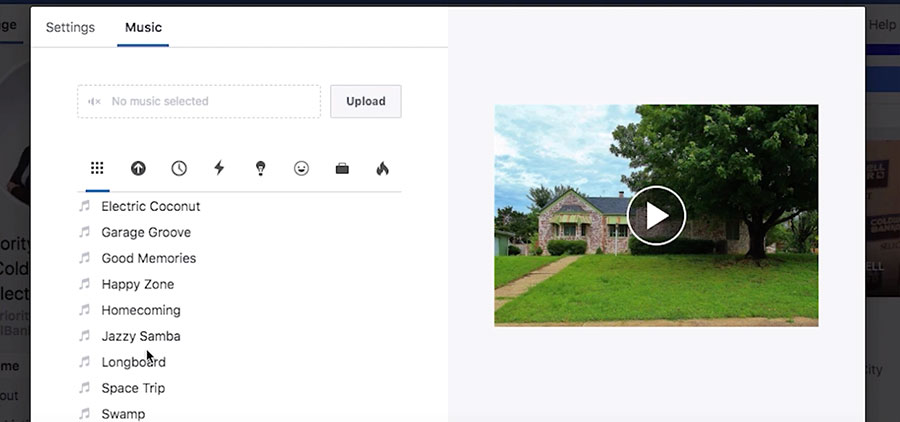
Thus, to create Facebook Slideshow and add cool hit music is a bit more tricky and you can’t necessarily just publish any music you want to use. Particularly if you’re a brand and you have a public Facebook Page. This is because if a Business Facebook page uses a piece of copyrighted music when creating a Facebook slideshow on Facebook, or any content on Instagram or any other platform without the proper permissions they could be facing legal actions. So If you do want to create a slideshow video or photo slideshow you need to ensure that the music you use has free copyright upload permission. However, lucky for you Facebook gives you the option to choose from their royalty-free music library tools.
The Facebook Audio Library
One of the best aspects of Facebook is that among the settings tools for the video editor you can find the Facebook Audio Library. So, if you want to create slideshow content, videos, or photos using the slideshow feature tool on Facebook Settings you would have the choice to choose to preview from different Facebook Sound Collection Categories like:
- Ambient
- Blues
- Children’s
- Cinematic
- Country
- East Asian
- Electronic
- Folk
- Hip Hop
- Holiday
- Inspirational
- Japanese
- Jazz
- Latin
- Middle Eastern
- Modern
- Novelty
- Orchestral
- Pop
- R&B
- Worldly
All these choices and more are free to create a Facebook Slideshow that captivates your audience and gives your business a boost.
Step 4: Uploading Images
To make a Facebook Slideshow you would need a minimum of three images or a maximum of 10 photos. You’ll just have to:
- Click on the “Add Photos Button.
- Then Select your photos from your desktop, timeline, or webcam.
- Just do ensure you click and upload them in the order it needs to appear.

Step 5: Facebook Slideshow Preview Test Drive
Don’t publish your photos or videos in the Facebook Slideshow unless you have seen them in the preview and taken them for a test drive. You wouldn’t want to click on publish unless you’re certain of how it may look for your audience. This is a particularly important step for a business Facebook Page to fine-tune your slideshow on Facebook before officially publishing the photo slideshow or slideshow video. So:
- Click on the play button to preview the photo video content.
- Make the proper edits to upload the final version of the photo slideshow and video slideshow.
- Just remember that there are no more edits once you upload and publish the slideshow so ensure it’s perfect.
Step 6: Upload The Facebook Slideshow Created
Once you have created the Slideshow on Facebook and made the proper edits in the settings:
- Click on the “Create Slideshow” Button.
- A screen will open for you to upload the slideshow.
- It will prompt you to add a title and description for the slideshow before its upload.
- Add an enticing title and description for the slideshow.
- Click on “Publish” when done.

And Now you have uploaded your photo slideshow or video slideshow and live on Facebook ready to entice and captivate your Facebook Users.

Lina Stewart
Buy an Established Instagram Account
Skip starting from zero. Browse Instagram/TikTok accounts with audiences across many niches.
See Available AccountsRelated articles
-

How to Go Viral on Instagram: A Practical Guide
A viral Instagram post can begin with something very simple, like a clear idea, a familiar feeling, or a moment that makes someone think, ‘I need to…
25 min readEmi Daniel
-
Meta Ad Library: How to Find and Analyze Competitor Ads
Some ads are easy to ignore until you notice the same brand appearing in your feed again and again. You may start wondering what they are saying,…
18 min read -
Best Influencer Marketing Software in 2026: Top Platforms to Grow Your Brand
Influencer marketing used to feel optional, something you tried after you’d “done” everything else. Now it’s often the first place customers hear about a brand. The problem…
18 min read