

I have often found a post or Reel I wanted to share, then had to stop and look for the right button. Instagram makes copying a link simple, but the option is not always where you expect it to be.
To copy an Instagram link, open the profile, post, or Reel you want to share, then select Copy Link from the Share menu. For your own profile, tap Share Profile, then select Copy Link.
Once you know where to look, you can copy links for posts, Reels, Stories, and profiles in a few taps without accidentally reposting anything.
Buy an Established Instagram Account
Skip starting from zero. Browse Instagram/TikTok accounts with audiences across many niches.
See Available AccountsHow to Copy Instagram Links in 2026
Do you still tap the three-dot icon on Instagram posts hoping to copy their links? In many 2026 versions, Instagram has moved the copy option under the share (paper plane) icon instead of the three-dot menu. Learn how these changes affect posts, Reels, Stories, and profiles in our 2026 Instagram updates guide.
Here, I will walk you through the easiest ways to copy links on Instagram so that you can share posts, Reels, stories, and profiles easily.
How to Copy the Link of an Instagram Post
Step 1- Open Instagram and navigate to the desired post.

Step 2- Tap on the share button (paper plane icon).
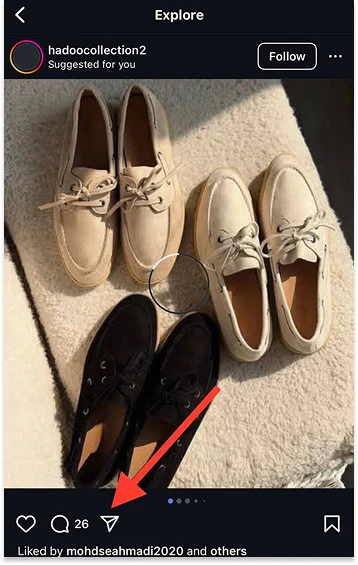
Step 3- Select “Copy link” from the menu.
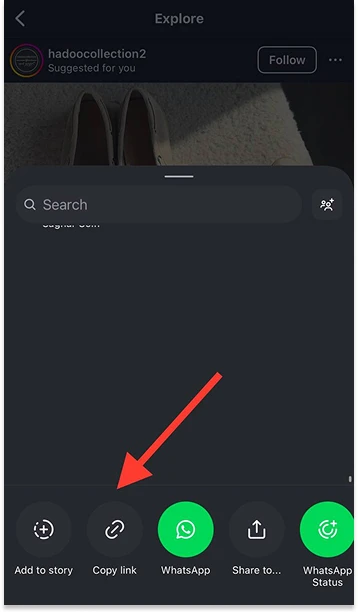
Step 4- Paste and share the link wherever you want.
Does this method work for every post on Instagram? Almost. It works for most public posts, including ones in your feed or on Explore; private accounts and restricted posts may limit what others can see after you share the link.
When I tested this, Copy Link appeared in the Share menu. The option may appear in a slightly different place after an Instagram app update.
How to Copy the Link of an Instagram Reel
Open the Reel you want to share, then tap the Share icon.
Step 1- Open the Reel from your feed, Explore page, or a profile.
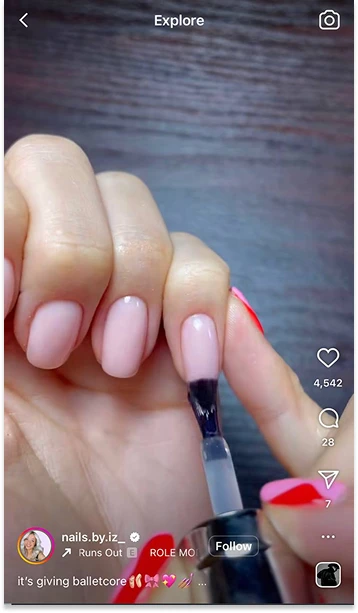
Step 2- Tap the Share icon.
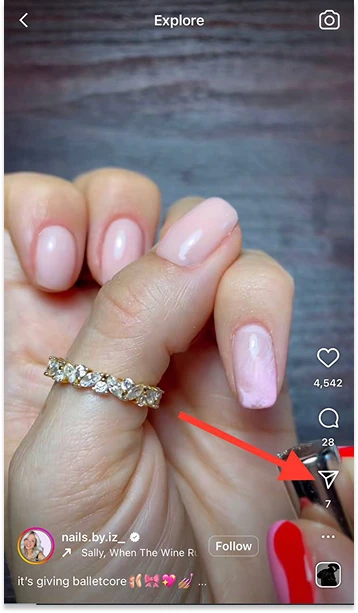
Step 3- Select Copy Link from the menu.
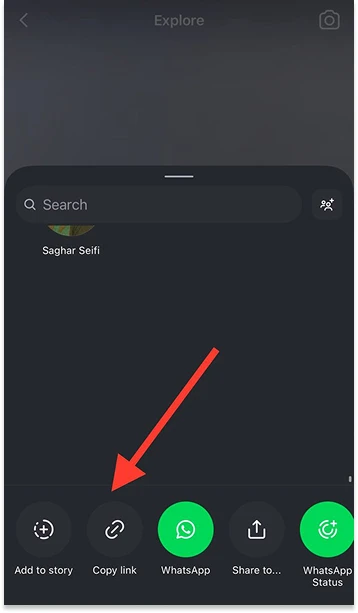
Step 4- Paste the link wherever you want to share it.
In our check, the Share icon opened the link options. This is different from the Repost button, which reposts the Reel on Instagram instead of copying its URL.
How to Copy the Link of an Instagram Story
Step 1- Open Instagram and view the story.
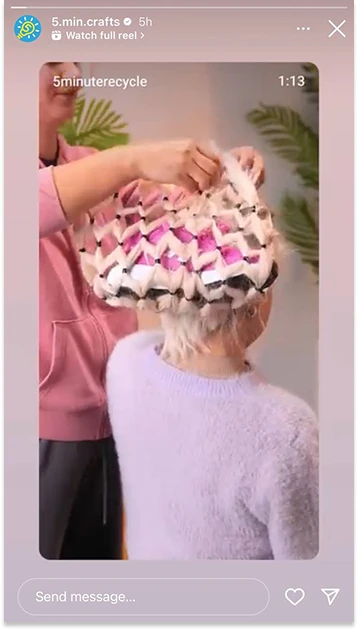
Step 2- Tap the airplane icon in the bottom-right corner.
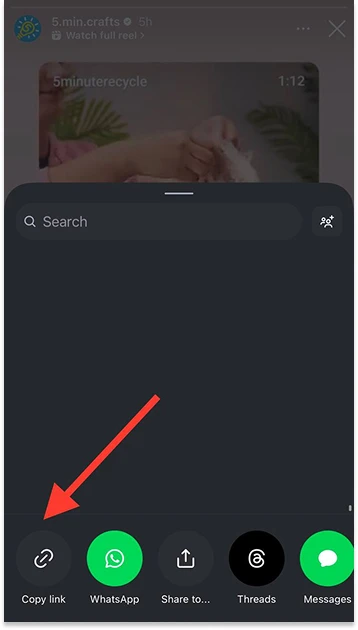
Step 3- Select “Copy Link.”
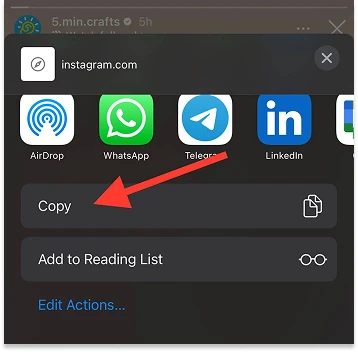
Step 4- Share the link anywhere. You can paste it in messaging apps, emails, or social media.
Stop tapping the three-dot icon to get links on Instagram Stories!
In the latest versions, this menu mainly shows options like Report, About This Account, Mute, or Unfollow; none of these will give you the Story link.
Instead, always use the airplane icon in the bottom-right corner to copy the story link quickly and reliably.
Menus and options for copying links can differ slightly between the full Instagram app and Instagram Lite, as some buttons may be located in different places.
How to Copy the Link of an Instagram Profile
Now it’s finally time to tap the three-dot icon, and this time, you’re doing it for the right reason!
On Instagram posts and profiles, the three-dot menu is your gateway to the correct sharing options, including copying links.
Think of it as the official control center: everything from reporting content to sharing links is neatly tucked here.
So follow along carefully, tap the icon, and get ready to share Instagram content the easy and foolproof way.
Step 1- Open Instagram and search for the desired account.
Step 2: Tap the three dots icon in the top-right corner of their profile.
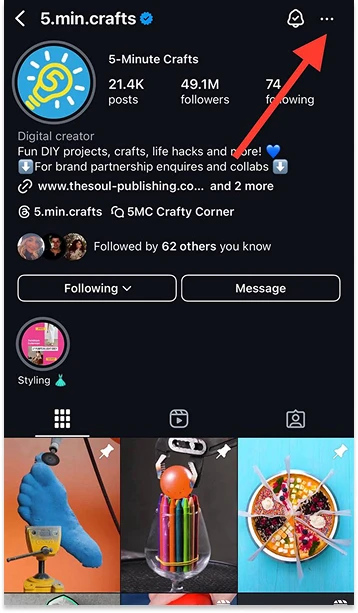
Step 3- Select “Copy profile URL” from the menu.
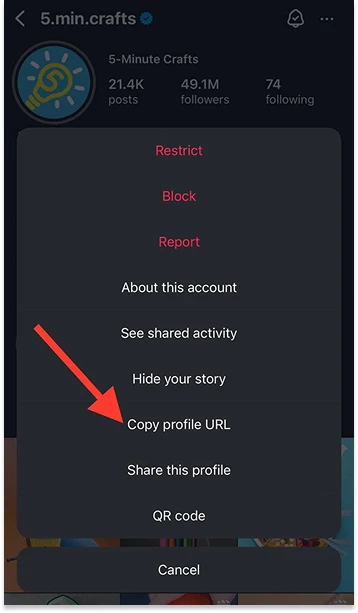
A notification saying “Link copied to clipboard” pops up from the menu, and that’s how to get an Instagram profile’s URL.
How to Copy Instagram Links Using Chrome Extensions
For frequent sharers or social media managers, Chrome extensions can streamline link copying and even provide extra features like bulk copying or scheduling.
Step 1- Install a trusted Instagram link extension from the Chrome Web Store (search for “Instagram link copier”).
Step 2- Open Instagram in Chrome and navigate to the content you want.
Step 3- Use the extension’s icon or right-click menu to copy the link.
Step 4- Paste the link wherever needed.
Pro Tip: Only use well‑reviewed extensions from trusted developers; low‑quality tools can compromise your Instagram account security.
How to Copy and Share Your Instagram Profile Link
You can share your Instagram profile link in several ways: using a QR code, a name tag, or direct sharing.
Each method lets others access your profile instantly without manually typing your username.
Use a QR Code or Name Tag
Instagram QR codes work like a digital business card. You can share them through Instagram or across other platforms. Name tags are just a downloadable version of the QR code that can be shared as an image.
Steps to Get Your QR Code / Name Tag:
Step 1- Open Instagram and go to your profile.
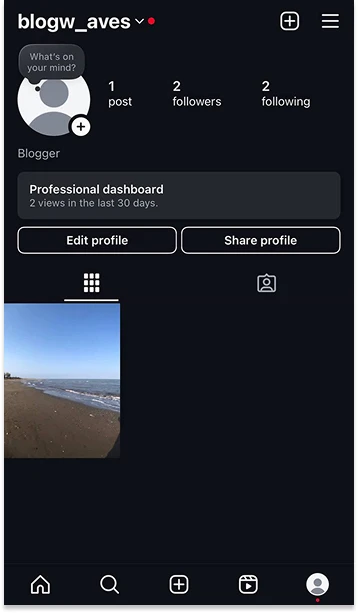
Step 2- Tap the “Share profile” button next to Edit Profile.
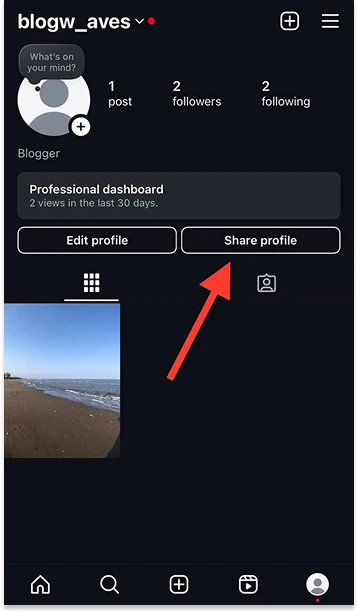
Step 3- Share, copy, or download your QR code or name tag.
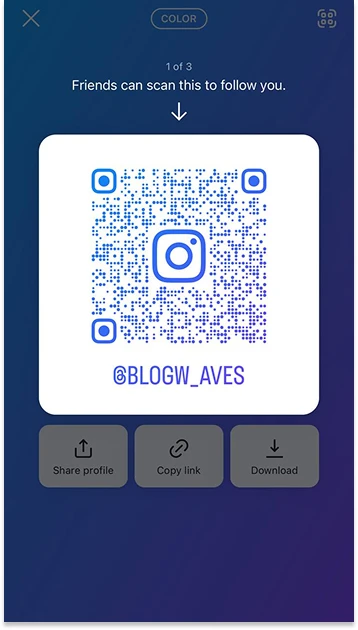
Why Use a QR Code / Name Tag:
- Cross-platform sharing: Share on other social media, websites, or emails.
- Networking in person: Add it to business cards, flyers, or events.
- Promotions and collaborations: Makes it easy for clients or partners to find you.
Copy Your Own Instagram Profile Link
Step 1- Open Instagram and go to your profile.
Step 2- Tap Share Profile.
Step 3- Tap Copy Link.
Step 4- Paste the link wherever you want to share it.
Manually create the profile link
It’s a simple method and allows you to create and share your Instagram profile link manually.
Step 1- Go to https://www.instagram.com/ and sign in.
Step 2- Type or paste your username after .com/, like this: https://www.instagram.com/YourUsername/.
Step 3- The link should be something like this: “https://www.instagram.com/YourUsername/”.
Now, you can paste this link anywhere to share it with friends and followers.
Why You Should Copy or Share Instagram Links (Posts, Reels, Stories, Profiles)
Copying and sharing Instagram links is more than just a way to send a post to a friend. Knowing how to get and share links quickly saves time, avoids miscommunication, and makes your content easier to spread across multiple platforms.
Whether it’s a profile, Reel, story, or post, sharing links ensures your audience finds the exact content you want them to see, without scrolling endlessly.
FFor Marketing Purposes
Sharing Instagram links is a powerful tool for growing your reach and engagement:
- Drive traffic to your profile or posts: Adding links in emails, newsletters, or promotional messages can increase visibility and clicks.
- Boost collaboration and partnerships: Influencers, brands, and agencies often rely on shared links to evaluate potential collaborations efficiently.
- Track engagement and campaigns: Linking directly to specific posts or Reels lets you monitor performance and see what content resonates.
Quick Hack: Include Instagram links in your TikTok or YouTube descriptions to funnel users to your profile. Studies show cross-platform promotion can increase follower growth by up to 27% in a month (Sprout Social, 2025).
Sharing With Friends
Sharing links is just as valuable for personal use:
- Avoid confusion: Instead of describing a post or Reel, a direct link guarantees your friend sees the exact content.
- Save time: One tap copies the link; no more scrolling to find the post.
- Instant access to favorite content: Share inspiring posts, funny Reels, or trending stories in seconds.
When you discover a trending Reel, copy its link and share it in group chats or on Discord for instant reactions and discussion.
Common Issues You May Face While Getting an Instagram Link (With Easy Solutions)

You may face challenges while trying to copy or get an Instagram link; the list below examines some common issues and provides easy solutions.
- Issue: Being unable to copy links on the desktop
Solution: Open the post, Reel, or profile in a browser and copy the full URL from the address bar. This is usually faster than looking for a Share menu on Instagram’s desktop site.
- Issue: You can’t find the “Copy Link” option
Solution: 1) Check if the link is from a private or public account; if it is, you can only copy it if you follow it. 2) Update Instagram to the latest version.
- Issue: Can’t share your own profile link
Solution: 1) Access the QR code option in your profile. 2) Share the link manually.
- Issue: The link isn’t working or showing errors
Solution: 1) Check for possible typos in typed links. 2) Make sure the account isn’t banned or deactivated. 3) Confirm that the post is active.
- Issue: You can’t share links from Instagram stories
Solution: 1) Send it as a direct message. 2) Ask the story owner to share link stickers.
- Issue: The link to Instagram Reel isn’t playing properly
Solution: 1) Check your internet connection. 2) Check if the video is still available and hasn’t been deleted.
- Issue: Link copied, but pasting doesn’t work
Solution: 1) Clear your device’s clipboard and try copying again. 2) Restart Instagram if the problem persists.
- Issue: Link not updating after post edits
Solution: 1) Copy the link again after any edits to the post or profile. 2) Avoid sharing old links for edited posts, as Instagram may change the URL internally.
Conclusion
Finally, you have all the tools you need to copy and share Instagram links effortlessly.
With these methods, you can quickly get links for posts, Reels, Stories, and profiles, making sharing easier, faster, and more precise. No more guessing or tapping the wrong icon. When sharing a profile for a business opportunity, browse an Instagram account marketplace for established accounts by niche and audience.
Now it’s your turn: start putting these steps into practice today. Share your favorite posts, Reels, or Stories with friends, groups, or even on other platforms, and make your Instagram experience more seamless and engaging.
Don’t stop there! Try QR codes, browser links, or Chrome extensions to see which method fits your workflow best. Go ahead and share your first link now; in chats, groups, or even other social platforms.
FAQs
Do Instagram links expire?
No, they won’t expire unless the content or profile is deleted or deactivated.
How to copy an Instagram bio link?
Open Instagram and navigate to the desired profile> Open the link in your browser> Tap and hold the link in the search bar to copy it.
Can I share links from private accounts?
No, unless the recipient already follows that private account.
How do I share an Instagram account with someone?
Open Instagram and navigate to the desired profile> Tap the three dots icon on their profile> Select “Copy profile URL.”
What is an example of an Instagram URL?
The format of Instagram links is https://www.instagram.com/instagram
Why can’t I copy a link on Instagram?
It can be due to an Instagram glitch, a weak network connection, or using an older app version that hasn’t received the latest sharing options. Try updating Instagram and restarting the app.

Emi Daniel
Buy an Established Instagram Account
Skip starting from zero. Browse Instagram/TikTok accounts with audiences across many niches.
See Available AccountsRelated articles
-
How to Clear Instagram Cache on iPhone, Android & Desktop
Instagram can quietly build up a lot of temporary files while you scroll through Reels, watch Stories, save posts, and upload your own content. You may not…
12 min readEmi Daniel
-
How to See Who Reposted Your Instagram Post (2026 Guide)
Someone reposted your Instagram post, but you have no idea who it was. You check notifications, search through your profile, and still cannot find a clear answer. …
18 min read -

How to Reset Instagram Algorithm in 2026
Instagram can start showing too much of the same type of content. Your Explore page may no longer match your interests, Reels may feel repetitive, or suggested…
12 min read