
Notifications are essential in every social media application because of the activities such as likes, comments, mentions, etc.
Instagram always keeps users notified about all the messages and notifications they receive from their friends and followers.
However, sometimes you may notice that you no longer receive notifications on Instagram, which is an unexpected and unpleasant experience.
There are various reasons why you don’t receive notifications from Instagram. In this article, we will discuss the important information you need about Instagram notifications and teach you how to fix them when they don’t work.
How to Turn Instagram Notifications On and Off
As you know, Instagram automatically notifies you about any activity on your account. However, you can manage the notification settings on your profile.
Let’s see how to quickly turn Instagram notifications on and off, step by step:
Step 1- Open the Instagram application and go to your profile.
Step 2- Tap on the three-line icon in the top right corner of the screen.
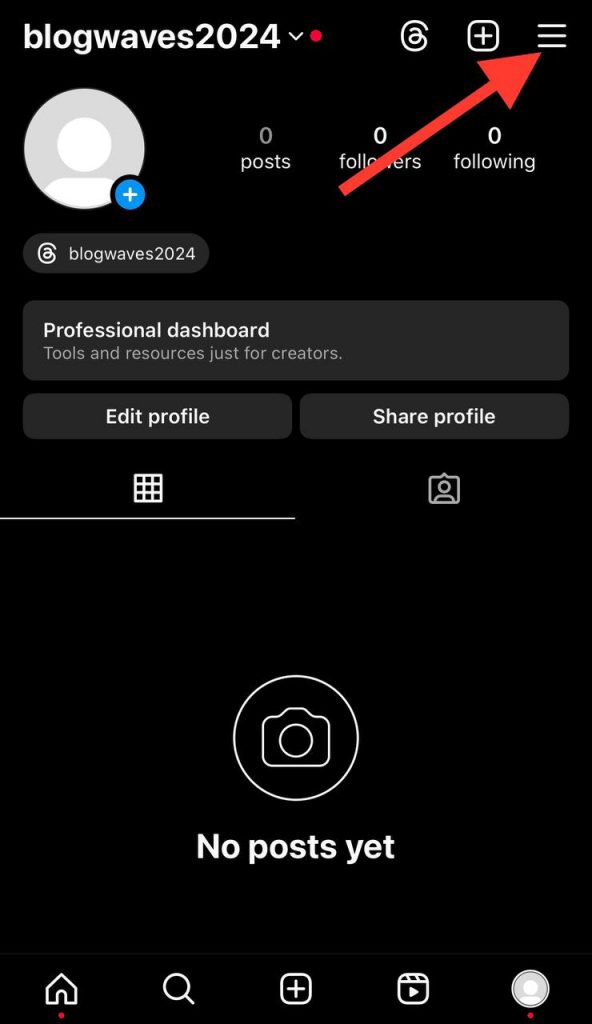
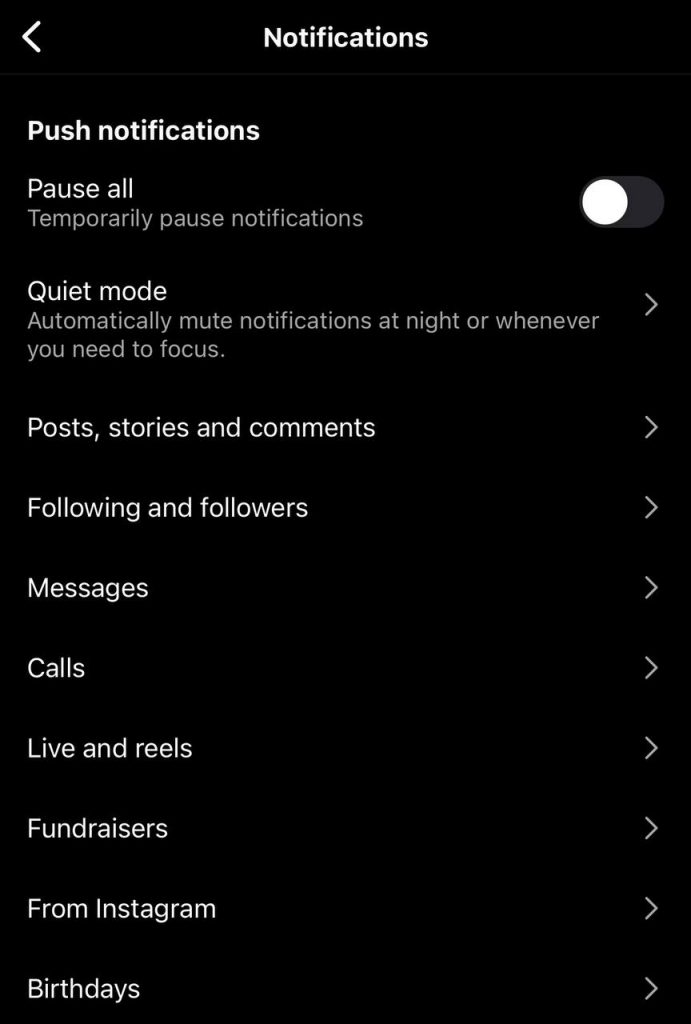
Step 3- Choose “Notification.” You will see various options, such as “Pause all,” “Quiet mode,” “Post, stories and comments,” etc.
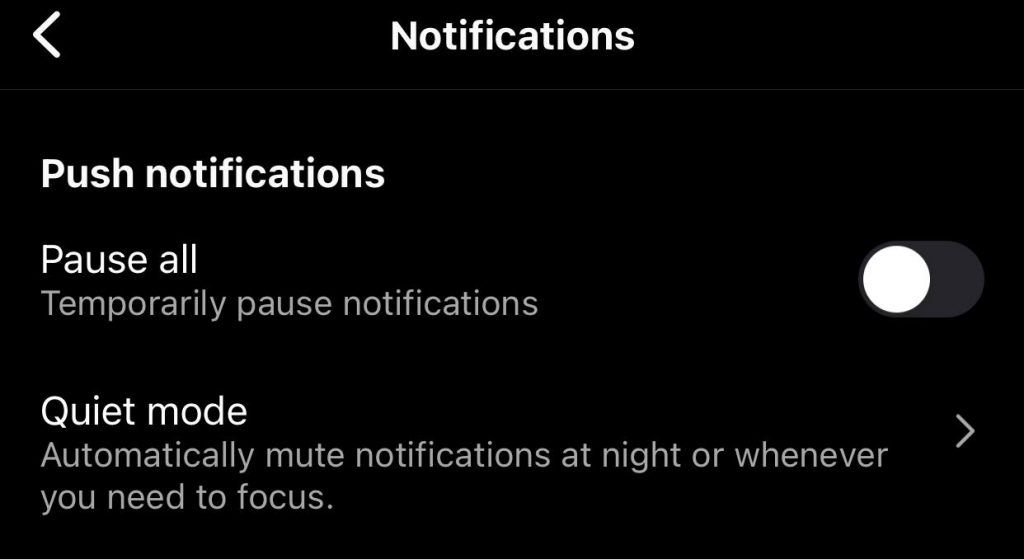
Step 4- To manage the notification settings, choose the section you want to turn the notification on or off and switch it to the mode you want.
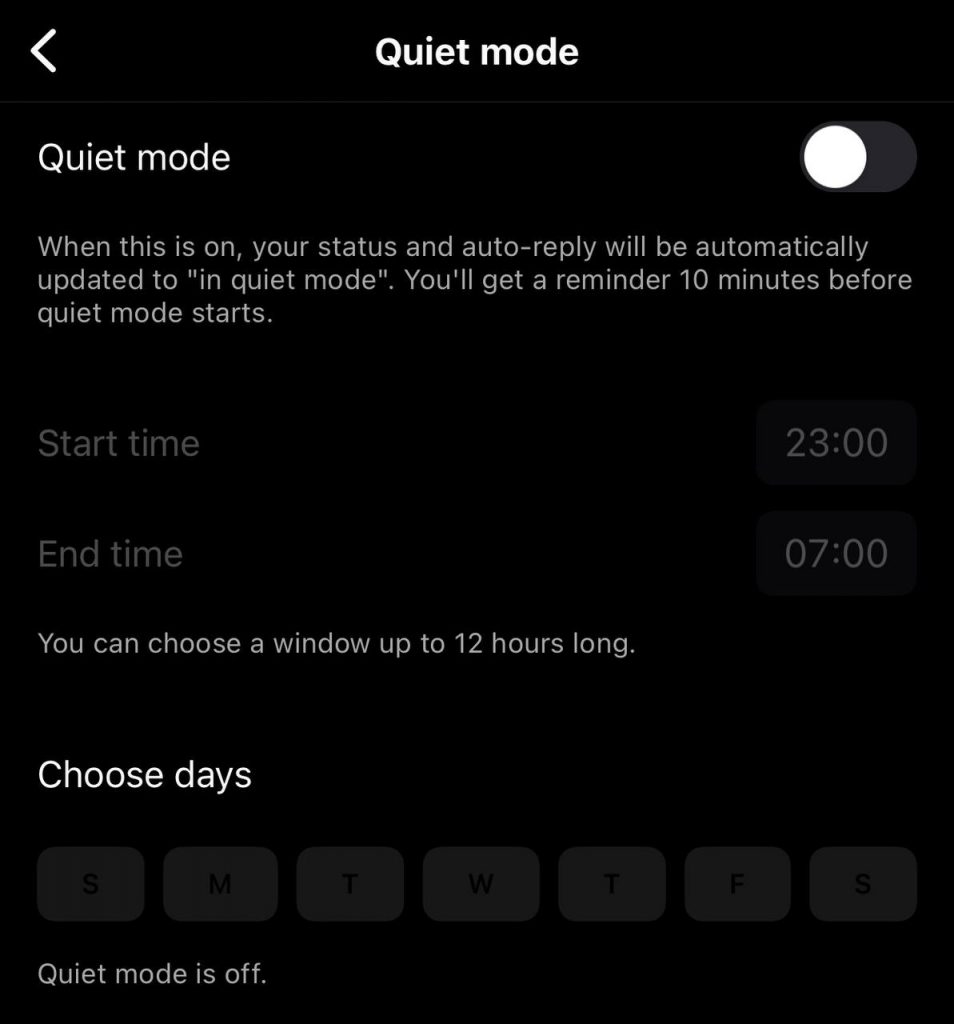
*Note that you can turn off all the Instagram notifications by choosing the “Pause all” option.
How to Fix Instagram Notifications Not Working

Now that you know how to manage the notification settings on Instagram, it is time to learn how to troubleshoot and fix the issue if you ever notice the notifications are not working.
In this section, we gathered the top 11 methods that help you solve the issue easily in a few seconds.
1- Check your internet connection
The first thing you can do to fix the issue is to check your internet connection to ensure you have a stable connection. One of the most common reasons your Instagram notifications do not work properly is a weak connection.
Therefore, make sure your mobile data or Wi-Fi connection are stable, and their signal is not weak.
2- Enable Instagram notifications on your device
Another important thing to consider is ensuring that you allow Instagram notifications on your device; otherwise, you won’t receive any notifications.
Follow the steps below to check notifications on your device easily:
Step 1- Open the “Settings” on your mobile phone.
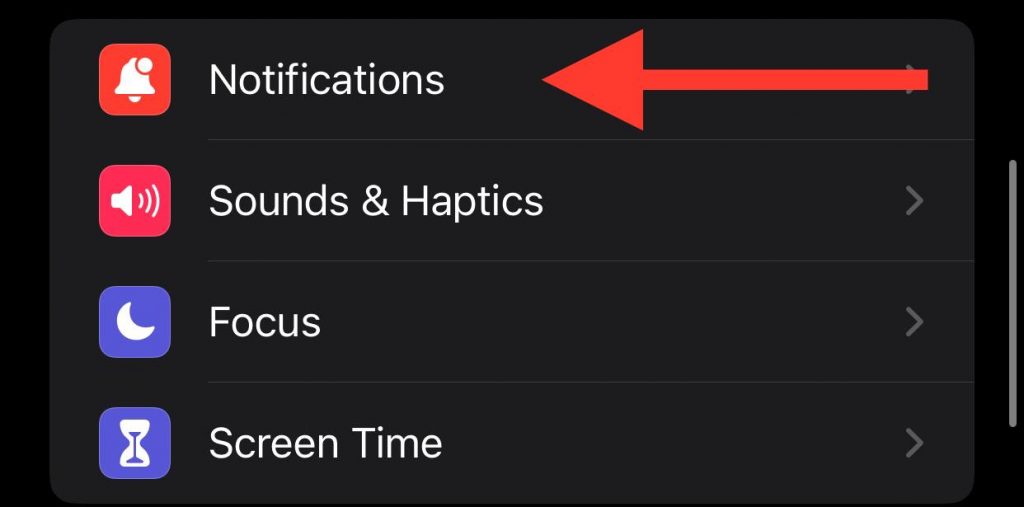
Step 2- Click on “Notifications.”
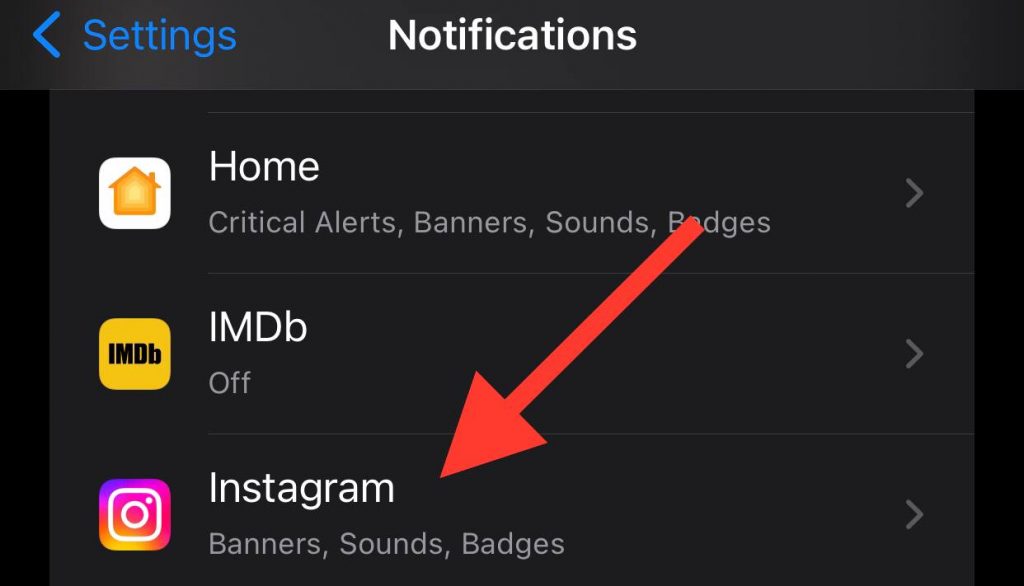
Step 3- Search for the Instagram application and select it.
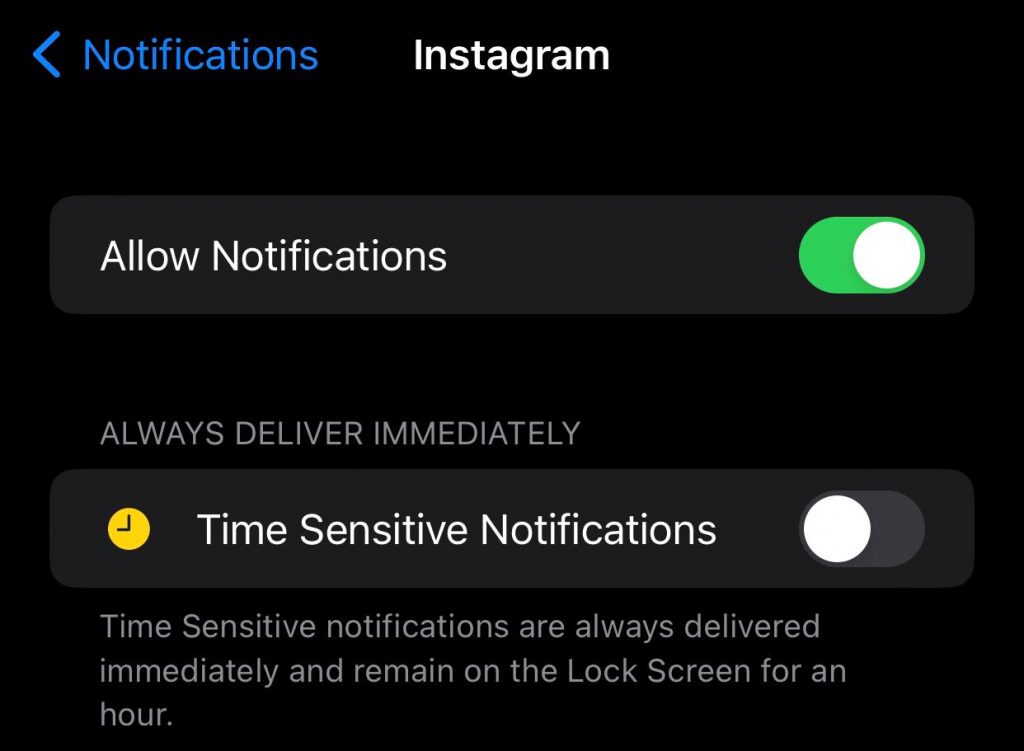
Step 4- Turn on the “Allow Notifications” option so the slider turns green.
3- Check out the Do Not Disturb mode
As you may know, most mobile phones have a mode called “Do not disturb,” which silence all the alerts and notifications to help you stay focused on more important tasks.
Thus, if you don’t receive Instagram notifications, you may have this mood activated on your smartphone.
Follow the steps below to turn the DND mode off on your iPhone:
Step 1- Open the “Settings” menu on your device.
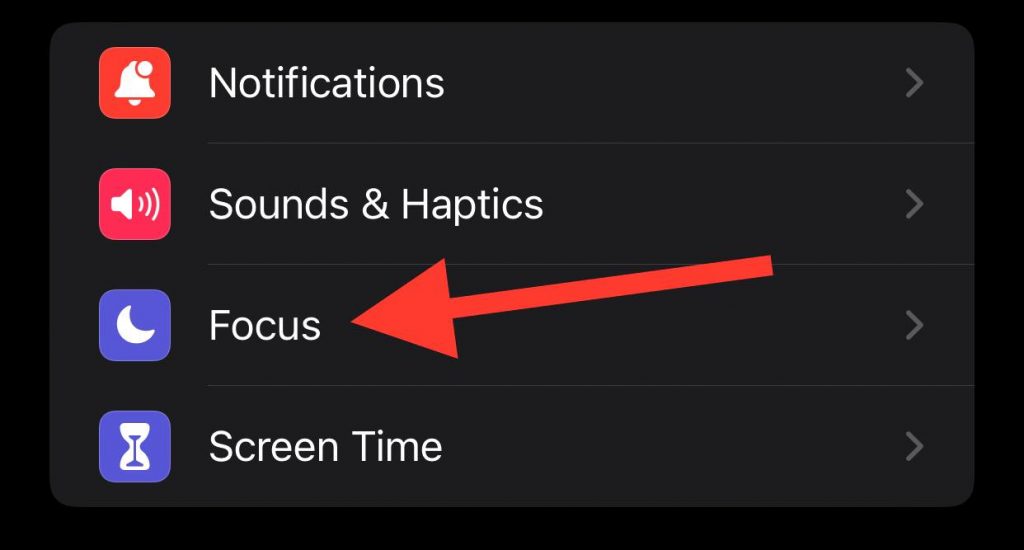
Step 2- Tap on the “Focus” option. (You can also search for “Focus” in the search bar).
Step 3- Select “Do Not Disturb.”
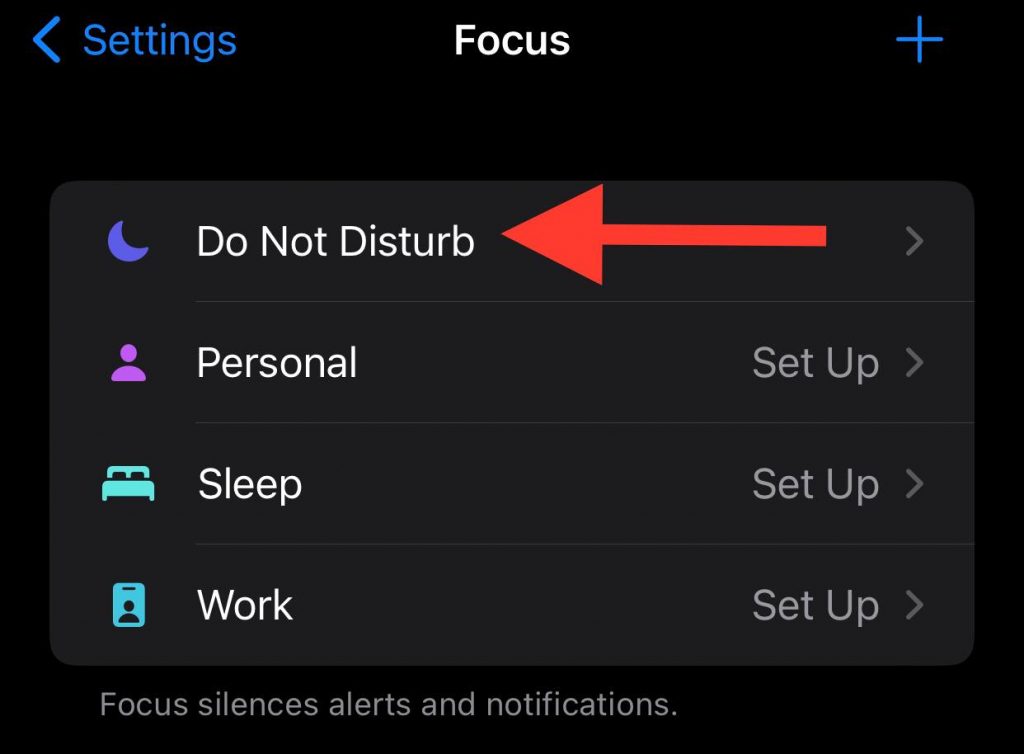
Step 4- Simply disable the feature to receive notifications.
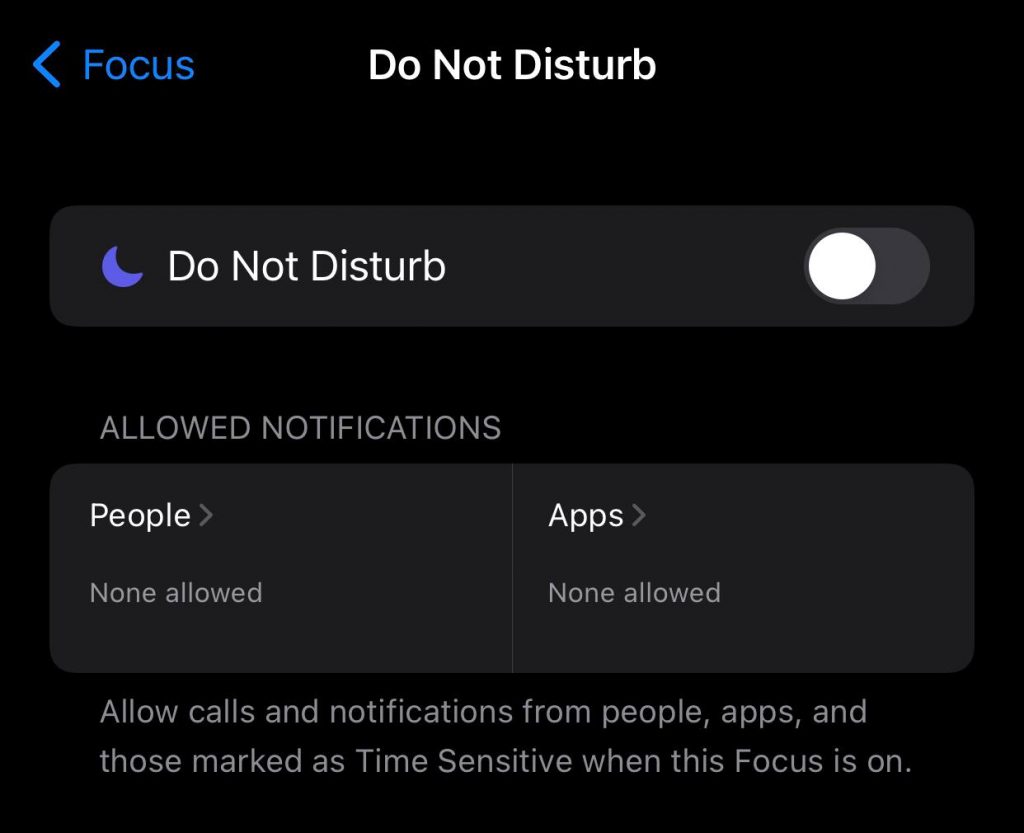
There is another way to disable this feature:
Step 1- Swipe down the notification panel.
Step 2- Tap on Focus.
Step 3- Then tap on Do Not Disturb.
Follow the steps below to turn the DND mood off on Android:
Step 1- Swipe down the notification panel.
Step 2- Tap on the DND shortcut.
Step 3- Simply turn this feature off, and you will get all the notifications from Instagram.
4- Clear Instagram cache data
Another great yet simple way to solve this issue is to clear the Instagram cache data because the data stored on the app memory may be the reason that you don’t get notifications.
You can only clear the cache data on Android devices. If you want to do the same thing on an iPhone device, you should know that you will automatically log out from your account, and you will need your username and password to log in and receive notifications again.
Follow the steps below to clear Instagram cache data:
Step 1- Open your mobile and go to the “Settings” section.
Step 2- Tap on apps, then choose Instagram.
Step 3- Select the “Clear cache” option to finish the process.
5- Log Out and Back Into the Instagram App
One of the recommended ways to fix this issue is to log out from your account and log in to the app again.
However, keep in mind that it is better for you to take this step if you have all the information related to your account; otherwise, it may be difficult to get back to your account.
6- Turn Off the power-saving mode on Android devices
If you are using an Android device, you can fix the Instagram notifications not working in simple steps just by turning off the power-saving mode on your mobile.
Follow the steps below to turn off the power-saving mode on your phone:
Step 1- Swipe down the notification panel.
Step 2- Tap on the icon and it will be turned off.
Moreover, you can turn it off from the settings menu on your device. The only thing you have to do is to search for this feature and turn it off manually.
7- Turn on notifications from the Instagram app
Yes, that is true! If you don’t turn on the notification on the Instagram application, you won’t receive notifications.
Follow the steps below to turn on the notification on the application (iPhone and Android):
Step 1- Open the Instagram app on your device.
Step 2- Go to your profile by tapping on your profile picture in the bottom right of the screen.
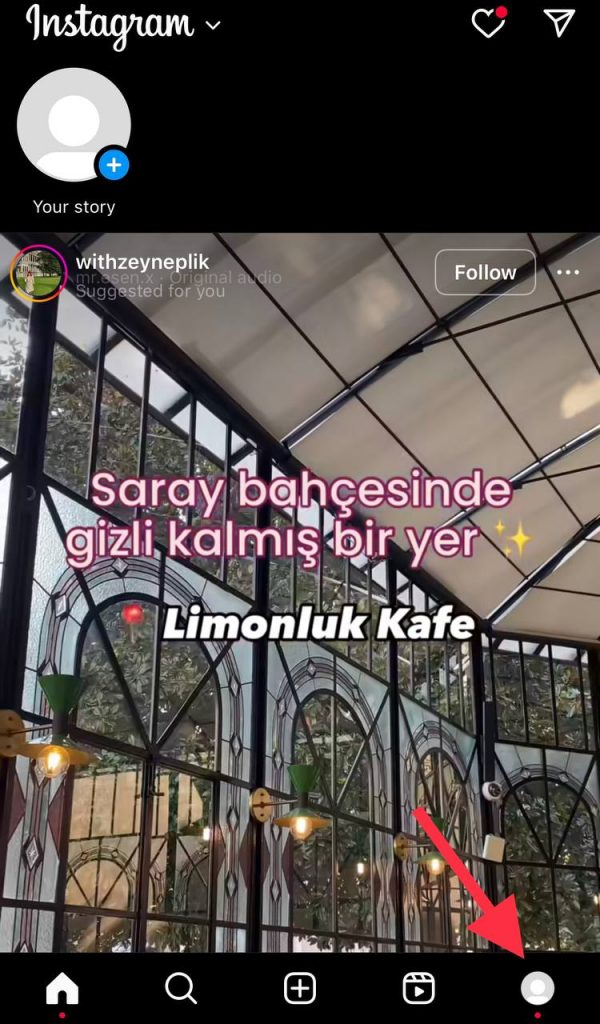
Step 3- Tap on the three horizontal line icon in the top right corner.
Step 4- Choose “Notifications” from the menu.

Step 5- Now, you can adjust the notification settings on your account.
8- Turn on the background app refresh feature for Instagram
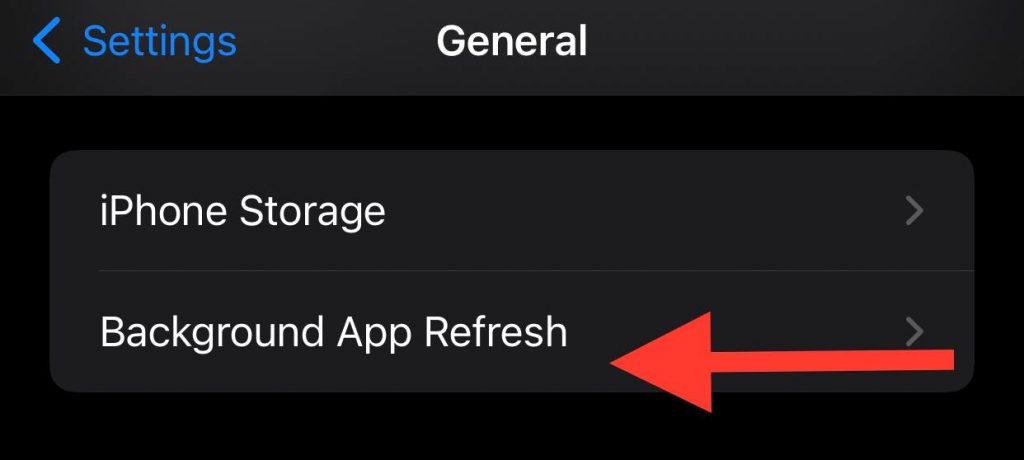
If you use an iPhone, you probably know about a setting called “Background App Refresh,” which helps keep all your installed applications up to date with the latest version.
Keep in mind that this feature is off by default, so you have to turn it on for the applications you want, and it is better to keep it on for Instagram.
Follow the steps below to turn on this feature on your device:
Step 1- Go to the “Settings” menu on your mobile.
Step 2- Search for the “Background App Refresh.”
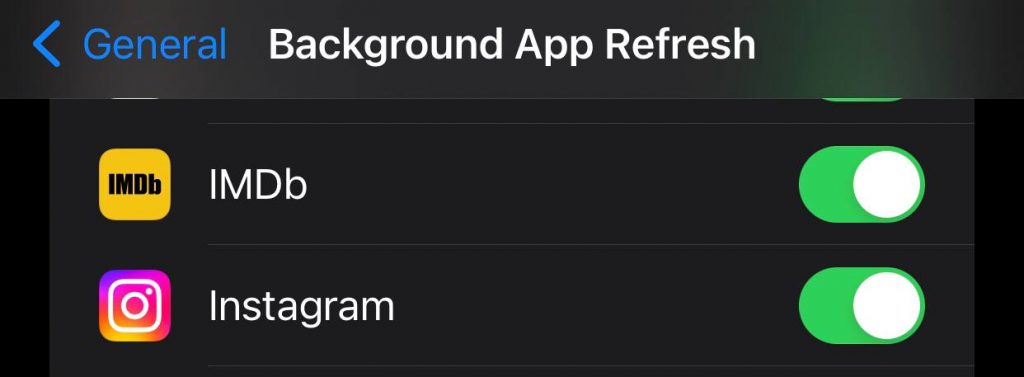
Step 3- Select Instagram and switch the slider in front of it to green.
9- Enable the background data on Android device
Another possible reason you don’t receive notifications on Instagram is that you disabled the background data on your Android device.
Follow the steps below to enable the background data on your Android device:
Step 1- Open your mobile and go to the “Settings” section.
Step 2- Tap on the “Data usage” option.
Step 3- Select Instagram.
Step 4- Turn on the “Background data” option to finish the process.
10- Update your mobile’s operating system
Your device’s operating system is one of the most important things you must ensure is always updated.
As you may know, keeping your mobile’s operating system updated to its latest version is vital to ensure all your apps are working properly without bugs.
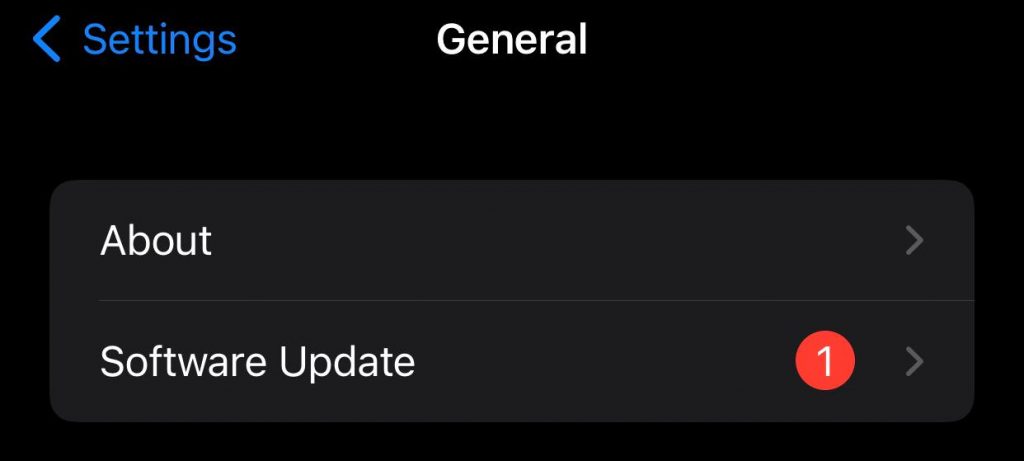
Follow the steps below to check if your operating system is updated on your iPhone:
Step 1- Go to the settings.
Step 2- Tap on general.
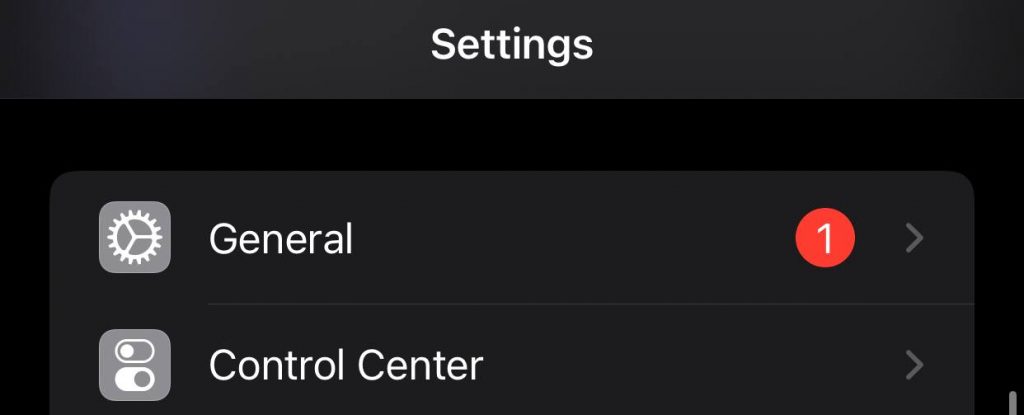
Step 3- Choose “Software Update” to see if it’s updated or there are any new updates.
Follow the steps below to check if your operating system is updated on Android:
Step 1- Step 1- Go to the settings.
Step 2- Tap on “About phone.”
Step 3- Now, you can see if there are any new updates for your device.
11- Use the latest version of Instagram
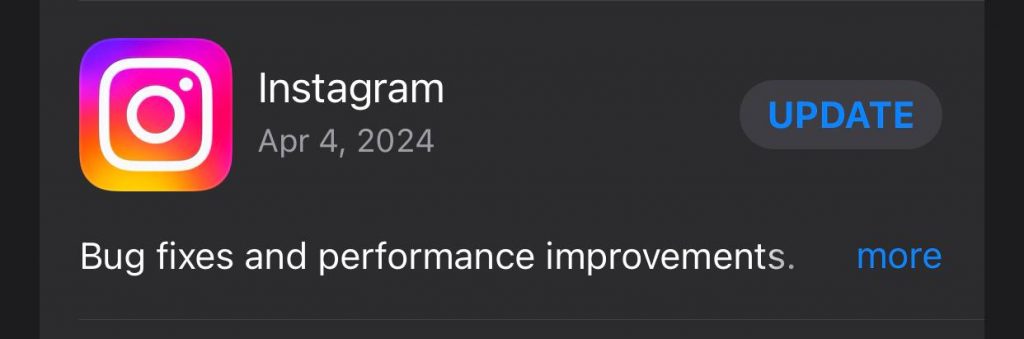
One of the most common reasons why you don’t get notifications on Instagram is that you are using an old version of the application.
Therefore, you need to check that you have the latest version of the app installed on your device.
You can update Instagram easily on both iOS and Android devices by visiting the Apple Store or Google Play.
Conclusion
As said earlier, Instagram is one of the most popular applications right now, and people spend most of their time on this platform, which means they interact with different people and content, so it is important for them to receive proper notifications.
It doesn’t matter whether you are expecting a direct message from someone, your friends send you Reel, or even someone mentions you in a comment; when you don’t receive notifications on Instagram, it is an unpleasant experience.
In this article, we discussed the top 11 easy solutions that help you fix your Instagram notification not working issues in less than a minute.
We hope you like this article and find it helpful!
