


If you are reading this article, you are probably facing issues on Instagram due to its constant crashes.
Sometimes, you are trying to post a picture or Reel on Instagram, but the application keeps crashing, and you don’t know what to do.
People use Instagram as a great source to share their precious moments with others around the world, so when you can’t upload your post or story, it’s frustrating, and it’s a bad experience.
Buy an Established Instagram Account
Skip starting from zero. Browse Instagram/TikTok accounts with audiences across many niches.
See Available AccountsHowever, you don’t have to worry about Instagram crashes because there are various methods that help you solve these issues on your iOS or Android device.
In this article, we are going to explain why Instagram keeps crashing and provide you with the top 12 methods to fix Instagram crashes in just a few seconds.
Why Does Instagram Keep Crashing

The first thing you should know before learning how to fix Instagram crashes is to understand why the application keeps crashing. Let’s see the most common reasons for Instagram crashes.
Sometimes, the main issue may be your internet connection, which may cause bugs and crashes in the application.
Moreover, it may be due to using an old application version or your smartphone’s system being outdated.
Note that Instagram servers being down sometimes is the reason you face such issues while posting a story or a picture on your Instagram account.
Remember that not all the bugs are in the Instagram app; sometimes, crashes occur because of some settings on your mobile phone that restrict its performance.
Besides, your device’s capacity is already full, so some of the installed applications, including Instagram, have bugs and crashes.
Finally, there are different reasons for Instagram crashes, which we will examine in the section below and explain how to fix them.
How to Fix Instagram Crashes

Now that you know why Instagram keeps crashing or suddenly stops working, it is time to learn how to fix these issues so you can better use this application.
Follow the mentioned steps in this section to solve the problem of being unable to share posts, reels, and stories on Instagram due to crashes and bugs.
1- Check for Instagram updates
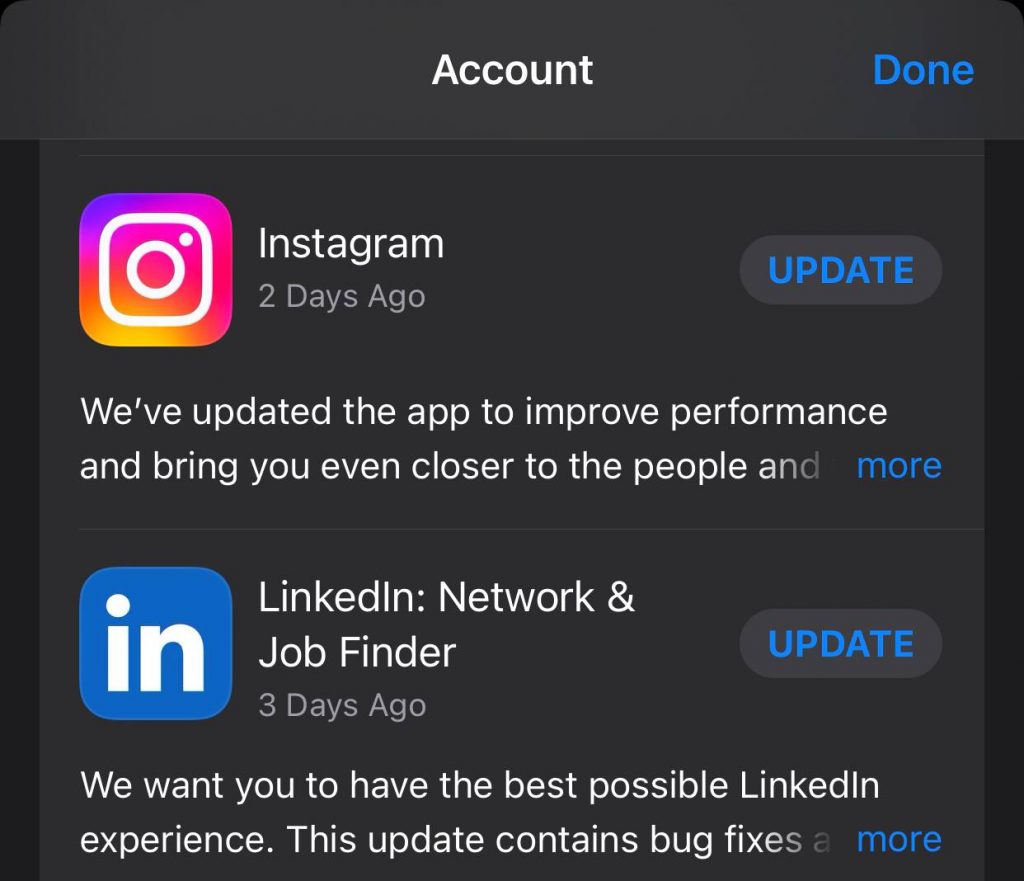
If you can’t upload anything on Instagram and the app stops working all of a sudden, you may want to check for Instagram updates to ensure you are using the updated version of Instagram.
As you may know, one of the most common reasons that Instagram keeps crashing is that you are using an outdated version of the app.
Therefore, if you have an iOS device, go to the App Store and check for Instagram updates, and if you are an Android user, go to Google Play to see if the app has been updated.
2- Check your mobile phone’s available storage

Another possible reason for Instagram crashes is that your mobile phone’s storage is low or full, so it affects the application’s performance.
If you want the Instagram application to work smoothly on your device, your mobile should have 10-20% available storage.
Therefore, make sure your phone has enough space for Instagram, and if you are running out of space, you need to delete some of the unused apps or unnecessary photos on your device to free up space for Instagram.
3- Uninstall and reinstall the app
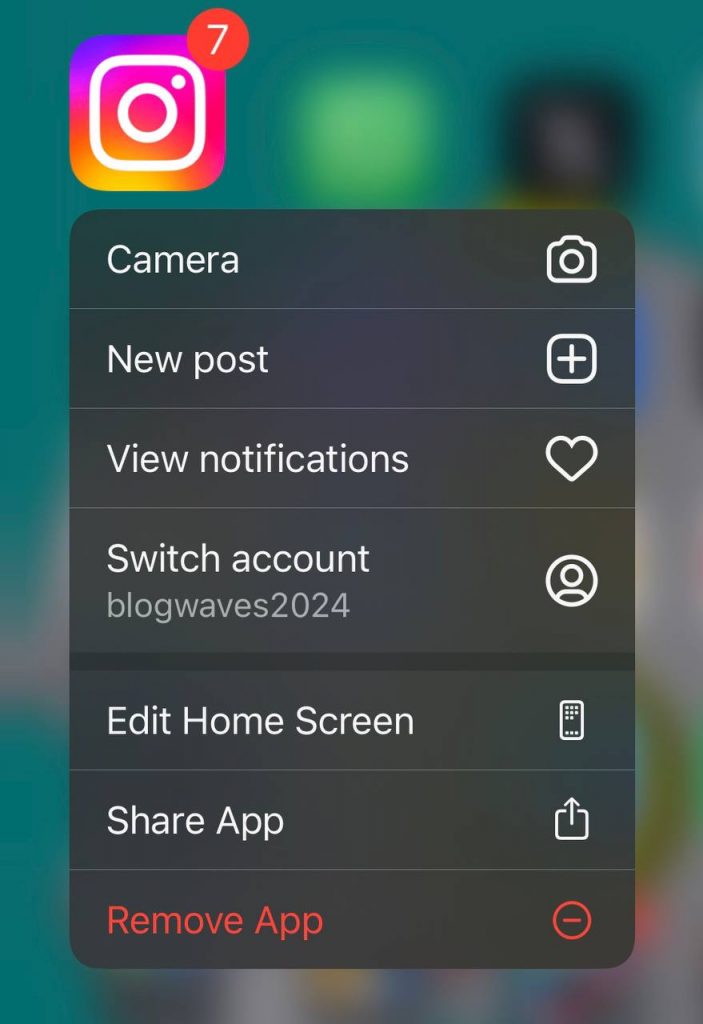
One way to fix Instagram crashing is to uninstall the app from your phone and reinstall it; however, not many people dare to take this action because they fear losing their accounts.
Remember that if you uninstall the app, you can log in to your account again, so you won’t lose access to your account; besides, note that doing so will solve Instagram crashing and many other issues.
The important point to consider is that you should restart your phone after uninstalling the app and then log back into your account when you install it again. That’s how you can solve Instagram crashes and fix any bugs.
4- Clear the Instagram app cache on Android devices

One of the most effective ways to fix Instagram crashing is to clear the app cache if you are using an Android device.
Clearing the app cache frees up extra space on your device and helps you use the app without any issues.
Follow the steps below to clear Instagram app cache on your Android mobile:
Step 1- Go to the “Settings” menu on your device.
Step 2- Go to the “Apps” section.
Step 3- Search for the Instagram app and select it.
Step 4- Tap on Storage, then click “Clear Cache.”
Step 5- Choose “Clear data” to finish the process.
Clearing the Instagram cache is one of the best and easiest ways you can do to stop Instagram’s constant crashes.
5- Check out the Instagram server status
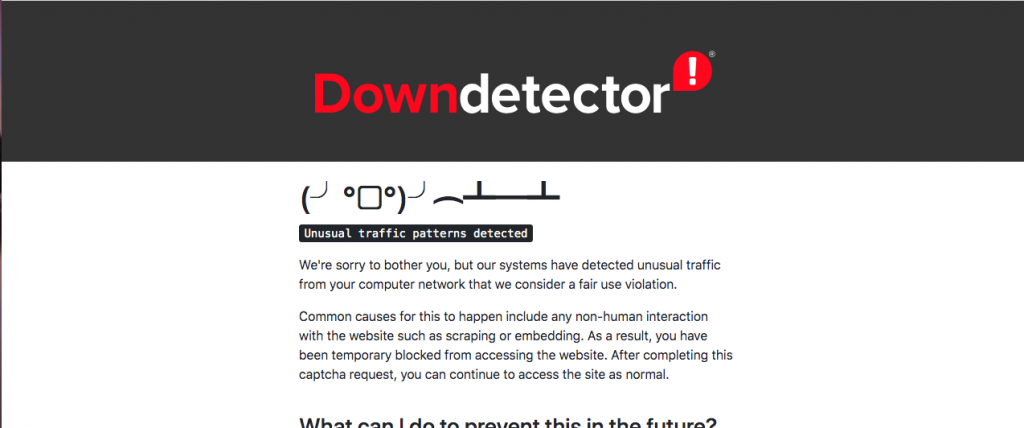
Sometimes, the problem of Instagram not working properly is that Instagram servers are down, so the app keeps crashing.
If you want to check the Instagram server status, you must visit the “DownDetector” website to see if there are any errors or issues with Instagram servers.
When you check this website, you should look for the same reports from other users to ensure that something is going on with the servers. Note that you can also check Instagram’s official Twitter (X) page.
6- Uninstall unnecessary apps on your device

Did you know that keeping unnecessary apps on your device can affect the performance of other applications on your mobile, including Instagram?
However, not everyone takes this fact seriously and continues to have unused applications on their devices, which can be the reason Instagram does not work properly.
If you are wondering why you should remove these apps, you should know that having too many apps installed on your device means receiving too many notifications and messages, which is the main reason for mobile lag.
Thus, if you have unnecessary apps installed on your mobile, it is time to delete some of them to free up some storage, so other apps like Instagram work perfectly.
7- Check your internet connection

Another easy way to fix this issue is to ensure you are connected to a stable internet connection.
Try disconnecting and reconnecting to Wi-Fi, enabling and turning off airplane mode, and restarting your modem or router.
8- Grant Instagram the required permissions
Another reason the Instagram application does not work correctly is that you have not granted it the required permissions.
Follow the steps below to solve this issue on iOS devices:
Step 1- Go to the “Settings” menu on your mobile.
Step 2- Search for the Instagram application and select it.
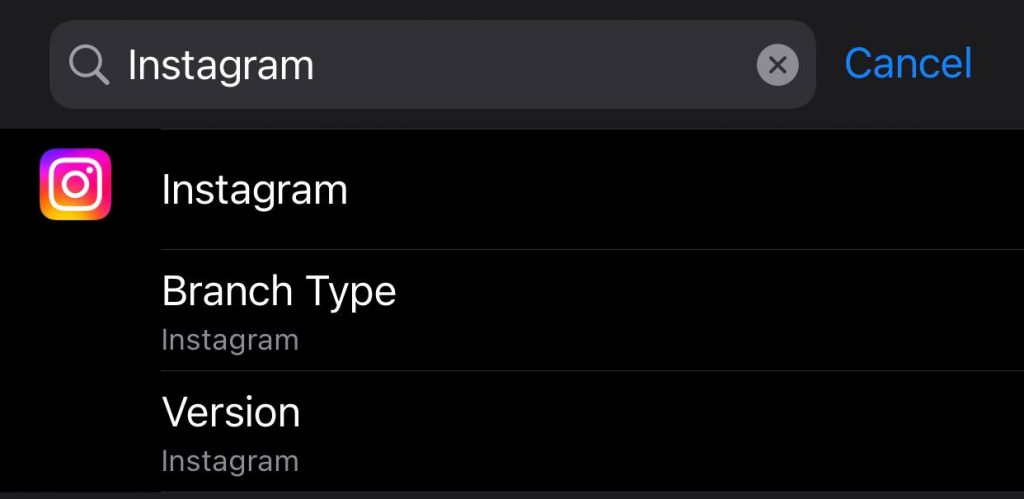
Step 3- Now, you can see all the options you need to allow Instagram to access.
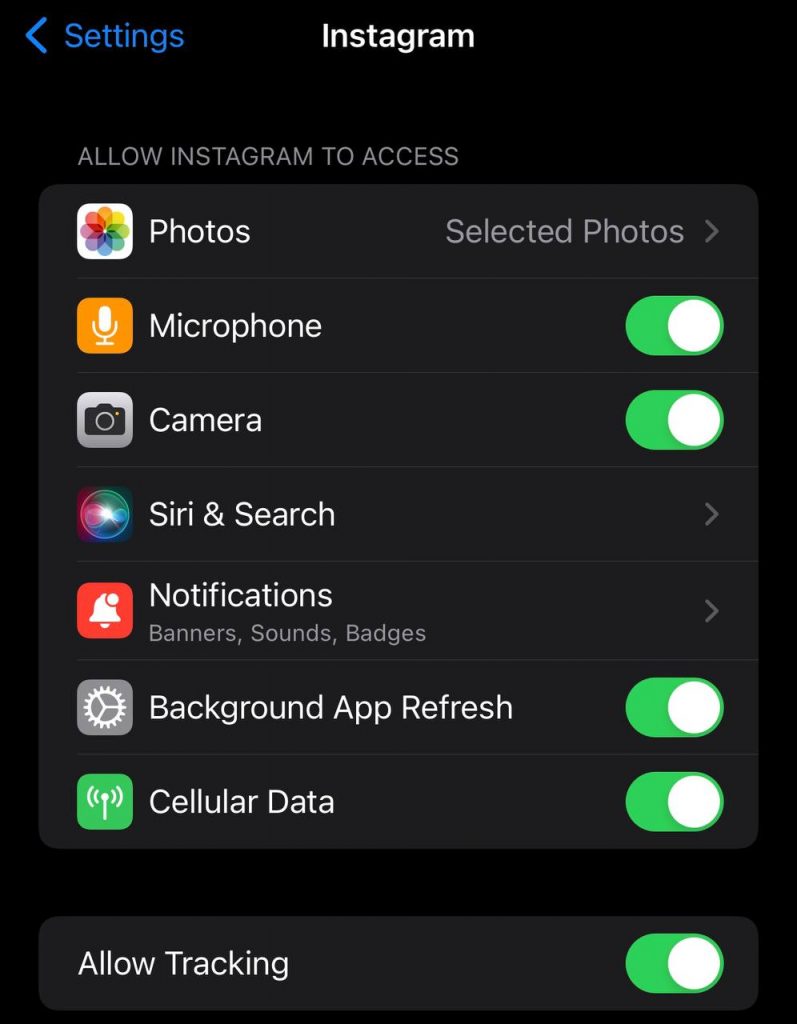
Step 4- Make sure you turn on all the options to Instagram works appropriately.
Follow the steps below to solve this issue on Android devices:
Step 1- Go to the “Settings” menu on your mobile.
Step 2- Scroll down the menu and tap on “Apps.”
Step 3- Select “Manage apps” and choose Instagram.
Step 4- Tap on the “App permissions” option.
Step 5- Grant all the required permissions on your mobile’s settings to fix this issue.
9- Use the Instagram web version
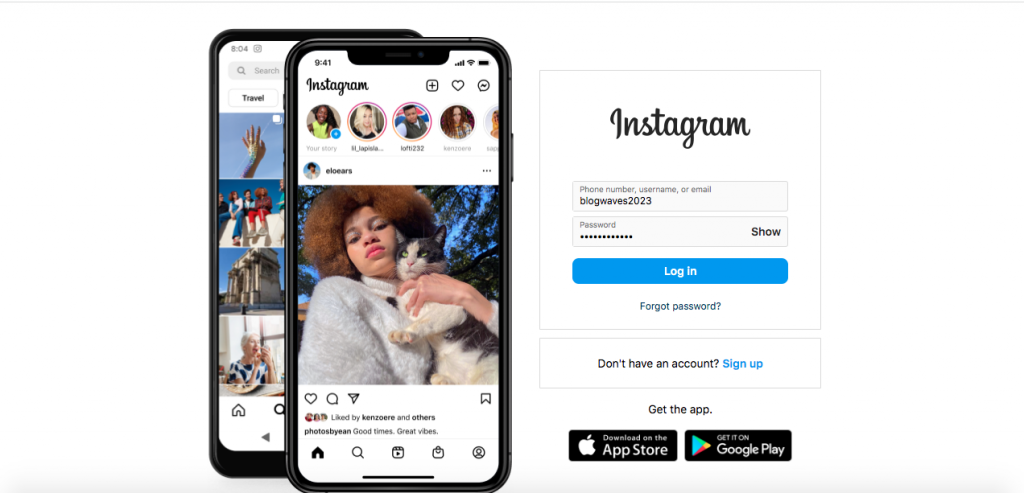
Some people use Instagram’s web version, which may have fewer bugs and crashes than the mobile version.
If you access a laptop or PC, try logging in to your account using the Instagram web, and you can easily upload photos, Reels, and stories.
10- Upgrade your mobile

One of the reasons that Instagram is not functioning on your mobile is that your device no longer supports this application.
This issue mainly happens for those who are using an old phone, so if you have a very old mobile phone, maybe it is time to consider buying a new cellphone to better use applications like Instagram.
11- Update your device’s operating system
Another possible reason for Instagram crashing is that you need to update your mobile’s operating system so all the installed apps on your device work properly.
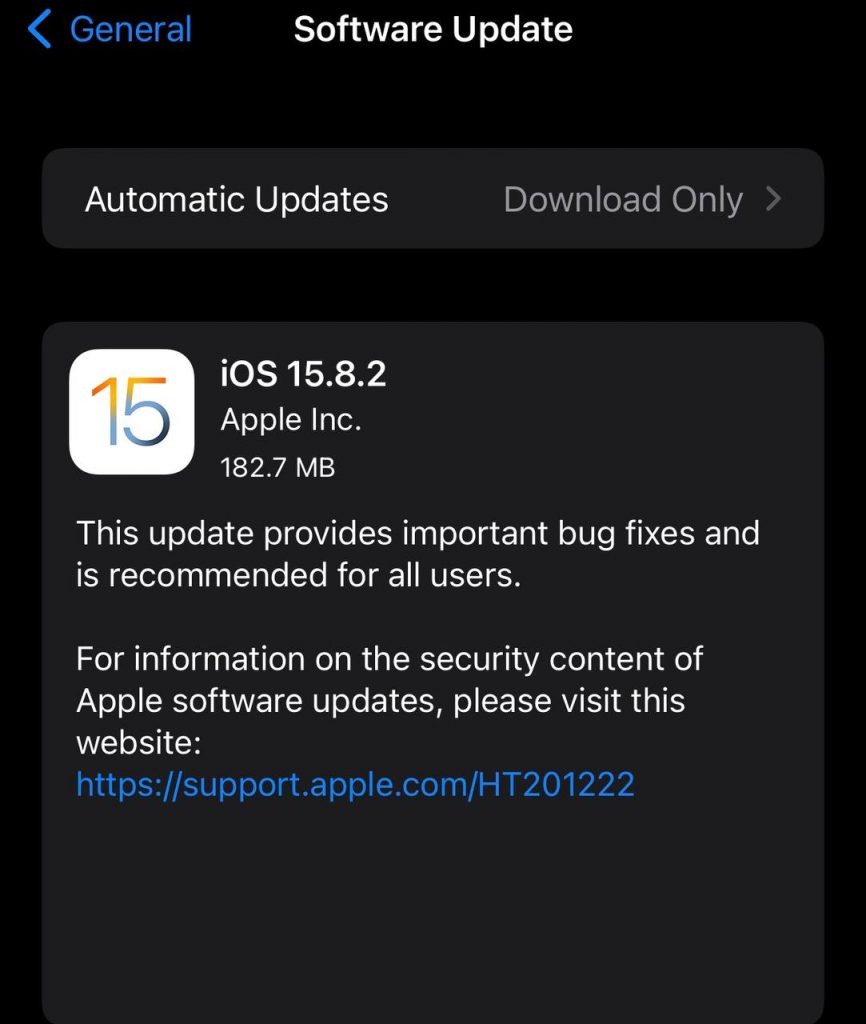
Follow the steps below to update your iOS operating system:
Step 1- Go to the “Settings” menu on your mobile.
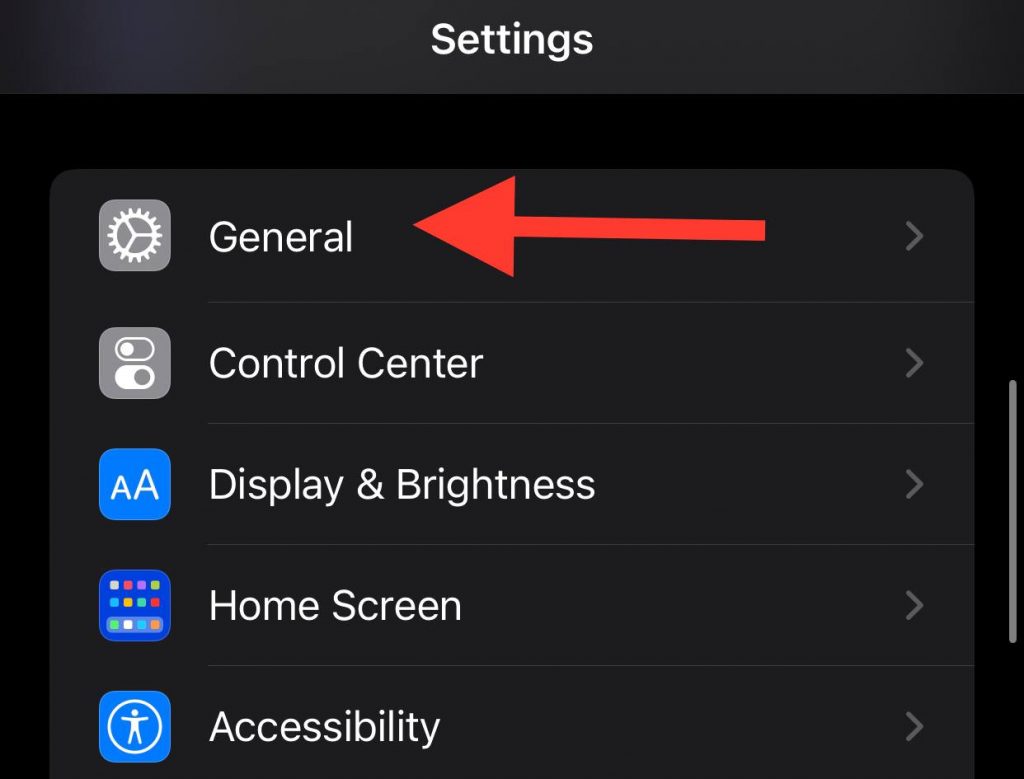
Step 2- Tap on the “General” option.
Step 3- Select “Software Update.”
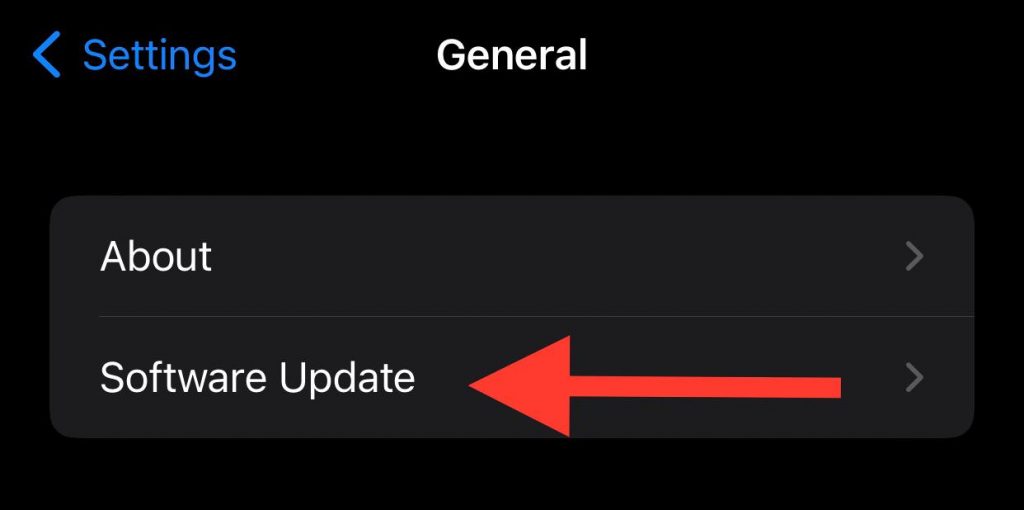
Step 4- Check for possible updates, and update your device to the latest version to avoid any bugs or app crashes.
Follow the steps below to update your Android operating system:
Step 1- Go to the “Settings” menu on your mobile.
Step 2- Tap on the “About phone” option.
Step 3- Here, you can see if there are any updates for your mobile’s system; update your device to stop any bugs and crashes.
12- Contact Instagram support
If you have tried all the methods mentioned and still can’t use Instagram, it is better to contact Instagram support, explain your issue, and they will guide you through fixing it.
There are two ways you can report a problem to Instagram:
The first method:
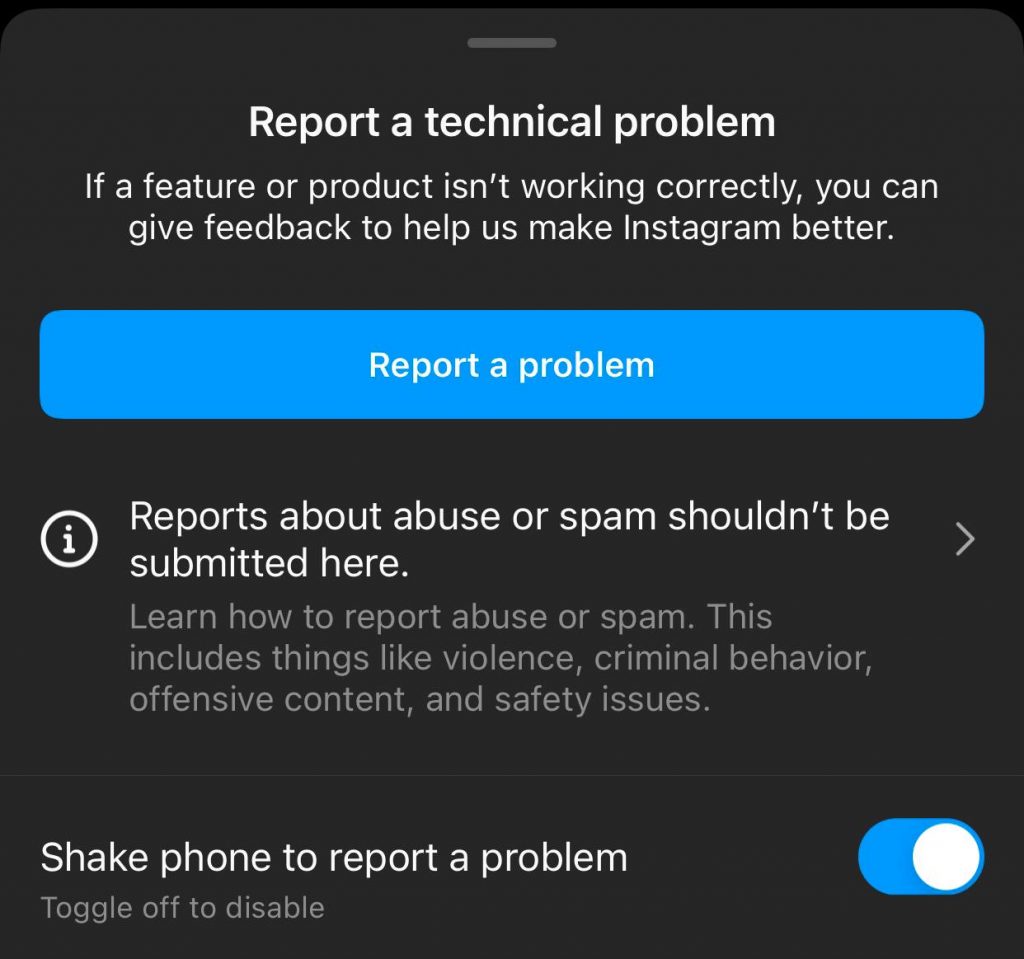
No matter which page you are on Instagram, just shake your mobile, and a notification pops up that asks you to report a technical problem.
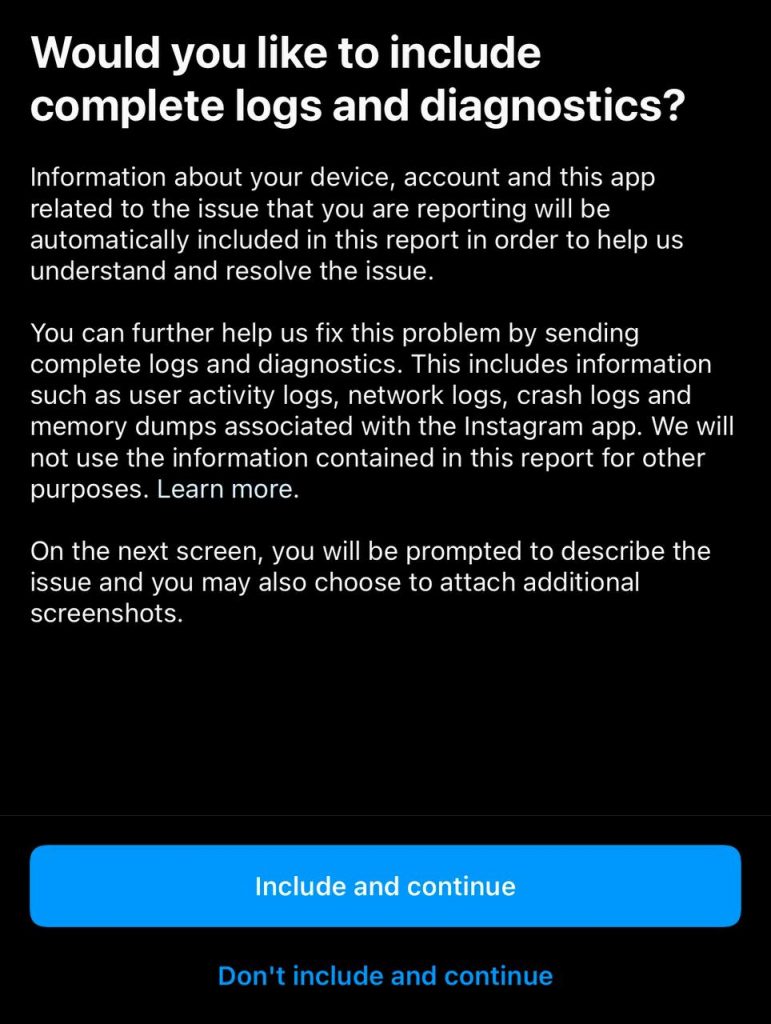
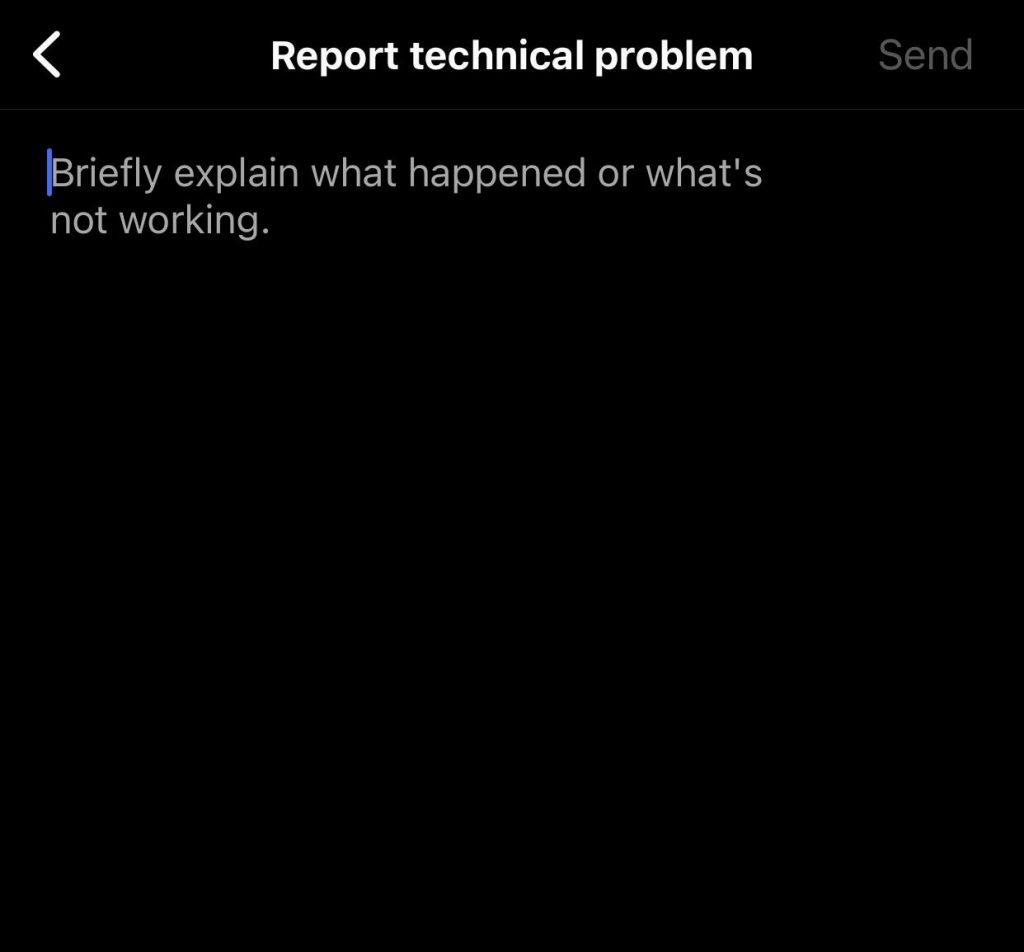
Tap on the “Report a problem” option, then choose “Include and continue” (if you want to share a screenshot of the section you have issues with), then type your problem and wait for Instagram to fix it.
The second method:
Step 1- Open the Instagram application and go to your profile.
Step 2- Tap on the three-line icon in the top right corner of the screen.
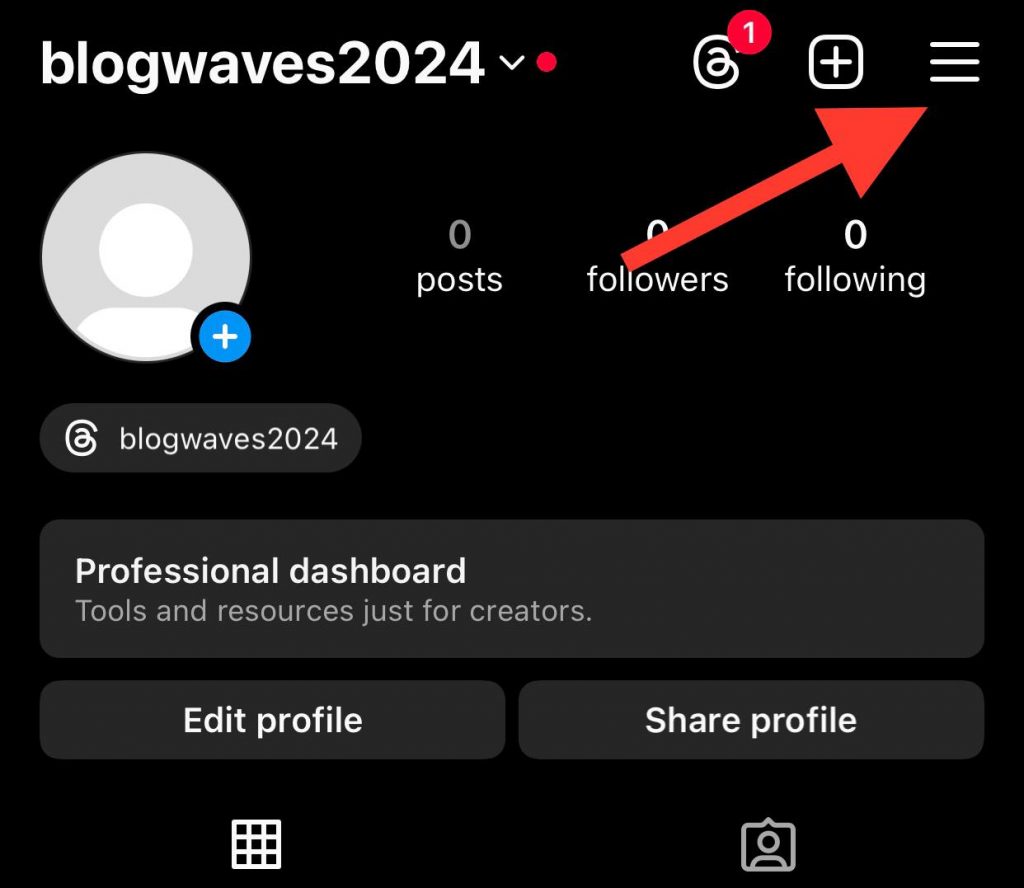
Step 3- Scroll down the menu and select “Help.”
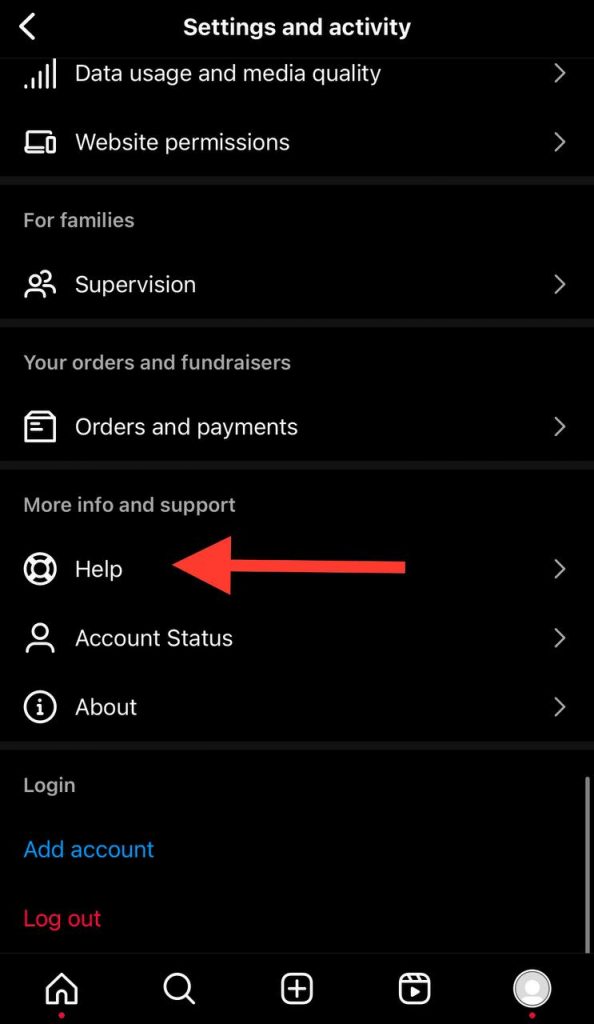
Step 4- As you can see, the first option is “Report a problem,” tap on it.
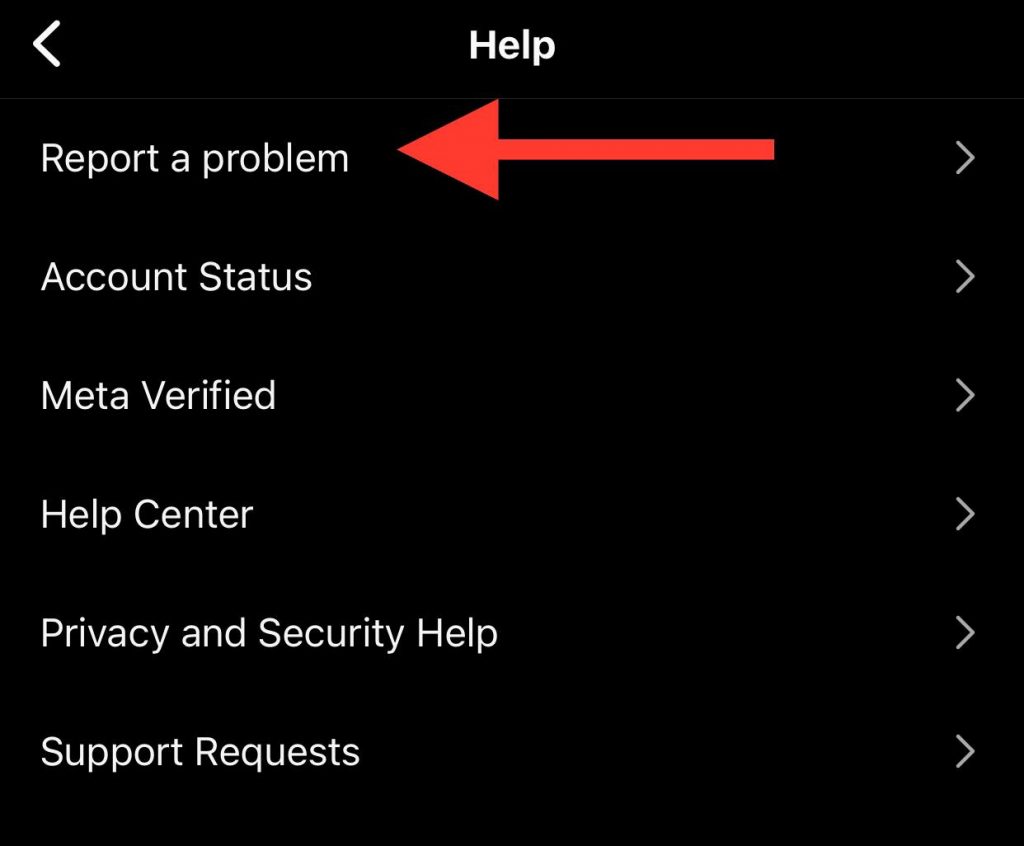
Step 5- Select the “Report problem without shaking” option, and write down your problem so they can fix it.
Conclusion
Nowadays, Instagram is the application that people spend most of their time on to share posts, stories, reels, and to see valuable content on this platform, so facing bugs and crashes can be a bad experience.
In this comprehensive article, we explained the reasons behind Instagram crashes and examined the best 12 methods for fixing them.
Note that detecting the exact reason why Instagram keeps crashing may be impossible, so if you ever face such issues, try the mentioned methods in this article, and you will solve the problem in less than a minute.
FAQs
1- Why does Instagram keep crashing when I try to post multiple pictures?
The main issue may be the weak internet connection, using outdated applications, and in -app bugs.
Thus, make sure you have a stable internet connection and use the latest version of the application.
How do I fix the Instagram bugs on my phone?
The first thing you can do is restart your device to make sure the problem is with Instagram, not your phone. If you still face issues, try checking your internet connection, which is most likely to solve the problem.
Why does Instagram keep crashing when I try posting a Reel?
The main reason may be using an outdated version of the application, so it is better to check for Instagram updates and ensure you are using the latest version of the app.

Emi Daniel
Buy an Established Instagram Account
Skip starting from zero. Browse Instagram/TikTok accounts with audiences across many niches.
See Available AccountsRelated articles
-
How to Use Instagram: The Creator’s Guide to Building an Audience
Instagram in 2026 is no longer just a place to collect followers. The creators who grow consistently are the ones who understand how to earn attention, turn…
17 min readEmi Daniel
-

How to Go Live on Instagram: A Step-by-Step Guide
Going live can feel more stressful than posting a Reel. You cannot remove a pause, rewrite a sentence, or start over after an awkward moment. But that…
17 min read -

Instagram Instants Feature: What It Is, How It Works, and How to Turn It Off
The first time I opened Instagram Instants, I almost backed out. I had taken a normal photo. Nothing worth editing. Nothing worth posting. Nothing that needed an…
11 min read