


Once Meta launched its new application, Threads, it gained over one million users after an hour and 100 million users only in five days! What a success, you may say, and you are right!
Threads is designed to complete Instagram as a partner that allows users to share photos, videos, and text messages across the platform by linking their Instagram accounts to Threads.
Some people don’t know how to use Threads or even connect their Instagram account to it, which is why you are here!
Buy an Established Instagram Account
Skip starting from zero. Browse Instagram/TikTok accounts with audiences across many niches.
See Available AccountsIn this comprehensive article, I will explain the smallest details about this application. You will also learn how to connect Threads to Instagram and enhance your experience on both apps!
How to Link Threads to an Instagram Account
It’s easy; just follow the steps below.
Step 1- Download the app from the App Store (iOS users) or Google Play Store (Android users).

Step 2- Once the app is installed on your device, you will face two options: 1) Continue with Instagram (your IG account) and 2) Use without a profile. Choose your preferred choice.

*Note that if you choose option 2, you won’t be able to post and interact on the app; you can just browse Threads.
*If you have more than one account and Instagram suggests the one you don’t want to have a Threads account with, tap “Switch accounts” to select your desired account.
Step 3- Now, Instagram wants you to confirm creating a Threads account with your Instagram profile; if you agree, tap on the “Allow and create profile” button to continue the process.
Step 4- Choose whether you want a public or private account and tap “Next.”

Step 5- Read all the information Threads give you before joining and once you are ready, tap “Join Threads” to finish the process.
How to Set Up a Threads Profile
Once you have created and linked your Instagram account to Threads, follow the steps below to set up your Threads profile successfully.
Step 1- Open the Threads application on your device.
Step 2- Tap on the profile icon in the bottom right corner of the screen.

Step 3- To add a profile icon, tap on the profile picture icon and choose whether to import a picture from your device’s library or select one from Instagram.

Step 4- To add links or something in your bio, tap “Edit profile.” You can now add a link, write a bio, change your account’s privacy, and decide to show or hide the Instagram badge on your profile.

How to Add a Threads Link to Your Instagram Bio
You can add your Threads link to your Instagram bio to direct your followers to your Threads account. Wondering how? The below steps help you out.
Step 1- Open Instagram on your device and tap on your profile icon in the bottom right corner of the home page.

Step 2- Tap on the “Edit Profile” button.

Step 3- Enter your Threads link in the “Links” section. Your Threads profile link is in the following format: https://threads.net/@yourusername.
Step 4- Now, tap “Done” to finish the process.

Note that there is an easier way than adding your Threads link to your Instagram bio: allowing Instagram to show the “Threads badge” on your Instagram profile.
Follow the previous steps until you are in the “Edit Profile” section. Under “Banners,” enable “Show Threads badge,” and your Threads ID will be shown on your Instagram bio.
How to Share Instagram Posts to Threads
You can share your Instagram posts with Threads to increase your account’s engagement. Sounds amazing, right?
To do so, follow the below steps.
Step 1- Open Instagram and select the post you want to share on Instagram.
Step 2- Tap on the paper airplane (share) icon.
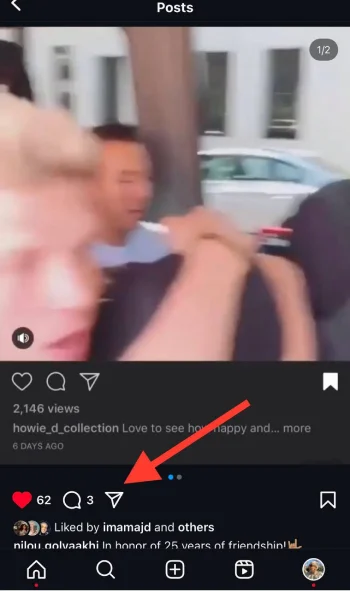
Step 3- Now, in the share options, search for the Threads icon and tap on it.
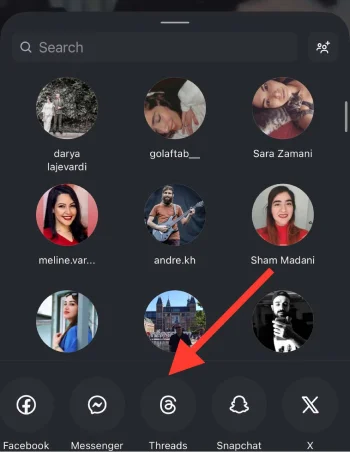
Step 4- Here, you can write a caption, add hashtags, or just skip!
Step 5- Tap “Post” to finish the process.

Note that once you share a post or Reel from Instagram to Threads, only the post link will be shared with Threads.
How to Connect Threads to Facebook?
Can you link Threads to Facebook? Yes! and you will learn it by following the steps below.
Step 1- Open Threads and go to your profile to see your username. (Memorize it!)
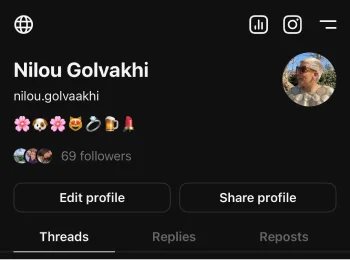
Step 2- Open Facebook and log in to your account.
Step 3- Go to your Facebook profile and tap the “Edit profile” button.
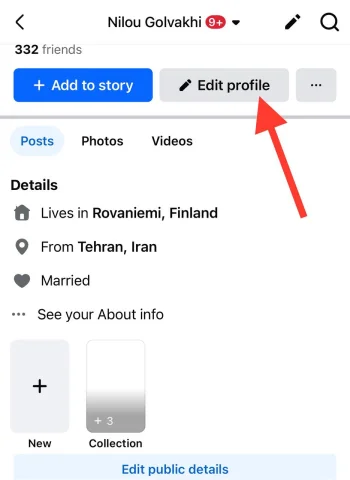
Step 4- Scroll down the menu and tap “Add” in front of the “Links” option.

Step 5- Add the Threads link to the “Social links.” Tap “Add social link.”

Step 6- Now, tap “Platform” and choose “Threads.”

Step 7- Add your Threads username in the box and tap “Save.”

You can also determine whether the link is public, visible to your friends, or only to you.
Pros and Cons of Connecting Threads to Instagram

Now you know everything about connecting Threads to Instagram and even Facebook, it is time to see the pros and cons of linking Threads to your Instagram account.
Pros
- You can share content across both platforms without needing to repost manually.
- More people will see your content, which brings more engagement.
- It’s a great opportunity for brands to attract more potential customers and clients by posting on both applications.
- You can easily manage interactions on one post on both platforms.
Cons
- Your followers may see the same content on both apps, which may only be pleasant for some.
- Based on Instagram’s algorithm, sharing a post on both apps may affect your visibility.
- Your Instagram post may look poorly on Threads and vice versa, impacting your engagement.
- Connecting these apps may raise privacy issues.
Conclusion
Finally, connecting your Instagram account to Threads and using this application is a whole new world of using social media because it gives you more space to discover and connect with new people.
You can also link your Threads account to Facebook to share content on three platforms, which I mentioned how to do so earlier.
I hope you enjoy reading this guide and start connecting Threads to Instagram and Facebook to enhance your experience of using social media!
FAQs
Can I schedule posts on Threads?
Threads does not yet support this feature; however, you can use third-party tools to schedule your post on Threads.
Do I need an Instagram account to use Threads?
Yes, these two platforms are like partners, and you should have an Instagram account to post and interact on Threads.
Can I link more than one Instagram account to Threads?
No, currently, you can only link one Instagram account to Threads.
Can I post on Threads without an Instagram account?
No, you can only browse Threads without an Instagram account, but if you want to post and interact on the platform, you should log in with your IG account.

Emi Daniel
Buy an Established Instagram Account
Skip starting from zero. Browse Instagram/TikTok accounts with audiences across many niches.
See Available AccountsRelated articles
-
How to Use Instagram: The Creator’s Guide to Building an Audience
Instagram in 2026 is no longer just a place to collect followers. The creators who grow consistently are the ones who understand how to earn attention, turn…
17 min readEmi Daniel
-

How to Go Live on Instagram: A Step-by-Step Guide
Going live can feel more stressful than posting a Reel. You cannot remove a pause, rewrite a sentence, or start over after an awkward moment. But that…
17 min read -
Instagram Instants Feature: What It Is, How It Works, and How to Turn It Off
The first time I opened Instagram Instants, I almost backed out. I had taken a normal photo. Nothing worth editing. Nothing worth posting. Nothing that needed an…
11 min read