


Do you know how to connect Google Photos to your Instagram account?
More than 2 billion people and many businesses in different categories use Instagram monthly, making it a trendy social media platform. This number is anticipated to also increase over the next few years. You can upload images and videos to your Instagram profile from your mobile phone or PC, but maybe you would like to upload a video or photo on your Instagram that you took in the past, and you don’t have it on your phone or PC either.
Sometimes, we take too many photos, and our phone or PC don’t have enough storage to keep all these photos or videos, so; we try to save them in cloud space, such as the Google photos app, to save space on our devices. Therefore, knowing how to use these archived photos on Instagram is essential. This article will provide step-by-step details about how to upload photos and videos from the Google Photos app to Instagram differently.
Buy an Established Instagram Account
Skip starting from zero. Browse Instagram/TikTok accounts with audiences across many niches.
See Available AccountsGoogle Photos is a cloud-based gallery for many people, and it is a genius way to save your data on a cloud-based platform so you can access them anytime that you like, but if you want to share those photos or videos to a social media platform like Instagram, can sometimes be challenging.
One of the best features of Google Photos is you don’t need to download your photos and videos to share them. You can access them in the app and share Google photos to Instagram; it is easier than you think.
How to post from Google Photos to Instagram
Google photos work on Android and iOS devices, and you can store, share, view, and edit images and videos by using Google Photos. This cloud-based software helps you organize your archived photos and videos and will back them up; therefore, you don’t need to worry about the location your data is stored.
For posting from Google Photos to Instagram, the first thing you need to do is to make an album of photos. Just Google Photos albums can do this for you automatically, or you can make it yourself if you prefer, and this method is beneficial while you are traveling, and if you don’t have much time, you can share multiple photos.
You can still upload photos from Instagram to Google Photos even if you don’t have a Google account. The first step is to select the Google Photos album you want to share and choose share; you also can add other people to the album.
When the sharing process is done, check the privacy setting and choose whether you want to allow other people to see your photos. Moreover, the feature only works if you let a few people see your photos.
Steps for adding Google Photos to Instagram posts and stories
Google Photos has strong search tools that you can use to find people, places, and other information, and it has other exciting features for users. You can edit your photos using filters to adjust color, saturation, warmth, etc. You can easily share a Google Photos picture to your Instagram feed on your phone or PC in just a few simple steps.

Step 1: Open Google Photos App on your phone and go to the Google Photos menu
Step 2: Your can see your archived Google pictures. Select the photo or video you want to share on Instagram.
Step 3: Choose the “Share” icon on the bottom left. Click on it and move to the next step.

Step 4: In the Share to Apps section, tap on the three dots and choose ”More” at the bottom right.
Step 5: In this section, you’ll see different Instagram options. Such as Instagram Chats, Feeds, and Stories. Please make your choice and click on it.
Step 6: After clicking, you will be forwarded to Instagram. You can see your chosen picture there. Also, you can edit your photo from Google Photos by applying filters.

Step 7: In this section, you can make your edits on the last screen. You can add tags, locations, and other information. Once you are finished, you can tap on the ”Arrow” icon in the upper right corner.
If you want to post Google photos on your Instagram account from your desktop, you can follow the below steps:
Step 1: Google Photos will appear on the home screen of your Chrome browser. Click the nine-dot shape to open Google Apps in the upper right corner. In the meantime, click Google Photos.)
Step 2: Your photos and videos will be shown. Choose what you want to share on Instagram. Click on the three dots in the upper right corner and select “Download” from the drop-down menu. Then you will send the photo or video to Instagram and post content on your PC.
Can you share multiple Google photos or Google photo albums on Instagram?
If you want to share several Google Photos on Instagram stories and posts, follow the above steps. Select multiple photos on Google Photos on your mobile or desktop. This feature is helpful for businesses and personal means, but the methods might differ.
You can also share your Google Photos on the Instagram chat section
Step 1: First, open your Google Photos,
Step 2: Select the album you want to share.
Step 3: Choose the share icon under the heading.
Step 4: Tap on it
Step 5: You will see the Instagram chat option to share the Google Photo album on Instagram.
To Sum it up
Many benefits are provided to users and businesses by the integration of Google Photos and the Instagram app. Users will have peace of mind because they store all their photos in one place and don’t need to worry about where they should safely keep their old pictures and videos. If interested, you can use your favorite filters from Instagram on your photos from Google Photos.
This feature will also provide many advantages to businesses because they can store their photos and videos on cloud-based platforms, offering multiple data storage, privacy regulations, and prices. Google Photo is a free service for the beginning unless you need higher storage space, and then you have to pay for them. Although businesses have to pay for the extra storage, most prefer to use Google Photos and find it more convenient than other software.

Emi Daniel
Buy an Established Instagram Account
Skip starting from zero. Browse Instagram/TikTok accounts with audiences across many niches.
See Available AccountsRelated articles
-
How to Use Instagram: The Creator’s Guide to Building an Audience
Instagram in 2026 is no longer just a place to collect followers. The creators who grow consistently are the ones who understand how to earn attention, turn…
17 min readEmi Daniel
-
How to Go Live on Instagram: A Step-by-Step Guide
Going live can feel more stressful than posting a Reel. You cannot remove a pause, rewrite a sentence, or start over after an awkward moment. But that…
17 min read -
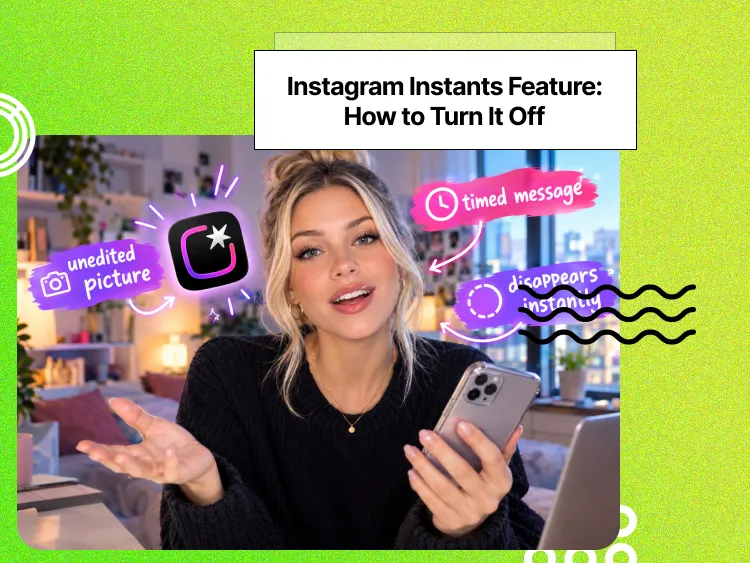
Instagram Instants Feature: What It Is, How It Works, and How to Turn It Off
The first time I opened Instagram Instants, I almost backed out. I had taken a normal photo. Nothing worth editing. Nothing worth posting. Nothing that needed an…
11 min read