


Instagram has become a go-to platform for sharing life’s moments with friends, family, and a global audience.
In order to share photos on Instagram, you should allow Instagram to access your device’s photo library.
We are going to walk you through the process of allowing Instagram to access your mobile photo library on both iOS and Android.
Buy an Established Instagram Account
Skip starting from zero. Browse Instagram/TikTok accounts with audiences across many niches.
See Available AccountsMoreover, we troubleshoot typical issues and provide helpful suggestions that help you easily give access to Instagram, so you can quickly share your images on Instagram.
Why Instagram Needs Access to Photos

As mentioned, if you want to upload a photo or video on Instagram to post a reel or story, you need to allow Instagram to access photos on your phone.
If you are worried about your privacy and security while letting Instagram access your photos, understanding the reasons help you give Instagram such access more easily:
- It helps you upload and share images and videos easily.
- Instagram lets you tag and mention others in your photos, but to do so, you need to allow the application access to your photos.
- If you want to use Instagram’s many filters and options to better enhance your pictures, you should enable photo access on your phone.
- To use Instagram’s in-app camera feature.
- Enabling this feature helps Instagram better enhance your user experience.
Therefore, if you want to better use Instagram, you should allow Instagram this access and enjoy its many benefits.
How to Allow Instagram to Access Photos on Android Devices
If you are an Android user and want to know how you can allow Instagram to access your photo gallery, follow the steps below:
Step 1- Go to your mobile’s “settings.”
Step 2- Scroll down the menu to see “Apps,” tap on it.
Step 3- Click on “Manage apps.”
Step 4- Now, you can see all your installed applications, find and tap Instagram among them.
Step 5- Select the “App permissions” option.
Step 6- Here, you will see two sections named “Allowed” and “Not allowed.” You have to check if the “Camera” or “Filed and Media” is in the denied section.
Step 7- Tap on “Camera.”
Step 8- Now, you have to select the “Allow” option to finish the process.
*Note that you may face two options, including “Allow” or “Allow only while using this app,” and selecting each one is up to you.
How to Allow Instagram to Access Photos on iOS
Allowing Instagram to access photos on iOS is simple, and you can enable this option by following the steps below. Note that you can do this process in two ways:
Method one
Step 1- Open the “Settings” on your phone.
Step 2- Go to the “Privacy” section.

Step 3- You will see different options for managing the permissions of the installed applications on your device. Tap on “Photos.”
Step 4- Choose “Instagram” from the menu. You can see the current situation of Instagram photo permission.

Step 5- You can see three different statuses for Instagram, “None,” “Limited access,” and “Full access.
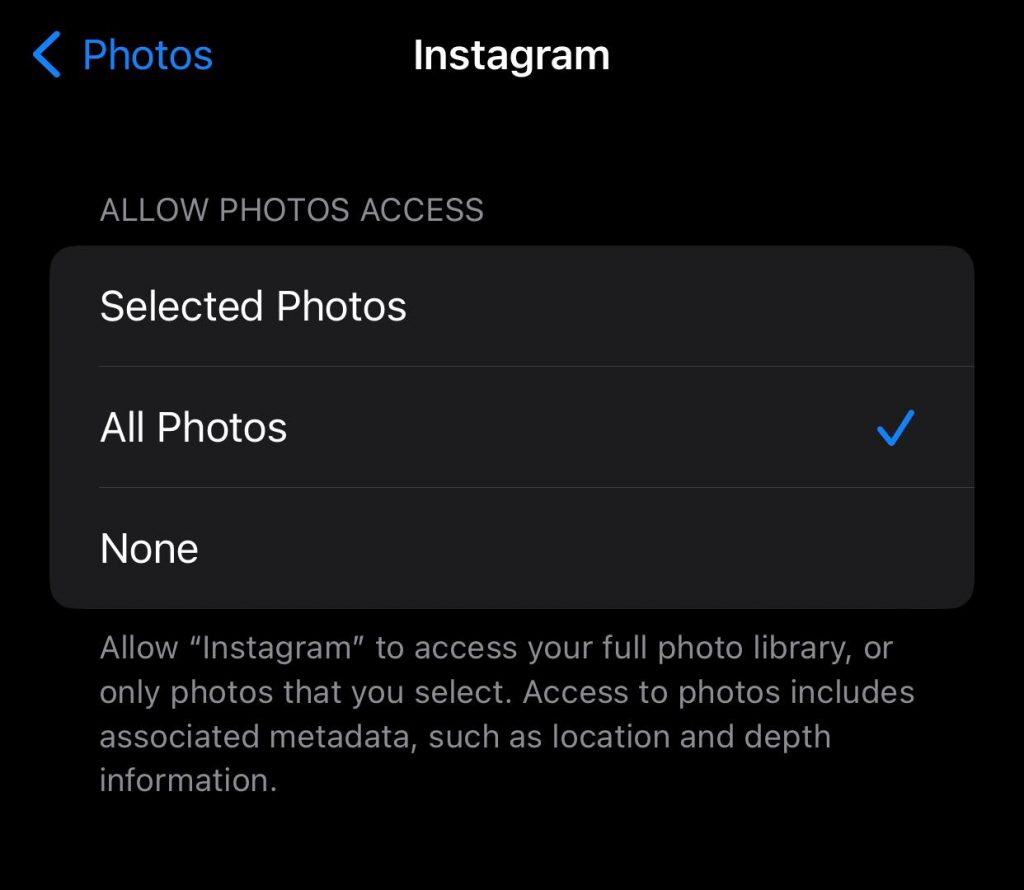
Step 6- To give Instagram full access to your photo library, select “Full access” to finish the process.
Method two
Step 1- Go to your mobile’s “settings.”
Step 2- Scroll down the menu to find the Instagram application.
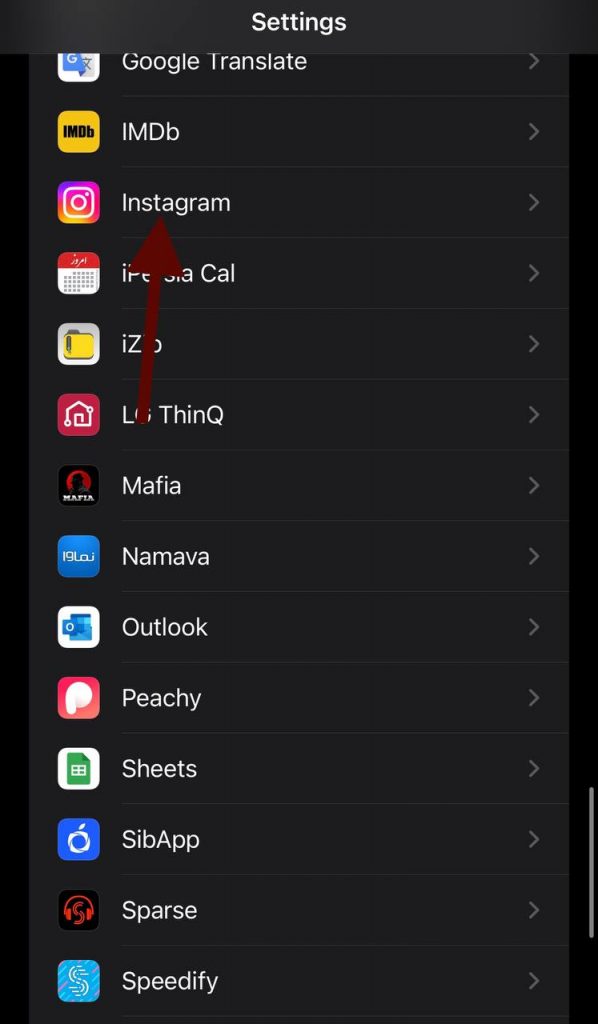
Step 3- Now, you will see different options to allow Instagram to access.

Step 4- Tap on “Photos” and select “Full access.”
Following these simple steps help you easily enable photo access to Instagram on your iOS device.
How to Allow Instagram Access to Photos on Instagram Application
If you don’t want to allow photo access to Instagram from the settings menu, you can easily do it on the application itself.
Step 1- Open the Instagram application on your mobile.
*Note that if you don’t have an Instagram account, you can download it from Google Play or App Store and install it on your mobile.
Step 2- Tap on the “Plus” icon at the bottom of the home screen.

Step 3- Now, Instagram will ask you to access your photos.
Step 4- Choose the “Allow” or “While using the app” option to finish the process.
Benefits of Allowing Instagram Access to Photos

Allowing Instagram access to your photo library has many benefits that help you better use Instagram; here are some of the most common advantages:
- The most obvious benefit is that enabling this option helps you effortlessly share photos and videos from your gallery.
- You can use Instagram’s various editing tools and filters to share high-quality content.
- It helps you upload pictures and videos immediately.
- You can access Instagram’s in-app camera.
- Enabling this option increases your overall user experience.
- If you allow Instagram access to your photos, it can store photos and videos on itself, which makes them accessible for you and your followers.
- It helps Instagram to better personalize your profile.
- You can tag and mention other people in your photos if you enable this option.
- Granting access creates a seamless integration between your mobile camera roll and Instagram.
As you can see, allowing photo access to Instagram helps you use this platform more effectively and increases your user experience.
Troubleshooting Instagram Photo Access Common Issues
You should note that even after following the mentioned actions to allow Instagram to access photos, some users may still face issues.
So, if you are experiencing such issues on Instagram, follow the troubleshooting steps below:
1- Restart your device
Try to restart your phone or tablet; doing so will help you fix the issue. But if it didn’t help, try using the app both on Wi-Fi and mobile data connection.
2- Uninstall and reinstall
If restarting the divide didn’t help, you can try to uninstall and reinstall the application.
3- Synchronization issue
Sometimes Instagram can’t display all your photos, which may be because of synchronization issues. You can fix this problem by making sure you have a stable Internet connection.
4- Outdated app
Make sure you are using the latest version of the Instagram application.
5- App cache
Always keep the application’s cache clear, so you can avoid common photo access issues.
6- Using VPN
VPN uses different IP addresses, which can be handy if your IP is blocked and that’s the reason you’re having Instagram picture issues.
Finally, to use Instagram properly, ensure you keep your device’s operating system up to date.
FAQs
1- Why is Instagram not loading all my posts?
Check your mobile internet connection, which might slow down the loading of pictures from Instagram’s servers. Besides, you can relaunch the app to fix any technical issues.
2- How to fix “failed to load” on Instagram?
You have to check the internet connection and make sure you are using an active and stable internet.
3- Why Instagram can’t access my photo library?
You must allow Instagram access to your photos; you can do it by going to your mobile’s settings, which we explained already.
Conclusion
We all know that using Instagram is amusing and a great way to socialize the world virtually. However, we can’t properly enjoy using Instagram if we don’t allow access to our photo library.
So, if you want to immediately share images on Instagram, it is better to allow Instagram access to your photos and camera roll.
I hope the steps mentioned in this article help you easily let Instagram access your photos to better use this platform.

Emi Daniel
Buy an Established Instagram Account
Skip starting from zero. Browse Instagram/TikTok accounts with audiences across many niches.
See Available AccountsRelated articles
-
How to Use Instagram: The Creator’s Guide to Building an Audience
Instagram in 2026 is no longer just a place to collect followers. The creators who grow consistently are the ones who understand how to earn attention, turn…
17 min readEmi Daniel
-
How to Go Live on Instagram: A Step-by-Step Guide
Going live can feel more stressful than posting a Reel. You cannot remove a pause, rewrite a sentence, or start over after an awkward moment. But that…
17 min read -
Instagram Instants Feature: What It Is, How It Works, and How to Turn It Off
The first time I opened Instagram Instants, I almost backed out. I had taken a normal photo. Nothing worth editing. Nothing worth posting. Nothing that needed an…
11 min read