


You no longer need your Instagram account and would like to permanently delete it? In this article, we will provide you with the steps on how to delete your Instagram account. But before that, please know that once the account is deleted, everything on the account will be removed permanently (i.e. your profile, your photos, the videos you’ve posted, the comments, likes and of course, your followers).
Another thing to be aware of is that once your Instagram account is deleted, you can no longer sign up using that same username, and no one can add that username to another account. And again, deleted accounts can no longer be reactivated. Deleting an account is different from just deactivating, so you might want to decide first whether you want to delete your account permanently or just deactivate it temporarily. There are two ways to delete or disable your Instagram account for any reason:
Buy an Established Instagram Account
Skip starting from zero. Browse Instagram/TikTok accounts with audiences across many niches.
See Available Accounts- Delete Instagram account by the web browser
- Delete Instagram account by the App
Delete Instagram account by the web browser
To delete your Instagram account, you need to use a web browser (you can use a smartphone, tablet or PC) since we can’t do this using the app.
Follow these steps on how to delete your Instagram account:
1. Make sure you’re logged in to the account that you want to delete. If you’re signed in to a different account, you can simply log out from that account and log in to the one that you want to delete and follow these instructions.
2. Go to Instagram’s “Delete Your Account Page” and choose your reason of deleting your account from the drop-down menu provided which can be found next to “Why are you deleting your account?” Please make sure to select one from the drop-down so you are able to see the option to permanently delete your account. There are several options for you to choose from, and just select the closest reason you have in mind.
3. You will be asked to re-enter your password to continue.
4. Click the “Permanently delete my account”. From this moment, your account, and all of your content and followers – will be disabled and will be gone.
Delete Instagram account by the App
1. Login into your Instagram account from the Instagram App, and go to the profile page
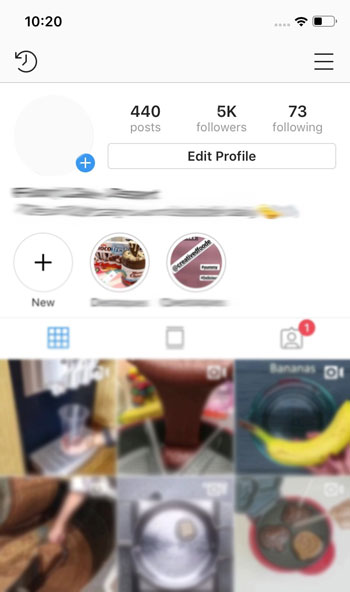
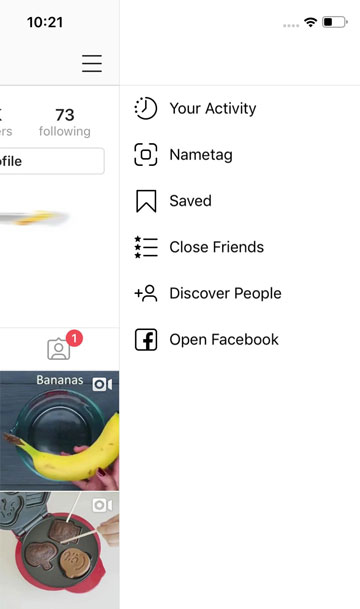
2. Select the menu button on the right top corner then select the setting in the bottom of the menu
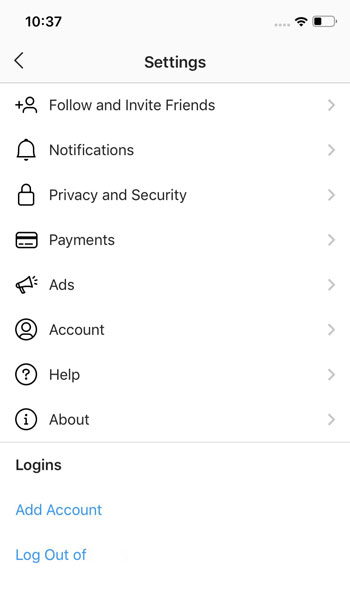
2. Once you are in the menu options, select the help
3. When you get in the help menu, choose the Help Center

4. Now you are in the Help Center, choose the second option “Delete Your Account”
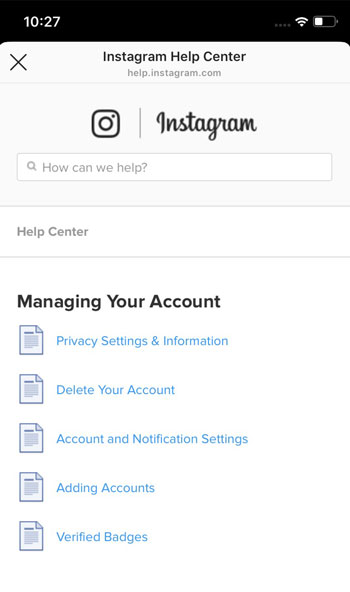
5. Delete Your Account menu give you 3 options, now you can decide you want to delete or disable your account temporarily”

Instagram can’t delete anyone’s account by themselves for security reasons, so you will need to personally do it on your own. By simply following the above steps provided, you will be able to get rid of the account you’re no longer in use or you no longer want to use. If and only if you can no longer login to the account because, for some reasons you forgot what your password is, you can simply click on “Forgot Password” on the login page or directly contact Instagram Help Center.

natasha
Buy an Established Instagram Account
Skip starting from zero. Browse Instagram/TikTok accounts with audiences across many niches.
See Available AccountsRelated articles
-

How to Go Live on Instagram: A Step-by-Step Guide
Going live can feel more stressful than posting a Reel. You cannot remove a pause, rewrite a sentence, or start over after an awkward moment. But that…
17 min readEmi Daniel
-
Instagram Instants Feature: What It Is, How It Works, and How to Turn It Off
The first time I opened Instagram Instants, I almost backed out. I had taken a normal photo. Nothing worth editing. Nothing worth posting. Nothing that needed an…
11 min read -
How to Clear Instagram Cache on iPhone, Android & Desktop
Instagram can quietly build up a lot of temporary files while you scroll through Reels, watch Stories, save posts, and upload your own content. You may not…
12 min read