


Instagram is undoubtedly a great place to connect with friends all over the world and build solid relationships with new people, especially with its useful features and updates; however, not all its features work properly all the time.
One of Instagram’s fantastic features is “unsend message,” which allows users to delete a message they sent in a chat from both their and the receiver’s sides without leaving a trace.
Reports show that some iOS users have issues using this feature on their iPhones and can not unsend Instagram messages on their devices.
Buy an Established Instagram Account
Skip starting from zero. Browse Instagram/TikTok accounts with audiences across many niches.
See Available AccountsIf you are experiencing the same problem, don’t know why you can not unsend Instagram messages and want to know how to fix this issue, you are in the right place.
In this article, we will explain how to unsend Instagram messages on the iPhone, why you may want to unsend a message on Instagram, how to fix Instagram unsend not working, and more.
How to Unsend Instagram Messages
We have all been in a situation where we sent a message to the wrong person or shared something and regretted it immediately, wishing we could have unsent or deleted it on the chat.
The good news is that if you ever find yourself in such a situation, you can unsend messages on your mobile in just a few seconds.
Follow the steps below to learn how to unsend Instagram messages:
Step 1- Open the Instagram application on your mobile.
Step 2- Select the conversation you want to unsend a message.
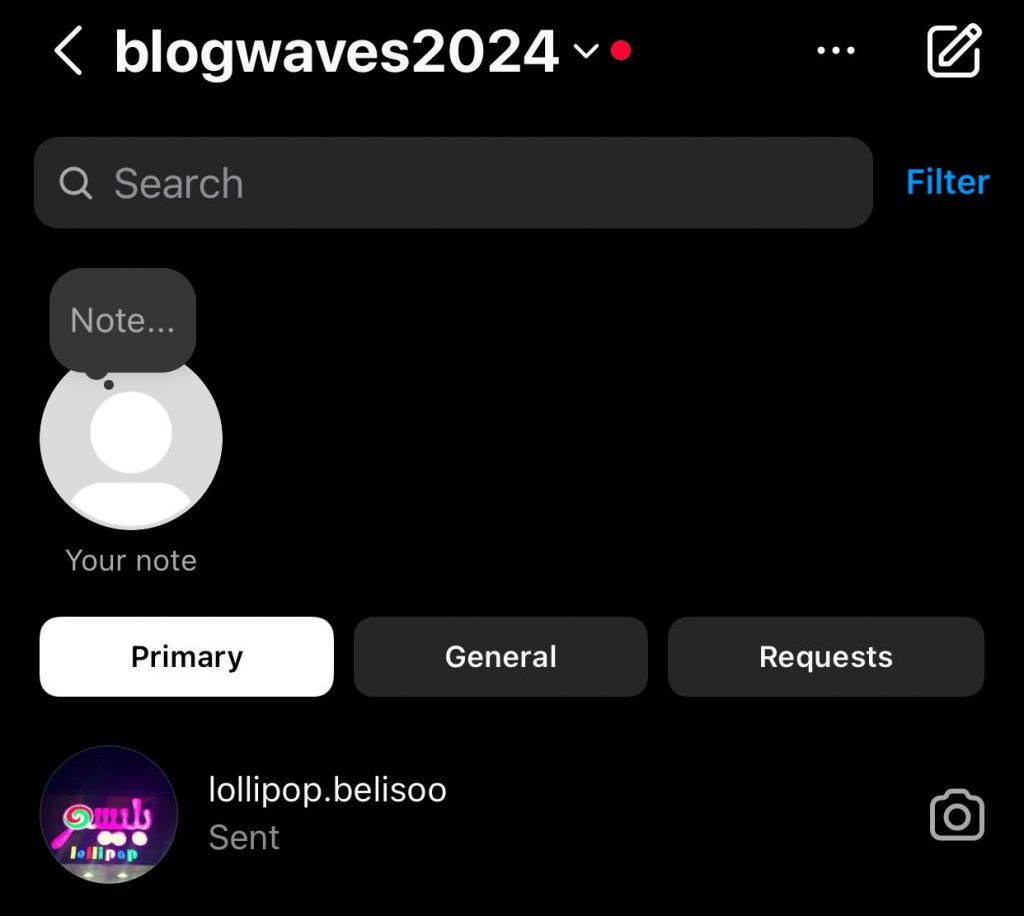
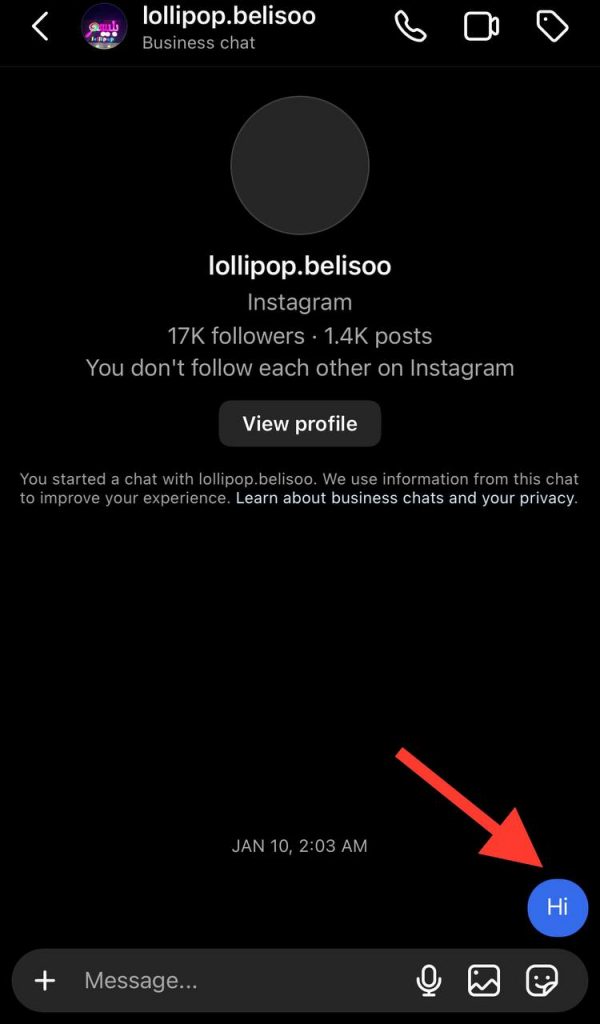
Step 3- Choose what you want to unsend, tap and hold it.
Step 4- Now, you can see a menu; choose “Unsend,” and your message will disappear from the chat.
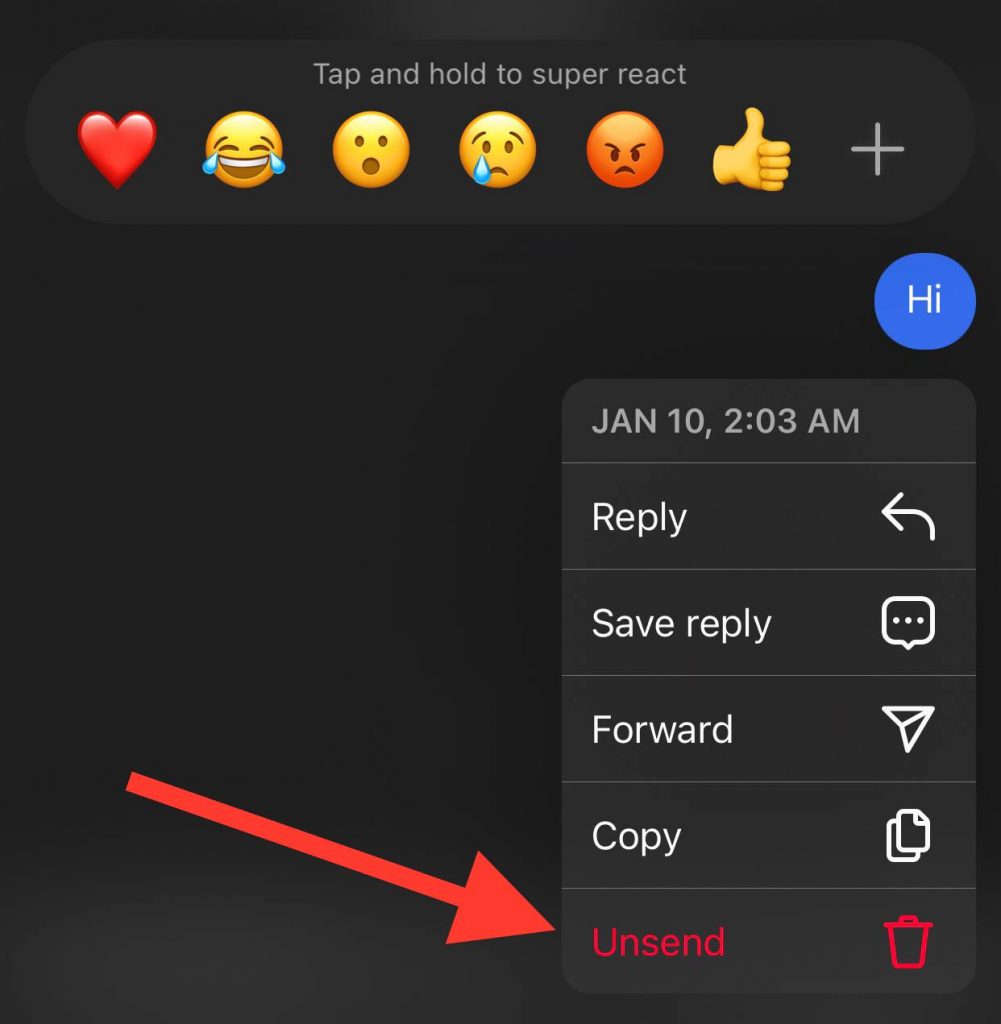
It is good to know that Instagram does not limit the deletion of messages to a specific period. This means you can unsend messages without worrying about how long ago they were sent.
Moreover, you can unsend any type of message on Instagram, which can be a text message, voice message, photo, Instagram Reel, etc.
How to Unsend Instagram Messages on iPhone
Before we go any further, it is good to know that when Instagram launches a new feature, it will work the same on iOS and Android devices, with some small changes on each device.
It means that unsending messages on Instagram have the same process on both Android and iOS devices.
However, if you are using a new version of Instagram on your mobile, you may be able to see the “Delete for you” option when you want to unsend a message.
Follow the steps below to unsend messages on Instagram using your iPhone:
Step 1- Open Instagram on your device.
Step 2- Click on the direct message icon in the top right corner of the screen or swipe the home page to the left to access your Instagram messages.

Step 3- Choose the chat you want to unsend a message to.
Step 4- Tap and hold the desired message.
Step 5- Now, you have to choose the “Unsend” option to remove the message on both sides.
Note that if a confirmation prompt when you select unsend, just confirm it and your message will be removed from the chat.
As said before, you may see the “Delete for you” option when you are unsending messages, which you can use to delete a message on your side; however, you should note that if you do so, the other person will be able to see the message.
Finally, remember that the process of unsending Instagram messages is the same on the web version, so if you are using the web version of Instagram, simply follow the mentioned steps to unsend any message you want.
Reasons to Unsend Messages on Instagram

There are several reasons why people want to unsend messages on Instagram, let’s examine the most common ones here.
You have sent the message to the wrong person
When scrolling your Instagram feed, you may see something funny and decide to share it with your close friends, but suddenly realize that you have sent the message to someone you are not close to, which is a bad experience.
Therefore, unsending the message you mistakenly sent to the wrong person is the best you can do to prevent any misunderstanding.
You regret what you sent

Have you ever been told not to talk with people when angry or not in a good mood? If so, you should know that sometimes you may immediately say something out of anger and regret it, which can happen when chatting with someone on Instagram.
If you ever find yourself in such a situation, it is better to unsend what you have said; however, try to delete the message before the other person reads it!
Ultimately, if you want to avoid regretting sending messages on Instagram, it is recommended to double-check the message before sending it.
As said earlier, you may want to unsend Instagram messages for several reasons, but the items mentioned here are among the most common ones.
Why You Can’t Unsend Instagram Messages on iPhone

There may be various reasons for the inability to unsend Instagram messages on iPhone devices. We will review the possible reasons so you can notice what the problem is.
Poor internet connection

One of the main reasons that you can’t use Instagram features, such as the “unsend messages” feature, is poor connection.
Therefore, the first thing you can do is to ensure you have a stable internet connection and the app works properly.
Using an old version of Instagram
Another possible reason you can not unsend Instagram messages on your iPhone is that you are using the old version of Instagram.
Thus, it is better to check for the latest updates on Instagram on the App Store to ensure you can use all the features of Instagram.
Follow the steps below to update Instagram on the App Store:
Step 1- Open the App Store on your mobile.
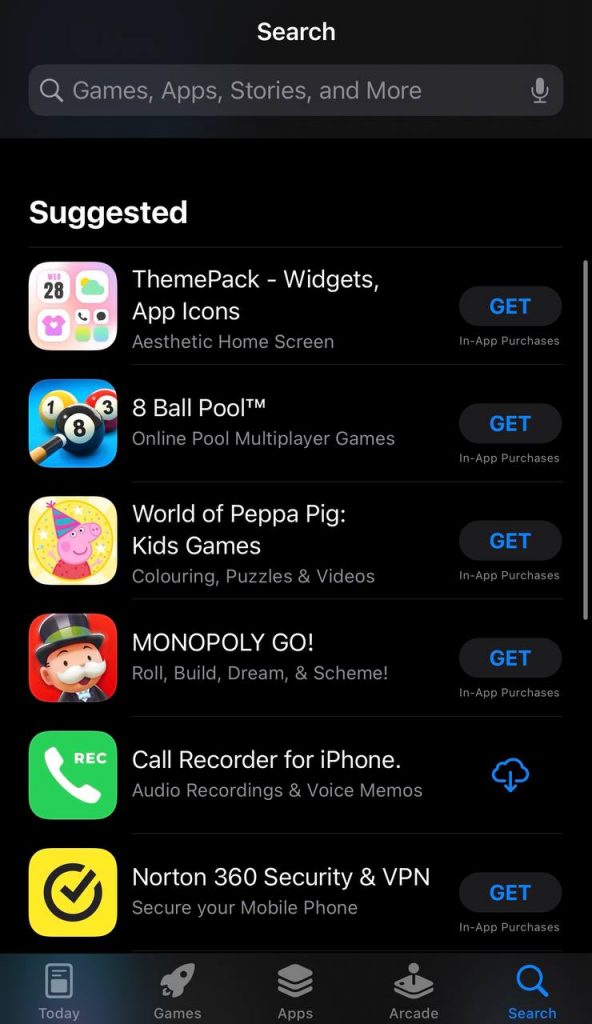
Step 2- Search for Instagram.
Step 3- Click on it and tap on “Update.”
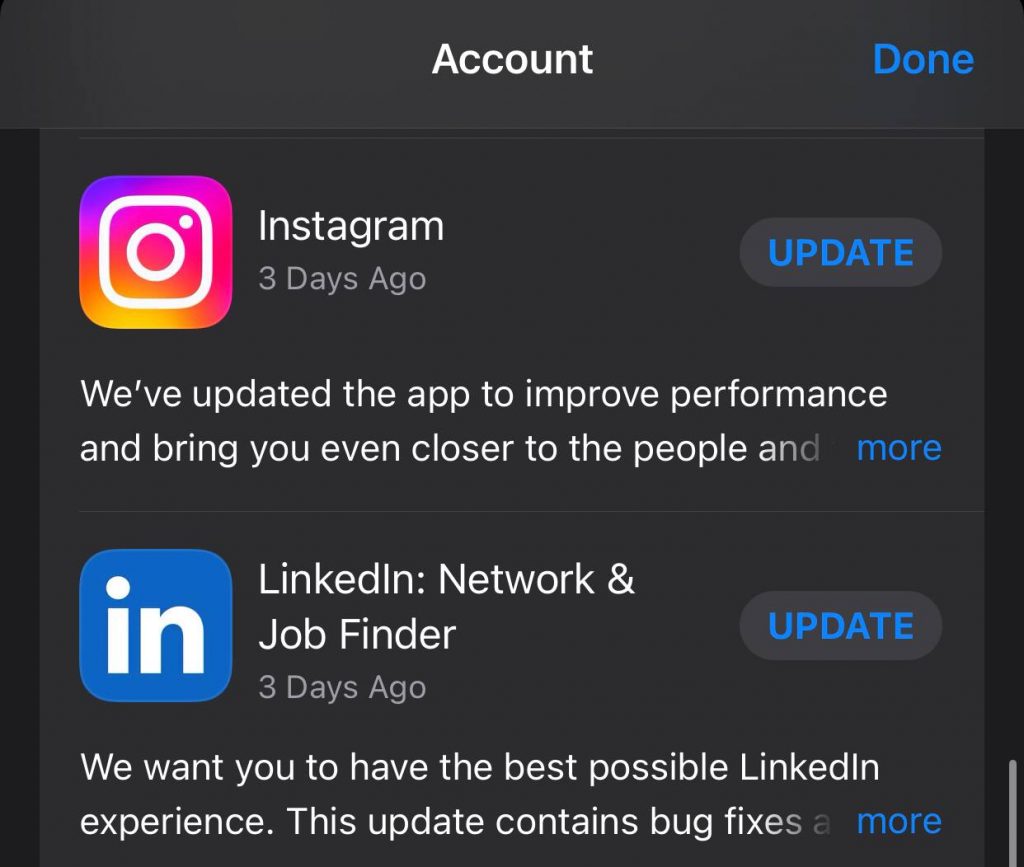
Step 4- Wait for the app to be updated. Once it is installed on your mobile, use it; you are most likely to unsend messages now.
How to Fix Instagram Unsend Messages Not Working on iPhone
Now that you are familiar with Instagram’s unsend feature and know how to use it to delete messages, it is time to learn how to fix it if it doesn’t work on your iPhone.
Try unsending messages on instagram.com
If you realize that you can not unsend Instagram messages on your iPhone, you can try visiting the app’s web version. To do so, follow the steps below:
Step 1- Open your desired browser and go to instagram.com
Step 2- Log in to your account. Once you are logged in, open your direct messages.
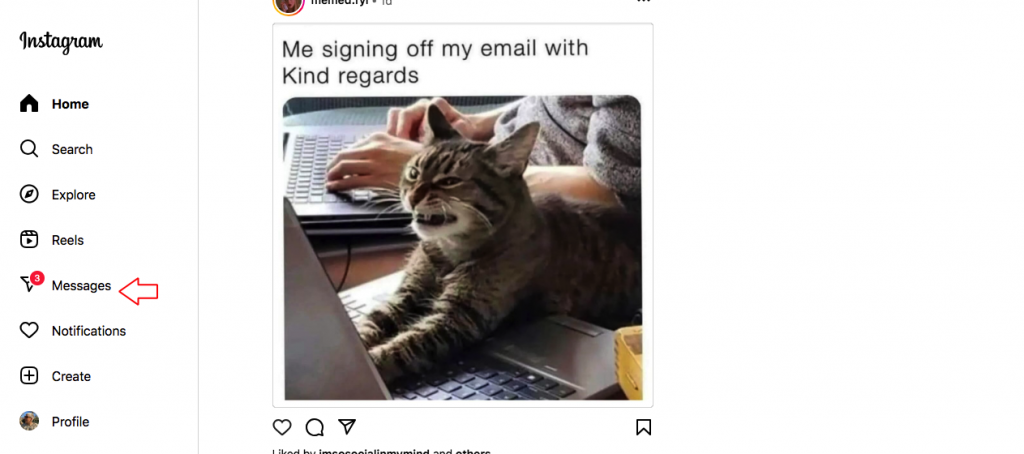
Step 3- Select the chat you want to unsend a message.
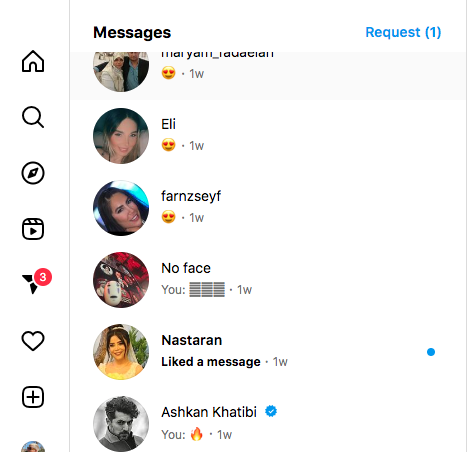
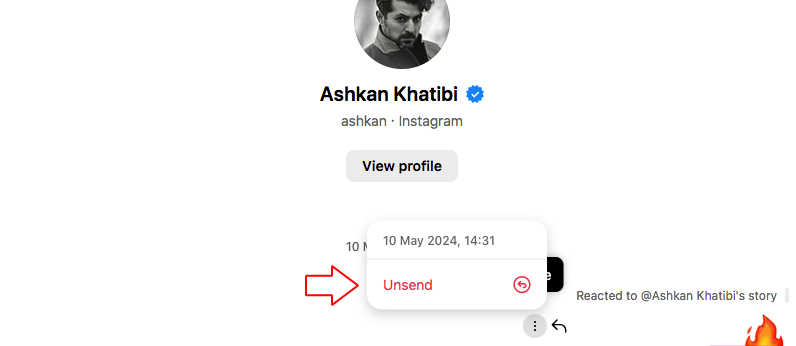
Step 4- Tap on the chat bubble.
Step 5- Now, you can see a three-dots menu icon, tap on it and select “Unsend” to finish the process.
Update your iPhone
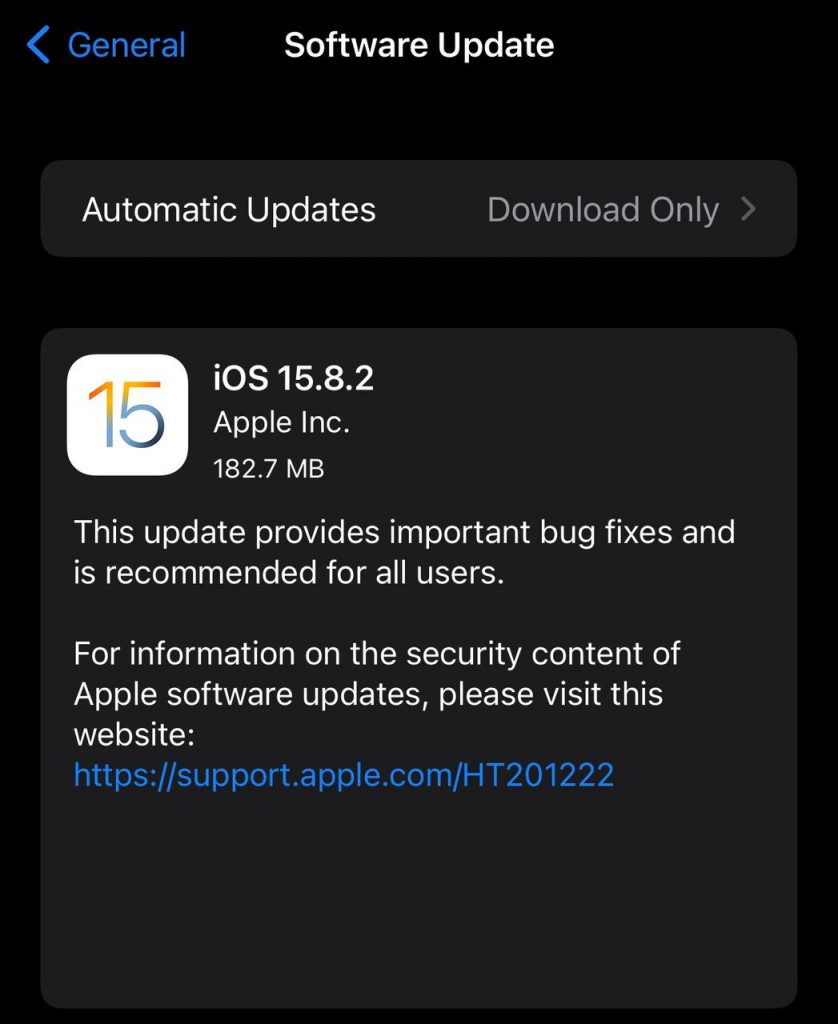
Sometimes, the main reason you can unsend messages on Instagram is that your iPhone is not updated to the latest version, so make sure you keep your device updated.
It is good to note that if you want to unsend or edit a text message on your iPhone, you should use iOS 16 or later.
Follow the steps below to update your iPhone mobile:
Step 1- Unlock your mobile and go to the settings.
Step 2- Search for “Software Update” from the search bar; tap on it.
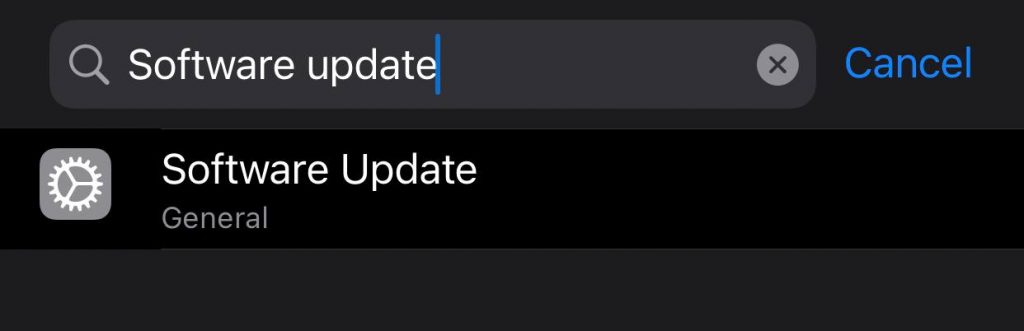
Step 3- Here, you can see if there are any updates for your iOS; if there are any, make sure you update it to the latest version.
Uninstall and reinstall the app
One of the best ways to properly use Instagram on your iPhone is to uninstall it and reinstall it.
Follow the steps below to uninstall and reinstall Instagram on your mobile:
Step 1- Tap and hold the Instagram app on your mobile.
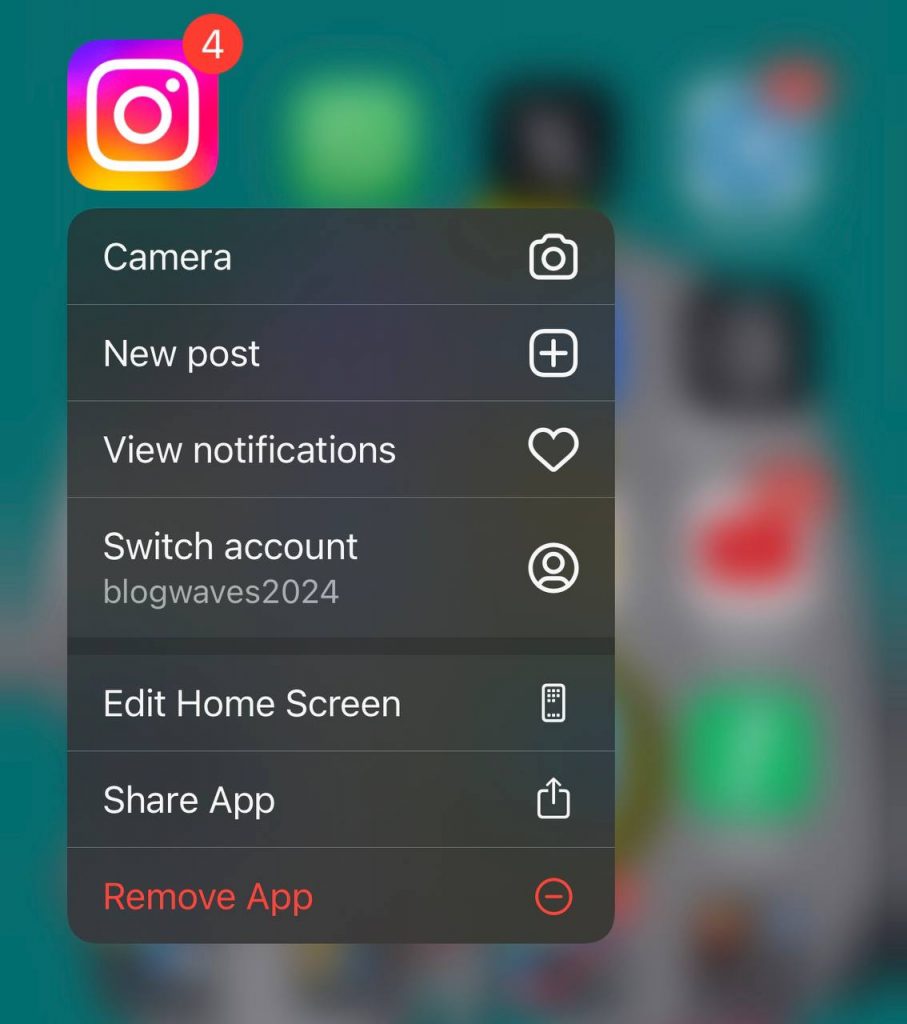
Step 2- Tap on the “Remove App” option.
Step 3- Now, tap “Delete App” and then select “Delete” to confirm the process.
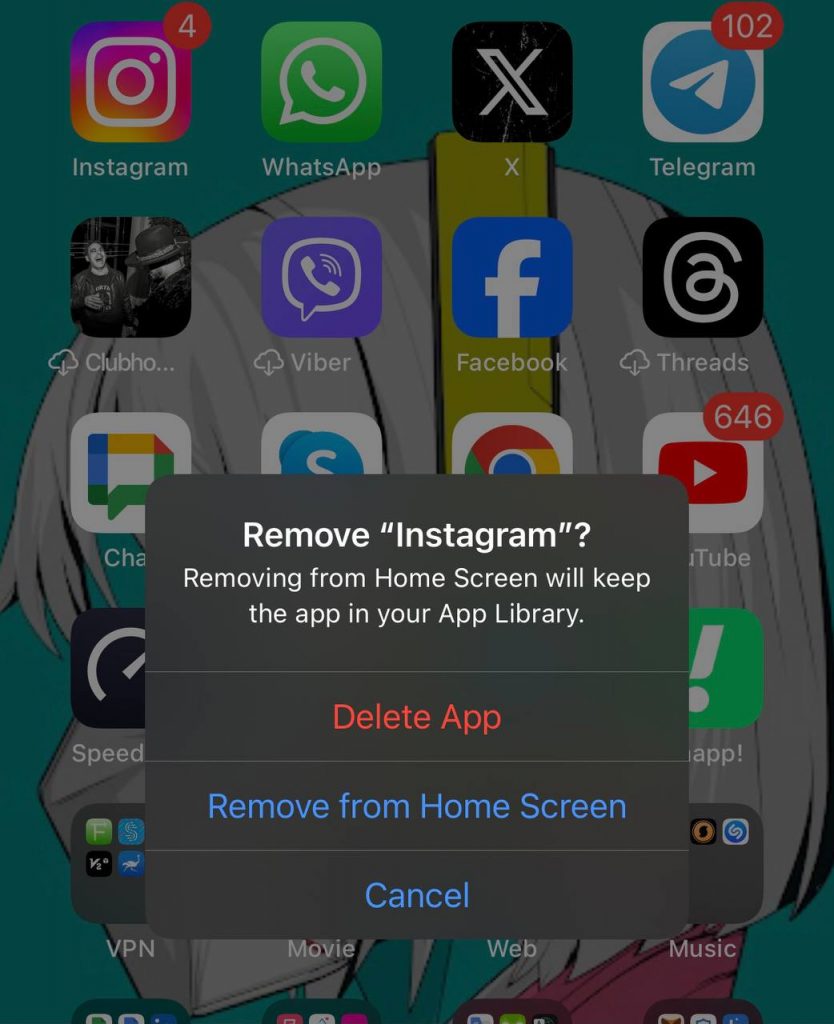
Once you have removed the app from your device, open the App Store, search for Instagram, reinstall it, and log in to your account.
That’s it! That’s how easily you can fix this issue on your iPhone to better use this application on your device.
Conclusion
As you can see, Instagram allows users to unsend messages in a conversation, and it has a simple process on any device.
However, it is better to be careful when you want to chat with someone online and double-check what you share with others, especially the ones who aren’t close to you, to prevent misunderstandings.
It is good to know that Instagram offers various features to better chat on this platform, but if you prefer a place specifically for chatting, you can consider using other social media platforms exclusively for chatting.
In this article, we explained everything you need to know about unsending Instagram messages on iPhone, Android, and web version of Instagram to manage your conversations on this application better.
FAQs
1- Is the other person notified if I unsend a message on Instagram?
If the other person has not read the message, they won’t notice you have unsent the message. However, Instagram does not notify anyone when you unsend a message.
2- Can I unsend all messages sent via Instagram DM?
Unfortunately, Instagram hasn’t provided this feature on the platform yet.
3- Are there any limitations in unsending Instagram messages?
No, you can unsend any type of message on Instagram, and the number of messages you want to unsend doesn’t matter.

Emi Daniel
Buy an Established Instagram Account
Skip starting from zero. Browse Instagram/TikTok accounts with audiences across many niches.
See Available AccountsRelated articles
-
How to Use Instagram: The Creator’s Guide to Building an Audience
Instagram in 2026 is no longer just a place to collect followers. The creators who grow consistently are the ones who understand how to earn attention, turn…
17 min readEmi Daniel
-

How to Go Live on Instagram: A Step-by-Step Guide
Going live can feel more stressful than posting a Reel. You cannot remove a pause, rewrite a sentence, or start over after an awkward moment. But that…
17 min read -
Instagram Instants Feature: What It Is, How It Works, and How to Turn It Off
The first time I opened Instagram Instants, I almost backed out. I had taken a normal photo. Nothing worth editing. Nothing worth posting. Nothing that needed an…
11 min read