

Facebook Professional Mode adds creator tools like insights, monetization options, and public followers to your profile. It can be useful for creators, but it is not for everyone.
If you want a simpler Facebook experience, you can turn it off at any time. Your posts, friends, messages, followers, and profile information will stay the same. Your “Who can follow me” setting also remains Public unless you change it in Facebook settings.
To turn off Facebook Professional Mode, go to your Facebook profile, tap the three-dot menu under your cover photo, select Turn Off Professional Mode, then tap Continue and Turn Off.
Buy an Established Instagram Account
Skip starting from zero. Browse Instagram/TikTok accounts with audiences across many niches.
See Available AccountsThis guide shows you how to turn off Facebook Professional Mode on iPhone, Android, and desktop. You will also learn what changes after you disable it and what to do if you cannot find the option.
What Is Professional Mode on Facebook

Professional Mode on Facebook turns a personal profile into a creator profile mode with tools like insights, follower growth features, and monetization options.
It helps users reach a wider audience and track post performance more effectively, which is useful for anyone promoting content or services.
For example, if you’re posting regularly, you can open your profile, tap the Professional Dashboard, and see which posts are getting the most engagement.
This can help you adjust what you post and avoid wasting effort on content that doesn’t perform well. Meta describes Professional Mode as a layer on top of your personal profile, not a separate Page.
What Happens When You Enable Professional Mode?
You get more visibility and better control over your content performance and avoid guessing what works.
Meta states that Professional Mode gives access to insights, follower tools, and Facebook monetization features by converting your profile into a public creator profile where non-friends can follow you.
Here’s what changes in practice:
- Your posts can be followed by anyone
- You get post and audience insights
- A Professional Dashboard appears
- Monetization tools may become available
Is this feature useful for everyone? No. It’s mainly for people trying to grow reach or track engagement.
How to Turn Professional Mode On (Step by Step)

Step 1- Open Facebook and tap your profile picture/name to access your profile page.
Step 2- Tap the three dots (•••) next to “Edit Profile.”
Step 3- Find Professional Mode, then select “Turn on Professional Mode.”
Step 4- Facebook will show what changes, including followers, insights, and creator tools.
Step 5- Tap “Turn On” to activate it.
Step 6- Check your Professional Dashboard
Once enabled, you’ll see the Professional Dashboard, where you can track performance and manage creator features.
Turning Professional Mode Off for Personal Use
Turning off Professional Mode returns your Facebook profile to a more personal setup. It removes creator-focused tools that can make the platform feel overly public or business-driven.
This gives you a simpler experience focused on friends, posts, and private interactions. Your settings feel more familiar. More personal.
How to Turn Off Professional Mode on Facebook (Step by Step)
Turning off Professional Mode on Facebook is a simple process anyone can follow:
How to Turn Off Professional Mode on Desktop (PC or Mac)
Step 1- Open your Facebook profile
Log in to Facebook and go directly to your profile page (not Settings).
Step 2- Now, open the profile options menu
Tap the three dots (•••) next to the “Edit Profile” button under your cover photo.

Step 3- Find Professional Mode (AKA Pro Mode)
Scroll through the menu until you see “Professional Mode” or “Turn off Professional Mode.”
It is usually near options like profile settings and activity controls.
In our check, the option appeared in the three-dot menu below the profile header. Facebook may place this menu differently depending on your device or app version.

Step 4- Tap “Turn off Professional Mode.”
Facebook will show a confirmation screen explaining what will change.
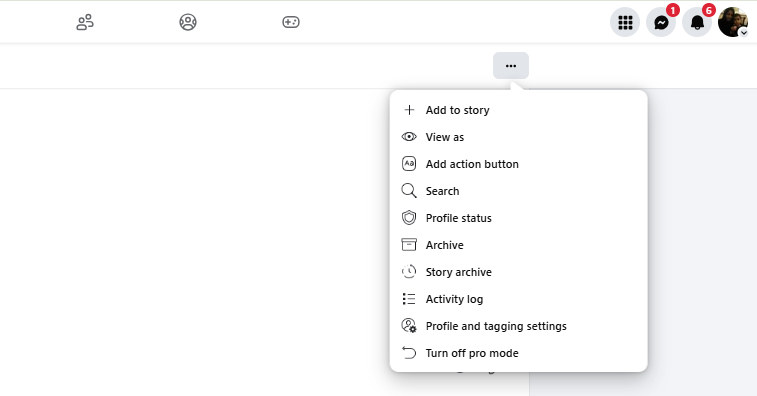
Open the three-dot menu on your Facebook profile, then select Turn Off Professional Mode.
Step 5- Confirm your choice

Tap “Continue” and then “Turn Off.”
Before confirming, take a moment to review the changes Facebook lists. Your posts, friends, messages, followers, and profile information will remain, but you will lose access to Professional Mode tools such as insights and discovery opportunities.
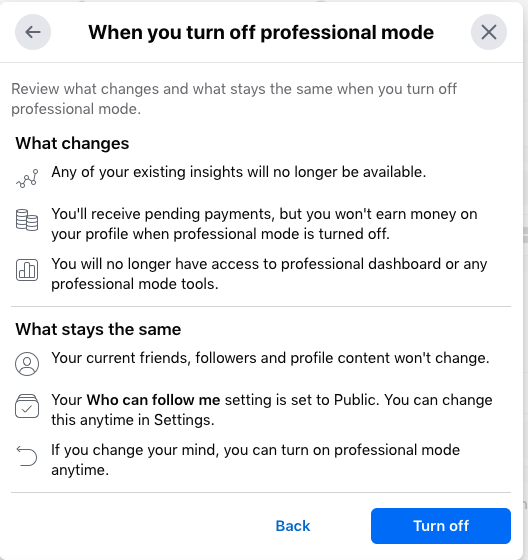
Review Facebook’s confirmation screen before you turn Professional Mode off.
Step 6- Wait for the update
Your profile will switch back to a personal account within a few seconds.
No data is deleted.
How to turn professional mode off on iPhone and Android
Turning off the Facebook Pro Mode on iOS and Android devices has the same process as turning it off on a PC or a laptop.
Step 1– Open the Facebook app and log in.
Step 2– Go to your profile page.
Step 3– Tap the three dots (•••) next to “Edit Profile” under your profile picture.
Step 4– Scroll through the menu and tap “Turn off Professional Mode.”
When we tested the process in the Facebook app, the option appeared in the profile menu, not in general Facebook Settings.
Step 5– Facebook will show a confirmation screen explaining what changes.
Step 6– Tap “Continue”, then tap “Turn Off.”
Facebook shows a confirmation screen before applying the change. Read it carefully, especially if you have followers who are not your friends. Wait a few seconds for the switch to apply, and done!
If You Don’t See Professional Mode
If you do not see the Professional Mode option on your profile, first update the Facebook app or refresh Facebook in your browser. If it still does not appear, your region, profile type, or eligibility may limit access to Professional Mode. In that case, check Meta’s official help center for the latest availability details.
How to Confirm Facebook Professional Mode Is Disabled
To make sure Professional Mode is fully turned off, you need to check whether creator tools and visibility features have been removed from your profile. This matters because it confirms your account is back to a standard personal setup and prevents confusion about lingering business features.
Meta explains that Professional Mode works by adding a creator layer on top of your profile, including Insights, the Professional Dashboard, and follower tools.
When it is off, these systems stop generating data and disappear from your profile view.
Check quickly by:
- Opening your profile and looking for the Professional Dashboard
- Confirming Insights tabs are gone
- Checking that only standard profile options remain
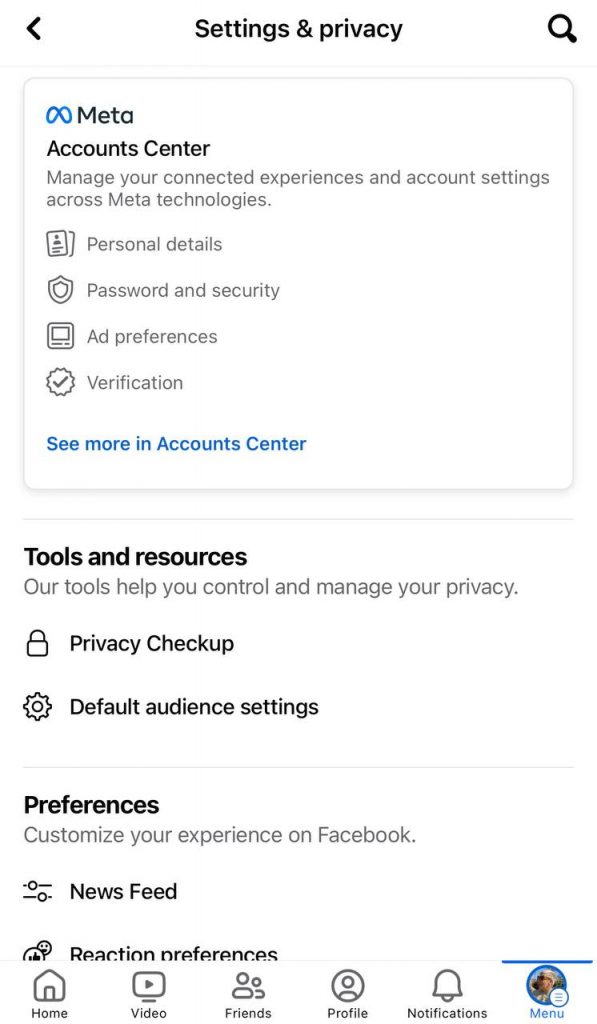
For example, tap your profile menu; if you no longer see “Insights,” the switch worked.
What Happens After Turning Off Professional Mode
Once you turn this feature off, your profile stays intact, but creator-specific tools disappear.
The most important change to check is your follower list. Facebook changes “Who can follow me” to Friends, so followers who are not your friends are removed.
Here’s what changes:
- Insights and audience analytics are removed
- Pending payouts or bonuses are still paid, but future bonuses and payouts are paused
- The Professional Dashboard disappears
- Discovery and creator opportunities end
What stays the same:
- Your posts, friends, followers, messages, and profile content remain.
- Your “Who can follow me” setting remains Public unless you change it.
- Your account remains active.
- You can turn Professional Mode back on at any time.
Quick tip: after switching, check Settings > Followers to review your public visibility. Many users forget this step.
Can You Turn Professional Mode Back On Later?
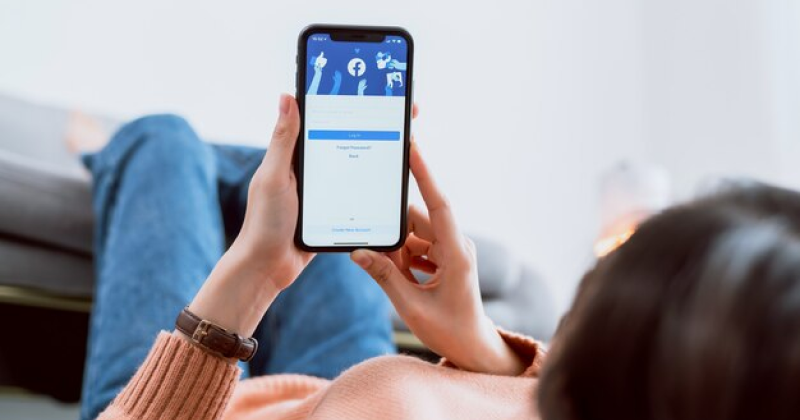
Yes. Facebook treats it as a reversible profile feature, not a permanent account change.
That means your profile, followers, and content stay intact even after switching modes. Changed your mind later? No problem.
Once Professional Mode is re-enabled, tools like the Professional Dashboard, audience insights, and monetization features become available again.
According to Meta, the feature works by adding creator tools to your personal profile instead of creating a separate account or page.
Check Your Privacy Settings After Turning Off Professional Mode
After you turn off Professional Mode on Facebook, it is smart to review your privacy settings. Why? Because your profile’s follower visibility may remain public even after switching back to a personal account.
Want a more private Facebook experience? You can change it in minutes. Some users keep one public creator profile and one private profile instead of running 2 Facebook accounts in risky ways.
Open Facebook Settings, then check your follower preferences, post audience, and profile visibility.
According to Meta, Professional Mode automatically enables public followers, which does not always reset afterward.
Reviewing these settings helps you avoid unwanted profile visibility and gives you better control over your Facebook account privacy.
Final Thoughts
Professional Mode works well for creators, but it is not ideal for everyone. If you mainly use Facebook to stay connected with friends and family, a standard personal profile usually feels simpler and easier to manage.
I’ve seen many users assume that turning it off would delete followers or posts. It does not.
Meta simply removes creator-focused tools like insights and the Professional Dashboard while keeping your account intact.
If your goal was to return to a more private and less business-focused Facebook experience, you now have the exact steps. Open your profile, tap the three-dot menu, and review your follower visibility settings one last time.
FAQs
Which is better, the Facebook page or the professional mode?
Professional Mode is better for creators and personal brands who want insights and follower tools on their profile. A Facebook Page works better for businesses that run ads or manage teams.
Will turning off Professional Mode delete my followers?
No. Turning off Professional Mode does not delete your followers. They can still follow your public posts unless you change your follower or privacy settings.
Why can’t I see the ‘Turn Off Professional Mode’ option?
If you do not see the ‘Turn Off Professional Mode’ option, first update the Facebook app or refresh Facebook in your browser. If it still does not appear, your profile or region may not yet support Professional Mode. Check Facebook’s help center for the latest availability.
Does Professional Mode change who sees my posts?
Not directly. Your audience settings still control post visibility. However, Professional Mode allows public followers, which can make your public posts easier to discover.
Can I still use Facebook normally with Professional Mode enabled?
Yes. You can still message friends, join groups, and use Facebook normally. Professional Mode only adds creator tools to your profile.
Does Professional Mode change Facebook Messenger features?
No. Messenger works the same way with or without Professional Mode. Your chats, calls, and group messages stay unchanged.
Does Professional Mode make my account less secure?
No. But public profiles may attract more spam or fake followers. Turning on two-factor authentication can help protect your account.
Can I turn on professional mode again in the future if I change my mind?
Yes. You can turn Professional Mode back on at any time in your profile settings. Your posts, followers, and account data stay intact.

Emi Daniel
Buy an Established Instagram Account
Skip starting from zero. Browse Instagram/TikTok accounts with audiences across many niches.
See Available AccountsRelated articles
-
Best Influencer Marketing Software in 2026: Top Platforms to Grow Your Brand
Influencer marketing used to feel optional, something you tried after you’d “done” everything else. Now it’s often the first place customers hear about a brand. The problem…
18 min readEmi Daniel
-
The Ultimate Digital and Social Media Marketing Playbook: From Basic to Advanced Tactics
Are you tired of trying different methods and realizing your brand doesn’t get the attention it deserves? If so, you need to come up with the right…
23 min read -
Social Media Competitor Analysis: Tools, Benchmarks, and Strategy Guide
Are you getting fewer likes lately? You’re not alone. On Instagram, the average engagement dropped to about 0.45% in 2025, down 24% from last year. Still, the…
26 min read