


Instagram has become an integral part of our lives, connecting us with friends, family, and even our favorite celebrities. But what happens when those valuable conversations mysteriously disappear?
Instagram DM, short for Direct Message, is an in-app messaging feature that allows you to privately share texts, photos, and posts with other people.
The DM feature offers a convenient and reliable way to have private conversations, share content, and connect with friends, family, followers, and businesses within the platform.
Buy an Established Instagram Account
Skip starting from zero. Browse Instagram/TikTok accounts with audiences across many niches.
See Available AccountsHowever, certain DMs may inexplicably disappear, which can be totally frustrating. Losing messages on Instagram DM can be a nightmare for some users! But don’t worry, it is most likely just a glitch in the app. Your messages are probably still there.
There are a few simple tricks you can try to get your missing messages back and get DM working smoothly again.
First, try refreshing the app. Just pull down to reload and see if that makes your messages reappear. If that doesn’t work, force quit the app and restart it. That often clears up minor glitches.
Still no luck? You may need to reset the app to factory settings. Go to your phone settings, find Instagram in the apps list, and choose reset. This will log you out and clear cached data that could be causing issues.
Resetting the app usually solves disappearing message problems. But be aware it signs you out, so you will have to log back in. Also, resetting deletes conversations, so only do it if you have tried the other options.
With a few simple refreshes, restarts, or resets, you can get your messages back and have Instagram DM working normally again.
What Causes the Instagram DM Glitch?
Imagine that you are happily messaging away one minute, and the next your entire chat history has vanished. It is really annoying for all users.
The good news is that this is usually just a temporary issue. The bad news is you might lose some of your messages in the process. In this section, we will discuss what causes this glitch and how to get your chats back.
Server Overload
Sometimes it is just because Instagram’s servers are overloaded, especially when they are doing updates. If your messages disappear, give it an hour or so for their servers to catch up, then close and reopen the Instagram app. That should make your messages reappear.
Software Update Issues
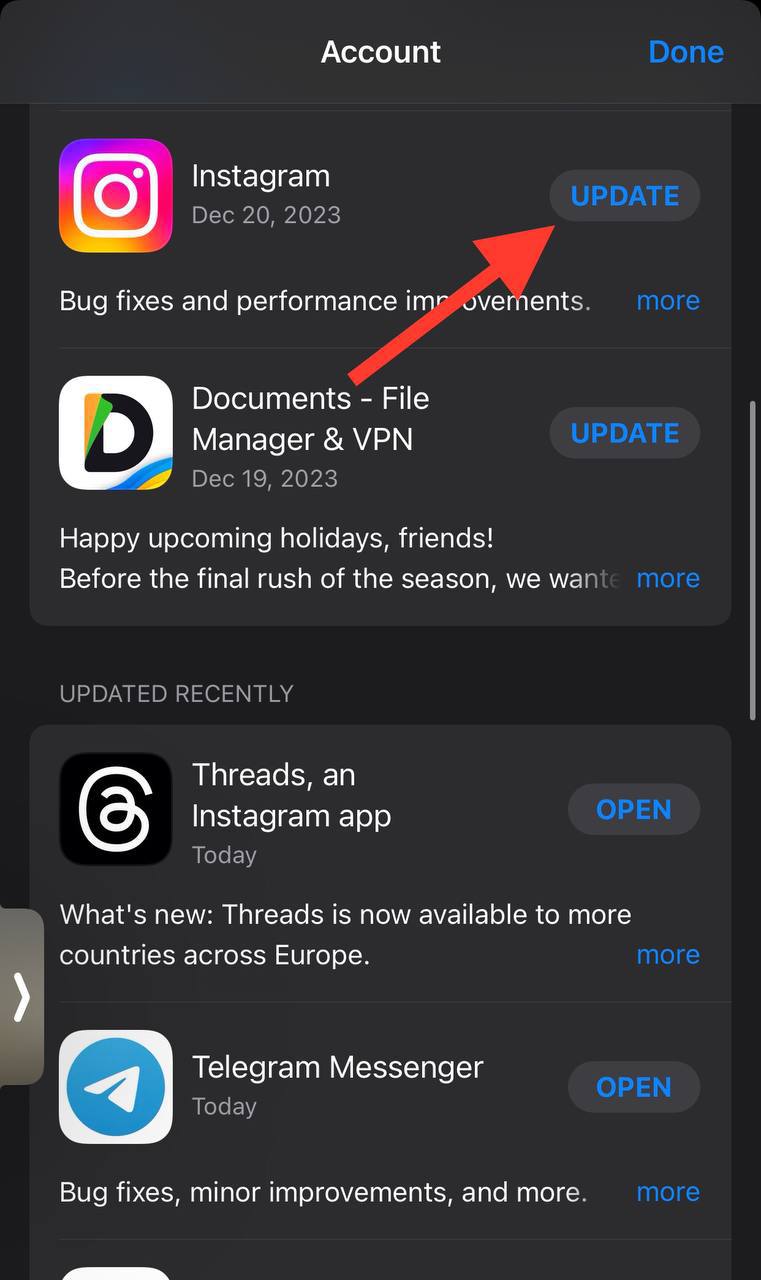
Sometimes it happens when there is a new app update. The update can make messaging glitch out temporarily. Make sure you have updated to the latest Instagram version. Then restart your phone before checking your messages again. That should do the trick.
Cache Buildup
An overloaded app cache can also be the reason behind the Instagram DM glitch. Go to your phone’s app settings and clear the Instagram cache and data. Then restart the Instagram app and hope that does the trick to fix your messages. If clearing the cache doesn’t work, you may need to uninstall and reinstall Instagram to fully reset the cache.
It takes patience and some troubleshooting techniques, but you can outsmart this pesky DM glitch and get your messaging working properly again. And if nothing seems to resolve it, don’t worry. There’s a chance your messages could come back on their own once Instagram fixes whatever is causing the issue on their end.
Waiting around with no messages is frustrating. But staying calm and systematically attempting different solutions will help get you and your loved ones chatting again in no time.
Easy ways to fix Instagram DM Glitch

Here are a couple of simple methods to address Instagram DM glitches:
Refreshing Your App to Fix Minor Errors

Close the Instagram app completely and reopen it. A simple refresh often fixes small errors. If that doesn’t work, try updating the Instagram app to the latest version. Outdated software can sometimes cause messaging malfunctions.
Still not working? It may be an issue with your network connection or device. Switch your WiFi or cellular data off and back on again. If you’re on WiFi, also try switching to your phone’s data or vice versa. As a last resort, you can reboot your phone to refresh the network connection.
Check Your Settings
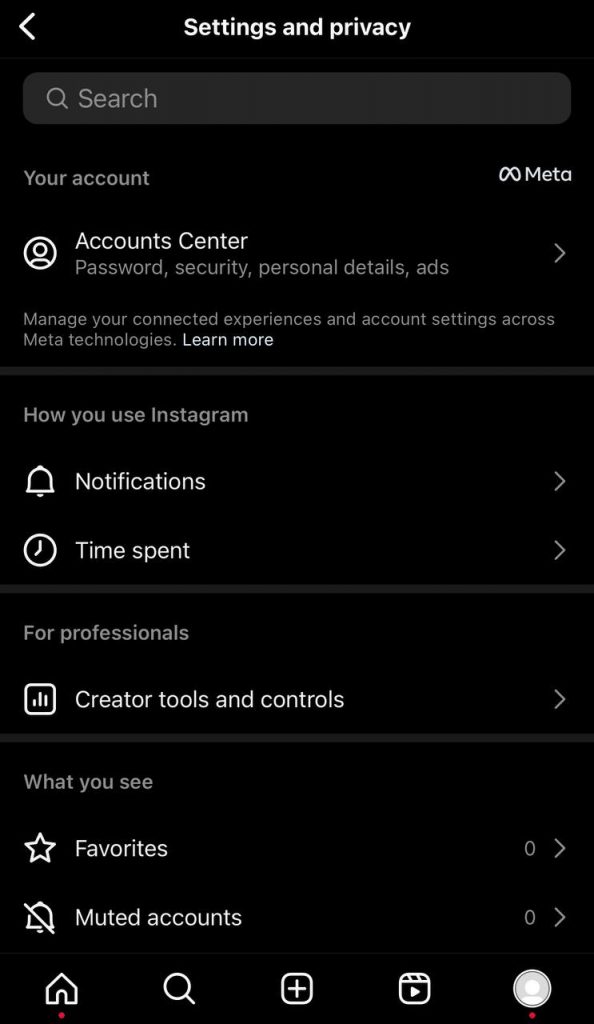
Double check that your messaging settings didn’t get changed accidentally. Go to your profile, tap the three dots at the top right and select ‘Settings’. Select ‘Privacy and Security’ and make sure ‘Message Controls’ is turned on. Switch it off and back on to refresh.
With any luck, one of these troubleshooting tips will have your DMs rolling again. But if your messages are still Missing in Action (MIA) after trying the steps above, the issue could be on Instagram’s end.
Give it some time and the problem is often resolved within a few hours. And if your messages have disappeared for good, you may need to report the issue to Instagram directly. But let’s hope a quick fix does the trick and gets you chatting again.
Clearing Cache and Data to Resolve Persistent Issues
Clearing your Instagram cache and data can often resolve persistent issues with messaging or notifications on the app.
The cache stores temporary data to help the app run faster, but it can sometimes become corrupted or outdated, causing problems. Deleting the cache forces Instagram to rebuild it, which typically fixes these types of bugs.
To clear your Instagram cache and data:
- Open the Instagram app on your phone and tap the profile icon to go to your settings.
- Scroll down to the “Options” section and tap “Clear Cache” or “Clear Data”. This will delete any cached data Instagram has stored.
- Close Instagram completely by swiping it away or force closing the app.
- Restart your phone to refresh the operating system. This step is optional but can help ensure Instagram starts with a clean slate.
- Reopen Instagram and sign in to your account again. Your messages and notifications should start functioning properly once more. If not, there may be a larger issue with the app or your account that requires contacting Instagram support.
Clearing the cache and data is a quick first step to try when Instagram is acting up. Nine times out of ten, it will get your messages and notifications rolling again so you can get back to connecting with friends and sharing your favorite moments.
Reinstalling Instagram as a Last Resort
If uninstalling and reinstalling the Instagram app is your only option left to fix the DM glitch after trying the previous solutions, here are the steps to take:
Uninstall Instagram
First, uninstall the Instagram app from your phone.
- On iPhone, go to the Home screen and tap and hold the Instagram app icon until it starts wiggling. Tap the “X” in the corner of the icon to delete it. Confirm you want to delete the app.

- On Android, go to Settings → Apps & notifications → See all ## apps. Tap Instagram and select “Uninstall.” Confirm you want to uninstall.
Reinstall Instagram
Next, reinstall a fresh version of the Instagram app on your phone:
- On iPhone, open the App Store and search for “Instagram.” Tap “Get” or the Instagram icon to reinstall the app.
- On Android, open the Google Play Store and search for “Instagram.” Tap “Install” to reinstall the app.
Once the install is done, open Instagram and log in with your username and password as usual. Your messages and account details should all still be there. Reinstalling the app often fixes software issues and glitches, so this may resolve your DM problems.
If the DM glitch continues even after a reinstall, you may need to try other solutions like updating your phone software or trying third-party Instagram message recovery tools.
As a last line of defense, you can report the ongoing issue to Instagram support. They may be able to manually restore your messages or fix the bug causing the problem in a future Instagram update.
Contacting Instagram Support for Account-Specific Problems
If troubleshooting the common fixes doesn’t get your DMs back, it is time to contact the Instagram Support team. While they can’t always restore deleted messages, they may be able to diagnose and fix account-specific issues.
Submit a Support Request
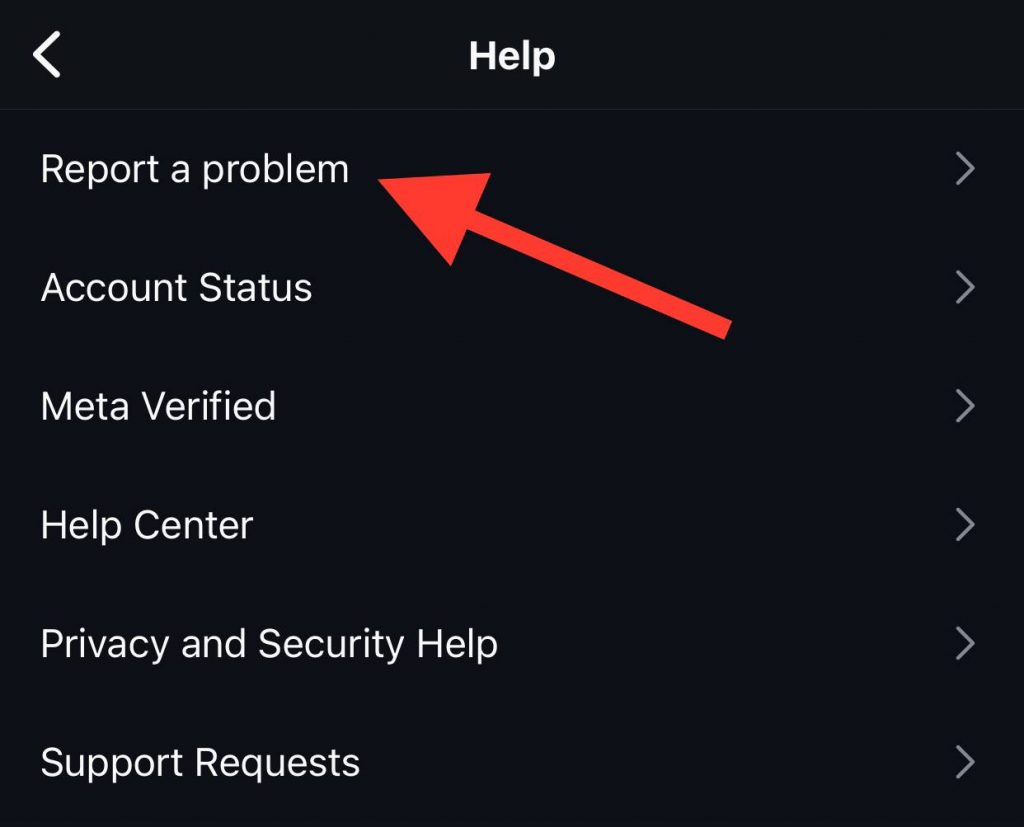
Head to Instagram’s Help Center and select ‘Report a Problem’. Choose ‘Something Isn’t Working’ to report an account or technical issue. Be prepared to provide details like:
- Your username
- When the issue began
- Screenshots of any error messages
- Steps you’ve already tried to fix the problem
Explain your DM issues clearly and concisely. The support team receives many requests daily, so keeping your explanation focused will help get a quick response. If asked, supply further information like:
- Your email address
- Phone number attached to your account
- Location where you access Instagram
Any details that can aid in identifying and resolving the underlying cause of your DM troubles will assist the support crew. Be open to trying any recommended fixes or troubleshooting steps suggested.
The support team aims to respond within 1 business day. However, issues can sometimes take 3-5 business days to fully diagnose and resolve. Check your messages and be available to provide any follow-up details needed. With patience and teamwork, there is a good chance your DM difficulties get sorted out and you will be back to smooth messaging immediately.
FAQ
Here are some of the Frequently asked questions about Instagram DM glitches:
Q1: Can the glitch be specific to certain devices or operating systems?
A1: Yes, the Instagram DM glitch can affect users across different devices and operating systems. However, the provided solutions are applicable to both iOS and Android platforms.
Q2: Are there any temporary workarounds for the glitch?
A2: While the provided fixes are intended to address the root cause of the glitch, some users have reported temporary relief by logging out and logging back into their Instagram accounts.
Q3: Does reinstalling the app fix the DM glitch?
A3: Reinstalling the Instagram app can sometimes resolve the glitch, but it is recommended to try other troubleshooting steps first. Reinstalling should be considered as a last resort.
Q4: Can third-party apps or software cause Instagram glitches?
A4: Yes, third-party apps or software can potentially cause glitches or issues with Instagram due to compatibility conflicts or unauthorized access to Instagram’s API.
Q5: Can a weak internet connection cause an Instagram DM glitch?
A5: Yes, a weak or unstable internet connection can contribute to Instagram DM glitches. It is recommended to ensure a stable internet connection or switch to a different network to resolve connectivity-related issues.
Q6: Why are my Instagram DMs not showing in chronological order?
A6: In some cases, Instagram DMs may not appear in chronological order due to app updates or algorithm changes. The platform may prioritize certain conversations based on relevance or activity. Currently, there is no direct user control over the sorting order of DMs.
Q7: Are there any known bugs or issues with specific Instagram DM features?
A7: Instagram occasionally encounters bugs or issues with specific DM features. These can include problems with message requests, disappearing messages, or multimedia sharing. Keeping the app updated and following Instagram’s official announcements can help address such issues.
Q8: Can using an outdated device or operating system cause Instagram DM glitches?
A8: Using an outdated device or operating system may contribute to compatibility issues with the Instagram app, potentially leading to glitches or malfunctions. It is advisable to keep devices and operating systems up to date to ensure optimal app performance.
Q9: What should I do if I encounter a persistent glitch despite trying the suggested solutions?
A9: It is recommended to reach out to Instagram’s support team directly. You can report the issue through the Instagram app or visit the Instagram Help Center on their website to seek further assistance and guidance in resolving the problem.
Q10: How long does it typically take for Instagram to respond to support requests?
A10: Response times from Instagram support may vary, but they strive to address user inquiries as promptly as possible. It is advisable to be patient while waiting for a response.
Final Thoughts
While Instagram works hard to provide a smooth experience, glitches can still happen. Here are a few simple solutions to try before contacting Instagram support.
- Update the Instagram app
An outdated version of the Instagram app could be causing issues with your DMs. Head to your phone’s app store and download the latest update. This quick fix has resolved DM glitches for many users.
- Restart your phone
A simple phone reboot can refresh Instagram’s cache and get your DMs rolling in again. Power down your phone completely, then turn it back on after 30 seconds. Once your phone has restarted, open the Instagram app and your messages should be back to normal.
- Activate Airplane Mode
Switching Airplane Mode on and off has been known to knock Instagram’s servers back into place. Turn on Airplane Mode in your phone’s settings, count to 15, then turn it back off. This reconnects your phone’s network connection and often restores disappeared DMs.
- Clear the Instagram Cache
Clearing your Instagram cache gives the app a fresh start and can uncover hidden DMs. In Instagram’s app settings, tap “Accounts,” then “Clear Cache.” Your messages will be repopulated within a few minutes. If not, you may need to uninstall and reinstall Instagram.
With some patience and troubleshooting, your Instagram DMs don’t have to remain glitched for long. Try the easy solutions above, and connect with Instagram support if needed.
In general, we should admit that social media apps are not perfect, glitches happen, but staying on top of updates and doing a little digital housekeeping from time to time can help prevent problems or fix them fast.

Emi Daniel
Buy an Established Instagram Account
Skip starting from zero. Browse Instagram/TikTok accounts with audiences across many niches.
See Available AccountsRelated articles
-
How to Clear Instagram Cache on iPhone, Android & Desktop
Instagram can quietly build up a lot of temporary files while you scroll through Reels, watch Stories, save posts, and upload your own content. You may not…
12 min readEmi Daniel
-
How to See Who Reposted Your Instagram Post (2026 Guide)
Someone reposted your Instagram post, but you have no idea who it was. You check notifications, search through your profile, and still cannot find a clear answer. …
18 min read -
How to Reset Instagram Algorithm in 2026
Instagram can start showing too much of the same type of content. Your Explore page may no longer match your interests, Reels may feel repetitive, or suggested…
12 min read