


Instagram has more than one billion active users, and most of them are brands and business accounts in different categories. Each of them has a website to display and sell their products.
As a business owner, being able to add your Instagram feed to your website is a great way to share your products with people on your website.
A great way to do this is to use Elementor. With the help of Elementor, you can display the Instagram gallery and its content on your website and take advantage of its benefits, such as increasing sales and website traffic.
Buy an Established Instagram Account
Skip starting from zero. Browse Instagram/TikTok accounts with audiences across many niches.
See Available AccountsIf you have not yet added your Instagram feed to your website through Elementor or you do not know how to do it, this article is for you. So, keep reading!
What is an Elementor Instagram?
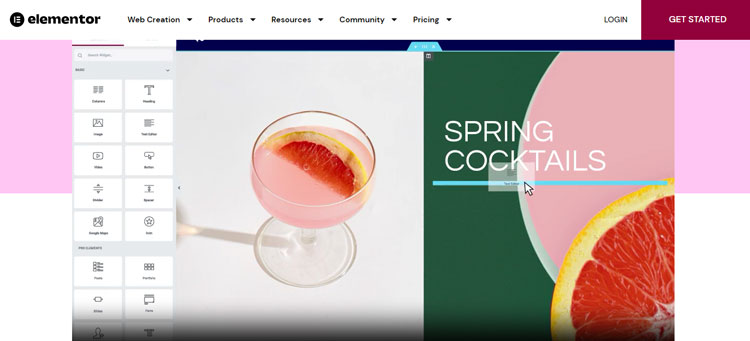
Users can display images and content in their Instagram gallery on their website through Instagram Elementor.
Also, Instagram users can access special features through Elementor to edit and customize their Instagram feed on the website, some of these features include choosing an Instagram feed layout and multiple fonts and colors.
In addition to the mentioned items, there are several options for adjusting the appearance of the gallery, such as the ability to adjust the number of feed columns or the number of photos you want to be shown on the website, which we will examine later.
There are different plugins to add the Instagram gallery to the website through Elementor, some of them only allow you to add your own Instagram posts to the website, and some provide more special features, such as being able to create feeds with hashtags and locations to your website. We will check all these things further.
How to set up Elementor Instagram feed
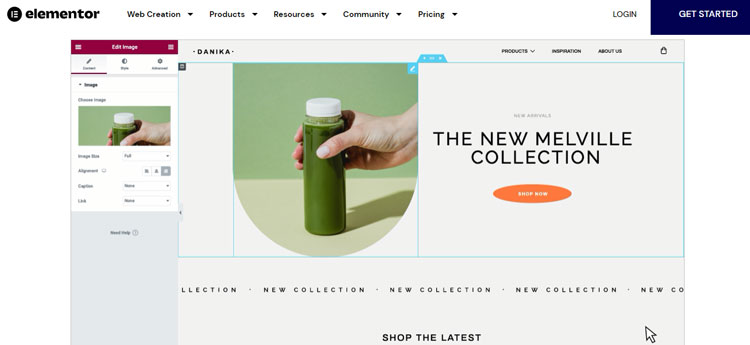
As mentioned in the previous sections, you can add an Instagram feed to your website with the help of Elementor, in the following we will fully explain how to do this in a few simple steps.
Step 1) Install the Stratum extension
To do this go to your WordPress dashboard and simply choose the menu option from the left side of the screen.
Then you need to find the Plugins tab and opt for add new plugin which will lead you to the WordPress plugins directory.
After that you need to check the search plugins, input fields and enter the name of the plugin you are searching for.
Now, you will see the Elementor widgets, and you should download and install Stratum extension, and you will be ready for the next step.
Step 2) Select the content you want to share as your feed
After installing the Stratum extension, specify what content from your Instagram you want to show on your website.
Note that you don’t need to be an account administrator for this, but after selecting and collecting the desired images and content, if needed, you need to sign in to Instagram with your personal Facebook account so that you can do the next steps.
Step 3) Configuring Instagram access
This step is very easy to follow. You just need to go to Stratum settings section and then go to the API tab.
After that, tap on “Connect Instagram Account” option, so you can easily log in to your Instagram account. To log in to your Instagram profile you need to add your username and password.
Now, the allow Instagram access token is ready. Remember to save the changes you made.
You are now able to add the Instagram widget to any page you post on.
Step 4) Elementor Instagram feed customization
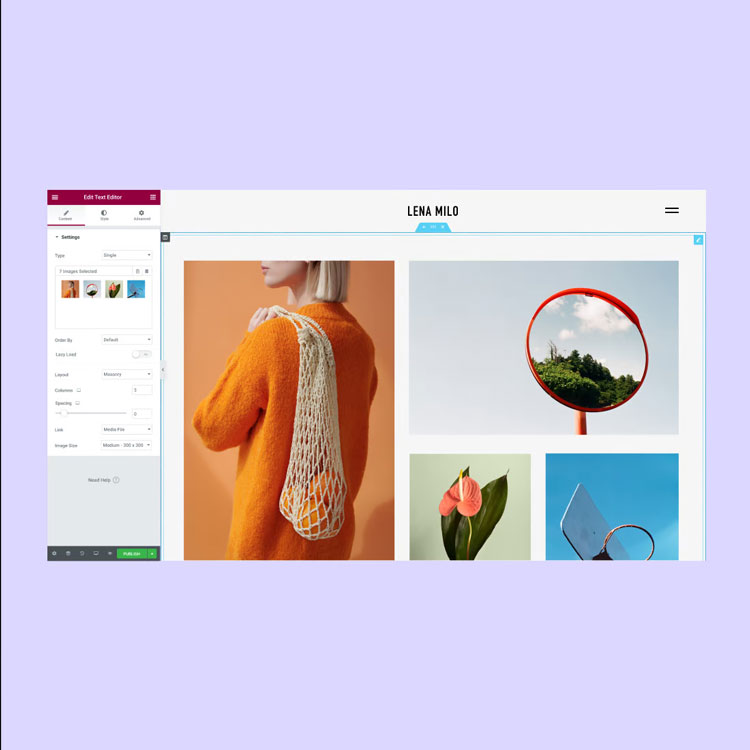
From the settings section of Stratum extension you can determine the number of images you want to display on your Instagram feed gallery which depends on your preference.
Moreover, you can select the number of columns, which can be up to six columns that help you to design the form of the feed on your website.
Also, the “space” settings enable you to add space between images showing on your feed. You can use this option to determine how long each image be apart from others.
You also have an option to set up the background of your Instagram feed, you can set the background color to be presented permanently or not. Because you can change the color whenever you want.
In addition, you have styling options which let you select among 8 animation effects by toggling the animate on scroll switch.
Step 5) Set up Instagram widget feed settings
Finishing the previous section you are now able to add the Instagram widget to any page you share your content on.
Before you add a new page you need to choose a title for it, it can be anything.
After choosing the title, choose “edit with Elementor” option which will lead you to editor up, and you can start editing your feed displaying on your website.
A new tab will appear on the left side of the screen, it shows a selection of widgets available to use.
You can also scroll down to see all the widgets from Stratum. Moreover, you can search for Instagram widget from the search box and it will show up.
You will see the “drag widget area” in the middle of the screen which you can drag the Instagram widget on the left side of the screen and place it in the drag widget area.
Now, you can see your Instagram feed on your WordPress website.
Why you should add Instagram feed to your website?
Adding an Instagram gallery through Elementor has many advantages for your business and brand, which we will examine below.
- Brings more traffic to your website
- Increase your sale and brings more customer
- It causes more engagement
- You will find new followers on your Instagram
- Brings brand awareness and increase your credibility
- It will keep your audience to be engaged with your content longer
- Encourage your customers to know more about your products or services
- Helps you to show a dynamic content to your audience
The mentioned items are some of the most important reasons and advantages of using Elementor to add Instagram gallery to your website.
Top 5 Instagram plugins for Elementor
In the following, we will introduce some of the best plugins for adding Instagram feed to the website that you can use.
Instagram feed
One of the best Instagram feed plugins available is this option, which is active on more than 800,000 sites.
In its free version, you have access to options such as choosing the number of photos and columns. You can also activate the follow option in your Instagram feed widget, which will increase the number of your followers.
If you use the paid and pro version, these features will increase.
Spotlight

The distinctive feature of this Instagram feed plugin is its ease of use. Using this plugin, with a few simple clicks, you can add one or more Instagram accounts to your website and create Elementor Instagram feed.
Spotlight provides users with different features such as different layouts, adding follow and load more options, etc.
Elfsights
With the help of this plugin, you can easily display your Instagram posts on your website and use its options and filters to create an attractive feed.
In addition, you can use the options of this plugin such as editable title, pop-up, color scheme, shoppable Instagram feed, flexible content grid, etc.
In short, this plugin offers you many features and is easy to use, and with its help you can add your Instagram feed to your website and customize it.
Instagram Journal
The next plugin is called Instagram Journal, which offers unique features.
One of these features is the available options to show the Instagram feeds, which includes Classic grid, Large carousel, Infinity slider, Section carousel and Collage carousel.
Moreover, using this plugging you can customize your feed and control the content you are sharing.
You can use this plugin to display multiple feeds from different Instagram accounts, different locations, multiple Instagram users, etc.
Flockler
With the help of this plugin, you can share your Instagram images on unlimited feed pages and take advantage of its benefits.
One of the best features of Flockler is that whenever you share a new post on Instagram, your Instagram feed is automatically updated on the website.
This feature helps marketers and business owners to be sure that fresh content from their Instagram is being shared on their website without any worries.
Final thoughts
If you are a business owner and have an Instagram business account and want to show your products to more people and increase your brand reputation, adding your Instagram feed to your website is the best option for you.
In this article, we talked about Elementor Instagram feed widget in detail and explained how to add the Instagram feed to Elementor to display Instagram feed on your WordPress site.
We also introduced the advantages of adding Elementor Instagram feed and the best Elementor plugins you can use, from which you can choose the best option according to your needs.
We hope this article help you easily add your Instagram feed to your website and enjoy the benefits.

Emi Daniel
Buy an Established Instagram Account
Skip starting from zero. Browse Instagram/TikTok accounts with audiences across many niches.
See Available AccountsRelated articles
-

How to Go Viral on Instagram: A Practical Guide
A viral Instagram post can begin with something very simple, like a clear idea, a familiar feeling, or a moment that makes someone think, ‘I need to…
25 min readEmi Daniel
-

Instagram Hashtags That Actually Work in 2025: Strategy, Research & Reels
Instagram posts with hashtags see 70% higher engagement rates and 12.6% more reach than those without. Yet most Instagram users struggle with hashtag strategy in its complex…
25 min read -

Top 30 Black Instagram Models to Follow in 2025
Black models are among the most followed in the industry on Instagram. A great example is “Naomi Campbell,” who has over 15 million followers. The main reason…
22 min read